How to Record Money Received from a Customer in Vinimay (Receipt Entry)
A customer has paid their bill, in cash or into your bank account, and now you want your books to show it. If you do not record the money, the customer will keep showing as someone who still owes you, and your ledger will not match reality.
In Vinimay, money received is recorded as a Receipt. It is a short form in the same popup you use for sales and purchases, and it asks only for the company, the date, who paid, how they paid and the amount.
This guide shows how to record a receipt step by step with clear images, explains each field, and tells you when to use Receipt instead of Sales.
Step 1: Open Transactions and click New Transaction
Click Transactions in the left menu, then click New Transaction at the top right (marker 1). The Receipts tab (marker 2) lists all the receipts you have already recorded.
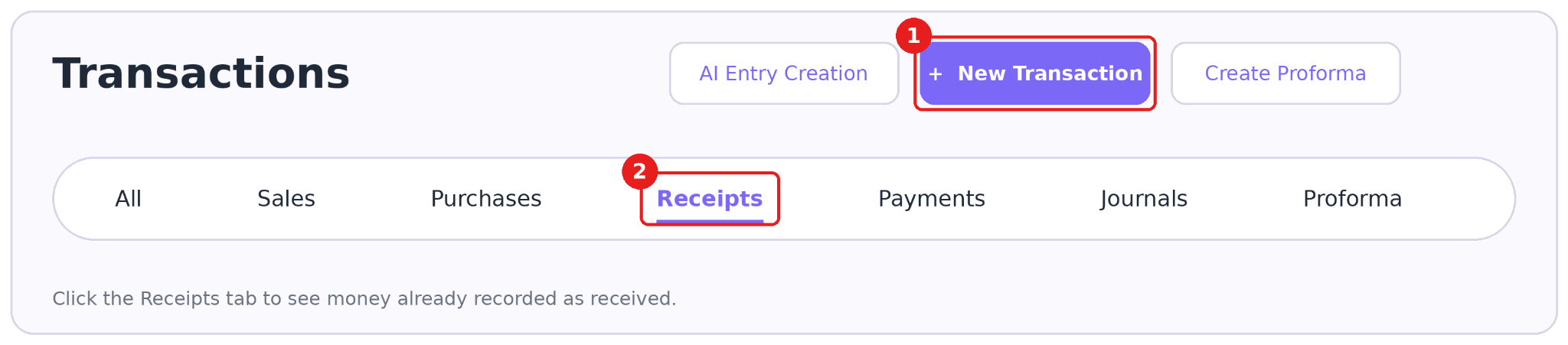
Step 1: New Transaction and the Receipts tab
Step 2: Choose the Receipt tab and fill in the top fields
In the Create Transaction popup, click the Receipt tab (marker 3). Then fill in:
Company (marker 4): the company that received the money.
Transaction Date (marker 5): the date you received it.
Received From (marker 6): the person or business that paid you. Type the name to search or create.
Payment Method (marker 7): choose how the money was paid.
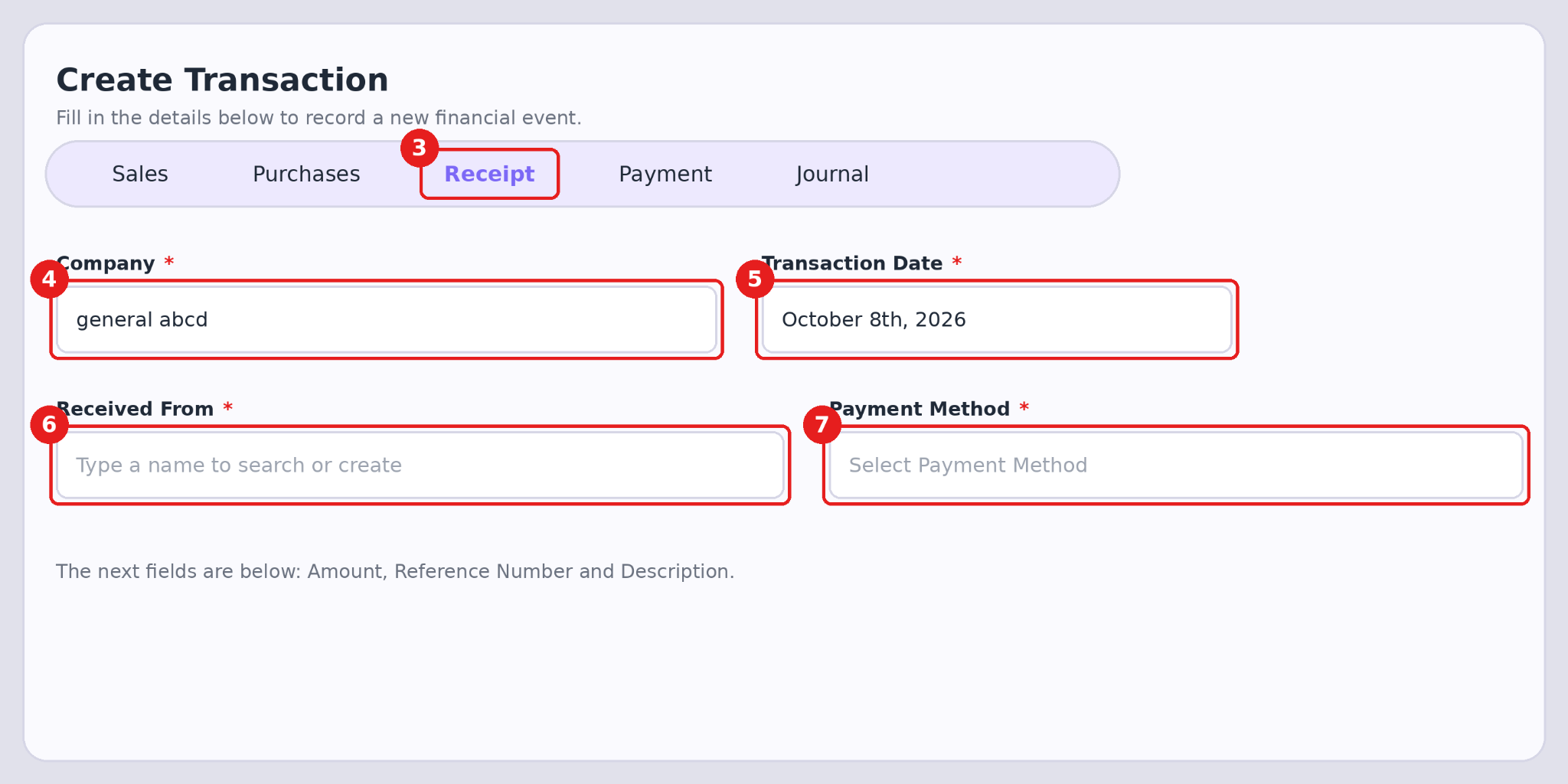
Step 2: Receipt form, top section
Step 3: Enter the amount and details
Enter the Amount (marker 8). Use Reference Number (marker 9) for a receipt number or the invoice number the payment is for. Add a short note in Description (marker 10), up to 50 words. Then click Create Transaction (marker 11).
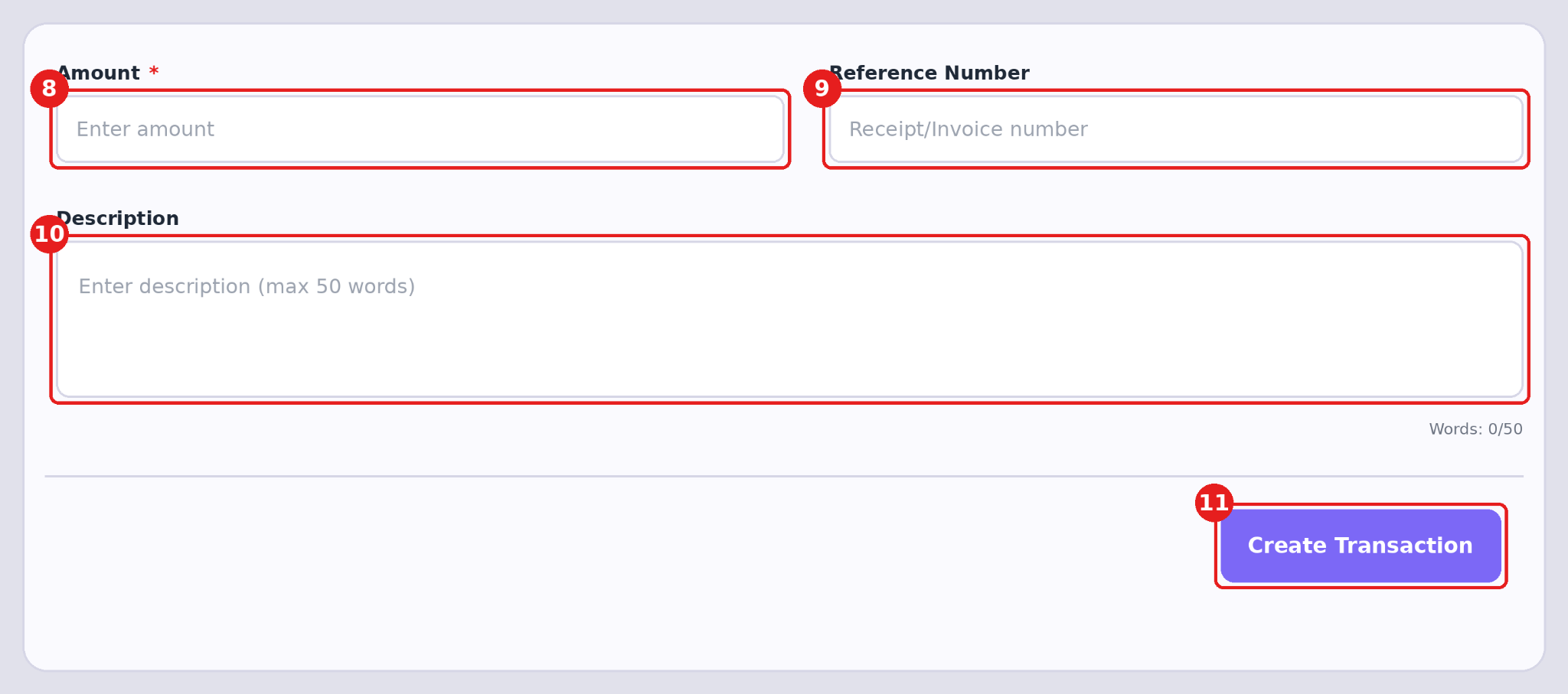
Step 3: Amount, reference and description
Field guide
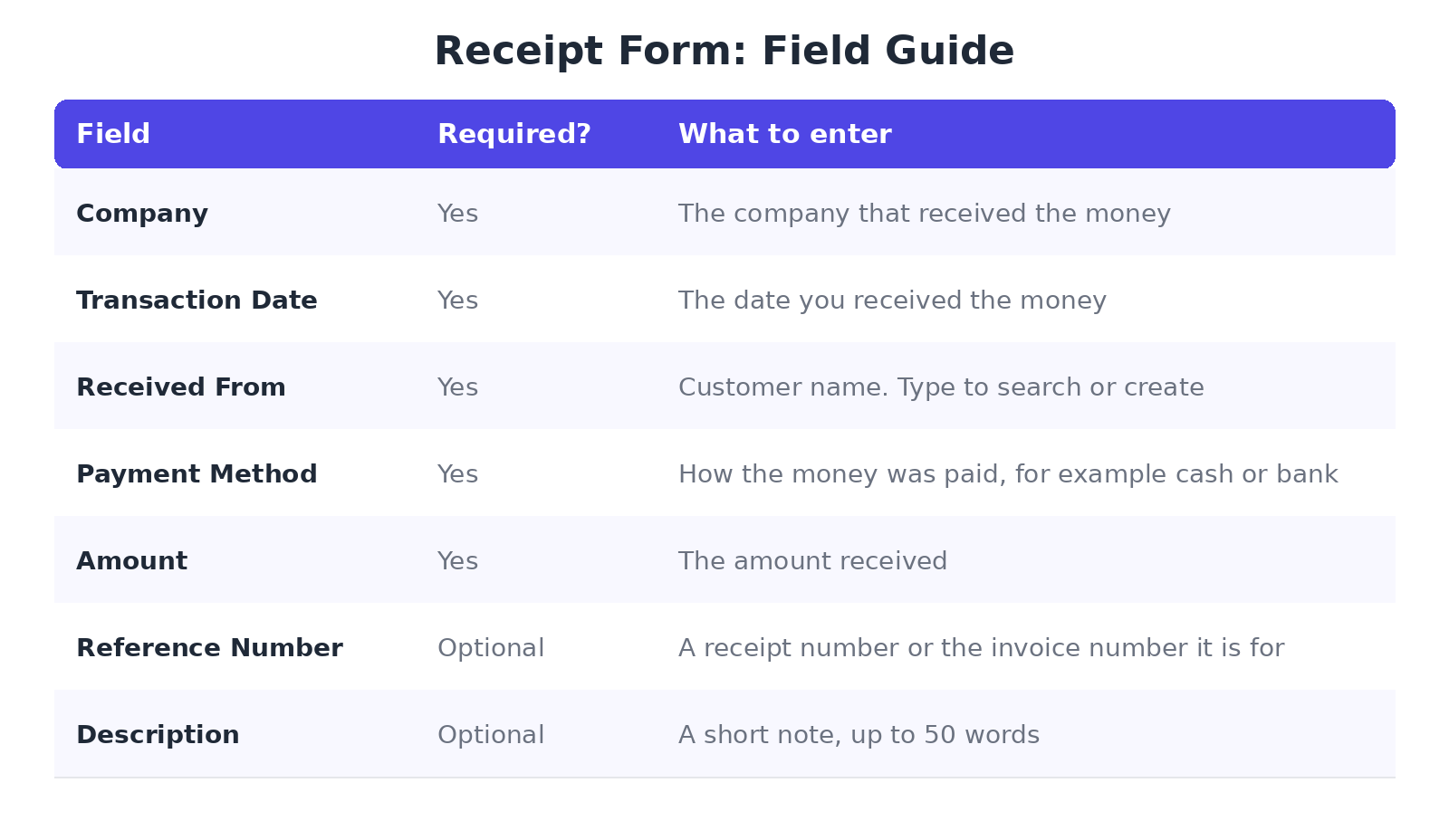 Receipt form field guide
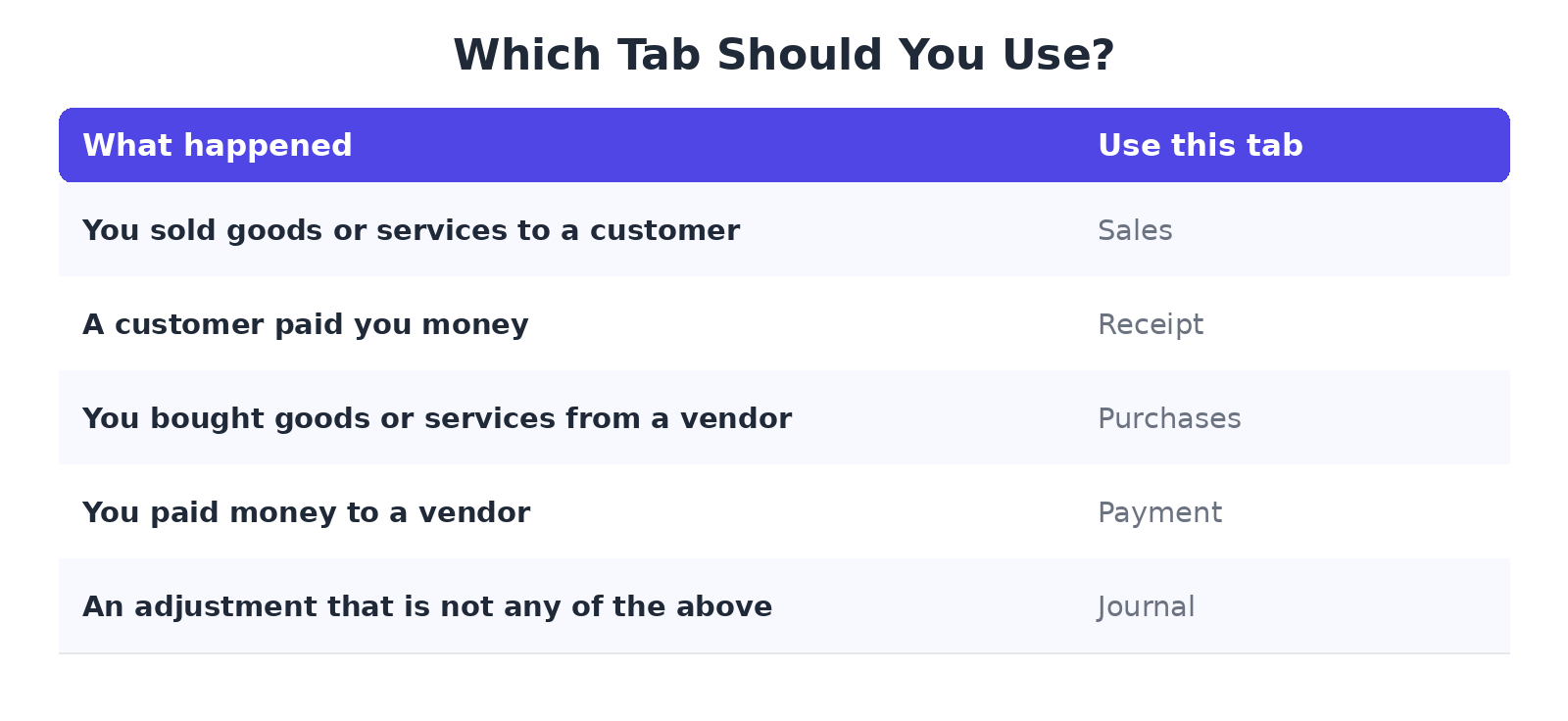
Receipt or Sales: which one should you use?
A sale and a receipt are two different events. The sale is the bill, and the receipt is the payment against it. Use this table to pick the right tab.
Step 4: Check the receipt and the customer's balance
Open the Receipts tab to see your new entry. To check the customer's balance, go to Ledger > Receivables and click View Ledger for that customer.
Tips
Record the receipt on the day you get the money.
Put the invoice number in Reference Number, so you can match it later.
Check the Amount twice before you click Create Transaction.
Choose the correct Payment Method, for example cash or bank.
Conclusion
To record money received from a customer in Vinimay, open New Transaction, choose the Receipt tab, fill in the company, date, who paid, payment method and amount, and save it.
Use the reference number for the invoice or receipt number and a short description if you want to leave a note. Keep sales for bills you raise and receipts for the money you get.
Once saved, the receipt appears in the Receipts tab and in the customer's ledger. Create a free Vinimay account and record your first receipt today.