When you open the Payables section in Vinimay, you may see terms like Net Balance, Total Credit, Total Debit, and Total Discount. These numbers help you understand how much business you have done with a vendor, how much you have already paid, and how much is still pending.
Here is a simple step-by-step guide.
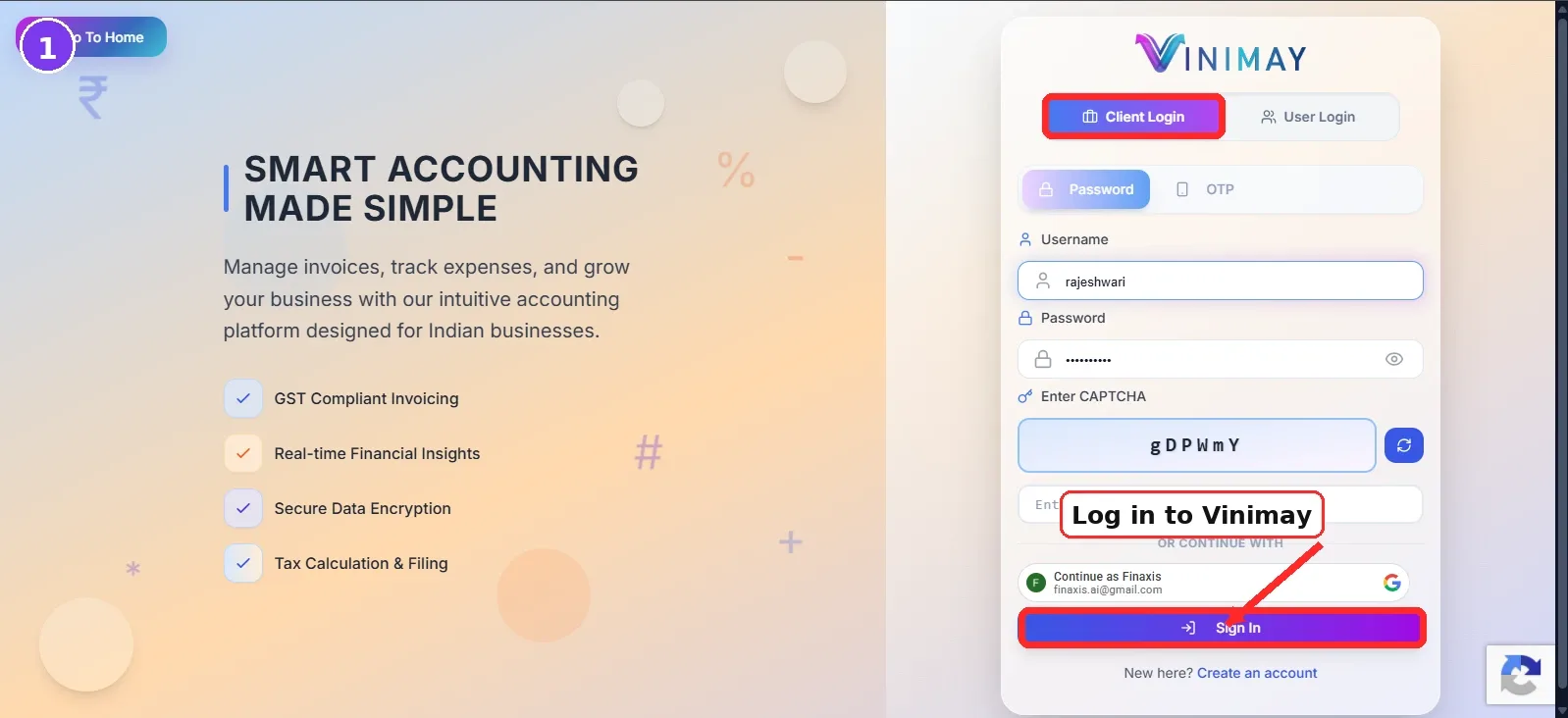
Step 1: Log in to Vinimay.
Open Vinimay and log in using your registered Client Login or User Login credentials.
After logging in, you will reach the main dashboard, where you can access transactions, reports, ledgers, and other accounting features.
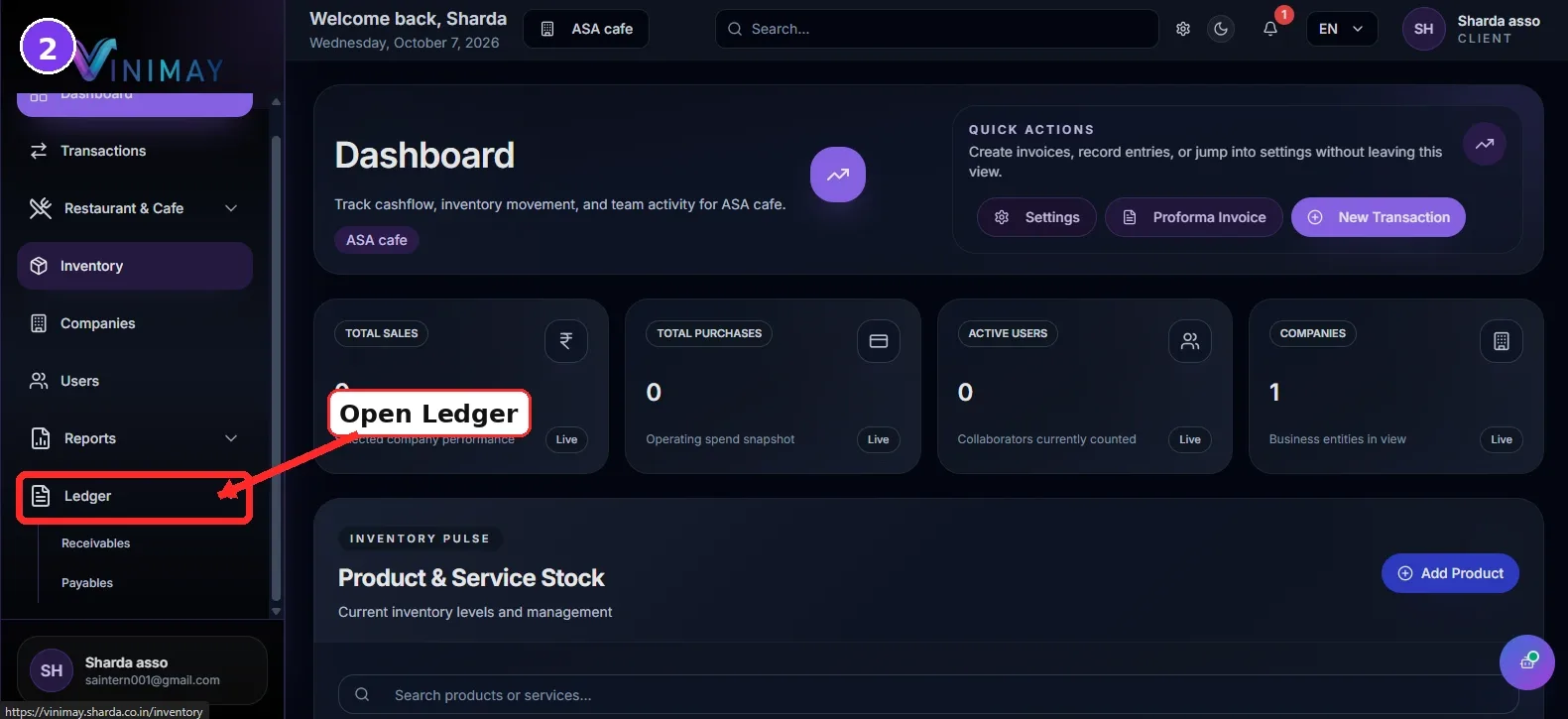
Step 2: Open the Ledger Section
From the left-side menu, click on Ledger.
This section contains both receivables and payables.
For supplier-related balances, you need to open the Payables section.
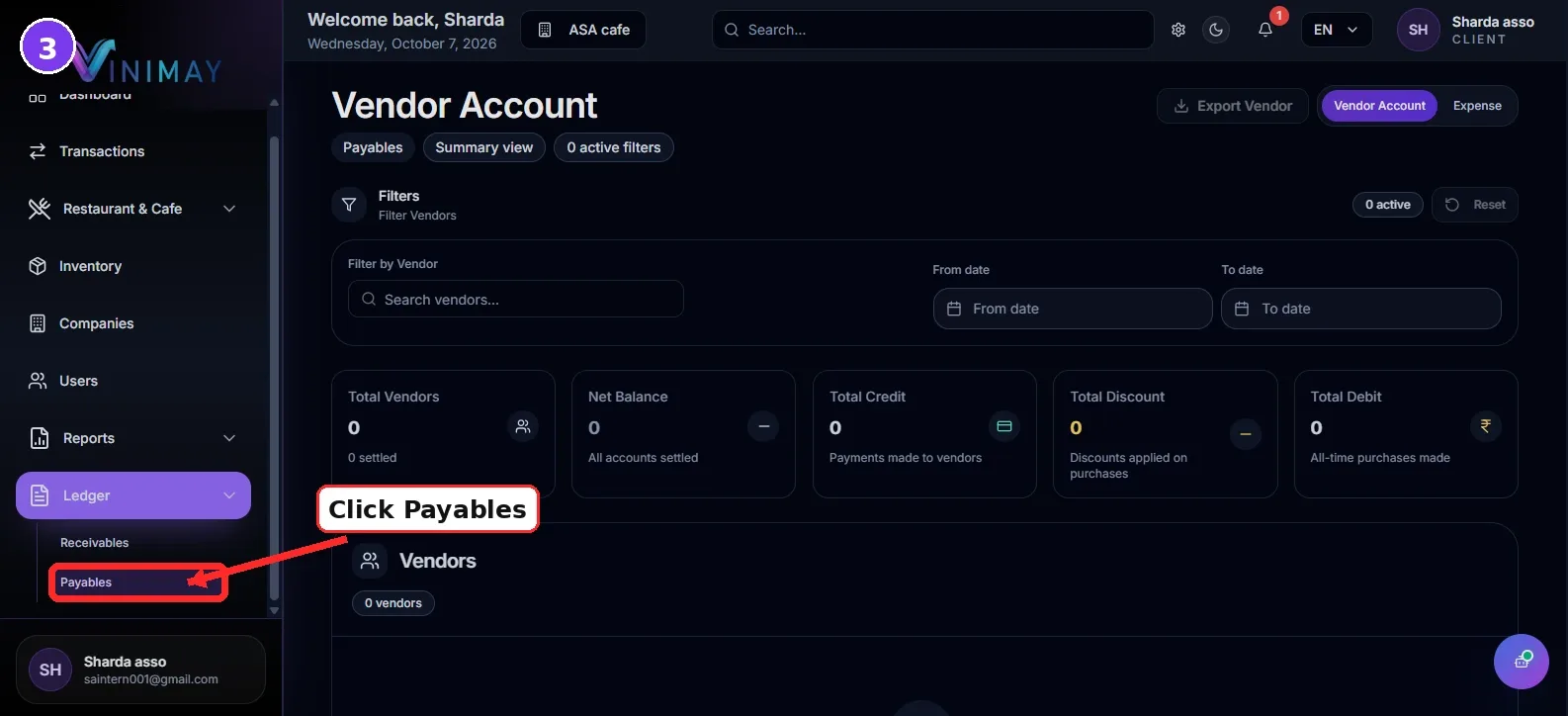
Step 3: Click on Payables.
Under Ledger, click on Payables.
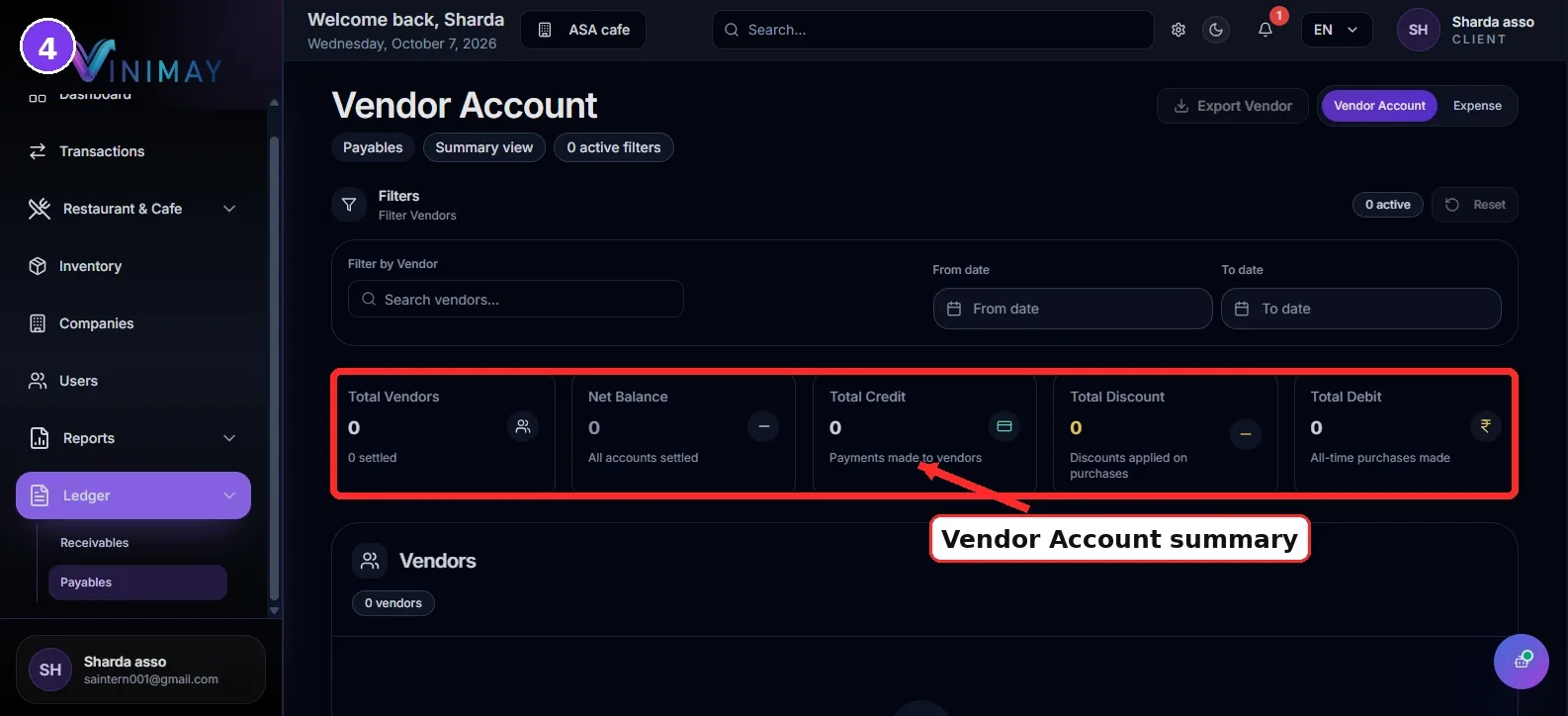
The Vendor Account page will open.
Here you can see summary figures such as
Net Balance
Total Credit
Total Debit
Total Discount
These figures help you understand the vendor account quickly.
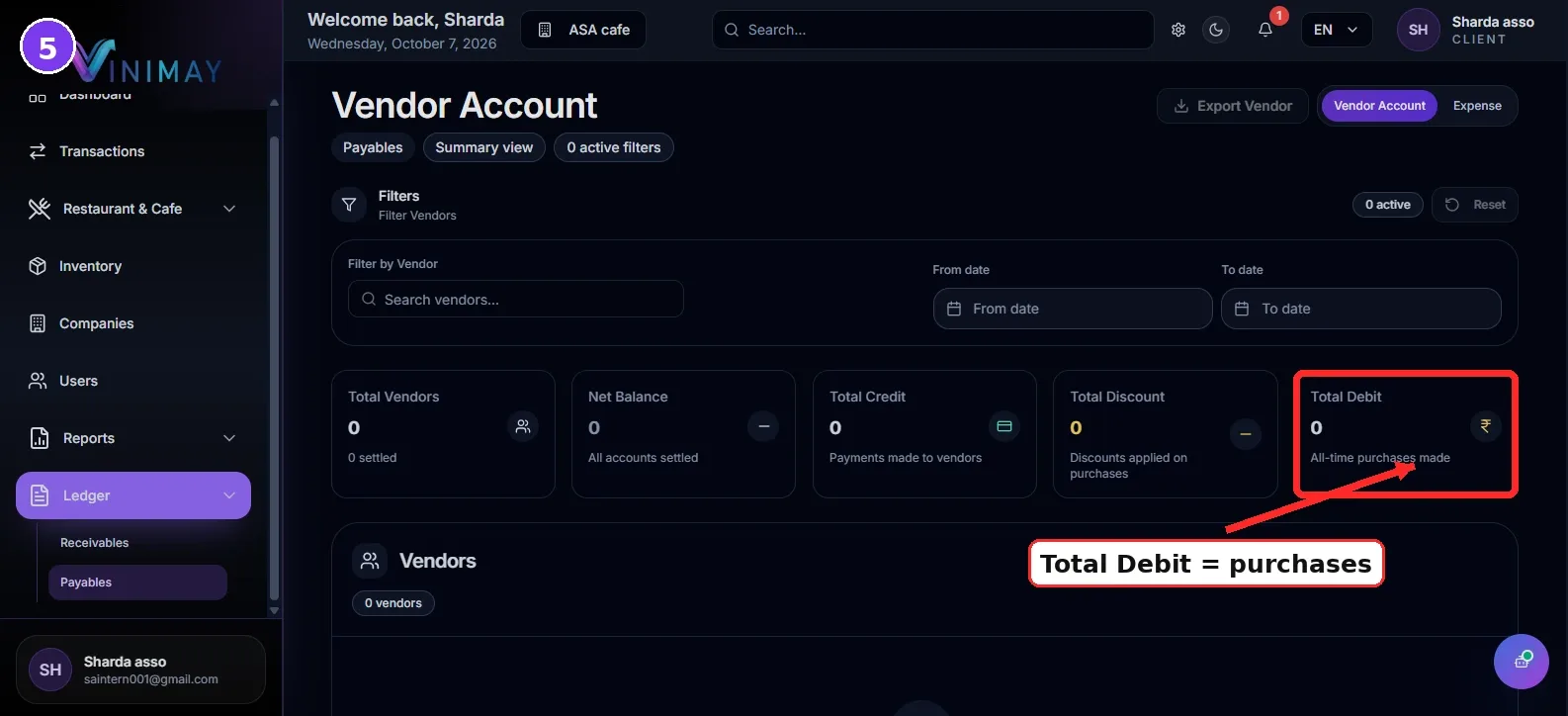
Step 4: Understand Total Debit
Total Debit generally shows the total value of purchases or amounts recorded against the vendor.
For example, if you purchased goods worth ₹80,000 from a supplier, the Total Debit may show ₹80,000.
In simple words:
Total Debit = Total purchases or amount payable created against the vendor.
A higher total debit usually means you have made more purchases from that supplier.
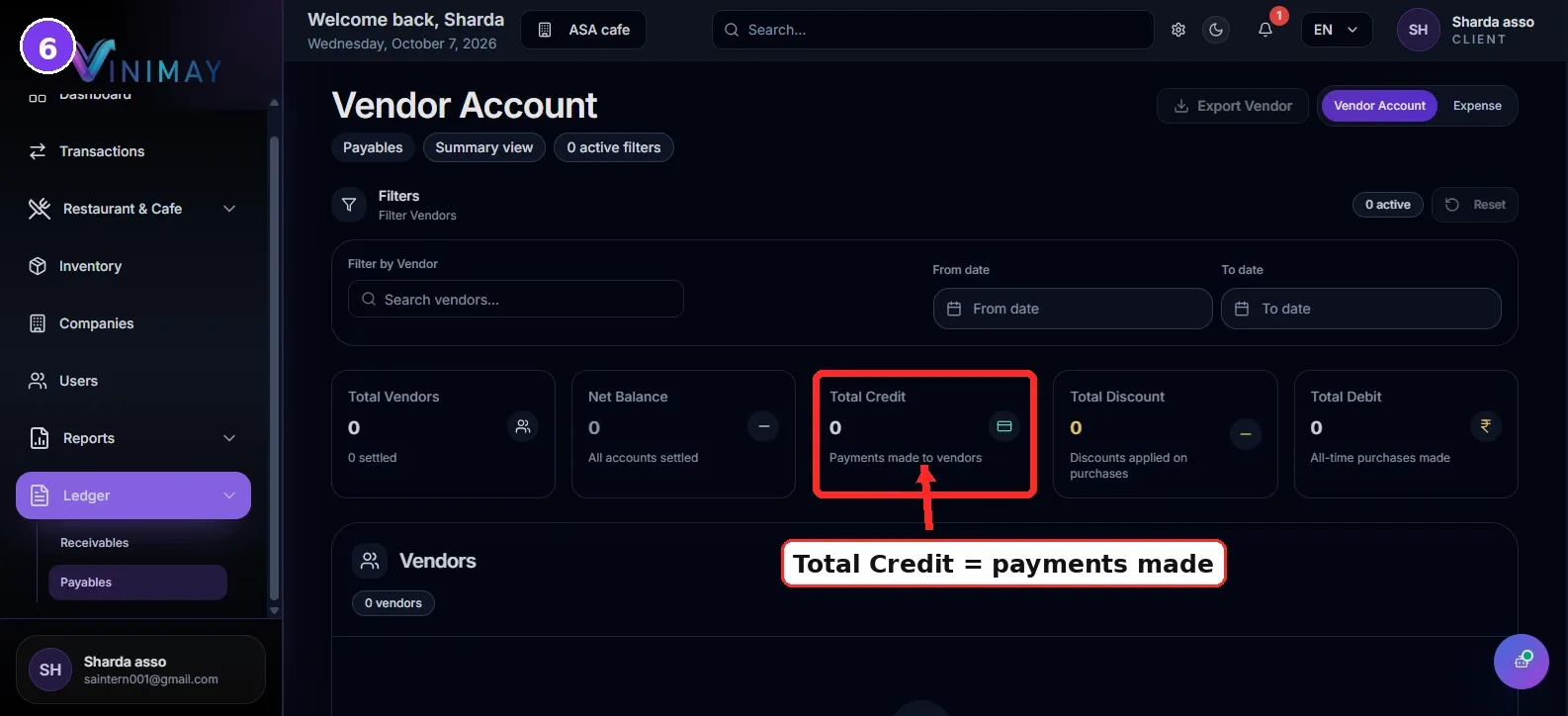
Step 5: Understand Total Credit
Total Credit shows the amount you have already paid or credited against the vendor account.
For example:
Total Debit: ₹80,000
Total Credit: ₹50,000
This means you have already paid or adjusted ₹50,000 against total purchases of ₹80,000.
In simple words:
Total Credit = Payments or credits recorded against the vendor.
Step 6: Understand Net Balance
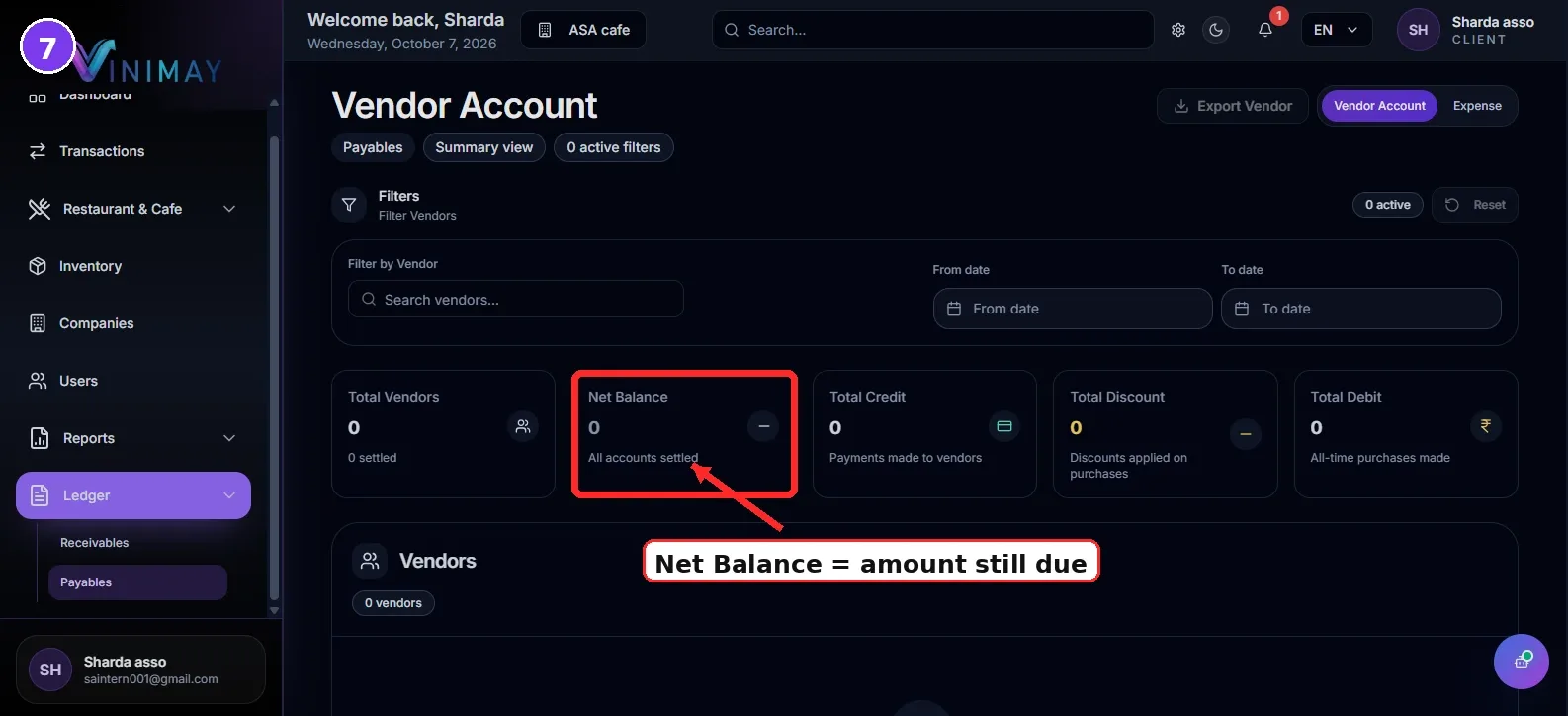
The Net Balance shows the final amount still pending after considering debit, credit, and applicable adjustments.
For example:
Total Debit: ₹80,000
Total Credit: ₹50,000
Net Balance: ₹30,000
This means your business still needs to pay ₹30,000 to the vendor.
The net balance is one of the most important figures because it tells you the current outstanding amount.
Step 7: Search a Vendor and Check Their Balance
Use the Search Vendor field to find a particular supplier.
Select the vendor and check their total debit, total credit, and net balance.
This helps you quickly understand:
How much you purchased → How much you paid → How much is still pending
Quick Example
In this example, after considering payments and discounts, ₹25,000 is still outstanding.
Quick Path
Login → Ledger → Payables → Search Vendor → Check Total Debit → Check Total Credit → Check Net Balance
By understanding these three figures, you can easily track your supplier accounts in Vinimay and know exactly how much has been purchased, paid, and still remains payable.