How to Create a Recipe (Bill of Materials) in Vinimay
You know what goes into each dish: so much flour, so much paneer, so much oil. But your software does not, so it cannot tell you how much of each raw material a dish uses. A recipe, also called a bill of materials, is how you teach it.
In Vinimay, the Recipes page lists your configured recipes, each linking a menu item and its variant to the ingredients and the quantity used per unit. You create one with the Create Recipe Mapping window, which has a menu item, a variant, and a list of ingredients.
This guide starts from the login page and shows with clear images how to open the Recipes page and create your first recipe.
Step 1: Log in to Vinimay
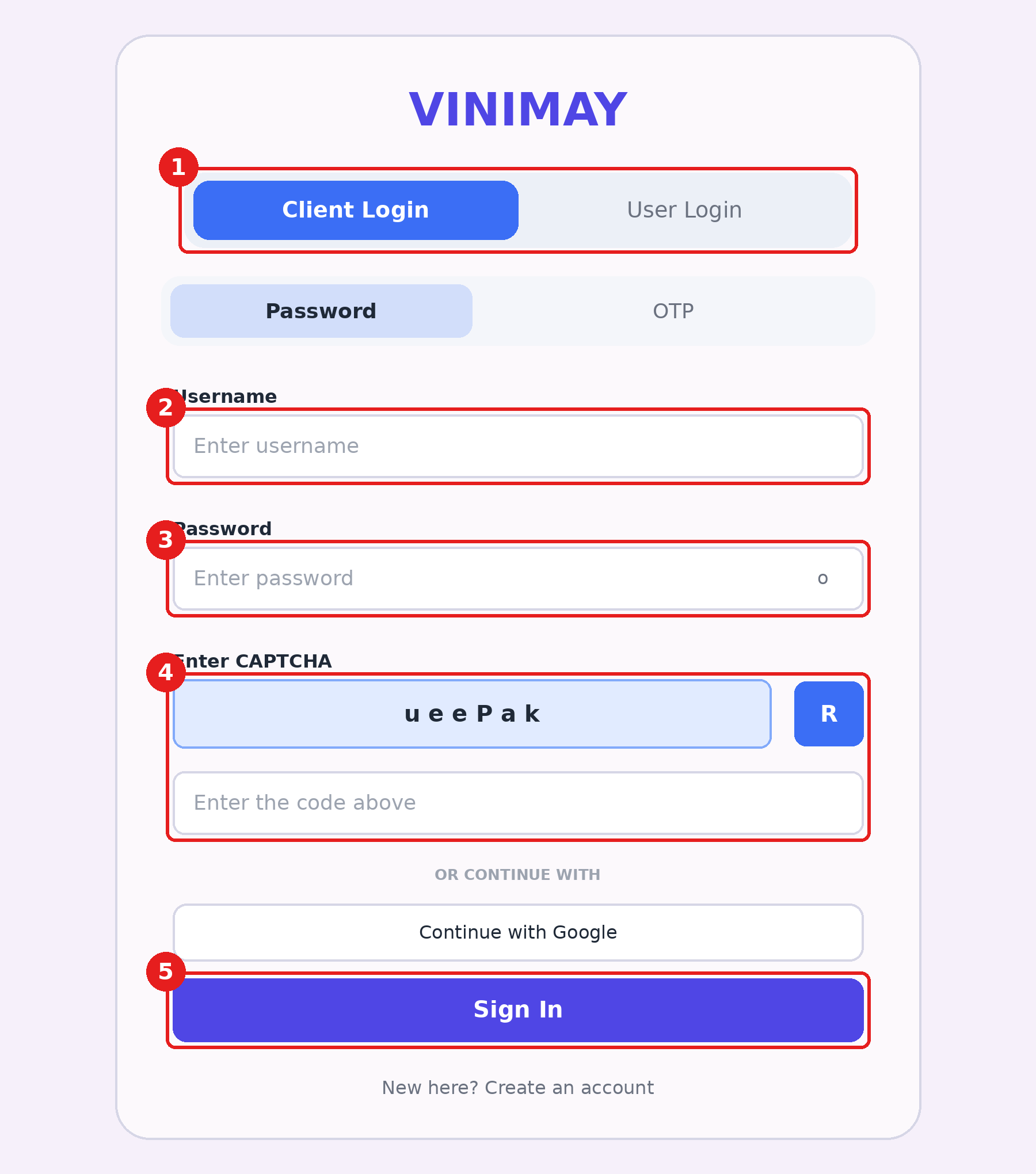
Open the Vinimay login page. Choose Client Login for the account owner or User Login for staff (marker 1). Enter the Username (marker 2) and Password (marker 3), type the CAPTCHA (marker 4), and click Sign In (marker 5).
 Step 1: Log in to Vinimay
Step 2: Go from the Dashboard to Recipes
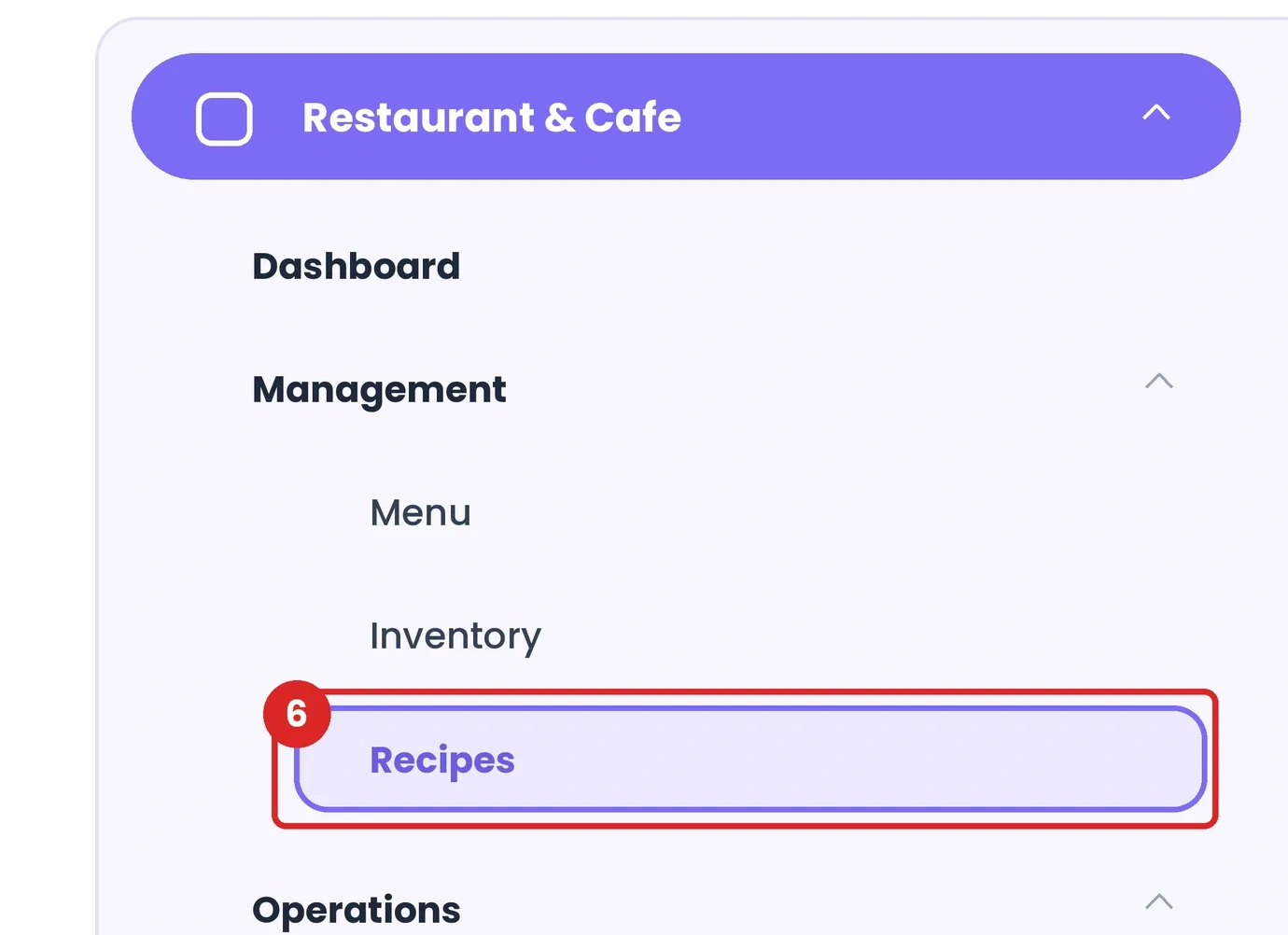
After you sign in, you land on the Dashboard. In the left menu, click Restaurant & Cafe, open Management and click Recipes (marker 6).
Step 3: Know the Recipes page
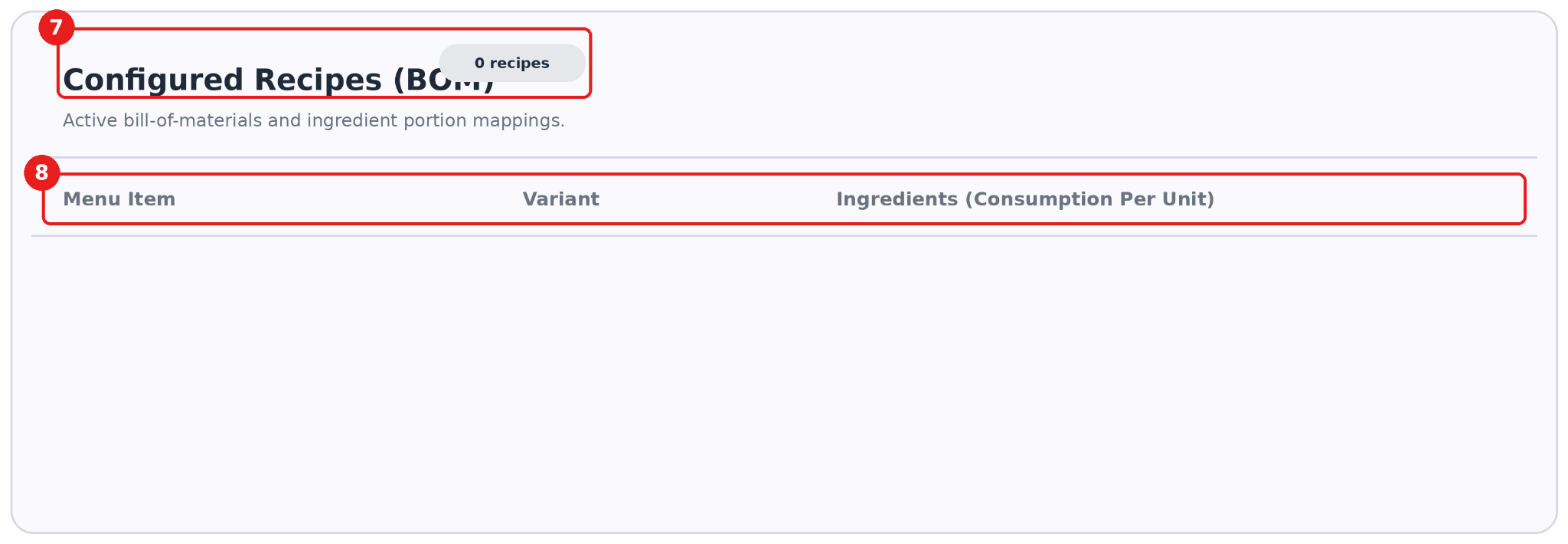
The page is titled Configured Recipes (BOM) and shows a count such as 0 recipes (marker 7), with the line "Active bill-of-materials and ingredient portion mappings." The table (marker 8) lists the Menu Item, the Variant and the Ingredients with their consumption per unit. To create a recipe, use the button on this page that opens the Create Recipe Mapping window.
Step 4: Fill in the Create Recipe Mapping window
Menu Item (marker 9): search and select the dish. Required.
Variant (marker 10): select a variant of the dish. This field stays greyed out until you choose a menu item. Required.
Ingredients & Bill of Materials (marker 11): it says "No ingredients added yet" until you add some.
Add Ingredient (marker 12): click it to add each ingredient.
Save Recipe (marker 13): click it when you are done. It stays pale until the form is complete.
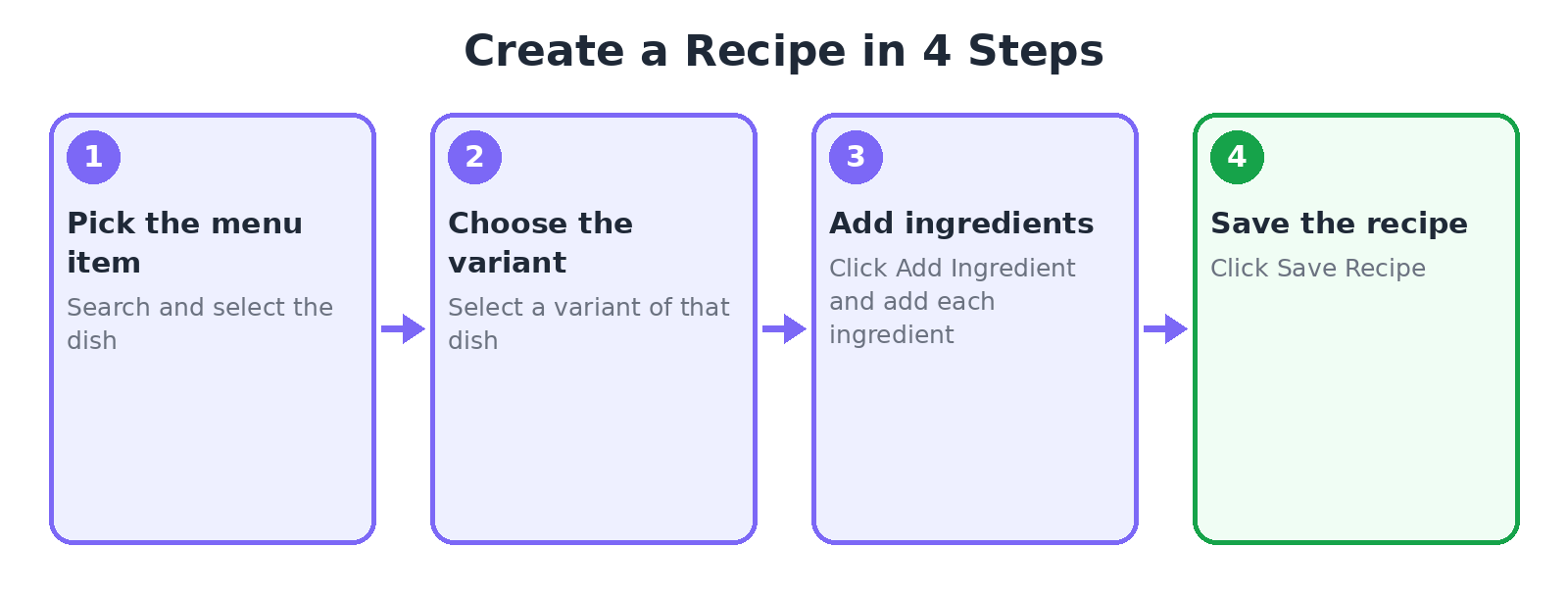
The 4 steps in short
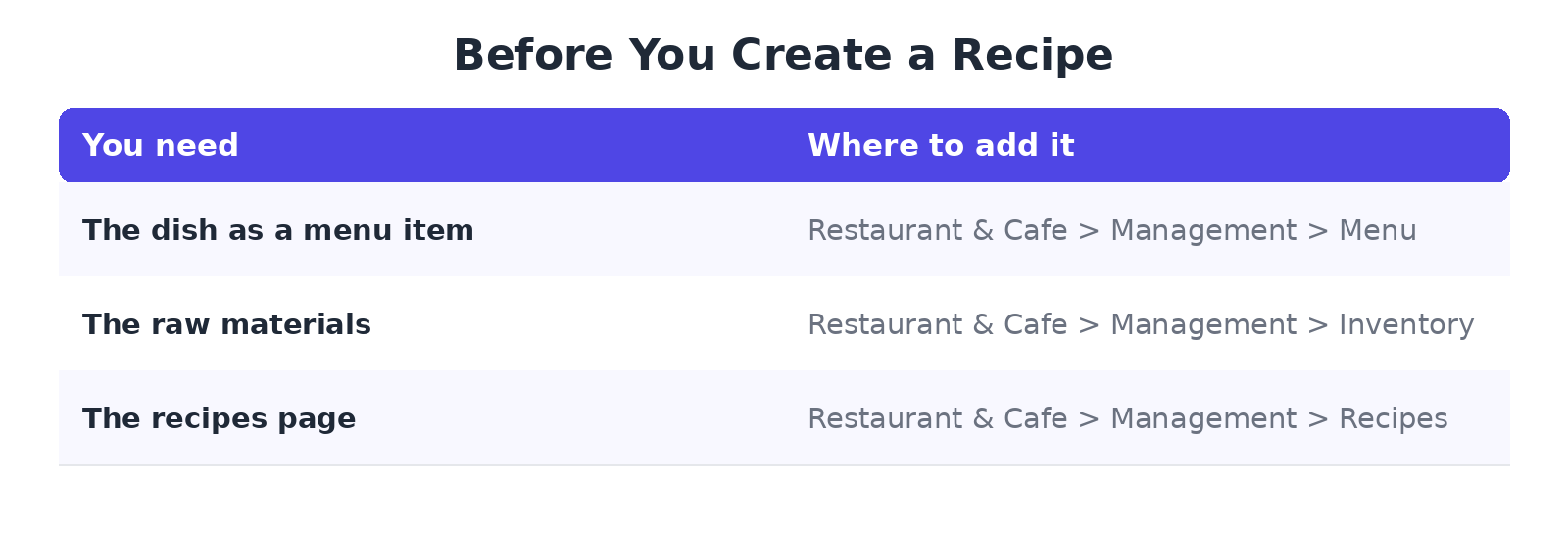
What you need before you start
Tips
Add the dish as a menu item before you create its recipe.
Add all your raw materials to the restaurant Inventory first.
Create recipes for your best-selling dishes first.
Check the quantities carefully, because they are per unit of the dish.
Conclusion
A recipe in Vinimay links a dish to the raw materials it uses. Open Restaurant & Cafe, then Management, then Recipes, and use the Create Recipe Mapping window to choose the menu item, the variant and the ingredients.
If the Variant field is greyed out, choose the menu item first. If Save Recipe stays pale, check that you have selected the menu item and the variant and added at least one ingredient.
Once your recipes are set, you know what each dish uses. Create a free Vinimay account and create your first recipe today.
FAQs
Q1. Where do I create a recipe in Vinimay?
Open Restaurant & Cafe in the left menu, then Management, then Recipes, and open the Create Recipe Mapping window.
Q2. What is a bill of materials (BOM)?
It is the list of ingredients and quantities that go into one unit of a dish. The Recipes page is titled Configured Recipes (BOM).
Q3. Which fields are required for a recipe?
Menu Item and Variant. These are marked with a red star.
Q4. Why is the Variant field greyed out?
It stays greyed out until you select a menu item.
Q5. How do I add ingredients?
Click the Add Ingredient button in the Ingredients & Bill of Materials section.
Q6. What does Ingredients (Consumption Per Unit) mean?
It shows how much of each ingredient one unit of the dish uses.
Q7. What must I add before a recipe?
Add the dish in Menu, and the raw materials in the restaurant Inventory.
Q8. Why is the Save Recipe button pale?
It stays pale until the form is complete. Select the menu item and variant and add ingredients.
Create a free Vinimay account and create your first recipe today.