How Do You Create an Invoice with Different Units?
To create an invoice with different units, add the required products, select the appropriate measurement unit for each item, enter its quantity and price, and verify the calculated line amount before saving the invoice. For example, a business can bill fabric in metres, garments in pieces and accessories in boxes on the same invoice, provided the billing software supports these units.
Step 1: Start a New Transaction
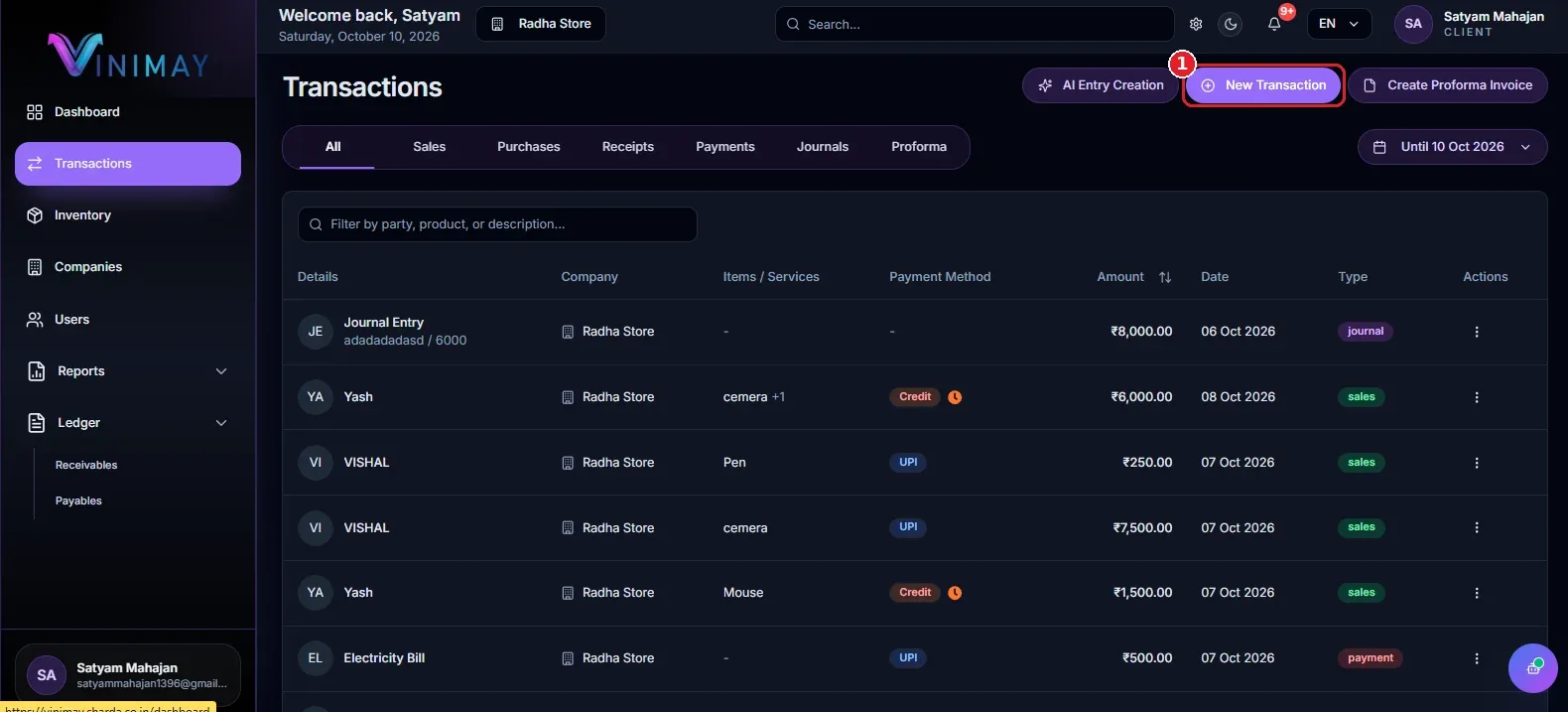
Log in to your Vinimay Client account. On the Dashboard, find the Quick Actions area and click New Transaction (marker 1).
Screenshot 1: New Transaction on the Dashboard
Marker 1: New Transaction button in Quick Actions
The Create Transaction window will open, where you can enter the details required for your sales invoice.
Step 2: Fill In the Invoice Details on the Sales Tab
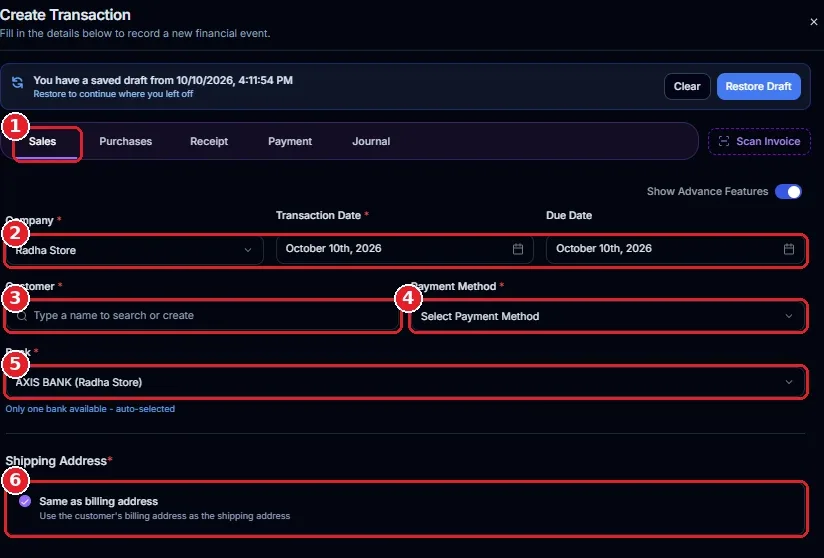
Make sure the Sales tab (marker 1) is selected. Fields marked with a red star are required.
Screenshot 2: Create Transaction — Sales Tab
Marker 1: Sales tab
Marker 2: Company, Transaction Date, and Due Date
Marker 3: Customer
Marker 4: Payment Method
Marker 5: Bank
Marker 6: Shipping Address
Complete the fields as follows:
Company (marker 2): Check that the correct company is selected.
Transaction Date and Due Date (marker 2): Confirm the dates for the invoice and payment.
Customer (marker 3): Select or enter the customer's name. This field is required.
Payment Method (marker 4): Choose the applicable payment method.
Bank (marker 5): Select the relevant bank. If only one bank is available, it may be selected automatically.
Shipping Address (marker 6): Use the customer's shipping address or select “Same as billing address” when appropriate.
Tip: If you see a saved-draft message, choose Restore Draft to continue your previous work or Clear to start a new transaction.
Step 3: Add Products in Product Selection
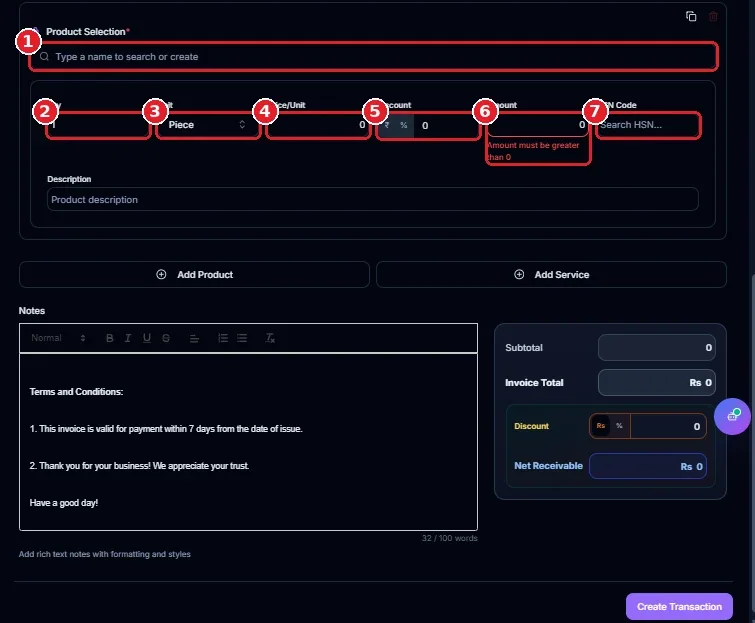
Scroll down to the Product Selection section. Search for the product you want to add (marker 1), then complete the item row.
Screenshot 3: Product Selection and Item Details
Product (marker 1): Search for and select the item.
Qty (marker 2): Enter the quantity you are selling. The default may be 1.
Unit (marker 3): Select the measurement unit. The default is Piece.
Price/Unit (marker 4): Enter the selling price for one selected unit.
Discount (marker 5): Add a discount if applicable. Choose the rupee or percentage option and enter the value.
Amount (marker 6): Check the calculated amount for the item.
HSN Code (marker 7): Enter or search for the applicable code if required.
For example, if you sell rice by weight, select Kg and enter the price for one kilogram. If you sell pens individually, select Piece and enter the price per pen.
If the amount remains zero, Vinimay may display the message “Amount must be greater than 0.” Check the quantity and price per unit to correct it.
Step 4: Choose the Correct Unit for Each Item
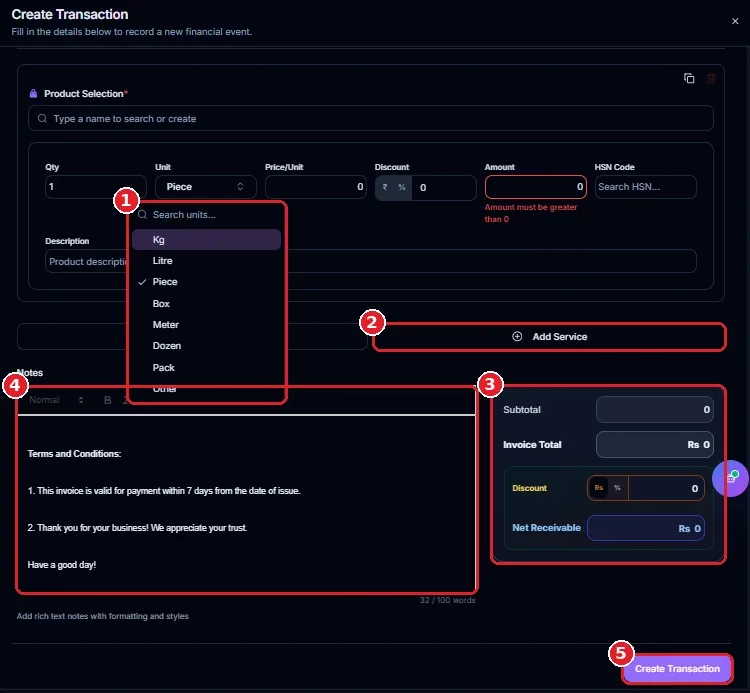
Click the Unit dropdown (marker 1 in Screenshot 4). The available options will appear, and you can use the search box at the top of the dropdown to find a unit quickly.
Select the appropriate option, such as Kg, Litre, Piece, Box, Meter, Dozen, Pack, or Other.
Screenshot 4: Unit Dropdown and Invoice Totals
Marker 1: Unit dropdown
Marker 2: Add Service button
Marker 3: Subtotal, Invoice Total, Discount, and Net Receivable
Marker 4: Notes and terms
Marker 5: Create Transaction button
Each product line has its own Unit field. This means you can select Piece for one item and Kg for another on the same invoice.
Example: Invoice with Different Units
| Item | Quantity | Unit | Price per Unit | Amount |
|---|---|---|---|---|
| Pen | 10 | Piece | ₹50 | ₹500 |
| Rice | 5 | Kg | ₹60 | ₹300 |
| Invoice Total | ₹800 |
In this example, 10 pens at ₹50 each cost ₹500, while 5 kg of rice at ₹60 per kg costs ₹300. The combined total is ₹800 before any additional taxes or discounts.
This is an illustration only. Your actual invoice total will depend on the products, prices, taxes, and discounts entered.
Conclusion
Choosing the correct unit makes your sales invoice clearer and helps avoid confusion about quantities and prices. In Vinimay, start a new Sales transaction, add your products, and select Piece, Kg, Litre, Meter, or another available unit for each item.
Before clicking Create Transaction, check the quantity, price per unit, discounts, taxes, and final total. This helps you prepare accurate invoices for products sold using different measurements.