How to Set the Shipping Address on a Vinimay Invoice
You are making an invoice and it asks for a Shipping Address. You want the right address to appear on the invoice, but you cannot see where to type it. In the sales form there is no box to type an address, only a choice called "Same as billing address."
That choice takes the address from the customer. So the way to set the shipping address in Vinimay is in two parts: first save the customer's address in the customer record, and then, in the invoice, keep the Shipping Address on "Same as billing address", which uses the customer's billing address as the shipping address.
This guide starts from the login page and shows both parts with real screenshots of Vinimay: where to save the address, and where the Shipping Address sits in the invoice.
Step 1: Log in to Vinimay
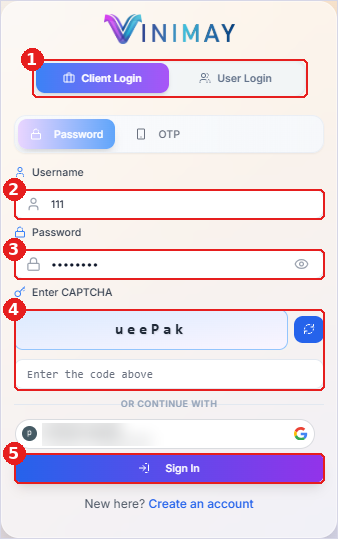
Open the Vinimay login page. Choose Client Login for the account owner or User Login for staff (marker 1). Enter the Username (marker 2) and Password (marker 3), type the CAPTCHA (marker 4), and click Sign In (marker 5).
Step 2: Open Settings and the Customers tab
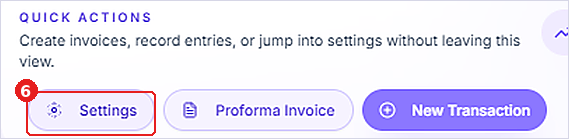
After you sign in, you land on the Dashboard. In the Quick Actions panel at the top right, click Settings (marker 6).
In the tab bar, click Customers (marker 7). Then click Add Customer (marker 8).

Step 3: Save the customer's address
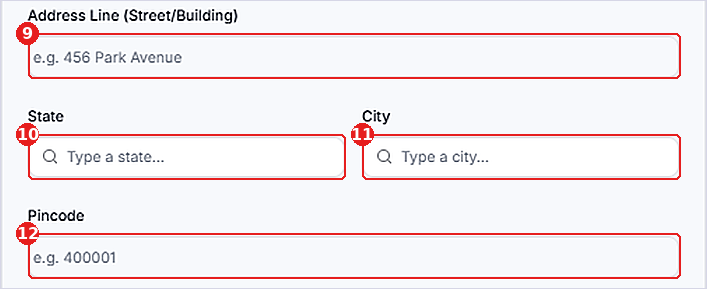
In the Create New Customer form, scroll down to the address fields. Fill in the Address Line (Street/Building) (marker 9), the State (marker 10), the City (marker 11) and the Pincode (marker 12). Then click Create Customer.
Step 4: Open a new Sales invoice
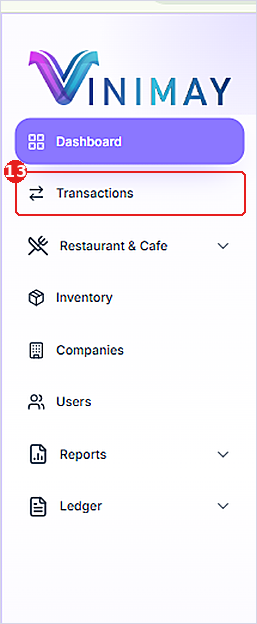
Click Transactions in the left menu (marker 13).
Click New Transaction at the top right (marker 14).

Click the Sales tab (marker 15), the first tab.

Step 5: Choose the customer and check the Shipping Address
Choose the customer you saved in Step 3. Further down, Shipping Address (marker 16) is a required field, marked with a red star. Keep Same as billing address (marker 17). The form explains it with the line "Use the customer's billing address as the shipping address."

Tips
- Save the customer's full address before you make the invoice.
- Check the pincode, the city and the state, because the address on the invoice comes from them.
- Choose the customer first, then look at the Shipping Address.
- Check the Shipping Address before you click Create Transaction.
Conclusion
In Vinimay, you set the shipping address by saving the customer's address in Settings, under Customers, and keeping Same as billing address in the invoice.
The address fields in the customer form are Address Line, State, City and Pincode. The invoice's Shipping Address is a required field that uses the customer's billing address.
Once the customer's address is correct, every invoice for that customer is quicker to make. Create a free Vinimay account and try it on your next invoice.
FAQs
Q1. How do I set the shipping address on a Vinimay invoice?
Save the customer's address in Settings > Customers, then keep Same as billing address in the Shipping Address section of the invoice.
Q2. Where do I add the customer's address?
In Settings > Customers > Add Customer. The form has Address Line (Street/Building), State, City and Pincode.
Q3. Is the Shipping Address required?
Yes. It is marked with a red star.
Q4. What does Same as billing address mean?
The form says it uses the customer's billing address as the shipping address.
Q5. Do I need to choose the customer first?
Yes, because the option refers to the customer's billing address.
Q6. Which address fields does the customer form have?
Address Line (Street/Building), State, City and Pincode.
Q7. Which tab shows the Shipping Address?
The Sales tab of the Create Transaction form.
Q8. Where is the Create Transaction button?
At the bottom right of the form.