What Does "GST Pending" Mean on Your Company in Vinimay?
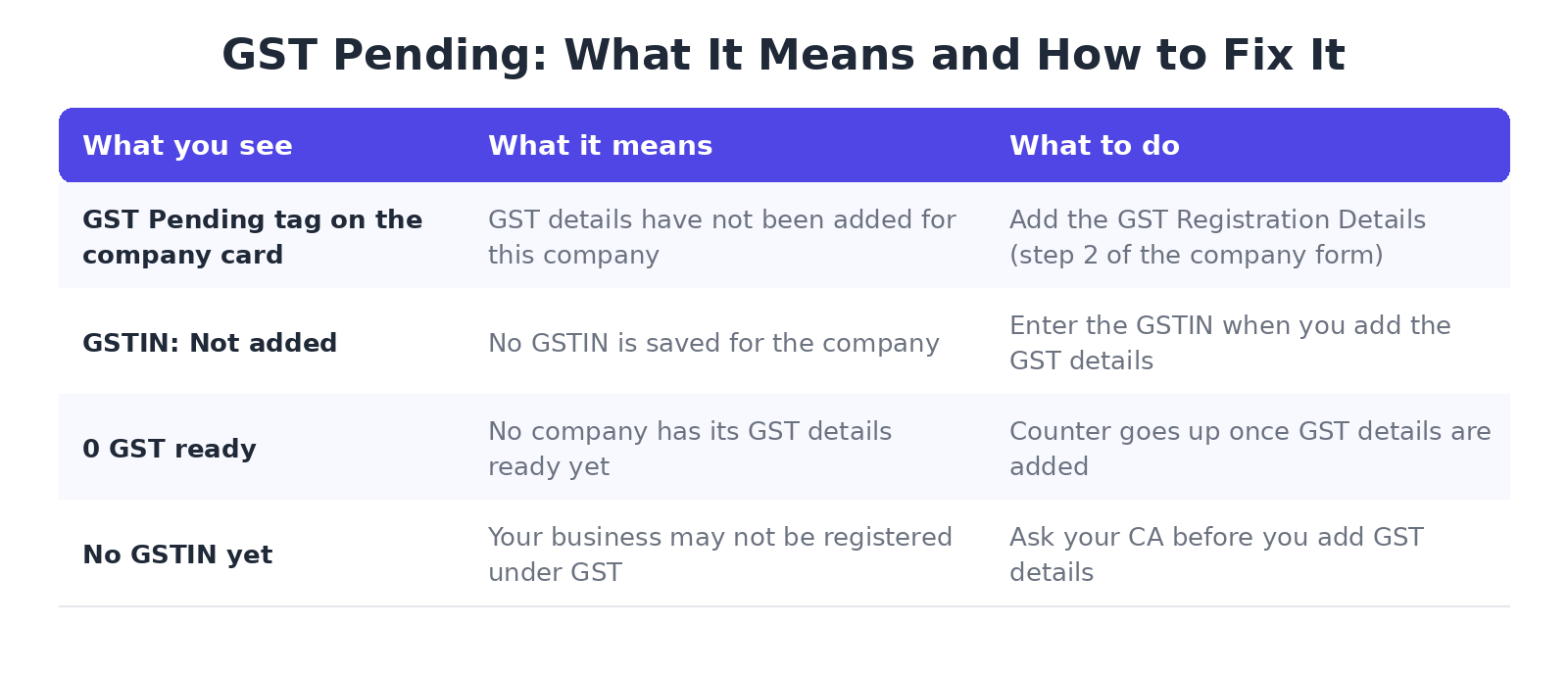
You have added your company to Vinimay, and on the Companies page you see an amber tag that says "GST Pending," a counter that says "0 GST ready," and a GSTIN box that says "Not added." It looks like something is wrong, and you are not sure what to do.
Nothing is broken. These labels simply tell you that the GST details for the company have not been added yet. The Companies page shows a short summary at the top and a card for each company, and every label on it has a clear meaning.
This guide starts from the login page, goes through the dashboard, and uses clear images to explain every label on the companies page and how to add the missing GST details.
Step 1: Log in to Vinimay
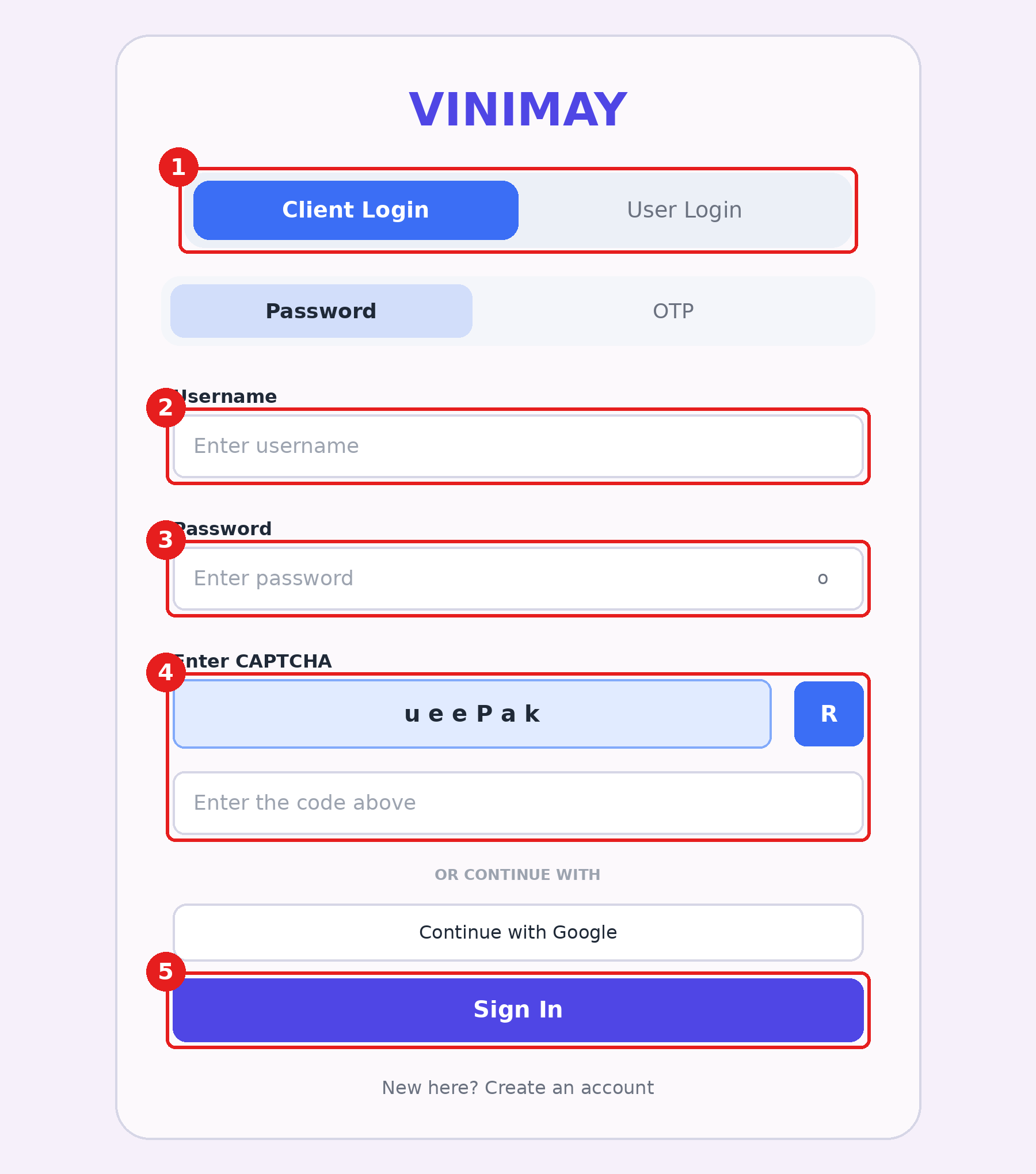
Open the Vinimay login page. Choose Client Login for the account owner or User Login for staff (marker 1). Enter the Username (marker 2) and Password (marker 3), type the CAPTCHA (marker 4), and click Sign In (marker 5).
Step 1: Log in to Vinimay
Step 2: Go from the Dashboard to Companies
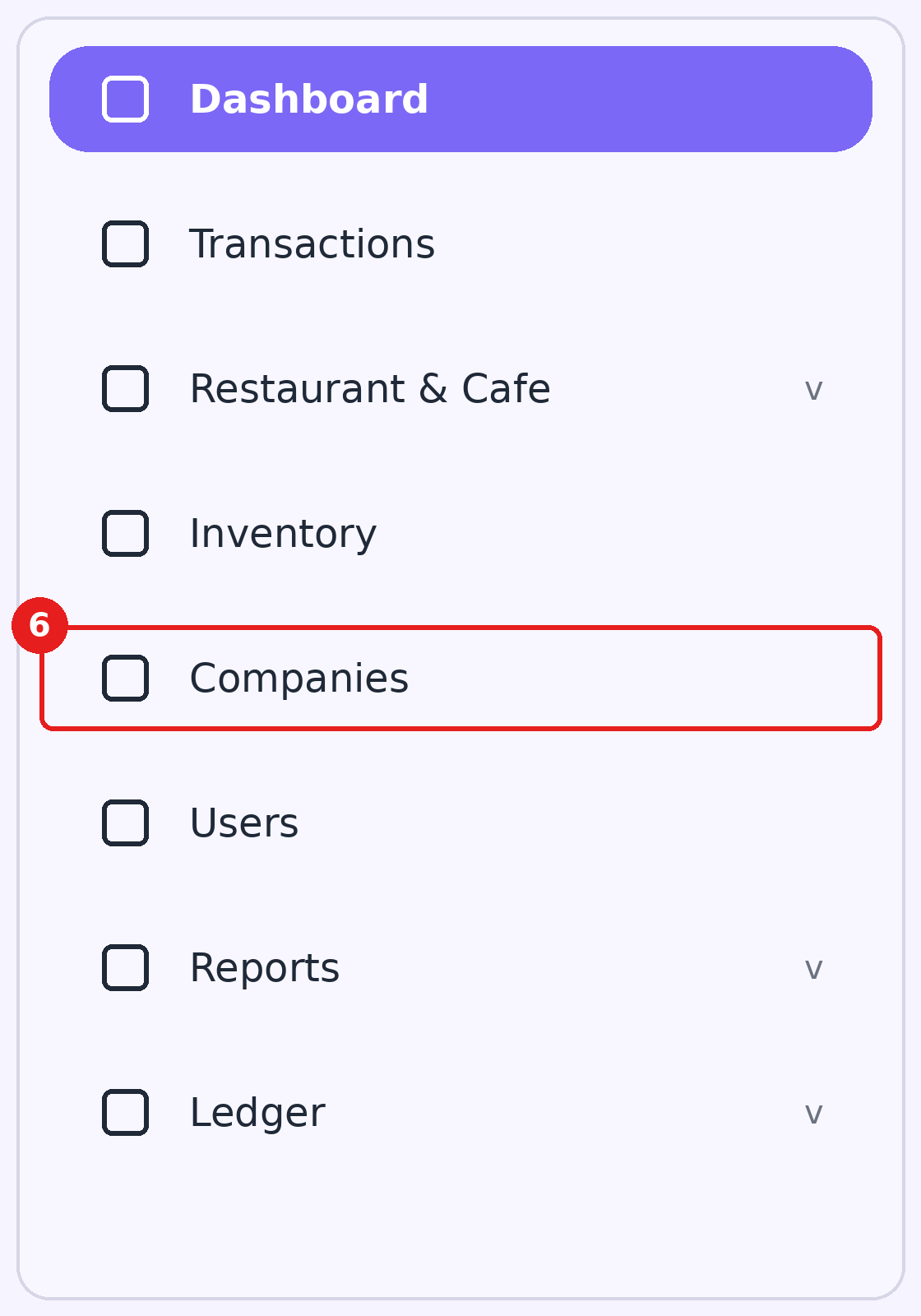
After you sign in, you land on the Dashboard. In the left menu, click Companies (marker 6).
Step 2: Companies in the left menu
Step 3: Read the chips at the top
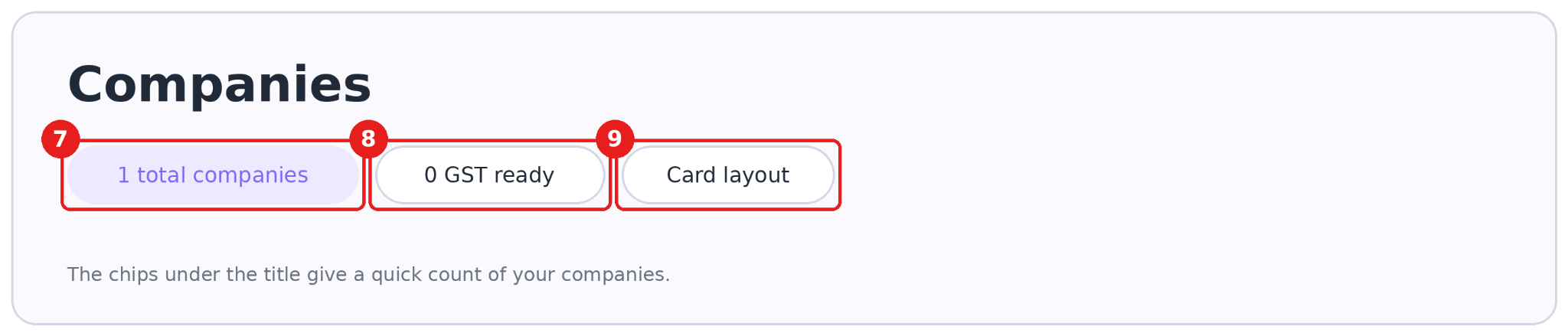
Under the page title, three chips give a quick summary: 1 total companies (marker 7), 0 GST ready (marker 8) and Card layout (marker 9). The first counts your companies. The second counts how many of them have their GST details ready. The third shows that companies appear as cards.
Step 3: The chips at the top
Step 4: Read a company card
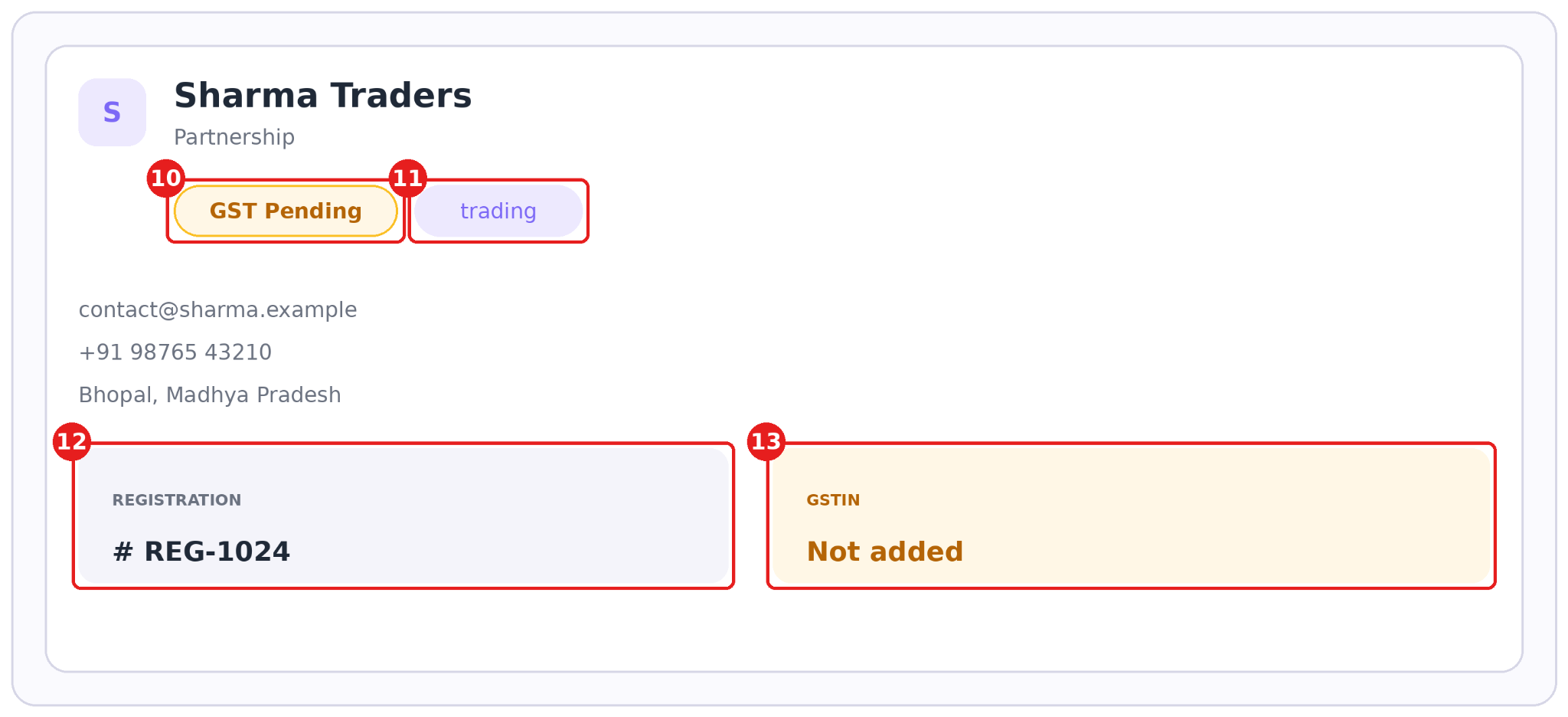
Each company has a card with its name and type, such as "Partnership," its contact details, and two boxes at the bottom. An amber GST Pending tag (marker 10) shows that GST details are missing. Next to it is a tag for the industry (marker 11). The Registration box (marker 12) shows the registration number, and the GSTIN box (marker 13) shows Not added until a GSTIN is saved.
Step 4: A company card
Step 5: Add the GST details
The company form has three steps: Company Basic Details, GST Registration Details, and Company TDS Details. The GST details go in step 2 (marker 14).
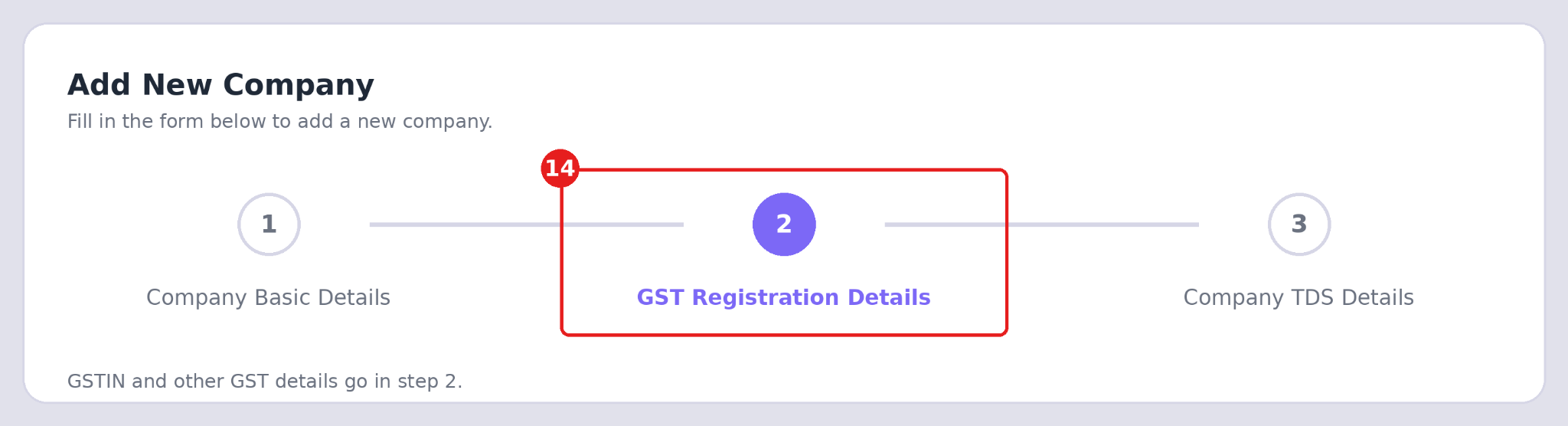
Step 5: The GST step of the company form
What each label means
Tips
Add the GSTIN as soon as your business is registered under GST.
Check the Companies page after adding GST details to see the labels change.
If you are not registered yet, you can leave GST Pending as it is.
Ask your CA if you are unsure whether your business needs GST registration.
Conclusion
GST pending on a company in Vinimay only means that no GST details have been added yet. The GSTIN box shows "Not added," and the 0 GST ready chip counts companies with their GST details in place.
To fix it, add the GST details in step 2 of the company form, called GST Registration Details. If your business is not registered under GST, you do not need to do anything.
Understanding these labels helps you keep your company records in order. Create a free Vinimay account and set up your company today