You added your company in Vinimay, and the Companies page shows an amber "GST Pending" tag, and the GSTIN box says "Not added". Now you have your GSTIN and you want to add it, but the company is already created, and you do not see where to type it.
The company can be edited. The window is called Edit Company and it has three steps: Company Basic Details, GST Registration Details and Company TDS Details. The GST details go in step 2. This guide shows with real screenshots how to open that window and fill in the GST step.
The screenshots start from the login page and go through the Dashboard to the Companies page.
Step 1: Log in to Vinimay
Open the Vinimay login page. Choose Client Login for the account owner or User Login for staff (marker 1). Enter the Username (marker 2) and Password (marker 3), type the CAPTCHA (marker 4), and click Sign In (marker 5).
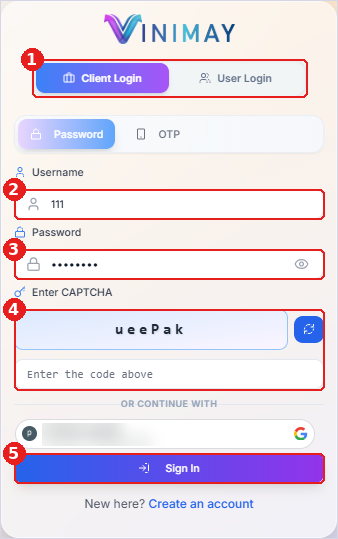
Step 1: Log in to Vinimay
Step 2: Open Companies from the Dashboard
After you sign in, you land on the Dashboard. In the left menu, click Companies (marker 6).
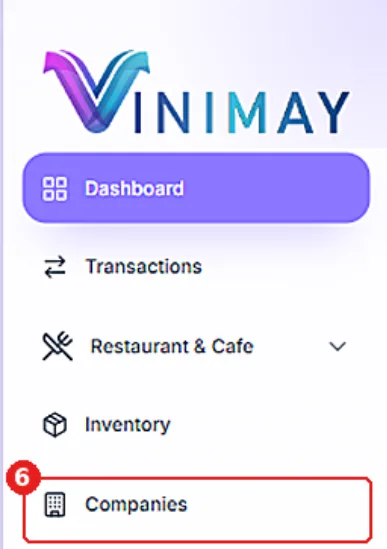
Step 2: Companies in the left menu
Step 3: Find the company card
Each company has a card. The amber GST Pending tag (marker 7) and the GSTIN: Not added box (marker 8) show that no GST details are saved. At the top right of the card there is a three-dot button (marker 9). Use it to open the options of the company and edit it. The window that opens is titled Edit Company.
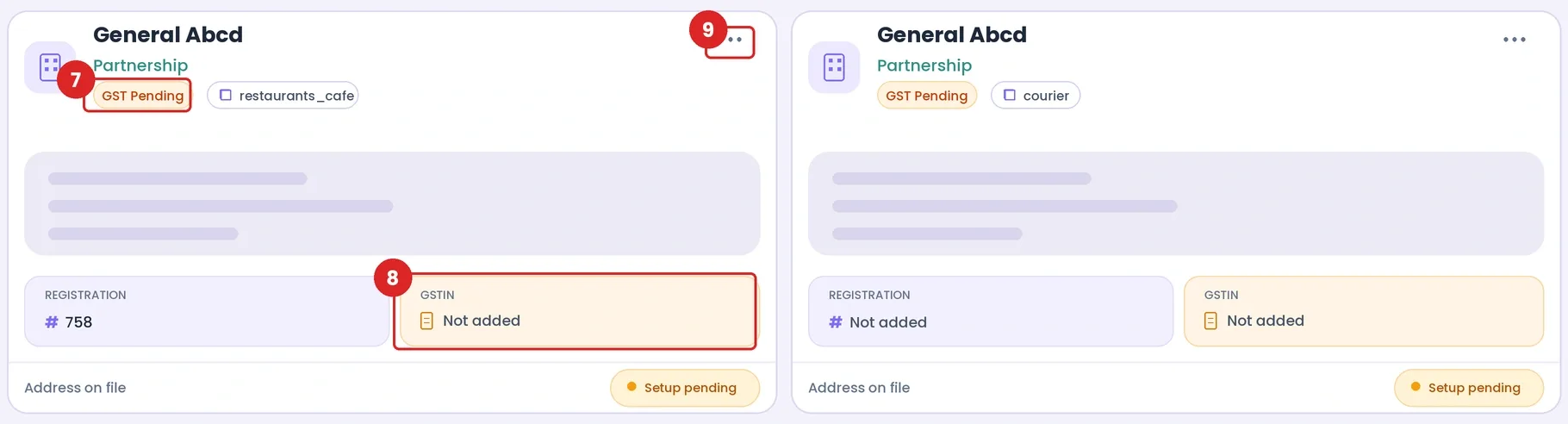
Step 3: The company card
Step 4: Go to the GST Registration Details step
In Edit Company, the three steps are shown at the top. On the first step, Company Basic Details, click Next to reach step 2, GST Registration Details. The fields are:
GSTIN (marker 10): your GST number.
GST State (marker 11): type the state name.
Registration Type (marker 12): a dropdown that says "Select registration type".
Periodicity of GST Returns (marker 13).
GST Username and GST Password (marker 14).
EWB Username and EWB Password (marker 15).
None of the fields in this step has a red star. Click Next (marker 16) when you are done, or Previous to go back.
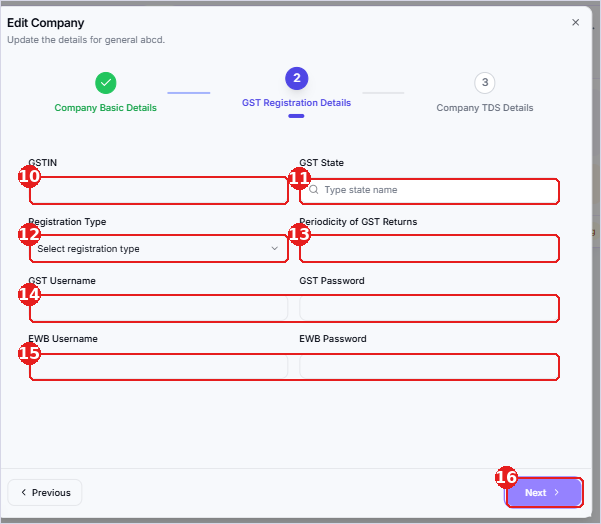
Step 4: GST Registration Details
Step 5: Save the changes
Step 3 is Company TDS Details. You can leave it as it is. Click Save Changes (marker 17) at the bottom right to save everything.
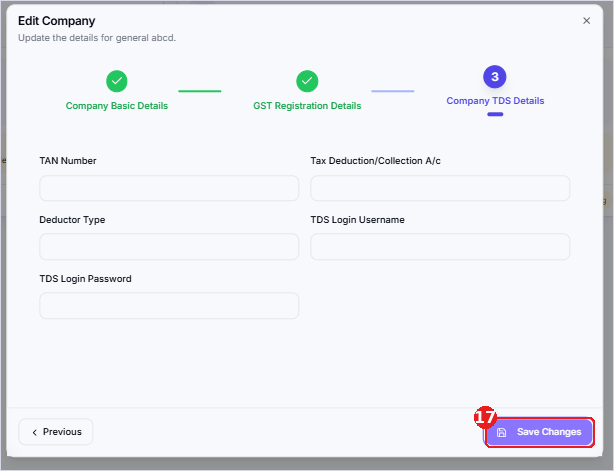
Step 5: Save Changes
Step 6: Check the company card
Go back to the Companies page and look at the card again. The GSTIN box should now show the number you entered. If the GST Pending tag is still there, open Edit Company again and check the GST step.
Tips
Keep your GSTIN, the GST state and the registration type ready before you start.
Check the GSTIN for typing mistakes before you save.
The three steps let you go back with Previous, so you do not lose what you typed.
If you are not registered under GST, you can leave this step empty. Ask your CA when you are unsure.
Conclusion
To add GST details to an existing company in Vinimay, open Companies, use the three-dot button on the company card and go to step 2 of the Edit Company window, GST Registration Details.
Fill in the GSTIN, the GST state and the registration type, go on to the last step and click Save Changes. Then check the card.
Adding your GST details keeps your company profile complete. Create a free Vinimay account and set up your company today.