The company form in Vinimay has two identity fields side by side near the end of the first step: PAN Number and Aadhaar Number. You want to know which one you must fill in before you can save the company.
PAN Number has a red star, so it is required. Aadhaar Number has no star, so it is optional.
This guide starts from the login page and shows both fields with real screenshots of Vinimay. The PAN value is blurred.
Step 1: Log in to Vinimay.
Open the Vinimay login page. Choose Client Login for the account owner or User Login for staff (marker 1). Enter the Username (marker 2) and Password (marker 3), type the CAPTCHA (marker 4), and click Sign In (marker 5).
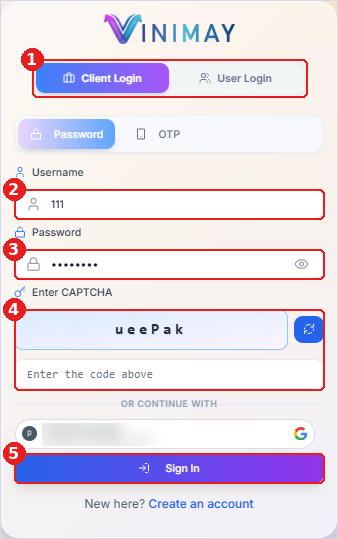 Step 1: Log in to Vinimay
Step 2: Open Companies from the Dashboard
After you sign in, you land on the Dashboard. In the left menu, click Companies (marker 6).
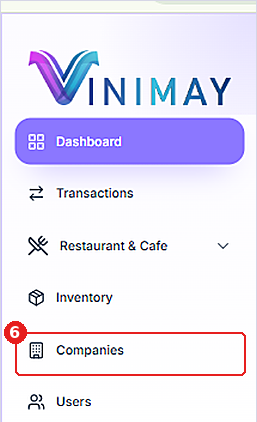 Companies in the left menu
Step 3: Open the company with the three-dot button
Find your company card and click the three-dot button at its top right (marker 7). The window that opens is titled Edit Company.
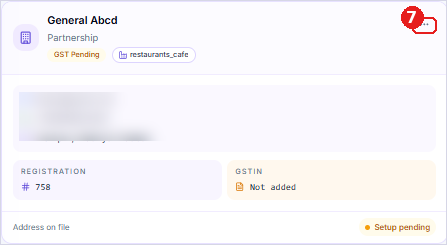 The company card
Step 4: Fill in the PAN and Aadhaar fields
In step 1, scroll to the lower part. PAN Number (marker 8) has a red star, so it is required. Aadhaar Number (marker 9) has no star, so you can leave it empty. Fill in your PAN, check it, and go on with the form.
 PAN Number and Aadhaar Number
Tips
Check the PAN for typing mistakes before you save.
Keep your PAN card handy.
Aadhaar is optional, so add it only if you want to.
Edit the company later if you need to change them.
Conclusion
In the Vinimay company form, the PAN Number is required and the Aadhaar Number is optional.
Both are in step 1, Company Basic Details, near the end of the step.
Check them before you save. Create a free Vinimay account and set up your company today.