How Do I Check Product Stock, Cost Price and Selling Price? Inventory Guide
Every business owner asks the same questions again and again. How many units do I have left? How much did I pay for this item? And at what price am I selling it? If you have to open a notebook or an Excel sheet to find these answers, you lose time, and it is easy to make a mistake.
In this software, all three answers are on one screen. The Dashboard has a section called Product & Service Stock (Inventory Pulse) that lists each item with its stock, unit, cost price and selling price. You can check your inventory in a few seconds, without any calculation.
In this guide, you will learn where to find that section, how to read each column, and where to add a product that is missing. Every screenshot has a red box and a number that match the text, so you can follow along easily. At the end, you will find answers to 10 common questions.
Quick answer
• Where: Dashboard, then the Inventory Pulse section called Product & Service Stock.
• Stock: how many units are available now, for example "2 in stock".
• Cost Price: the price you pay for one unit of the item.
• Selling Price: the price at which you sell one unit to your customer.
Before you start
• You should be logged in to the software
• Know which company you want to check
• At least one product should be added, or the table will be empty
Step 1: Log in and open the Dashboard
Log in to the software with your account. After you log in, you land on the Dashboard. You can always return to it from the left menu (image 1).

Dashboard in the left menu
Step 2: Check which company is selected
The Dashboard shows the data of one company at a time. At the top of the page, the box next to the welcome message shows the company name (image 2). The same name also appears as a tag under the Dashboard heading (image 3). In this example, it is "test company". If you manage more than one company, make sure the right one is shown before you read any numbers.
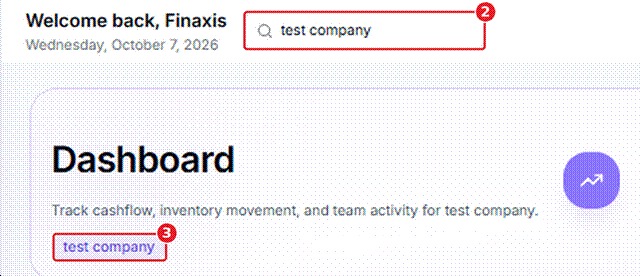
Selected company at the top and under the Dashboard heading
Step 3: Scroll down to Inventory Pulse
Scroll down the Dashboard until you see the section with the small label Inventory Pulse and the heading Product & Service Stock (image 4). Its description says "Current inventory levels and management." On the right side of this section, you will also see the Add Product button (image 5). We will use it in Step 6.

Inventory Pulse: Product & Service Stock

Add Product button
Step 4: Search for a product or service
Below the heading, there is a search box that says "Search products or services..." (image 6). Type a part of the item name to find it quickly. This helps when your list grows long.

Search box for products and services
Step 5: Read the stock table
Each row in the table is one item. The columns tell you everything about it:
• Item (image 7): the product name, with the company name shown below it.
• Stock (image 8): how many units are available, for example "2 in stock".
• Unit (image 9): how the item is measured, such as kg.

Item, Stock and Unit columns
• Cost Price (image 10): what you pay for one unit. In the example, it is 2,000.00.
• Selling Price (image 11): what you charge for one unit. In the example, it is 20.00.
• Created At (image 12): the date and time when the product was added.

Cost Price, Selling Price and Created At columns
Tip: Compare Cost Price and Selling Price for every item. In this demo row, the selling price (20.00) is far lower than the cost price (2,000.00). If you see a pattern like this in your own data, check whether a price was typed wrongly.
Step 6: Add a product if it is missing
If you cannot find a product in the table, click the Add Product button at the top right of the section (image 5), and fill in the product details. Once it is saved, the new item should appear in the Product & Service Stock table.
Tip: Keep your product names clear and unique, such as "Rice 25kg bag", so they are easy to find with the search box.
Conclusion
Checking your stock, cost price and selling price does not need a separate report. Open the Dashboard, scroll to the Product & Service Stock section, and read the table. In a few seconds you know what you have, what it cost you and what you are charging.
To recap, always check the selected company first, use the search box to find an item, and read the Stock, Unit, Cost Price and Selling Price columns together. If something looks wrong, such as a selling price below the cost price, correct it before you create more invoices.