Step 1: Log in to Vinimay
Open Vinimay and sign in using your Client Login.
After login, you will reach the main dashboard.
Step 2: Open Companies
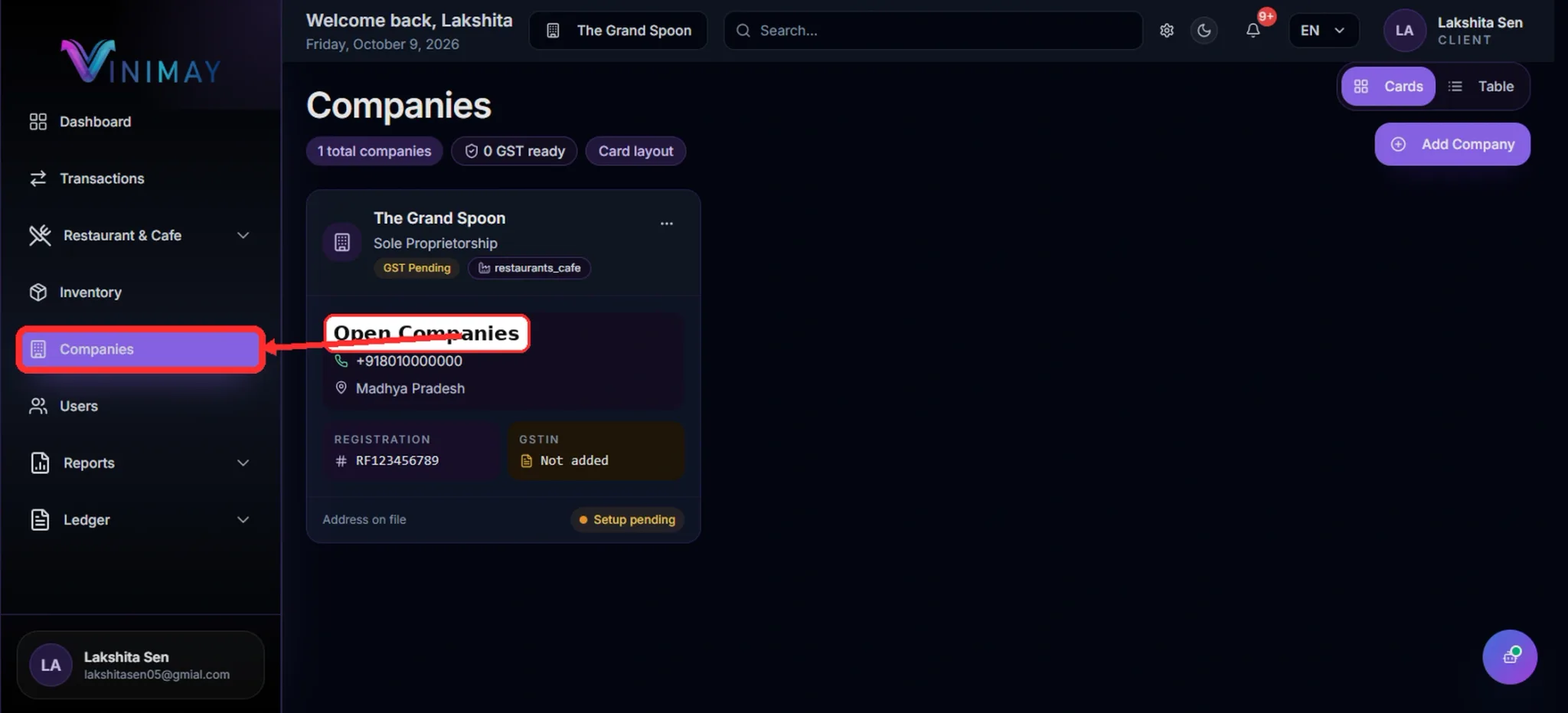
From the left-side menu, click Companies.
This section shows all businesses already created in your Vinimay account.
Step 3: Click Add Company
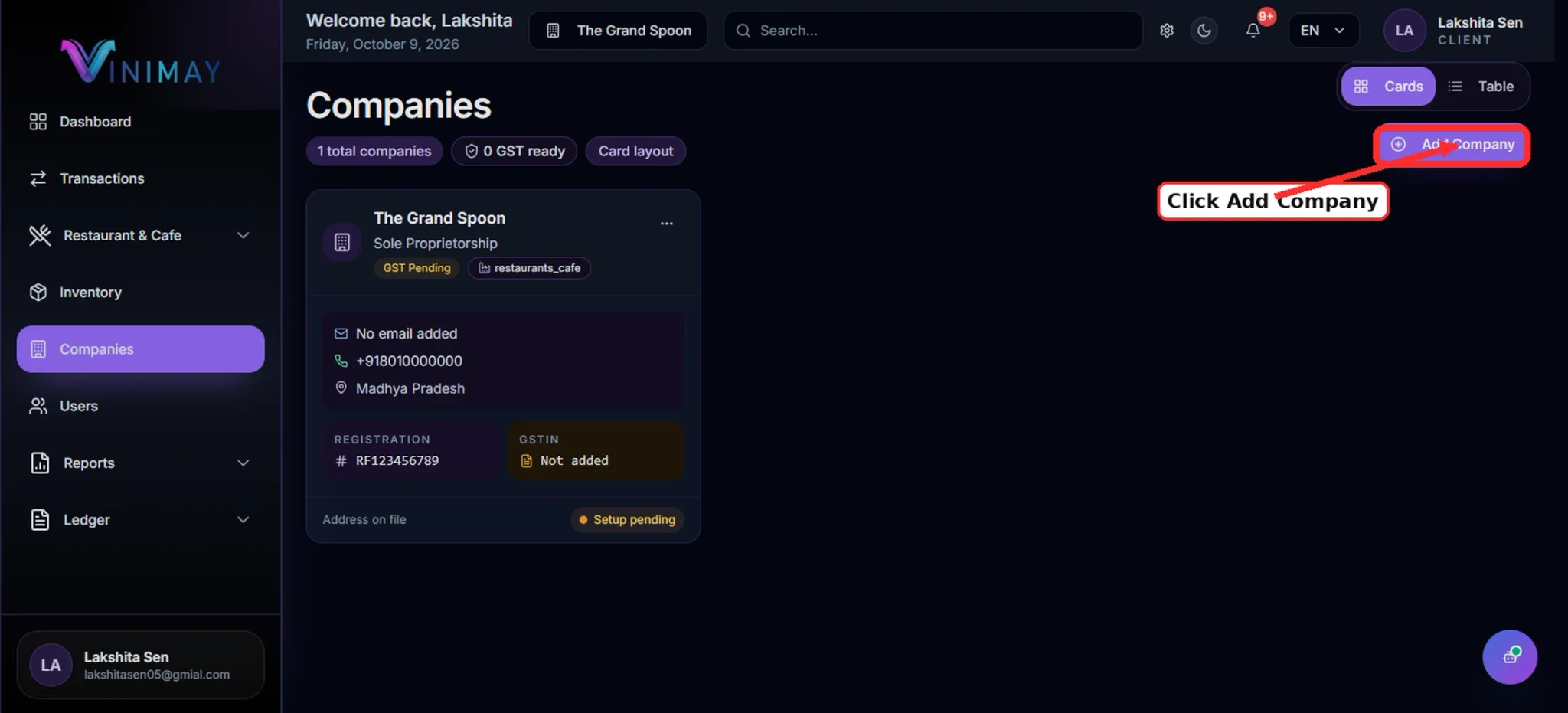
On the Companies page, click Add Company from the top-right corner.
The Add New Company form will open.
Step 4: Enter Basic Business Details
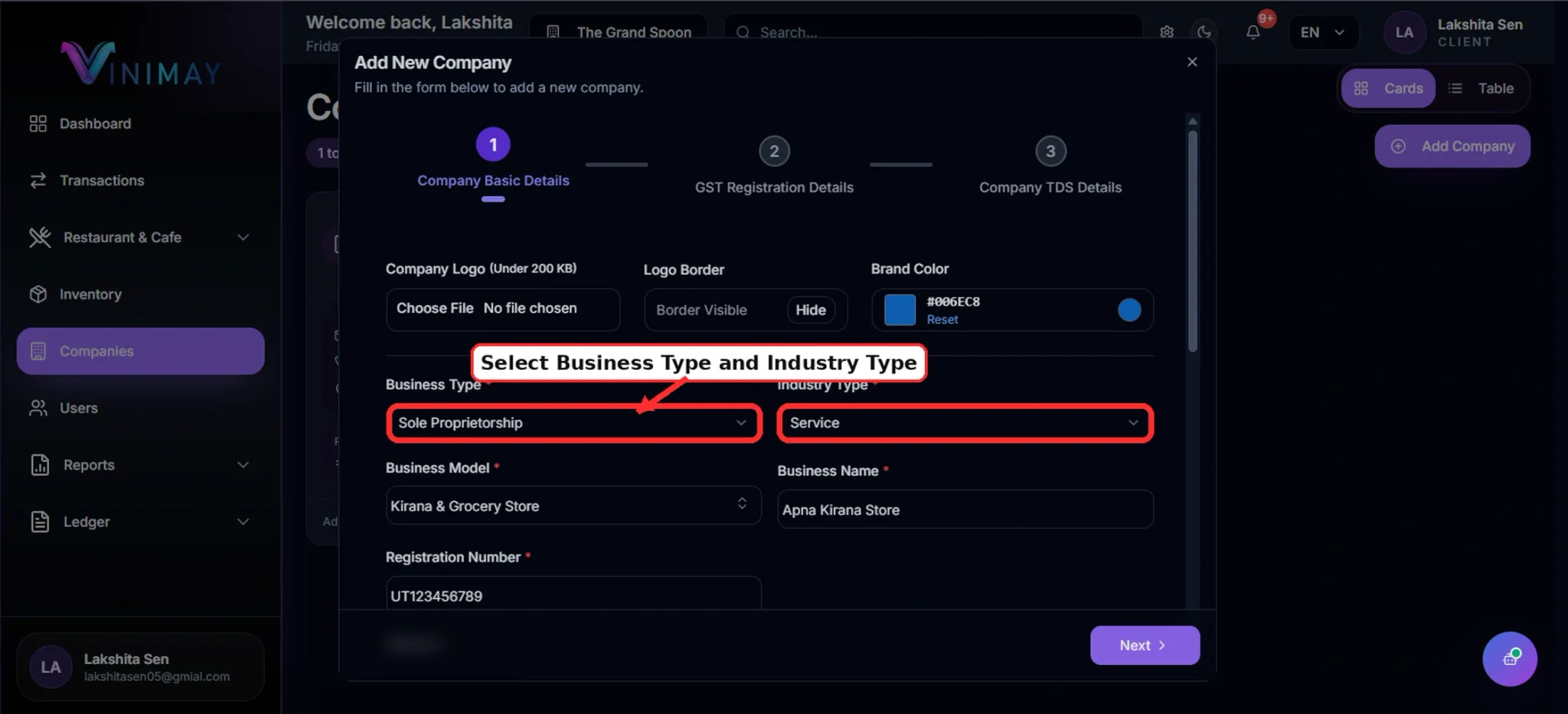
Fill in the required details such as:
Business Type
Industry Type
Business Name
Registration Number
Address
Logo, if required
Brand color, if required
Make sure the business name is the actual name of your kirana or grocery store.
Step 5: Select Kirana & Grocery Store
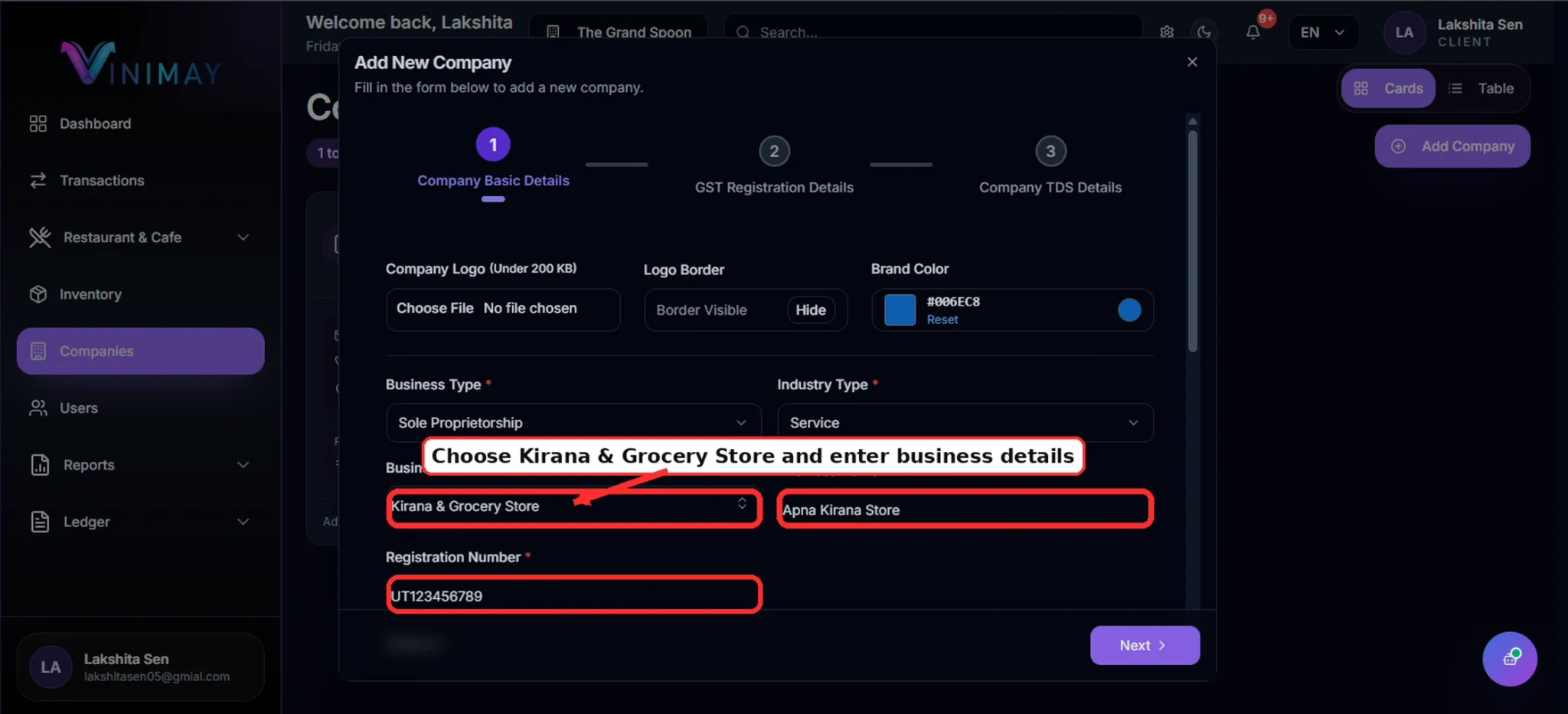
In the Business Model field, select:
Kirana & Grocery Store
For example:
Business Name: Apna Kirana Store
Business Model: Kirana & Grocery Store
Then click Next.
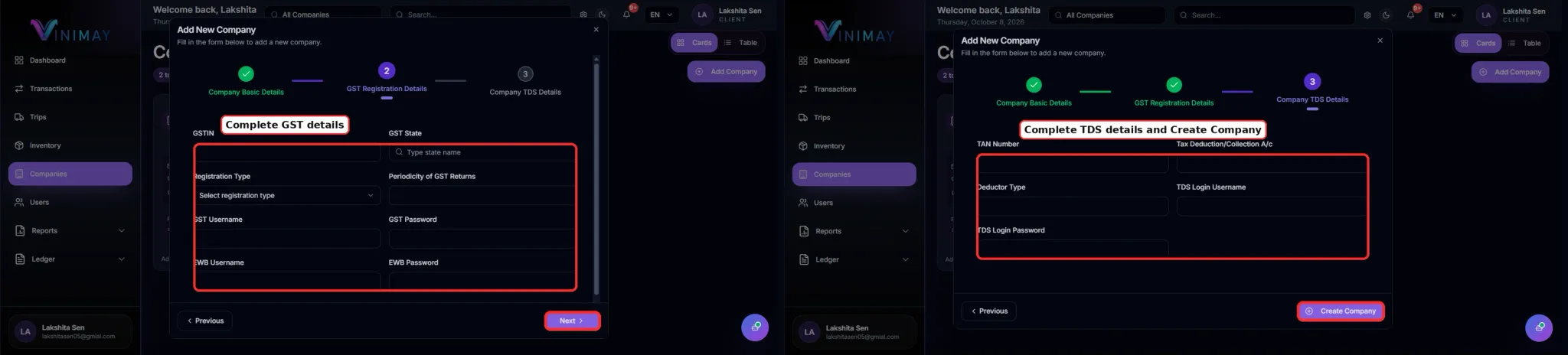
Step 6: Complete GST and TDS Details
Continue to the next sections and enter GST information if your store is GST registered.
You can also enter TDS-related details if applicable.
If these details are not required for your business, continue according to the options available in Vinimay.
After completing the required information, click Create Company.
Step 7: Verify the Kirana Store and Start Inventory Setup
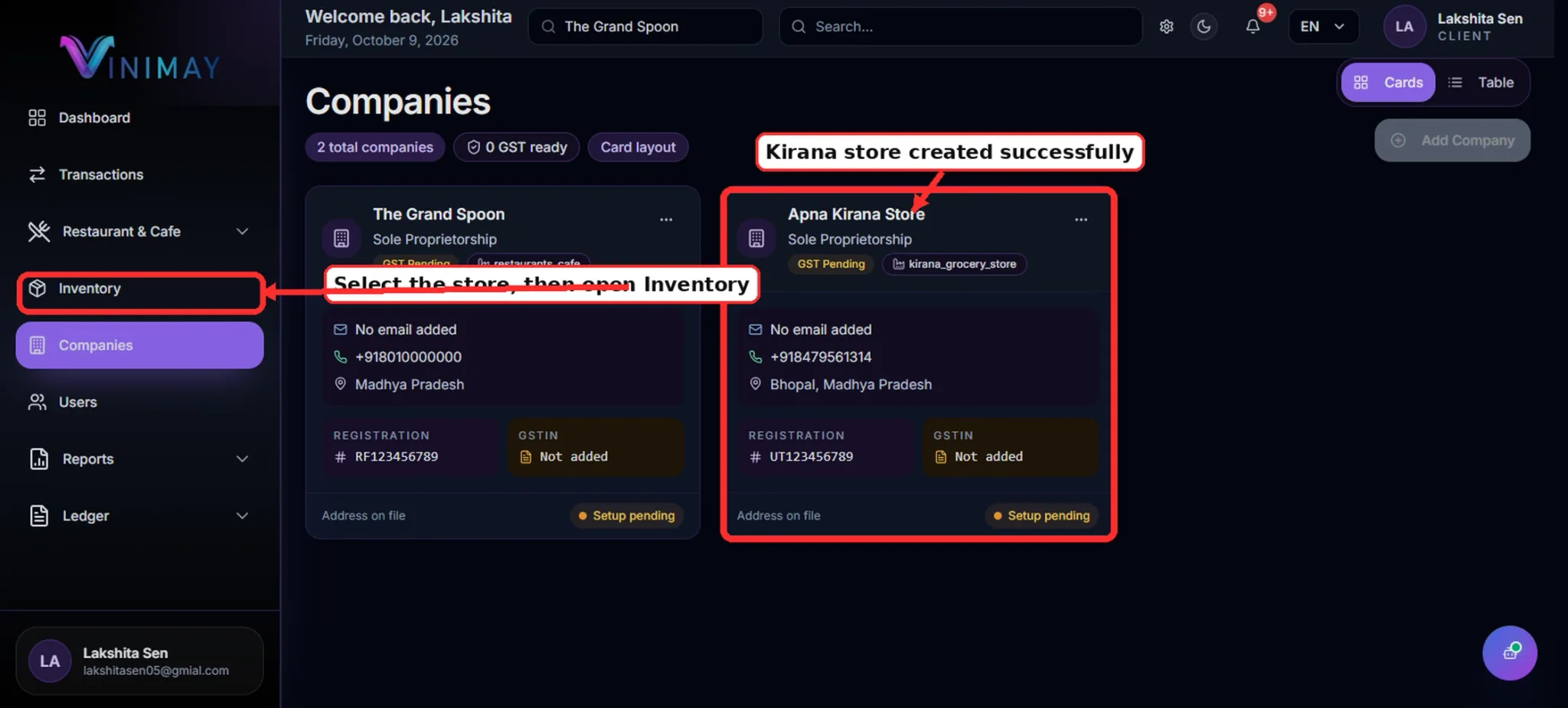
Return to the Companies page.
Your newly created kirana business should now appear in the company list with the kirana_grocery_store tag.
Select the new store and open Inventory.
You can now start adding products such as:
Rice
Flour
Sugar
Pulses
Oil
Biscuits
Beverages
Household products
Enter the product details, prices, GST rates, units, and opening stock so the store is ready for billing and inventory management.
Quick Path
Login → Companies → Add Company → Enter Business Details → Select Kirana & Grocery Store → Complete GST/TDS Details → Create Company → Select Store → Inventory → Add Products