Managing purchase transactions is an important part of maintaining accurate business accounts. Whenever a business purchases goods, raw materials, or services from a supplier, recording the transaction helps track expenses, inventory, supplier payments, and GST details.
With Vinimay Accounting Software, businesses can create purchase entries, maintain supplier records, and manage purchase-related transactions in one place.
In this step-by-step guide, we will explain how to make a purchase entry in Vinimay.
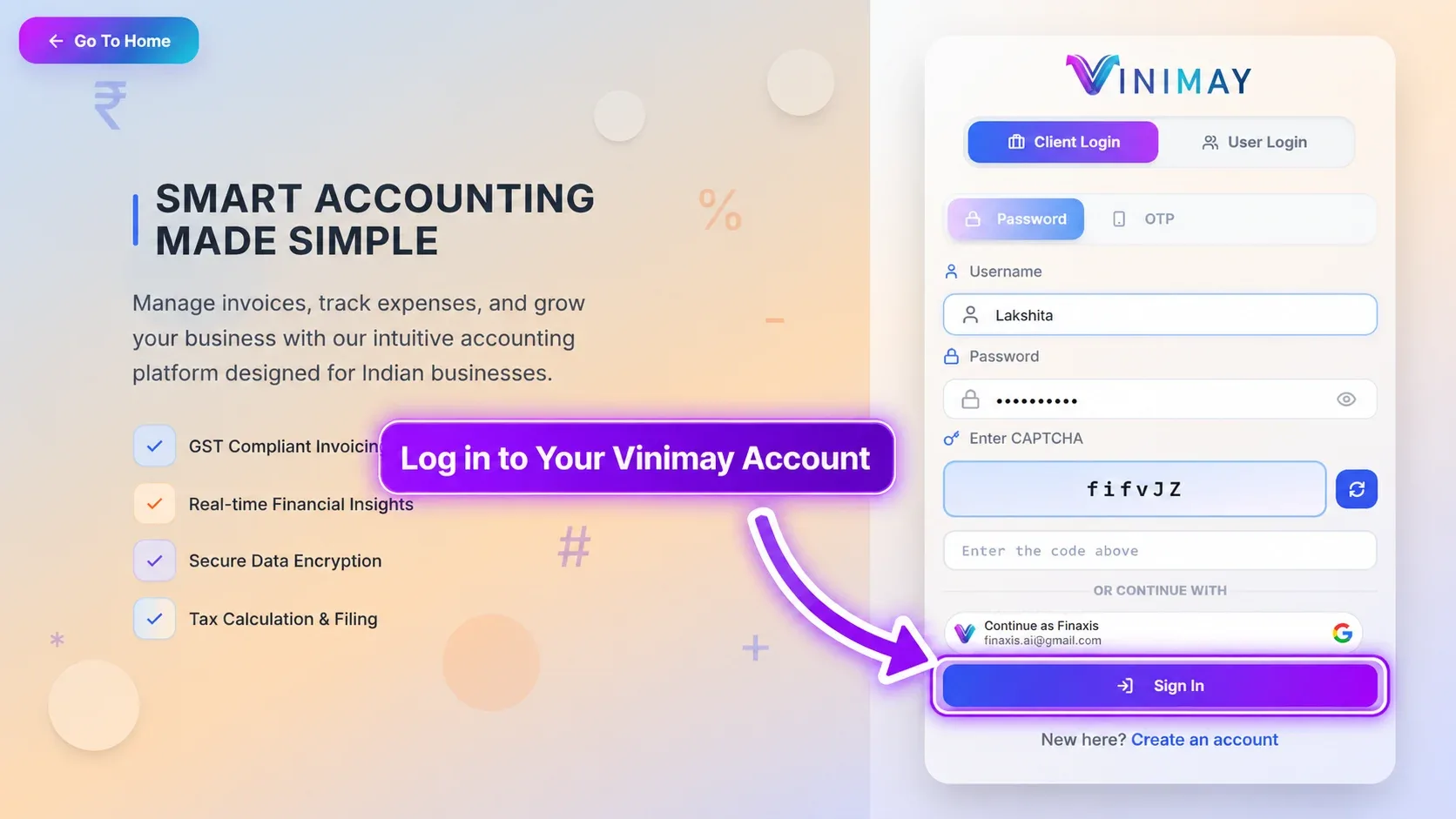
Step 1: Log in to Your Vinimay Account
Open the Vinimay website and log in using your registered credentials.
Enter your username and password, complete the CAPTCHA verification, and click the Sign In button.
After successful login, you will be redirected to the Vinimay dashboard.
Make sure you have permission to create and manage purchase transactions.
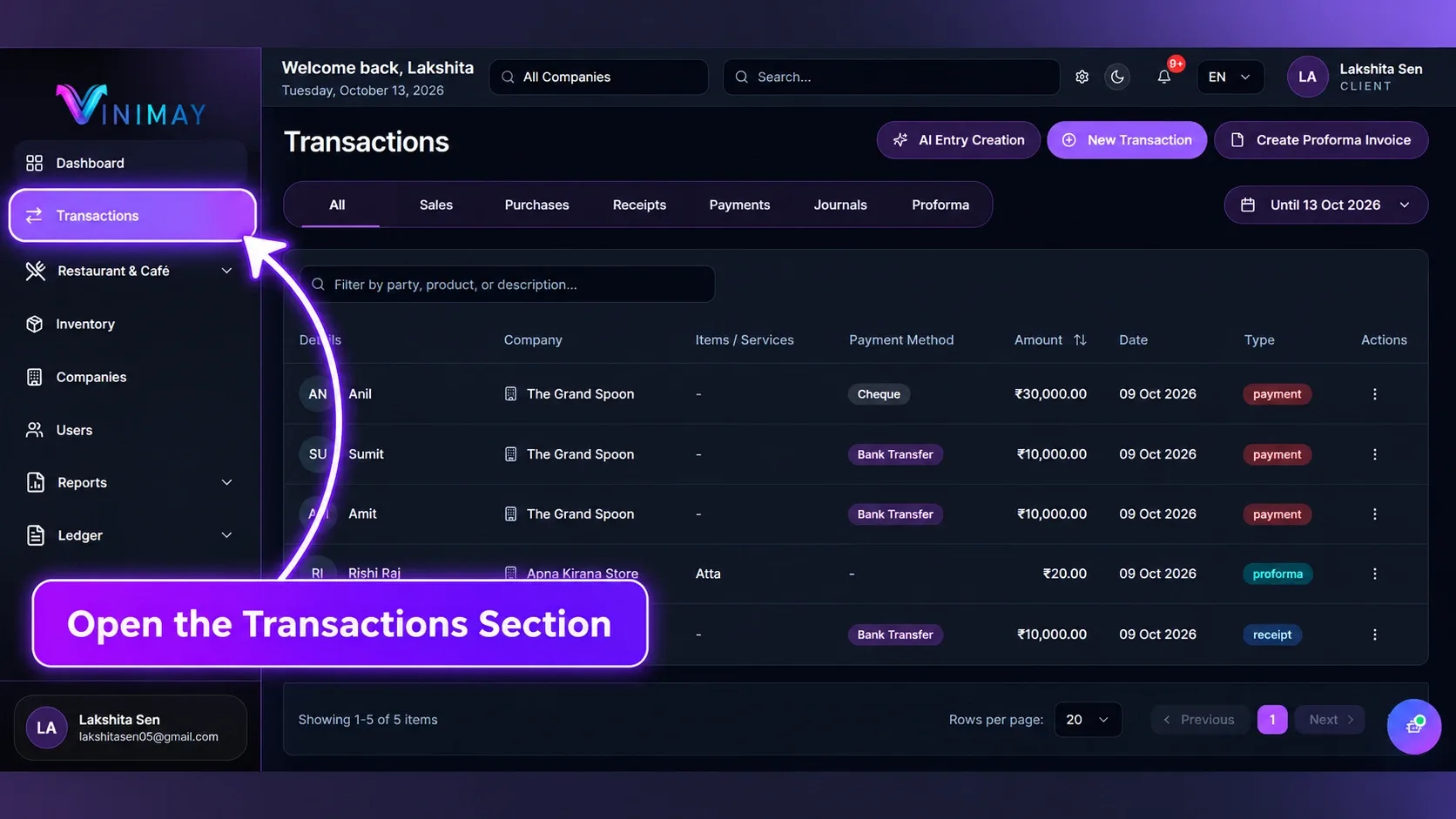
Step 2: Open the Transactions Section
On the left sidebar of the Vinimay dashboard, locate the Transactions option.
Click on Transactions to open the transaction management page.
This section allows you to manage different types of business transactions, including sales, purchases, payments, receipts, and journals.
From here, you can create a new purchase entry or review previously recorded purchases.
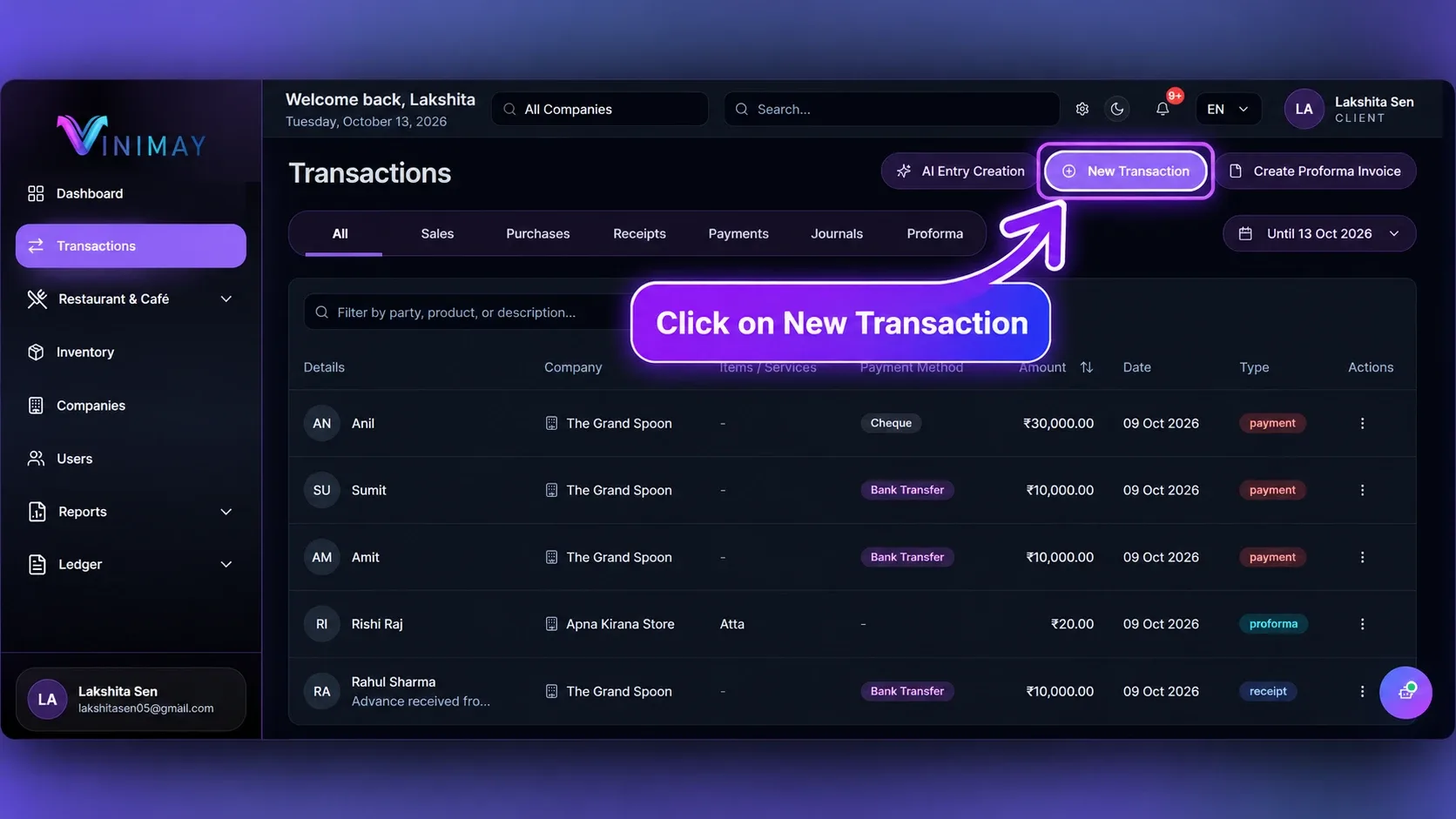
Step 3: Click on New Transaction.
At the top of the Transactions page, locate the New Transaction button.
Click it to open the transaction creation form.
The form allows you to record various types of business transactions.
Look for the transaction type selection option and choose Purchase.
This ensures that the new entry is recorded as a purchase transaction rather than a sale or payment.
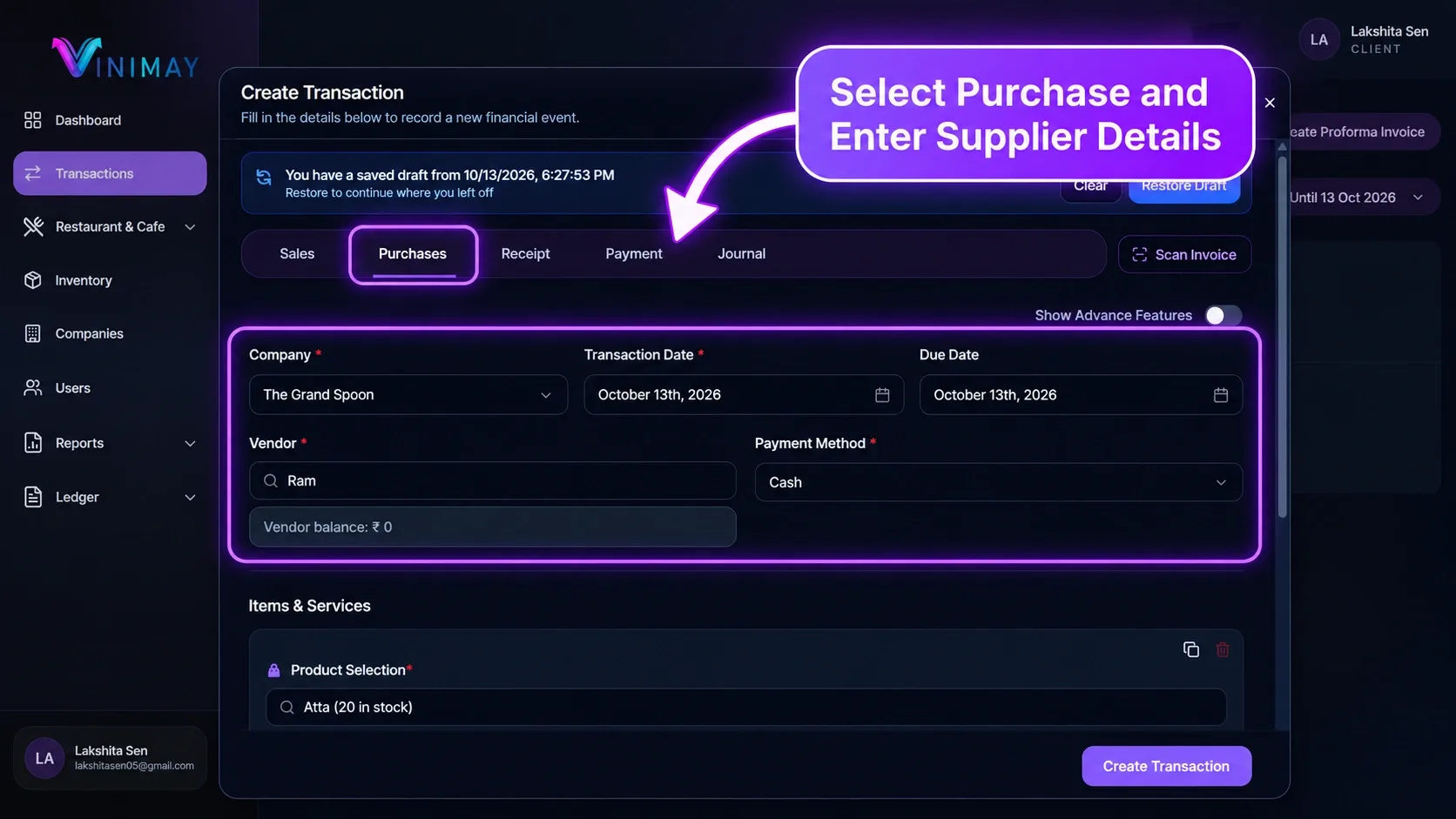
Step 4: Select Purchase and Enter Supplier Details
After selecting Purchase, enter the required supplier information.
Choose the company for which you are recording the purchase.
Next, select the supplier or vendor from the available list.
If the supplier is not already registered, use the available option to create a new supplier record, where supported.
Review the supplier name, purchase date, reference number, and other relevant details.
For example, if your business purchases raw materials from ABC Traders, select ABC Traders as the supplier.
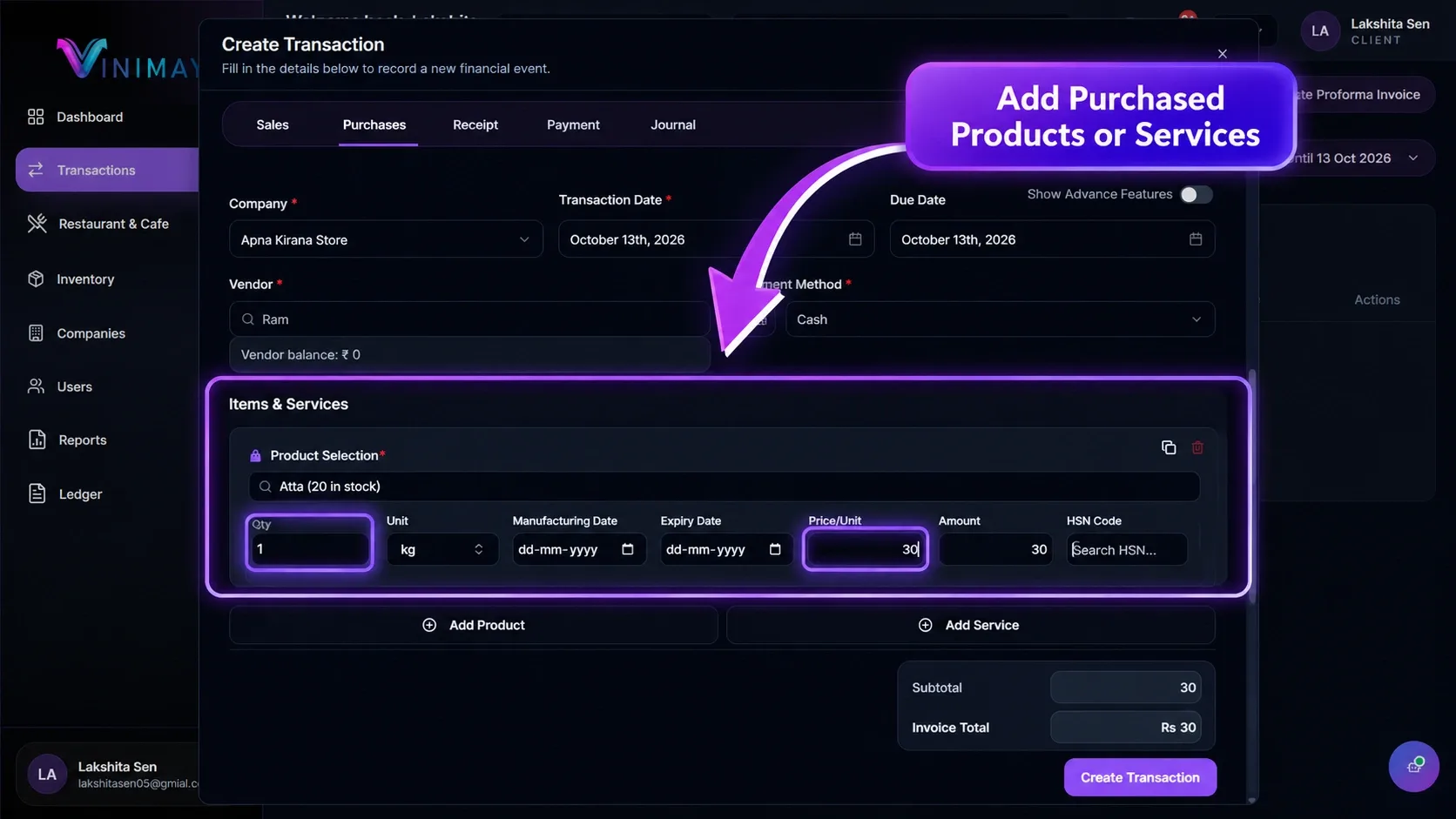
Step 5: Add Purchased Products or Services
After entering supplier details, add the products or services purchased.
Click Add Product or Add Service, depending on the type of purchase.
Enter the required information, including:
Product Name: Select the purchased item.
Quantity: Enter the number of units purchased.
Unit: Choose the relevant measurement unit.
Purchase Price: Enter the price per unit.
GST Rate: Select the applicable GST percentage.
HSN/SAC Code: Enter or select the relevant classification, where required.
For example, if you purchase 20 kg of Atta at ₹30 per kg, the basic purchase amount will be ₹600 before applicable taxes or discounts.
Review the amounts carefully before proceeding.
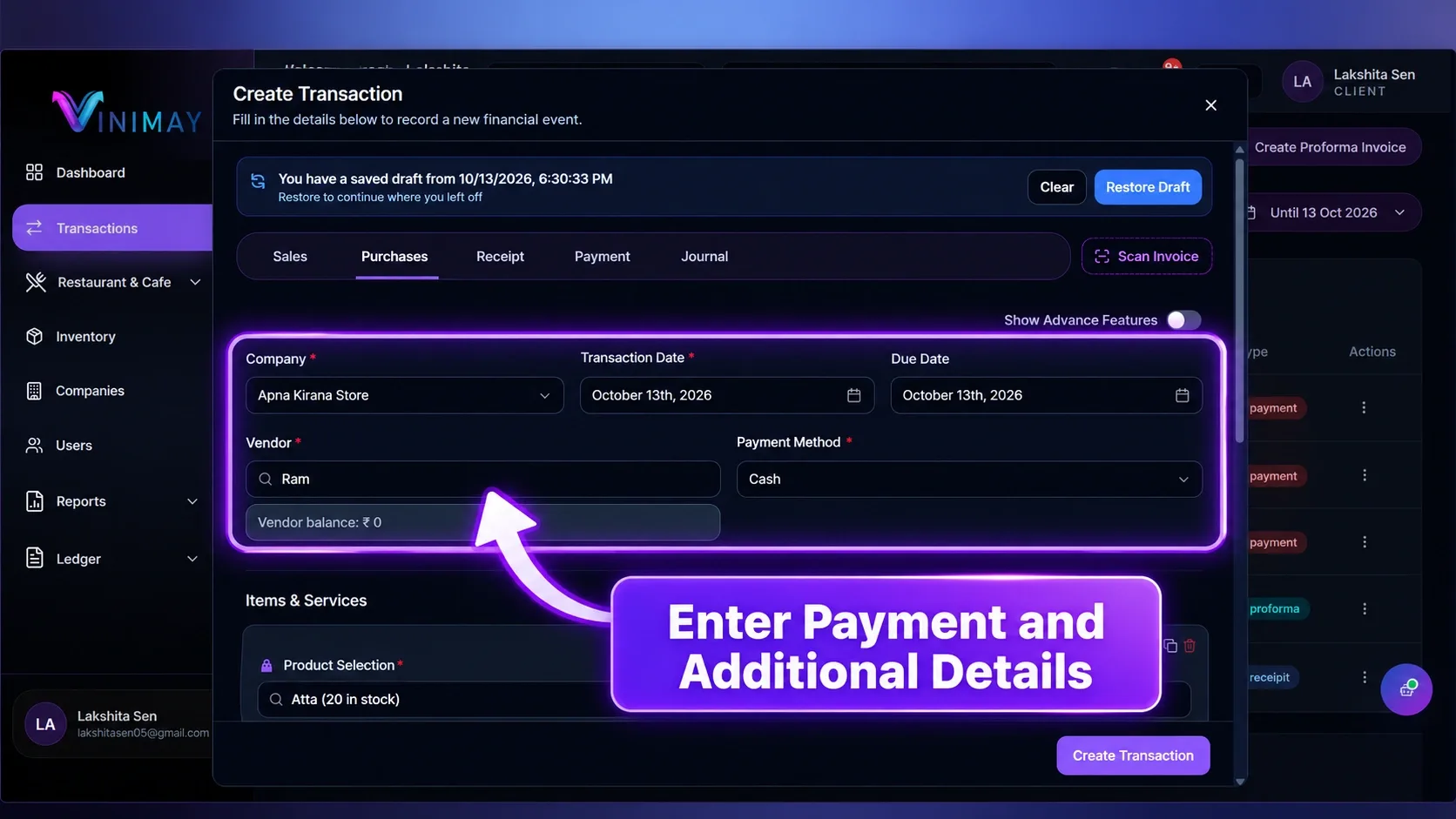
Step 6: Enter Payment and Additional Details
Once the products or services are added, review the purchase amount and other transaction details.
Depending on the available fields, enter the payment method, invoice reference, supplier invoice date, and additional notes.
If the purchase is made on credit, ensure the outstanding amount is recorded appropriately.
If payment has already been made, record the payment information using the relevant options.
Check the taxable value, GST calculation, discounts, and final purchase amount.
Accurate purchase information helps maintain reliable supplier balances and inventory records.
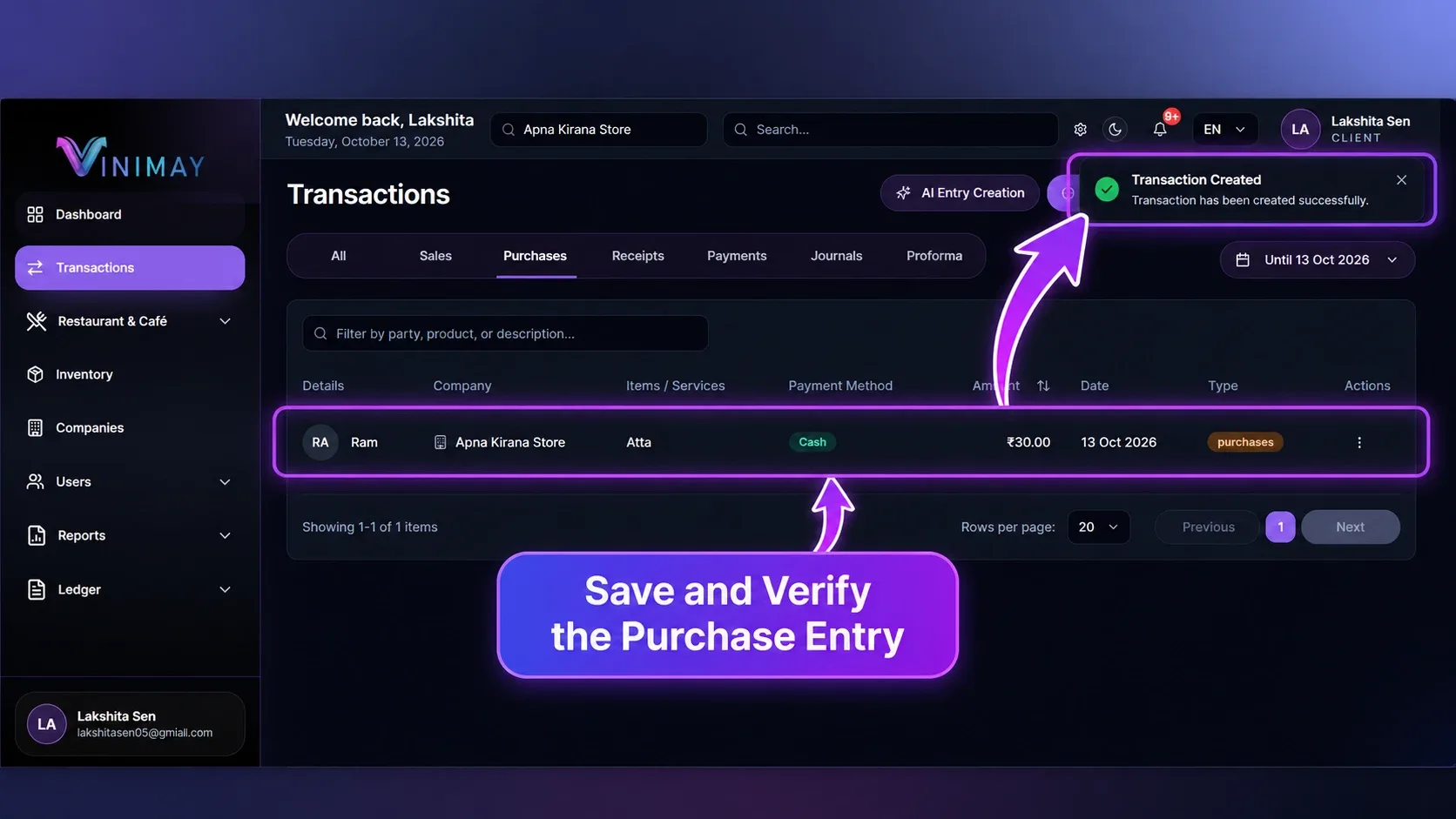
Step 7: Save and Verify the Purchase Entry
After completing all required fields, click the Save or Create Transaction button.
Wait for the confirmation message indicating that the purchase entry has been created.
Return to Transactions → Purchases to locate the newly recorded transaction.
Check the supplier name, product details, quantity, purchase amount, date, and applicable taxes.
If the entry includes inventory items, review the stock records to ensure the purchase has been reflected correctly.
You can also preview or download the purchase record if the relevant options are available.
Benefits of Recording Purchase Entries in Vinimay
Recording purchases digitally helps businesses maintain organized supplier and expense records.
It can improve inventory tracking, simplify purchase verification, support GST accounting, and provide better visibility into supplier outstanding balances.
Regularly recording purchase transactions also reduces dependence on manual registers and spreadsheets.
Conclusion
Creating a purchase entry in Vinimay is a straightforward process that helps businesses maintain accurate purchase records and manage supplier transactions efficiently.
By navigating to Transactions → New Transaction → Purchase → Enter Details → Save, users can record purchases and verify the information afterwards.
Maintaining complete purchase records supports better inventory management, financial reporting, and day-to-day business operations.