If a payment transaction has been recorded with the wrong payment method, Vinimay allows you to edit the existing transaction instead of deleting and recreating it. In the screenshots, the payment made to Sumit was originally recorded through UPI and was later changed to Bank Transfer.
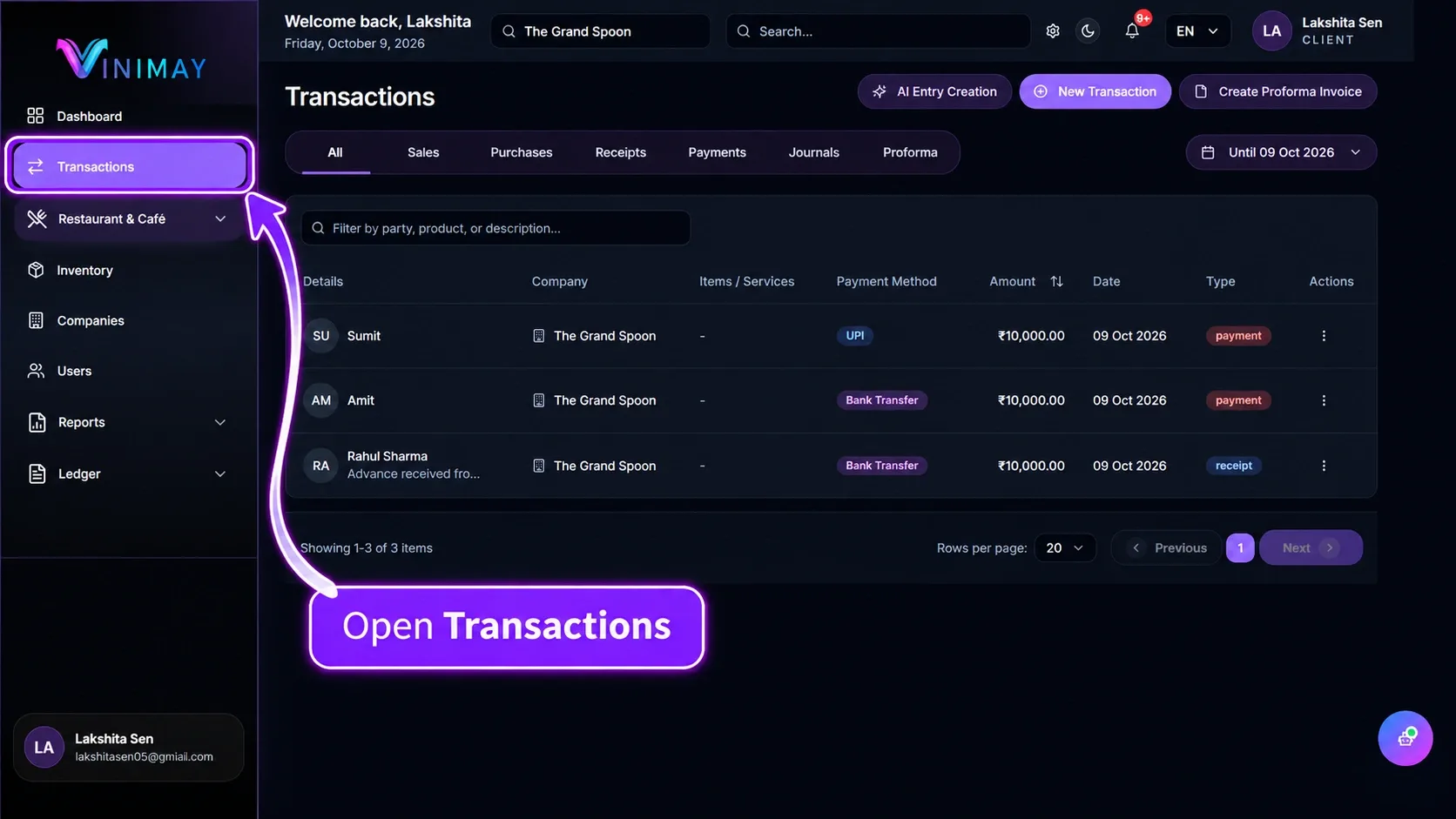
Step 1: Open Transactions
Log in to Vinimay and select the correct company. From the left-side navigation menu, click Transactions.
The Transactions page displays all recorded entries, including Sales, Purchases, Receipts, Payments, and Journals. You can either work from the All tab or open the specific transaction type you need.
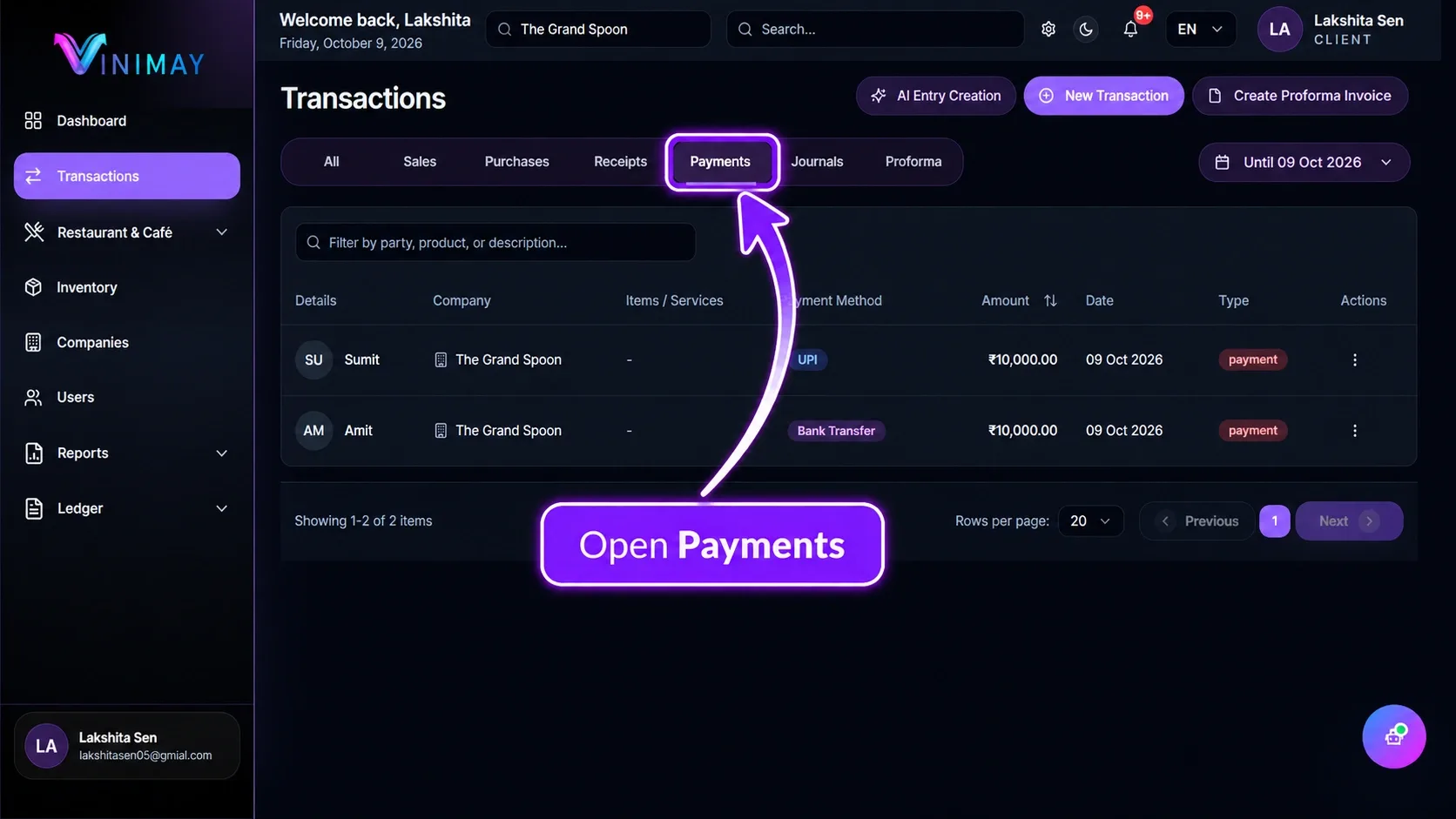
Step 2: Open the Payments Tab
Click the Payments tab at the top of the Transactions page.
This filters the transaction list so that only payment entries are displayed. In the example shown, two payment transactions are visible: one for Sumit and another for Amit.
Locate the payment whose payment method needs to be corrected.
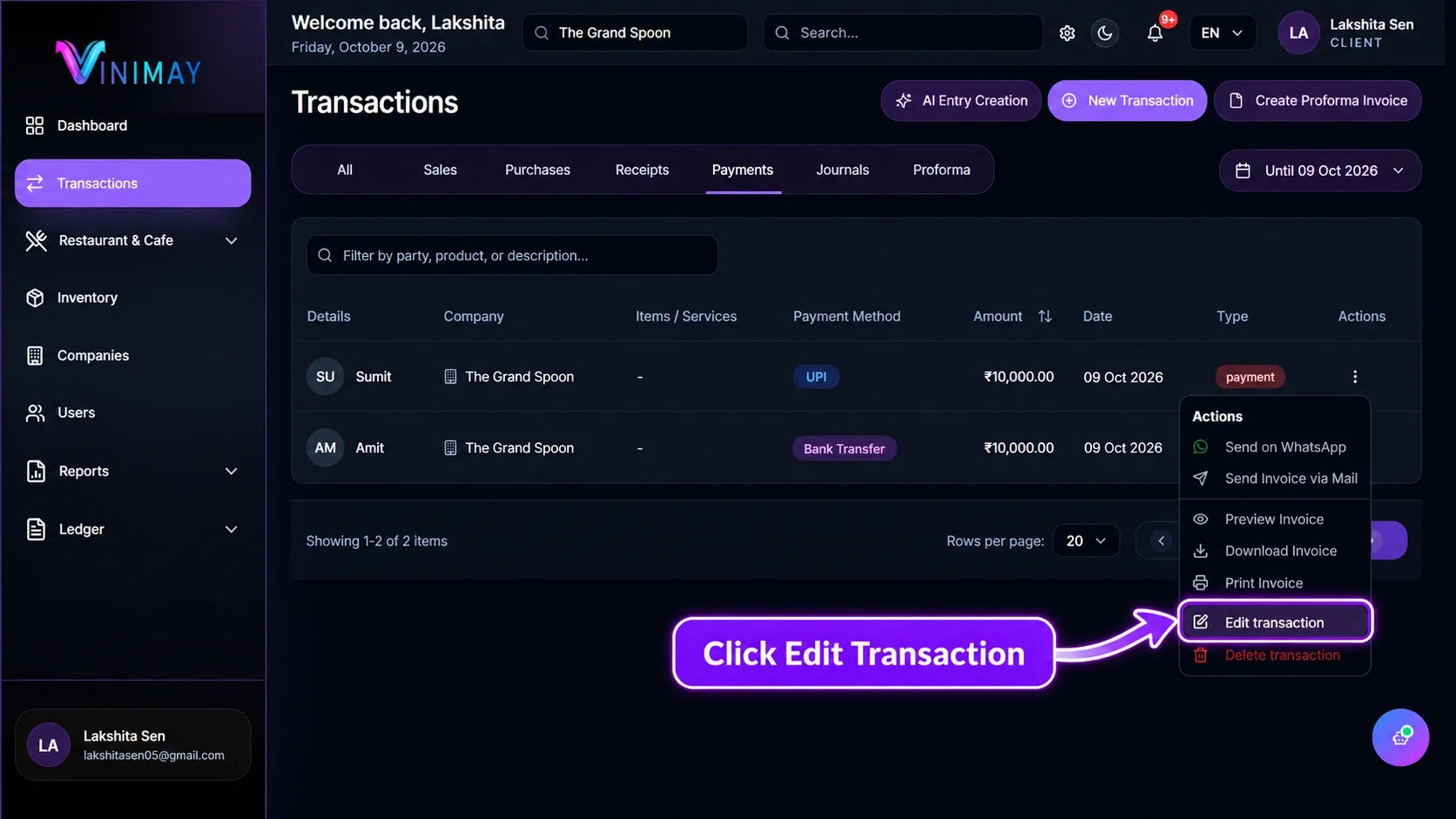
Step 3: Open the Transaction Actions Menu
On the right side of the required payment row, locate the three-dot Actions menu.
Click the three dots to display the available actions for that transaction. The menu includes options such as sending the transaction through WhatsApp or email, previewing or downloading the invoice, printing it, editing the transaction, and deleting the transaction.
To change the payment method, click Edit transaction.
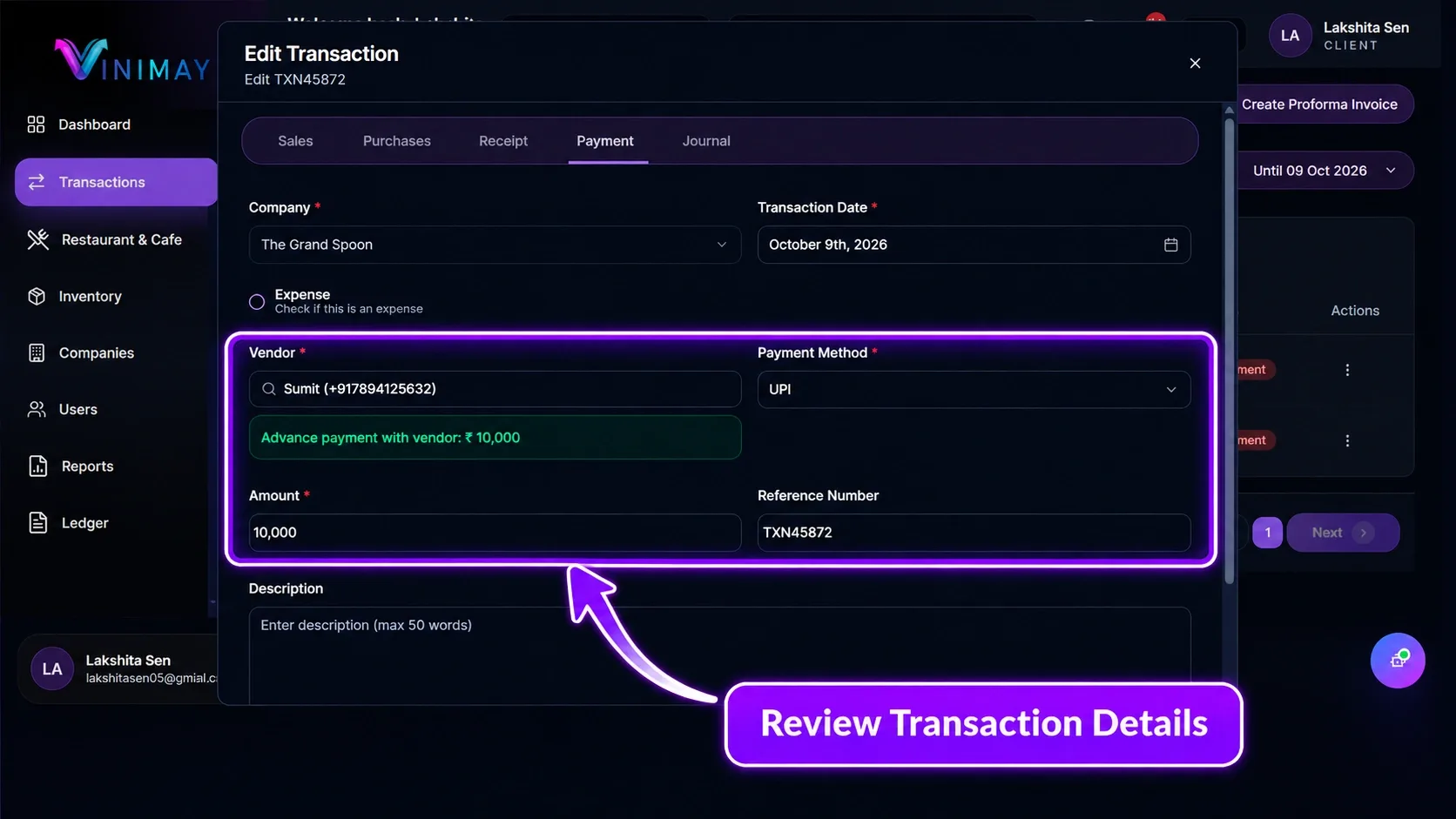
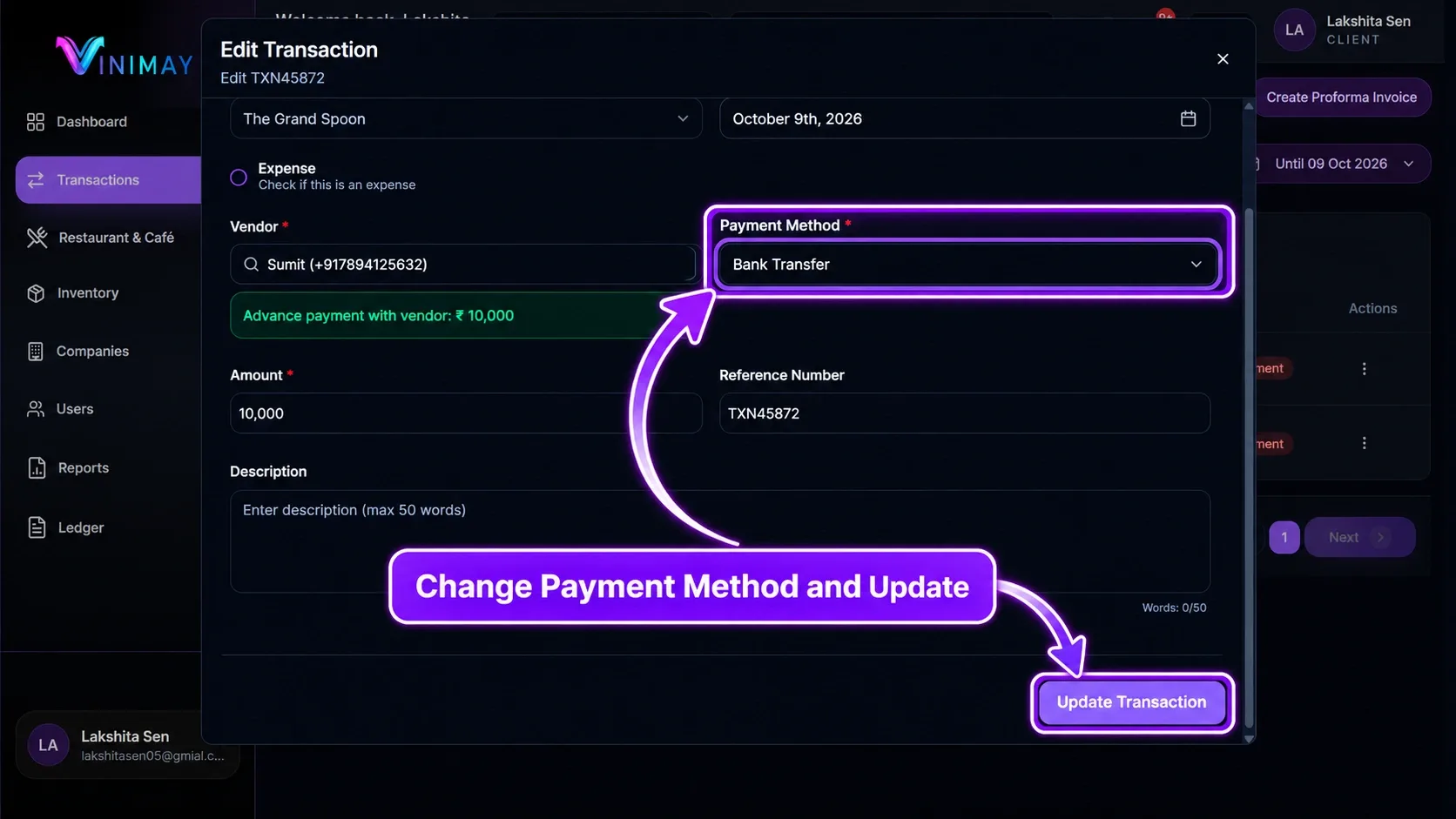
Step 4: Review the Existing Payment Transaction
The Edit Transaction window will open.
Before making any change, check that you are editing the correct transaction. In the example, the form shows:
Transaction type: Payment
Company: The Grand Spoon
Vendor: Sumit
Existing Payment Method: UPI
Amount: ₹10,000
Reference Number: TXN45872
The screen also shows that there is an advance payment with vendor of ₹10,000.
These details help you confirm that the correct payment entry has been selected.
Step 5: Change the Payment Method and Update
Locate the Payment Method dropdown in the Edit Transaction form.
Click the dropdown and select the correct payment method. In the screenshots, the existing method is changed from UPI to Bank Transfer.
Only change the payment method when the actual mode through which the payment was made is different from what was originally recorded.
While editing, you can also verify the transaction date, vendor, amount, reference number, and description to make sure the complete entry is correct.
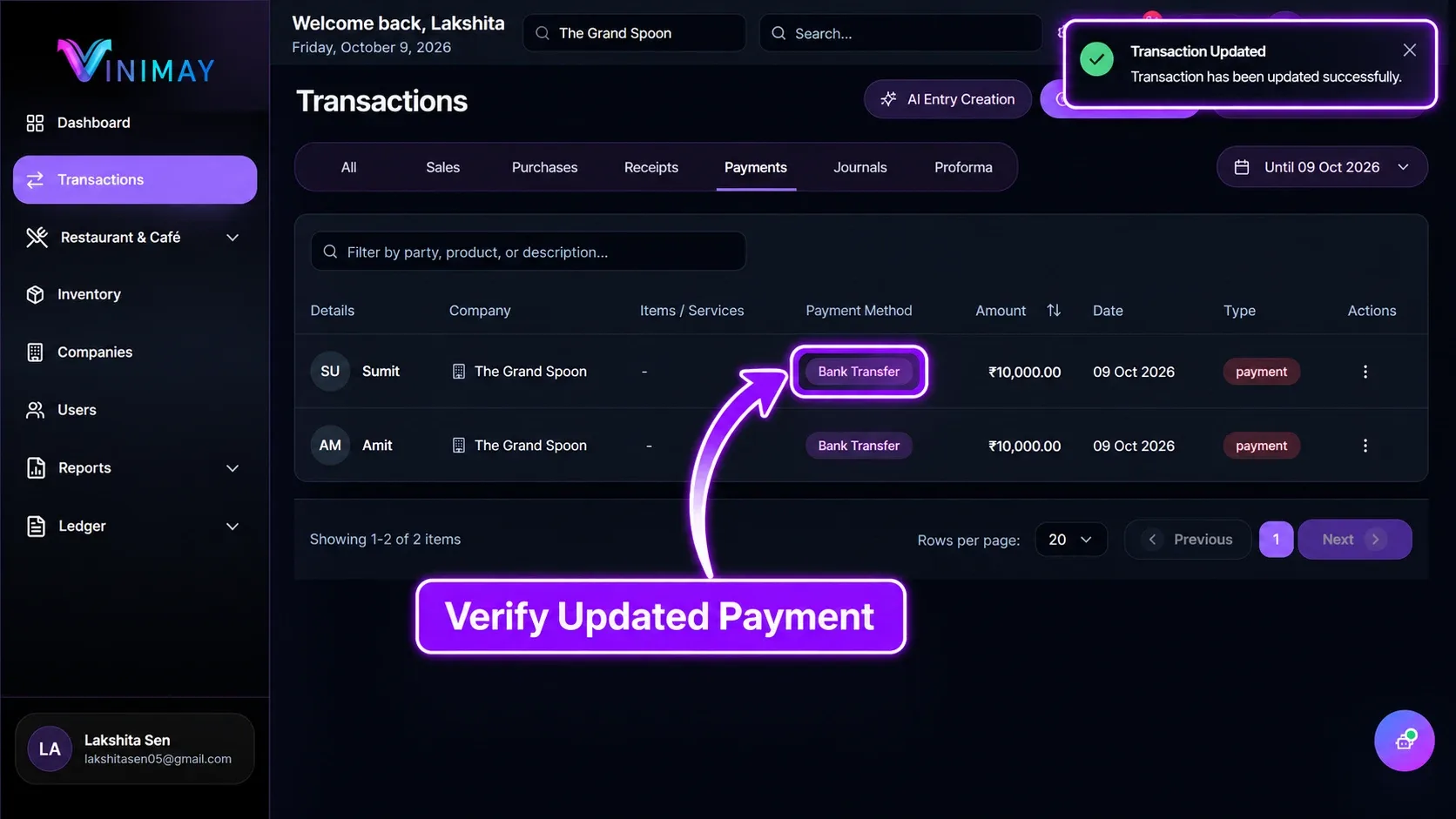
Step 6: Verify the Updated Payment Method
After the update is completed, Vinimay returns to the Payments list.
A confirmation message appears:
“Transaction Updated – Transaction has been updated successfully.”
Check the edited transaction in the table. In the example, Sumit's ₹10,000 payment now displays Bank Transfer instead of UPI under the Payment Method column.
This final verification confirms that the payment method has been changed successfully.
Quick Path
Transactions → Payments → Find Payment → Actions (⋮) → Edit Transaction → Payment Method → Select New Method → Update Transaction → Verify Updated Metho