How to View and Use Product Barcodes in Vinimay
Every product in Vinimay has its own barcode, making it easier to identify products and prepare labels for inventory management. You can view a product's barcode, print it for labels, or copy its barcode value without entering the code manually.
This guide explains how to find, view, print, and copy a product barcode in Vinimay in six simple steps.
Quick answer: To view and print a product barcode in Vinimay, open Inventory, find the Barcode column, and click the barcode icon beside the required product. In the Product Barcode window, check the product details, click Print to print the barcode, or click Copy Value to copy its barcode value.
What Is a Product Barcode?
A product barcode is a machine-readable code associated with a particular product. When printed on a label and attached to an item or package, it can help identify the product through a compatible barcode scanner or scanning system.
In Vinimay, you can access the barcode associated with a saved product directly from the Inventory page.
Why Are Product Barcodes Useful?
Using product barcodes can make everyday inventory tasks easier.
Automatic barcode creation: Vinimay provides a barcode for each saved product, so you do not need to enter one manually.
Easy printing: Print the barcode from Vinimay and use it on product labels.
Better product identification: A unique barcode value helps distinguish products, including similar-looking items.
Convenient record-keeping: Copy the barcode value into a spreadsheet, note, or compatible label-design tool when needed.
How to View and Print a Product Barcode in Vinimay
Follow these six steps to access and use a product's barcode.
Step 1: Open Inventory
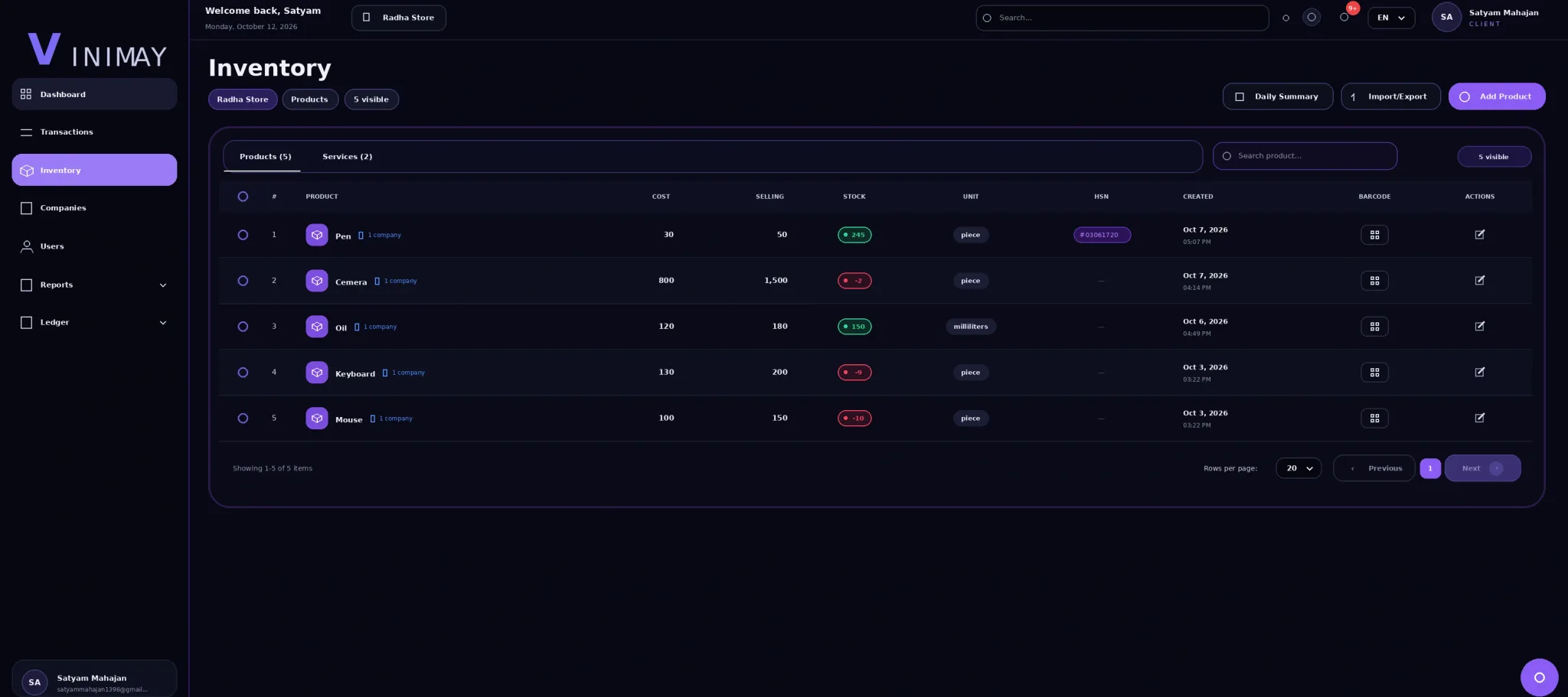
Log in to Vinimay and open your dashboard. Click Inventory in the left-side menu.
The Inventory page displays your product list, including the Barcode column.
Step 2: Find the Barcode Column
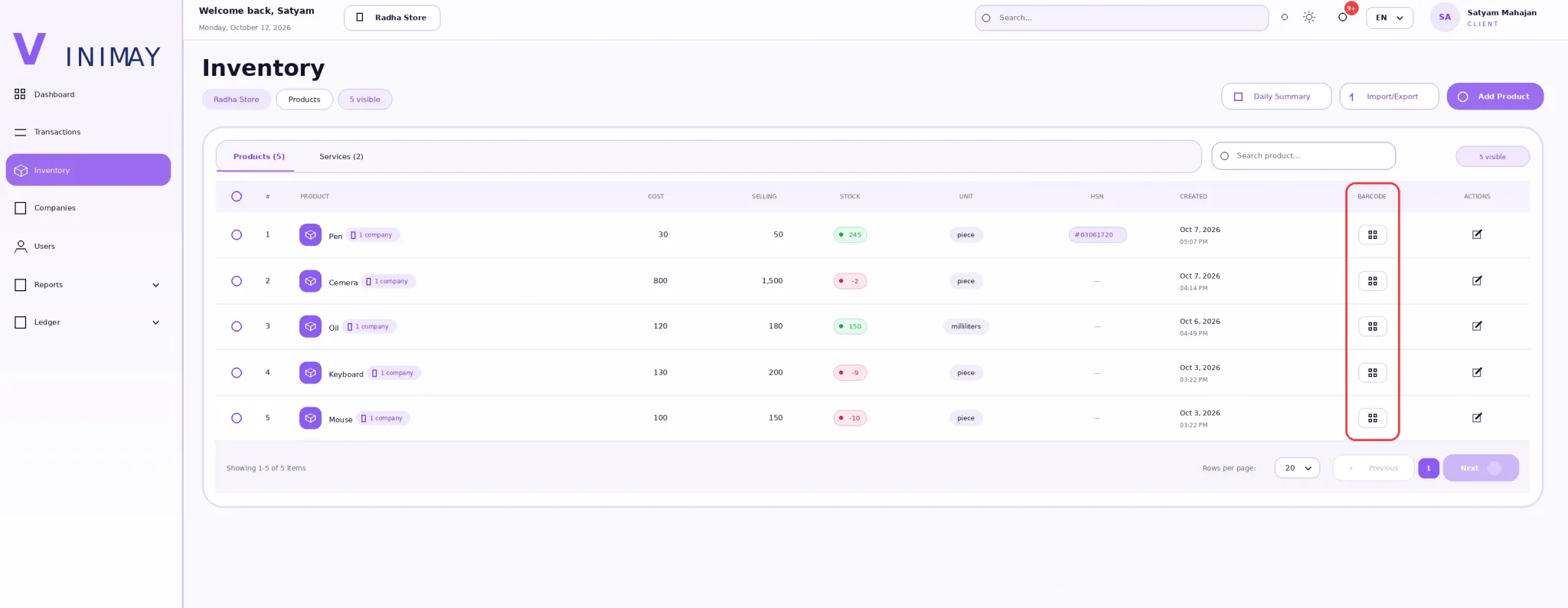
On the Inventory page, locate the Barcode column in the product list.
Each product row displays a small barcode icon in this column. Find the row corresponding to the product whose barcode you want to view.
Step 3: Click the Barcode Icon
Click the barcode icon in the row of your selected product.
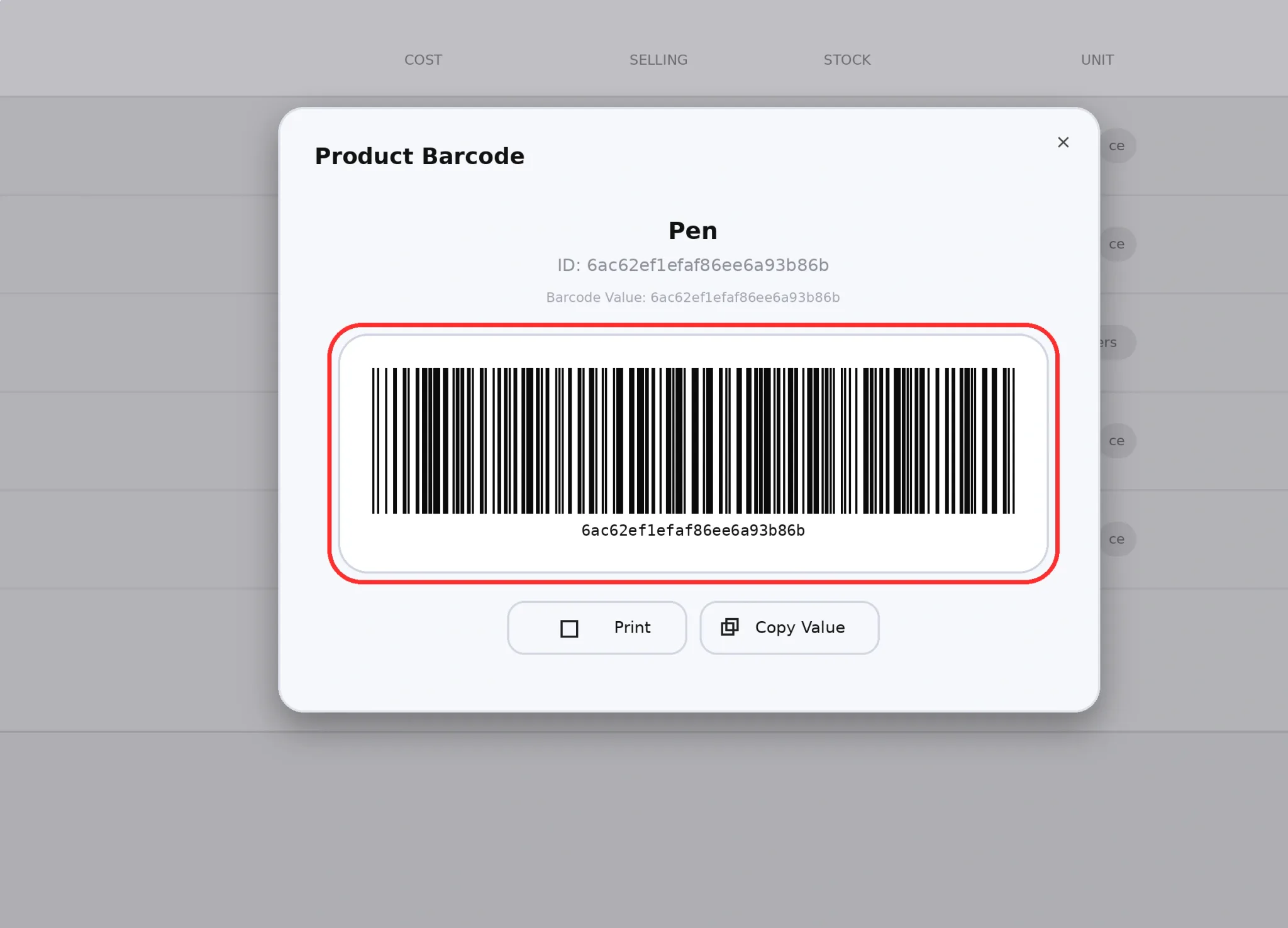
A window titled Product Barcode opens, displaying the barcode information for that product.
Step 4: Check the Barcode Details
The Product Barcode window displays the following information:
Product Name: The name of the selected product.
Product ID: The product's identification number.
Barcode Value: The value associated with the barcode.
Barcode Image: The visual, machine-readable representation of the code.
Before printing or copying the barcode, confirm that the product name matches the item you selected.
This simple check helps prevent you from printing or using a barcode for the wrong product.
Step 5: Print the Barcode
To print the barcode, click Print in the Product Barcode window.
Follow the print dialog options available on your device to select the printer and complete the print job.
Once printed, you can use the barcode on a suitable product label or package. Make sure the printed barcode is clear and can be scanned by your intended scanning equipment.
Step 6: Copy the Barcode Value
If you need the barcode as text instead of a printed image, click Copy Value.
Vinimay copies the barcode value so you can paste it into a note, spreadsheet, or compatible label-design tool.
When you finish, click the X in the top-right corner of the Product Barcode window to close it.
Do You Need to Enter a Barcode When Adding a Product?
No. The Create New Product form does not include a barcode field.
You can create a product by entering the usual details, such as company, product name, unit, stock, and prices. After saving the product, open Inventory and access its barcode through the Barcode column.
Vinimay generates the barcode automatically, so you do not need to create or enter the value manually.
Tips for Using Product Barcodes Effectively
Verify the product name: Always confirm that the barcode belongs to the correct product before printing it.
Print clear labels: Avoid blurry, stretched, or damaged barcodes that may be difficult to scan.
Keep labels attached to the correct products: This helps prevent product identification errors.
Store copied values carefully: If you maintain a spreadsheet of barcode values, keep each value associated with the correct product.
Test printed labels: If you plan to scan barcodes, check that the printed labels work with your barcode scanner and intended workflow.
Important: Having a barcode available in Vinimay does not automatically mean every scanner or checkout workflow will support it. Confirm compatibility with your scanning equipment and the features available in your Vinimay setup.
Conclusion
Vinimay makes it easy to access product barcodes directly from the Inventory page. Open the Barcode column, select the relevant product, and use the Product Barcode window to review its details, print a label, or copy the barcode value.
By keeping printed labels clear and matching each barcode to the correct product, you can make product identification and inventory management more organised.