How to Add a Restaurant Customer in Vinimay: Classification and Discount
A regular walks in, and you want to remember them: their name, their number, and whether they get a discount. If you do not record this, every visit starts from zero, and you cannot see who your loyal customers are.
In Vinimay's restaurant module, you add a customer with the Create customer form. It has two parts: the customer's details, such as name, phone, email, and address, and a restaurant profile, with a classification, a discount type and notes that apply only to your restaurant.
This guide starts from the login page and shows with clear images how to open the restaurant customers page and fill in the Create customer form.
Step 1: Log in to Vinimay
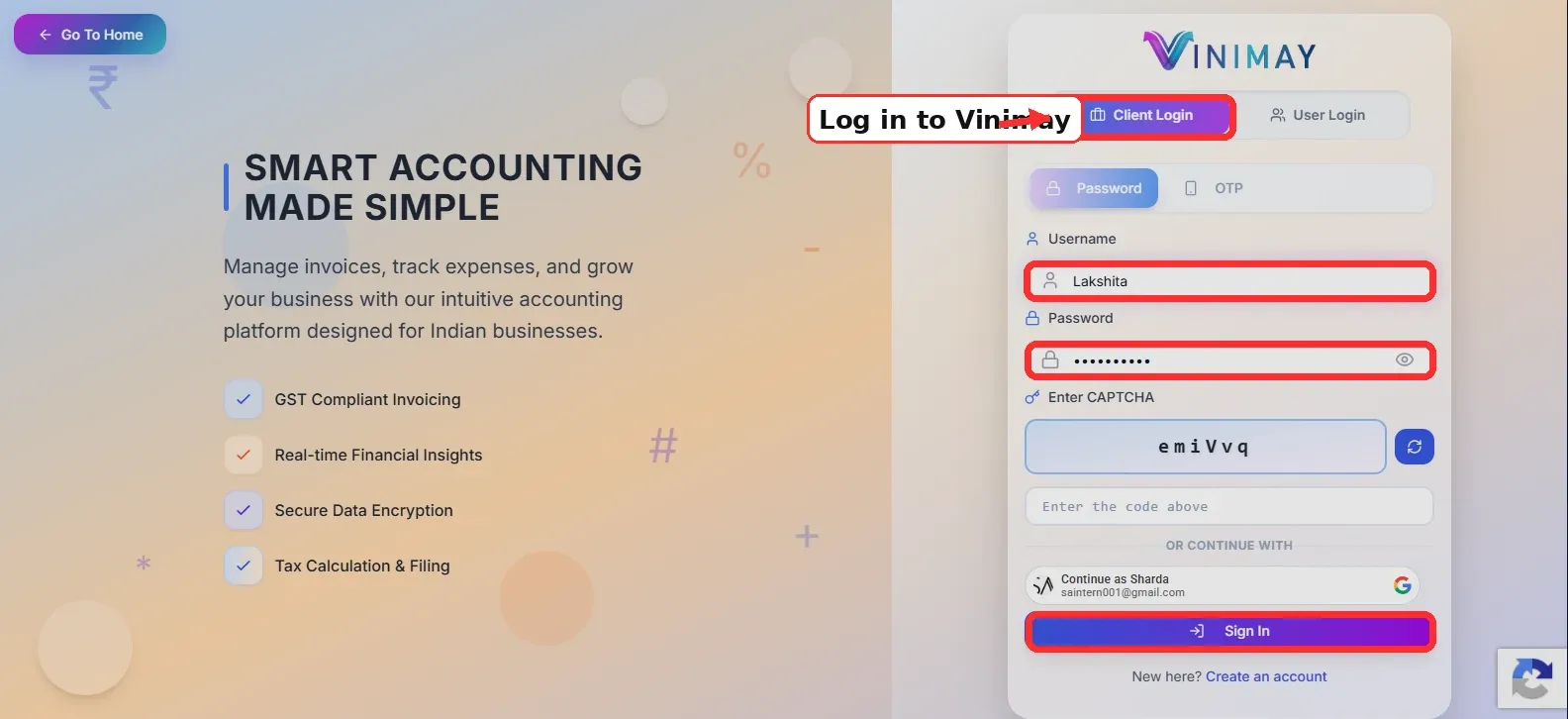
Open the Vinimay login page. Choose Client Login for the account owner or User Login for staff (marker 1). Enter the Username (marker 2) and Password (marker 3), type the CAPTCHA (marker 4), and click Sign In
Step 2: Go from the Dashboard to Restaurants Customers
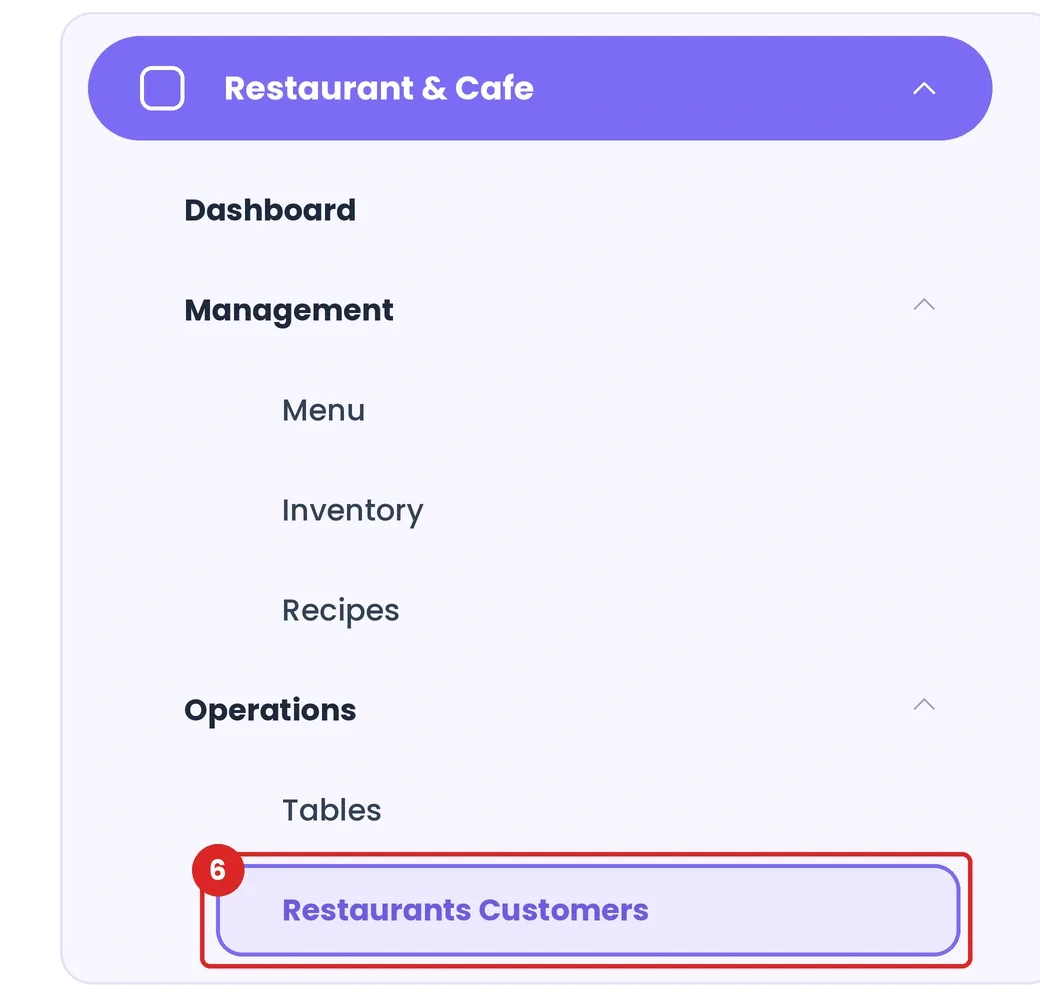
After you sign in, you land on the Dashboard. In the left menu, click Restaurant & Cafe, open Operations and click Restaurants Customers (marker 6). Then click the Create customer button at the top right of the page.
Step 3: Fill in the customer details
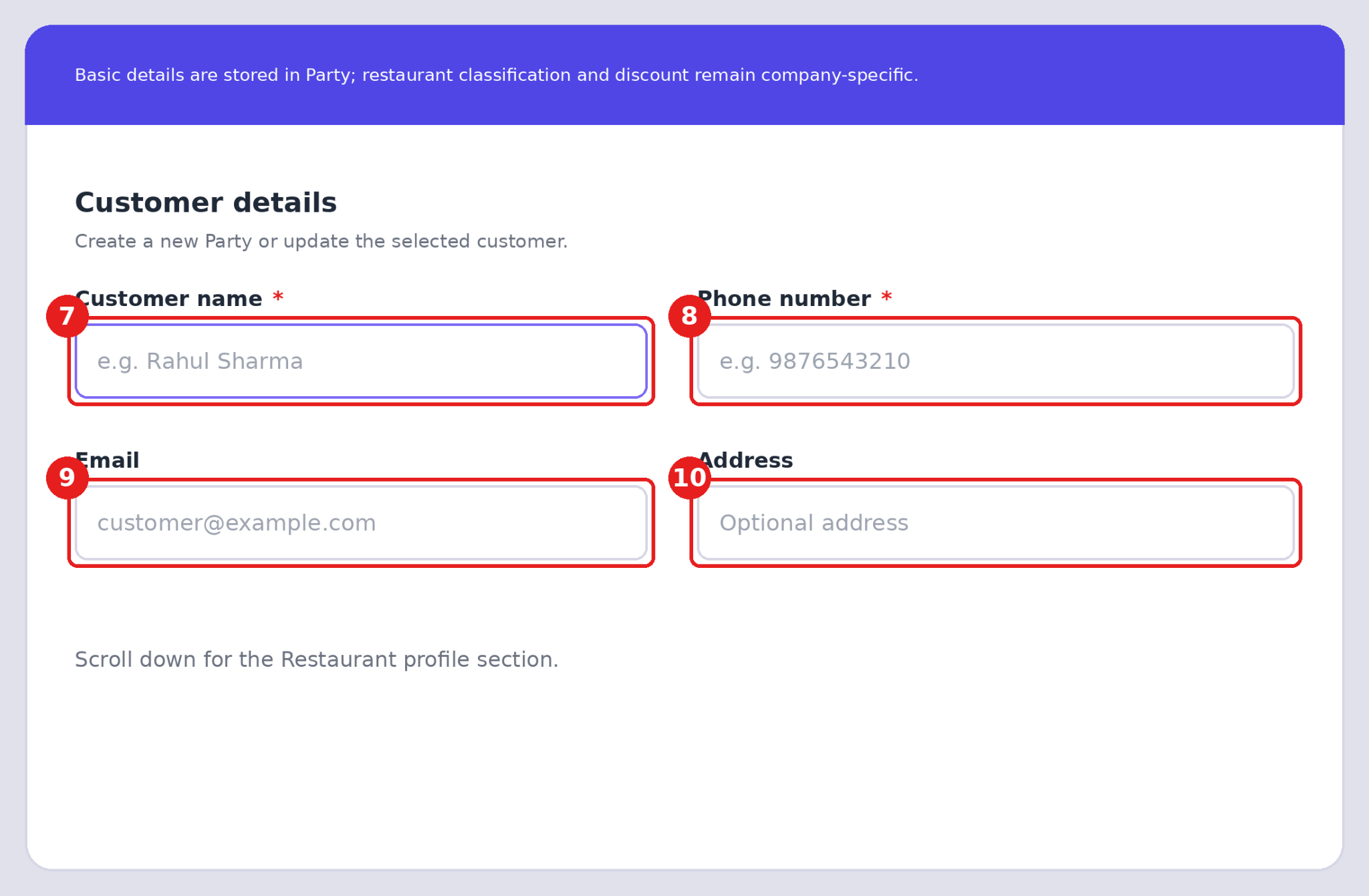
The form says "Basic details are stored in Party; restaurant classification and discount remain company-specific." Under Customer details, fill in the Customer name (marker 7) and the Phone number (marker 8). Both are required. You can also add the Email (marker 9) and the Address (marker 10).
Step 4: Set the restaurant profile
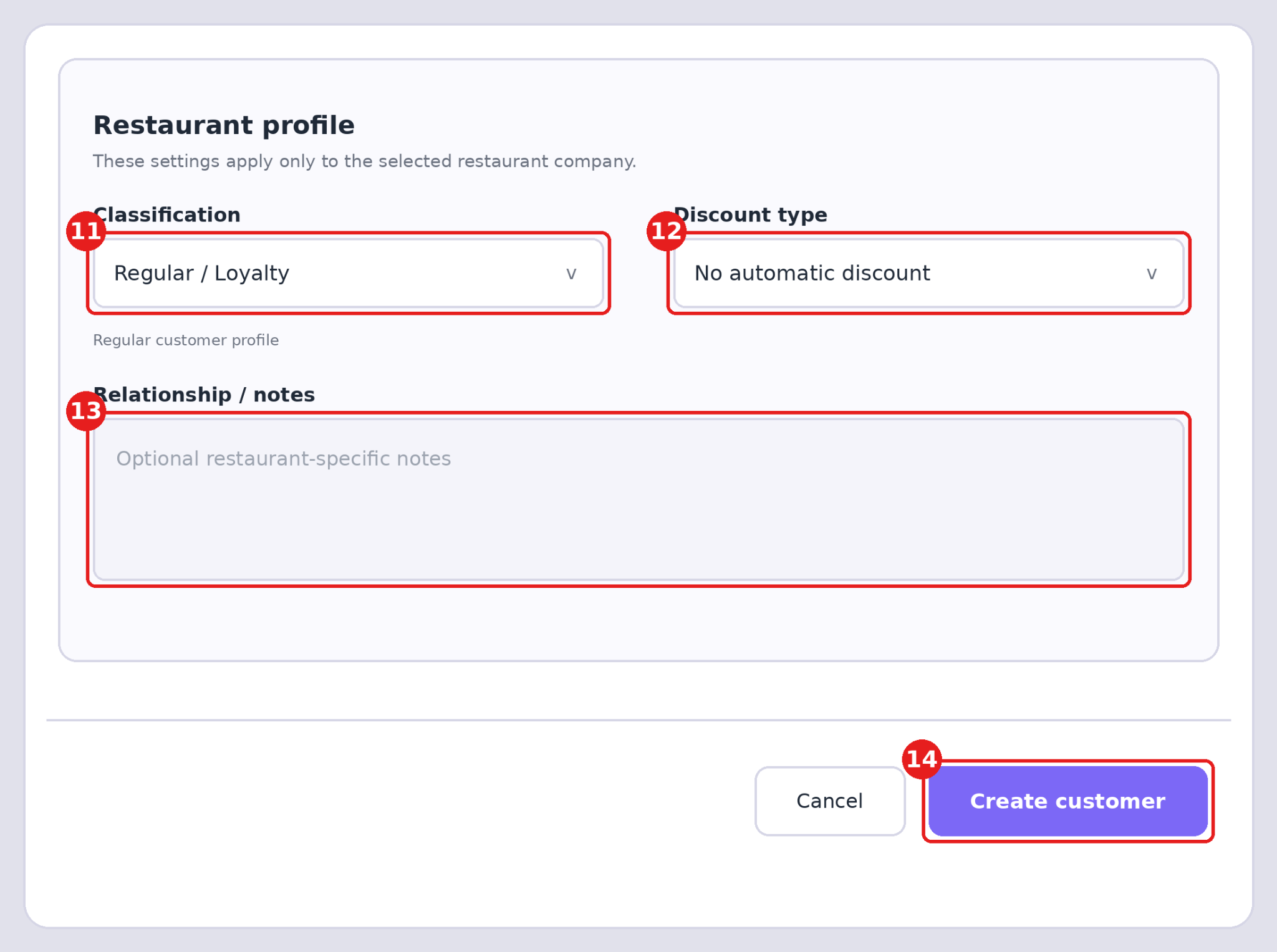
Scroll down to Restaurant profile. These settings apply only to the selected restaurant company. Choose the Classification (marker 11), the form shows Regular / Loyalty, and the Discount type (marker 12), the form shows No automatic discount. You can add notes in Relationship / notes (marker 13). Then click Create customer (marker 14).
Customer details and restaurant profile: what is the difference?
Tips
Always add the phone number. It is required, and it helps you search for the customer later.
Use the notes field for things such as favourite dishes or allergies you want to remember.
Check the classification before you save.
Keep the discount type as it is, unless you have agreed a discount with the customer.
Conclusion
To add a restaurant customer in Vinimay, open Restaurant & Cafe, then Operations, then Restaurants Customers, and click Create customer. Fill in the name and the phone number, then set the restaurant profile.
The basic details are stored in Party, while the classification and the discount stay specific to your restaurant. This means the same customer can have a different profile in a different company.
Once saved, the customer appears in your list with their classification and discount. Create a free Vinimay account and add your first restaurant customer today.
FAQs
Q1. Where do I add a restaurant customer in Vinimay?
Open Restaurant & Cafe, then Operations, then Restaurants Customers, and click the Create customer button.
Q2. Which fields are required?
Customer name and Phone number. These are marked with a red star.
Q3. What does Party mean in this form?
The form says basic details are stored in Party, so the customer's name, phone, email and address are kept there.
Q4. What is the Restaurant profile?
It holds the classification, the discount type and the notes. The form says these settings apply only to the selected restaurant company.
Q5. What are the classification choices?
The form shows Regular / Loyalty. Open the dropdown to see all the choices.
Q6. What is Discount type?
The form shows No automatic discount. Open the dropdown to see the other choices.
Q7. Can I add notes about a customer?
Yes. Use the Relationship / notes field. It is optional.
Q8. Can I update an existing customer with this form?
The form says Create a new Party or update the selected customer.
Create a free Vinimay account and add your first restaurant customer today.