Vinimay lets you open a restaurant customer’s profile to review their contact details, classification, discounts, outstanding dues, and available customer history.
Step 1: Open Restaurant & Cafe
Log in to Vinimay and select the correct restaurant company.
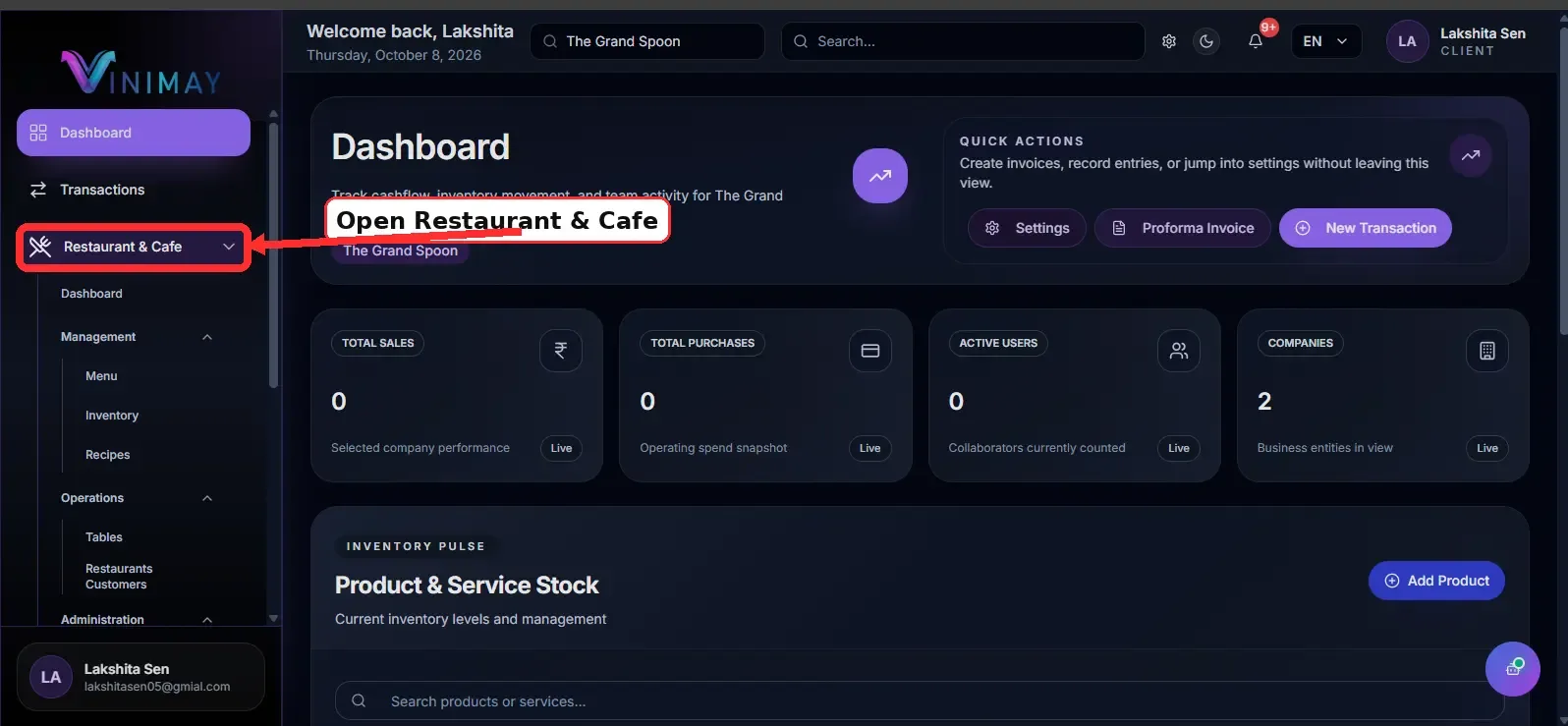
From the left-side menu, open Restaurant & Cafe.
Step 2: Open Restaurant Customers
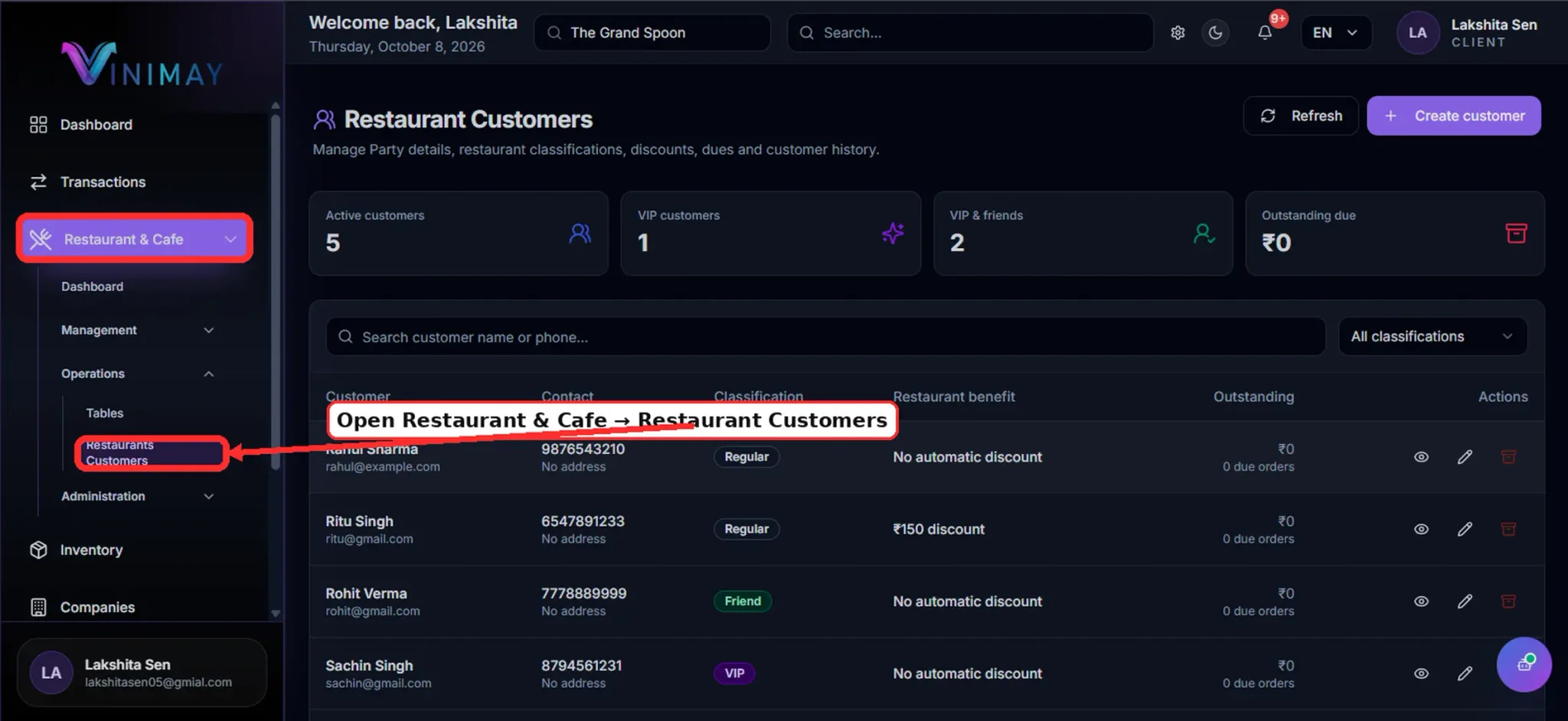
Under the Operations section, click Restaurant Customers.
This opens the customer management page where all restaurant customers are listed.
Step 3: Find the Customer
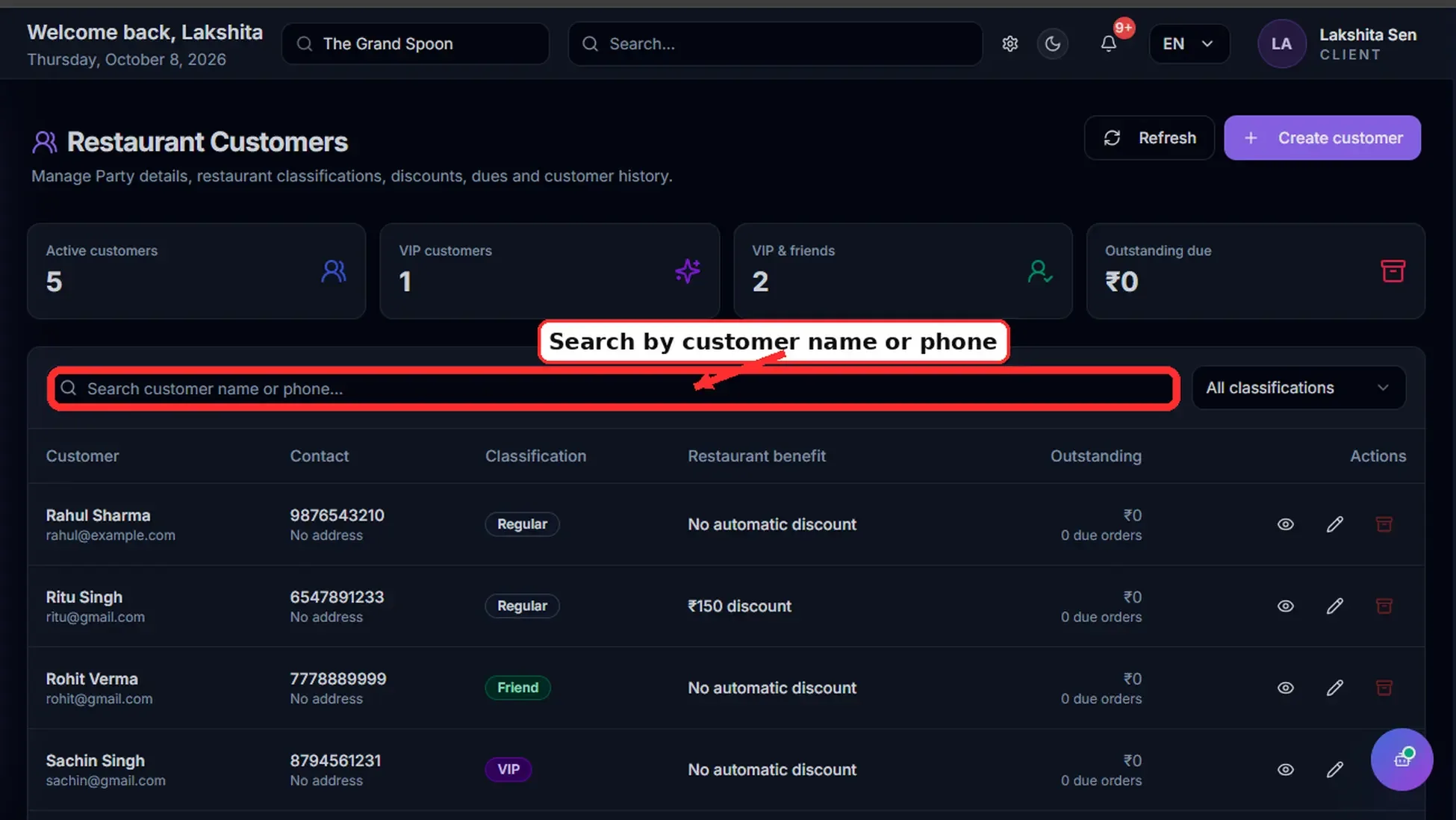
Use the Search customer name or phone field to quickly find the required customer.
You can search using:
Customer name
Mobile number
You can also use the classification filter if required.
Step 4: Open Customer Details
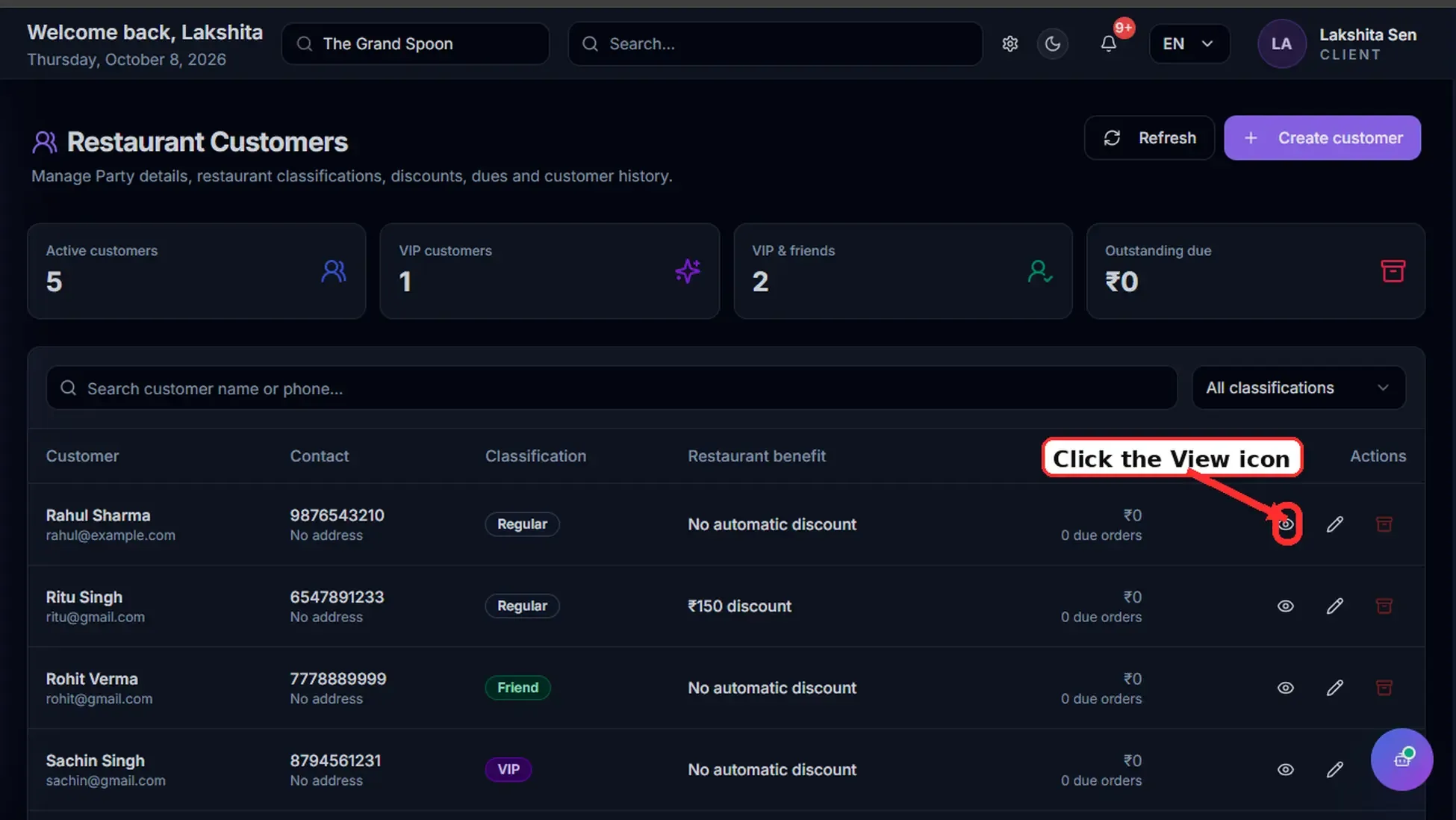
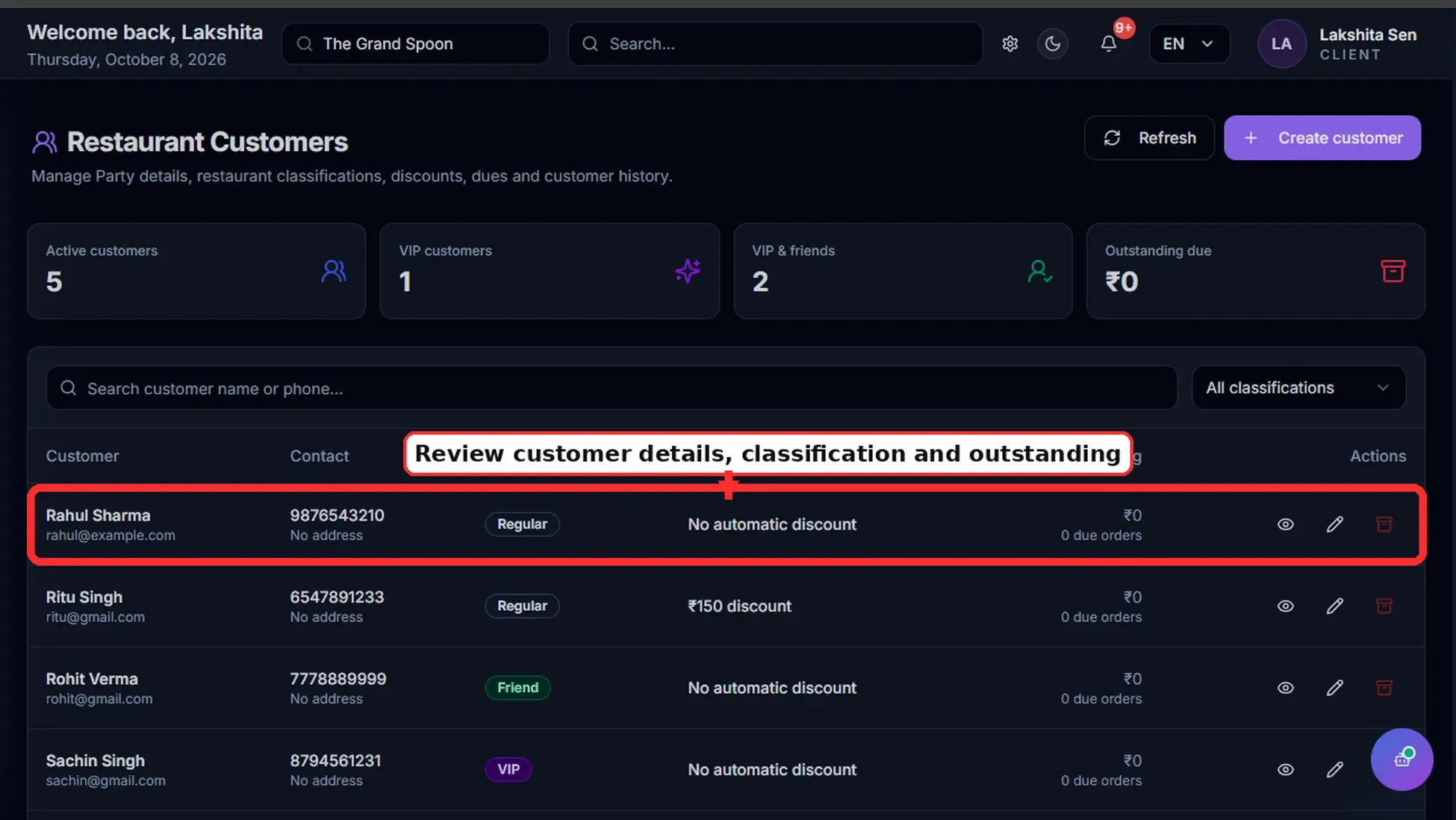
Locate the customer in the list and click the View icon under the Actions column.
This opens the selected customer’s details.
Step 5: Review Customer Information
Check the customer’s available information, such as:
Customer name
Phone number
Email
Address
Classification
Restaurant benefit or discount
Outstanding amount
This helps you understand the customer’s current profile and account position.
Step 6: Check Customer History
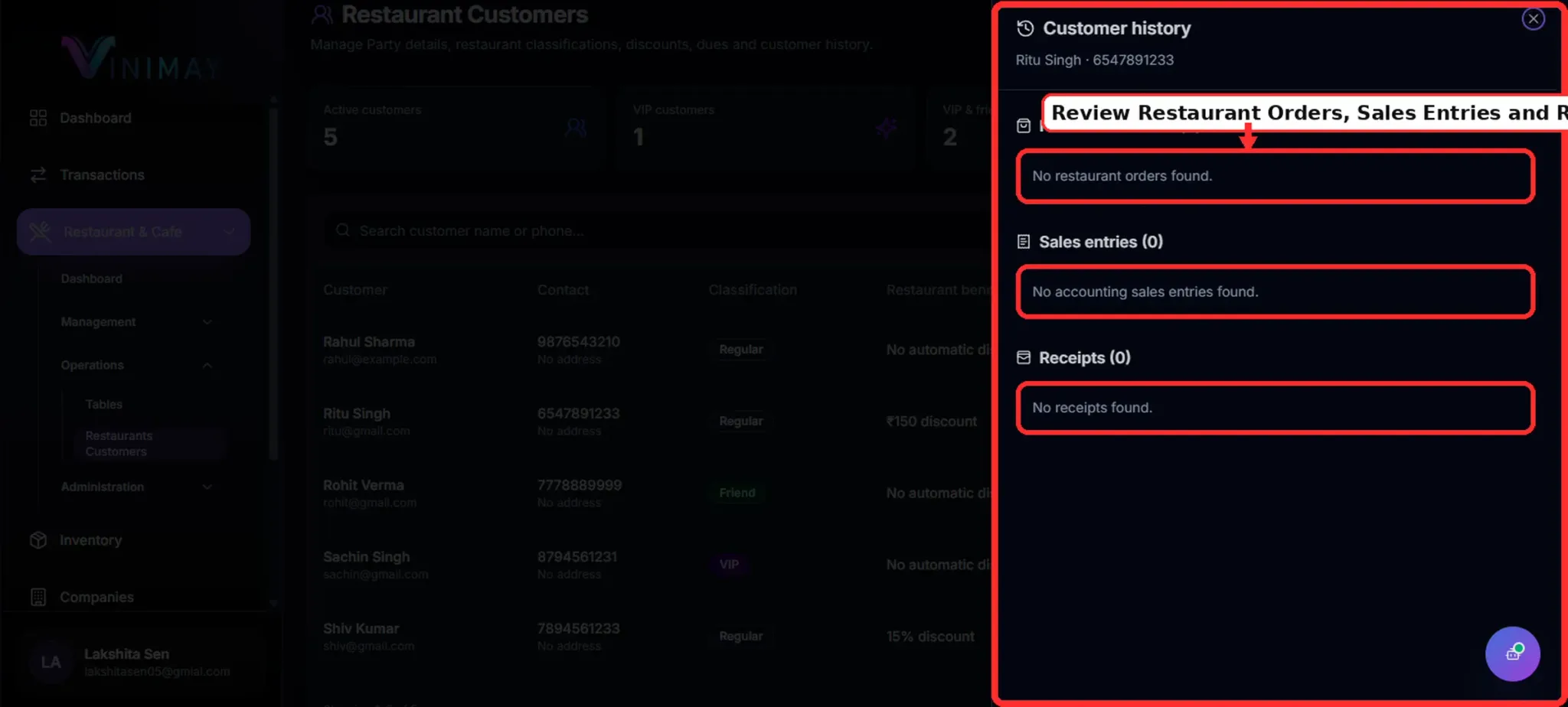
Open the available History or customer activity section.
Here you can review available past activity connected with the customer, such as previous restaurant interactions, dues, or other recorded customer information depending on your Vinimay setup.
This is useful when a repeat customer visits and you want to check their previous records.
Step 7: Update Details if Required
If any customer information needs correction, use the Edit icon from the customer list.
Update the required information and save the changes.
Quick Path
Login → Restaurant & Cafe → Restaurant Customers → Search Customer → Click View → Check Details & Outstanding → Review History