How to Track Trips and Expenses in a Transport Business
A truck can run all month and still lose money. Fuel, toll, driver pay and repairs add up quickly, and if they sit in a diary, you only find out at the end of the month that some trips barely paid for themselves.
This guide explains how a transport business can track the money for every trip: the freight you earn, the costs you pay and the profit that is left. You will follow numbered Vinimay screenshots to quote the freight, record the payment, record each expense, and review them by trip.
Vinimay is free GST billing and accounting software built for small businesses. It is free to get started, and it works for a small fleet as well as a single vehicle.
GST and Paperwork Basics
Goods transport services fall under SAC group 9965, so confirm the exact code and the GST treatment of your service with your CA. E-way bill rules apply to many goods consignments with a value above ₹50,000, so check whether your customer’s consignment needs one.
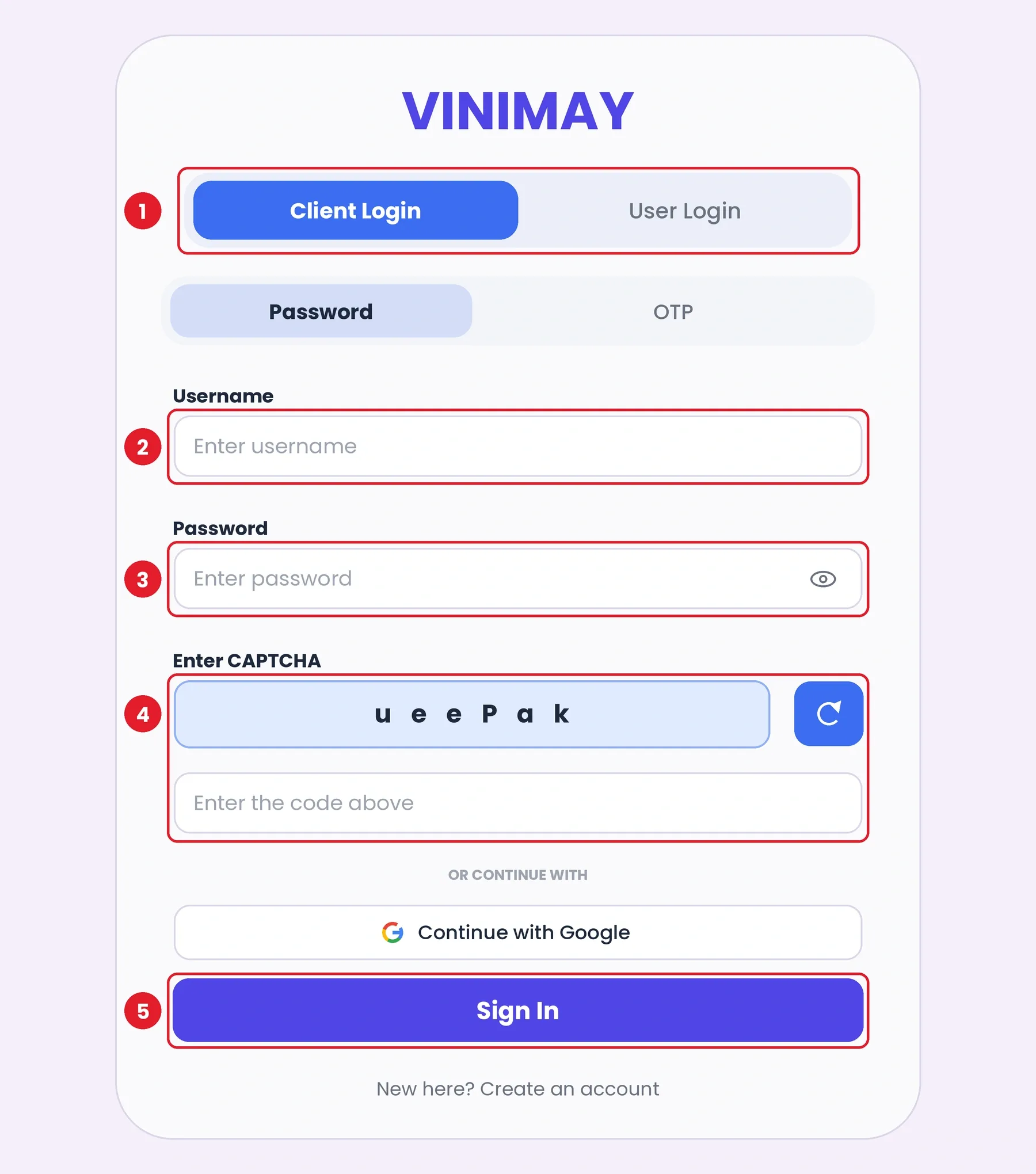
How to Track a Trip in Vinimay
Vinimay does not need a separate trip screen for this. You use the Reference Number and Description fields to carry the trip code, and then find every entry for that trip later.
Step 1: Quote the freight
On the Dashboard, go to the Quick Actions box and click Proforma Invoice (image 1).
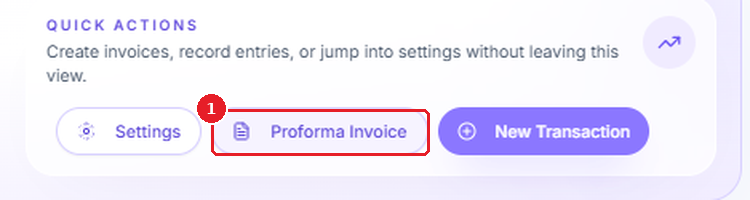
Proforma Invoice button
Step 2: Add the customer and the trip code
Type the Customer Name (image 2). In the Reference Number (image 3), write your trip code.
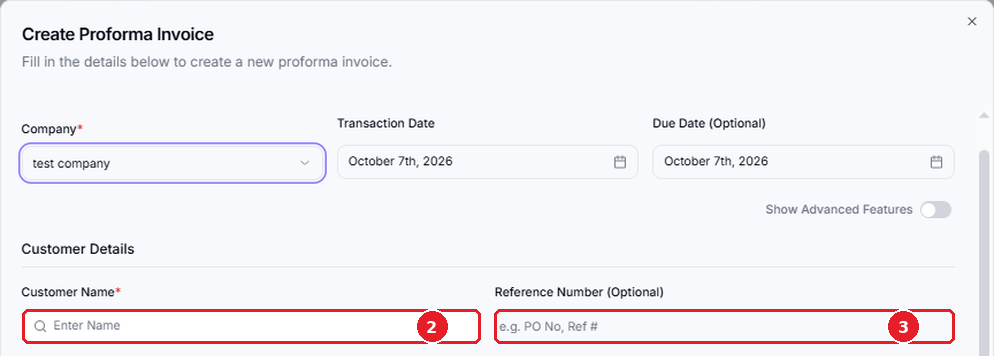
Customer and trip code
Step 3: Add the freight charge
Scroll to Items. Enter the Qty (image 4), such as the number of trips or the weight, and the Price/Unit (image 5), which is your rate. Transport is a service, so click Add Service (image 6) to add another charge line, such as loading.

Quantity, rate and Add Service button
Step 4: Record the freight you receive
When the customer pays, click New Transaction and open the Receipt tab (image 7). Enter the customer in Received From (image 8) and the Amount (image 9). Write the trip code in the Reference Number (image 10), then click Create Transaction (image 11).
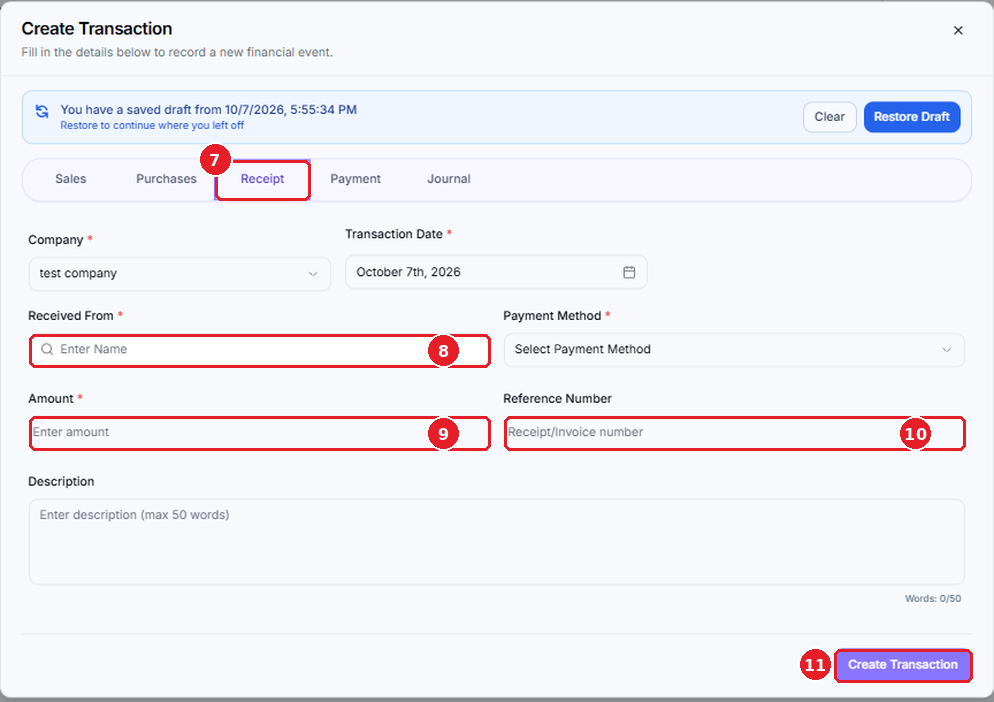
Recording freight received
Step 5: Record every trip expense
For each cost on the trip, open the Payment tab (image 12). Tick Expense (image 13), search for the Vendor (image 14), such as the fuel pump, and choose the Payment Method (image 15). Enter the Amount (image 16) and the trip code in the Reference Number (image 17). In the Description (image 18), write what it was for, for example “fuel, MP04 trip 12”. Then click Create Transaction (image 19).
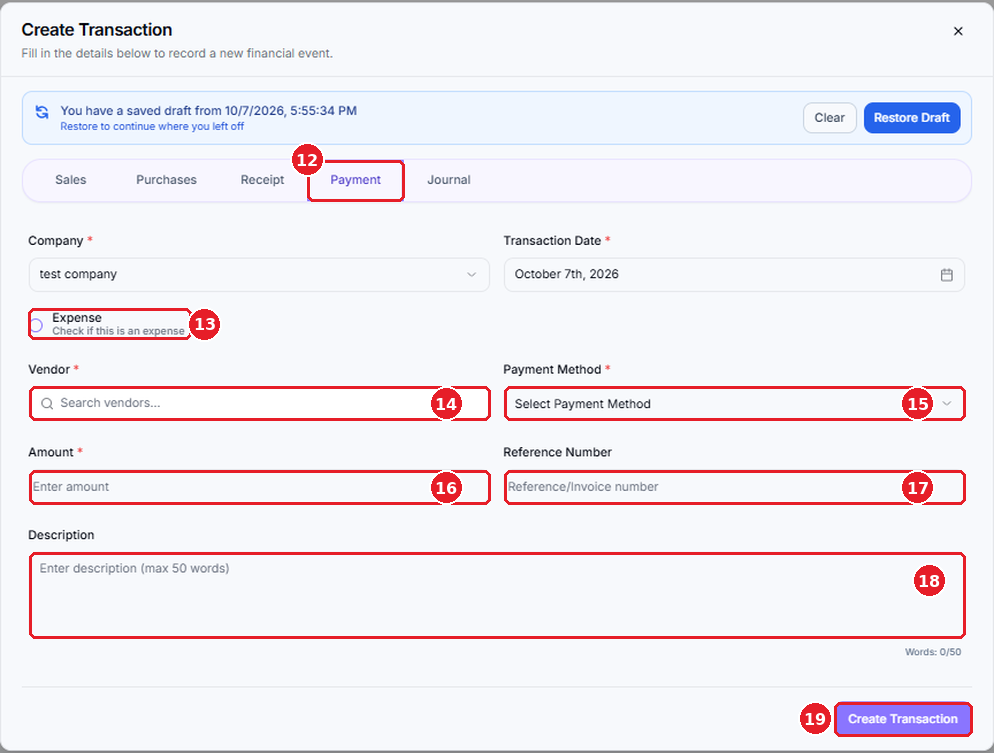
Recording a trip expense
Step 6: Review a trip
Open Transactions. Use the Receipts tab (image 20) and the Payments tab (image 21) to see money in and money out. Type the trip code in the filter box (image 22), which filters by party, product or description, to find the entries for one trip.

Transaction tabs and filter
To see what customers still owe you for freight, open Ledger and click Receivables.
Common Mistakes to Avoid
Not writing the trip code on every entry.
Forgetting small cash costs, such as toll and loading.
Mixing personal and vehicle spending.
Waiting for the month end to enter fuel bills.
Conclusion
A transport business grows when it knows which trips pay. Give every trip a code, write it on every entry and compare freight with costs.
Review your trips every week. A route that looks busy can still be unprofitable, and you can only see it in the numbers.
Vinimay keeps your quotes, receipts and expenses in one place, so the trip profit is a quick search and not a day of adding.
Try Vinimay free and start tracking every trip.