How to Restore a Saved Draft Transaction in Vinimay
You open the Create Transaction form, and a blue message appears at the top: "You have a saved draft." You were not expecting it, and you wonder whether it is your lost entry, whether it is safe to click, and what happens to your data if you press the wrong button.
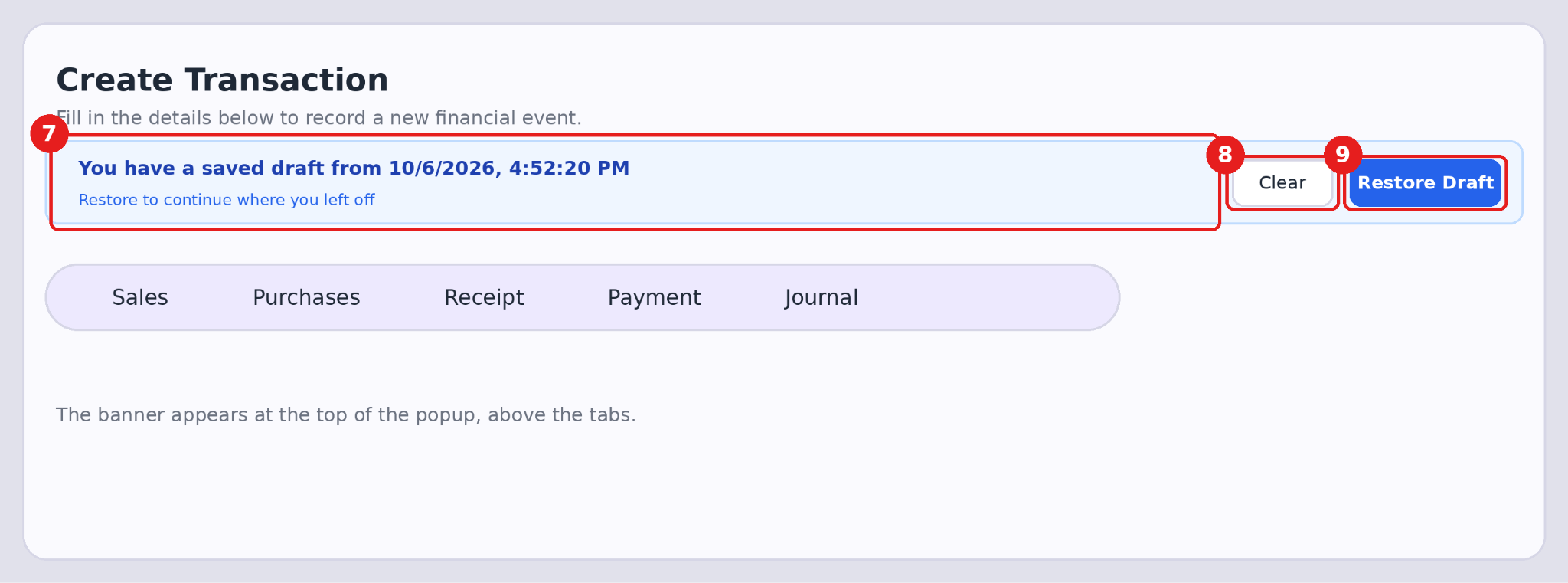
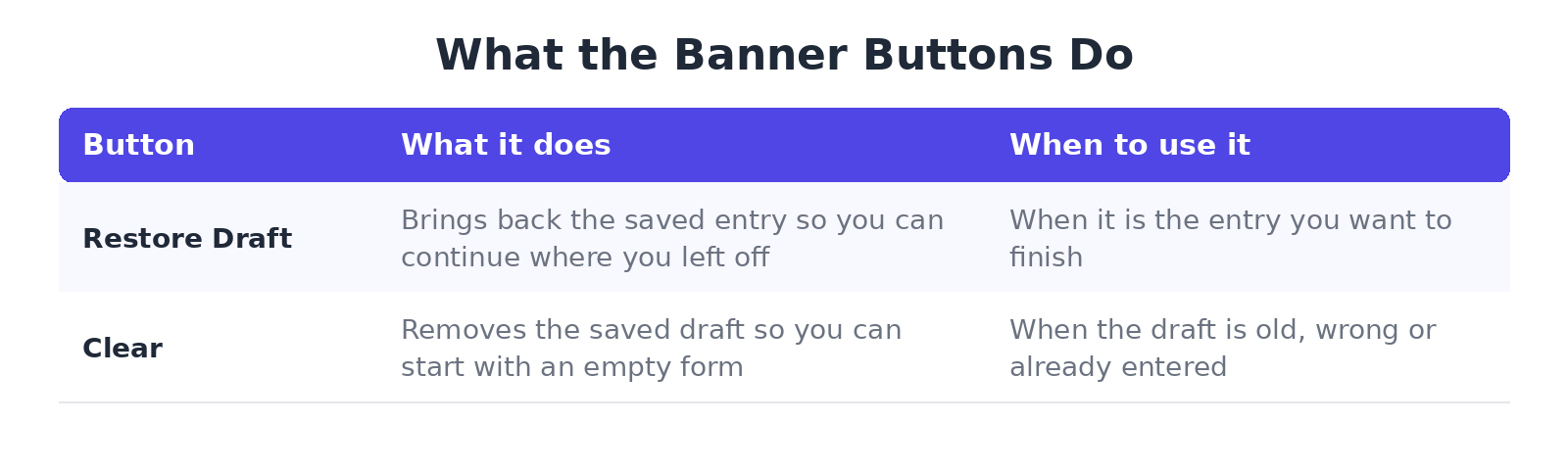
In Vinimay, an unfinished entry can be kept as a saved draft. The banner shows when it was saved and gives you two choices: Restore Draft to continue it, or Clear, to remove it and start fresh. Both are safe if you read the date first.
This guide starts from the login page and shows each step with clear images, so you know exactly what the banner means and which button to click.
Step 1: Log in to Vinimay
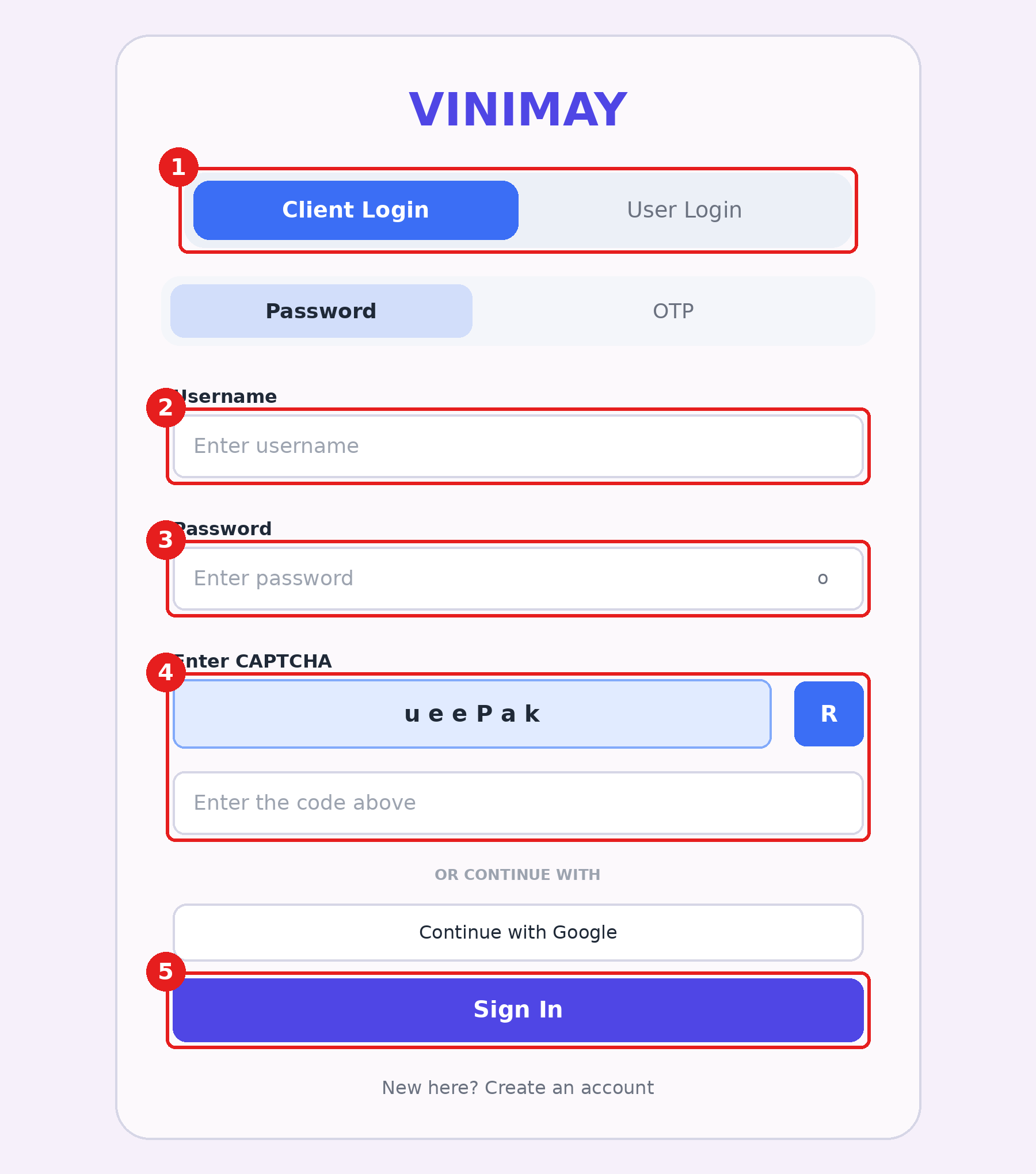
Open the Vinimay login page. Choose Client Login for the account owner or User Login for staff (marker 1). Enter the Username (marker 2) and Password (marker 3), type the CAPTCHA (marker 4), and click Sign In (marker 5).
Step 1: Log in to Vinimay
Step 2: Open the Create Transaction form
Click Transactions in the left menu, then click New Transaction at the top right (marker 6).

Step 2: New Transaction button
Step 3: Read the saved draft banner
At the top of the popup, above the tabs, you will see the banner. It says "You have a saved draft from" followed by a date and time, and "Restore to continue where you left off" (marker 7). On the right are two buttons: Clear (marker 8) and Restore Draft (marker 9).
Step 3: The saved draft banner
Step 4: Decide: Restore or Clear?
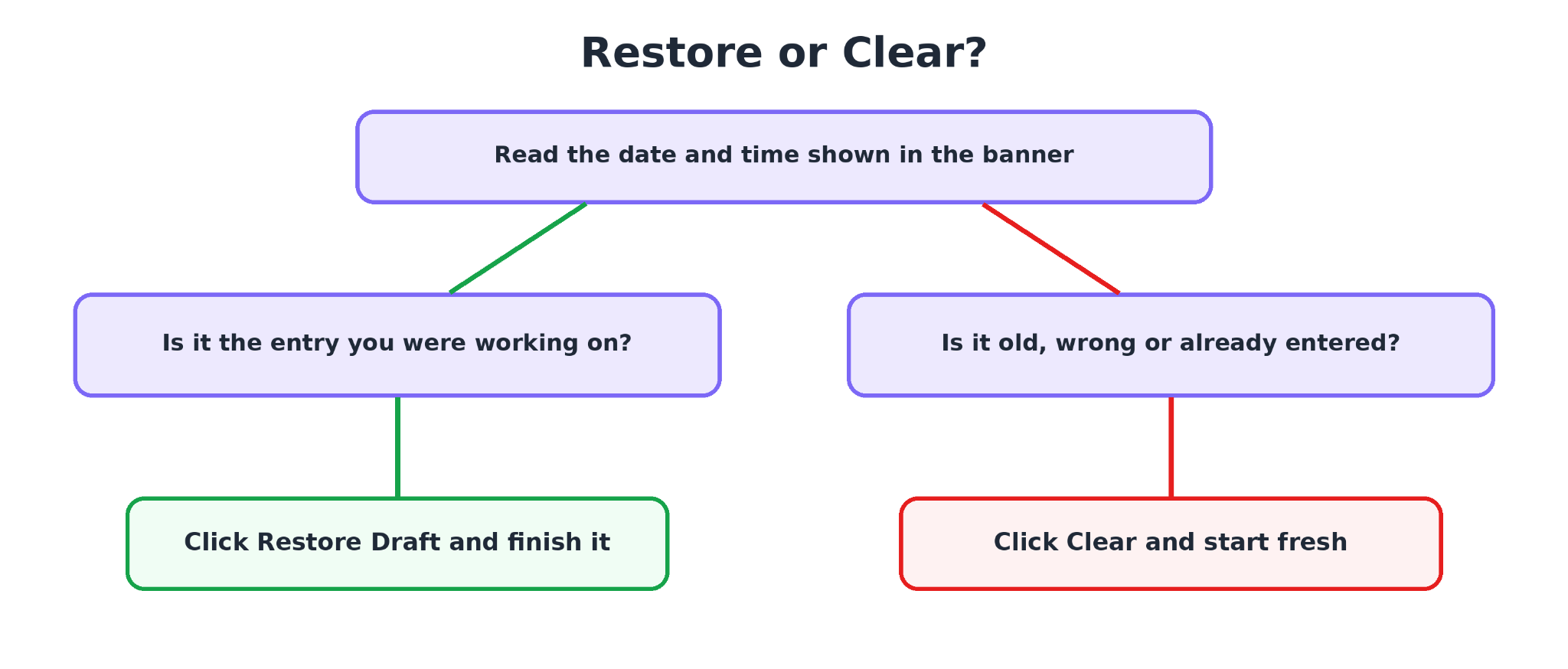
Look at the date and time first. Then use this chart.
Step 4: Restore or Clear?
What the buttons do
Step 5: Check everything, then create the transaction
After you restore, look at every field before you continue: the company, the date, the party, the payment method and the amount. When everything is right, click Create Transaction at the bottom of the form.
Tips
Always read the date and time on the banner first.
Do not restore a draft if you already entered the same transaction.
Check the amount carefully before you create the transaction.
Click Clear when you do not need the draft, so it does not confuse you later.
Conclusion
The saved draft banner in Vinimay is not an error. It simply offers you an unfinished entry from before. Restore Draft brings it back, and Clear removes it.
Read the date and time, decide whether it is the entry you want, and then click the right button. After restoring, check every field before you create the transaction.
Following these steps keeps your records free of duplicates and mistakes. Create a free Vinimay account and record your next transaction with confidence.