Free Billing Software for Freelancers: Quote, Bill and Get Paid
Freelancing means you are the designer, the writer and also the accountant. Invoices get written in a hurry, a client forgets to pay, and at the end of the year you cannot tell what you earned. A simple billing tool fixes most of this.
This guide explains what a freelancer invoice needs, how GST applies to you and a simple workflow from quote to payment. You will also follow numbered Vinimay screenshots to add your service, send a quote, record payment, and check your income.
Vinimay is free GST billing and accounting software built for small businesses and independent professionals. It is free to get started, so you can look professional to your clients without paying for software on day one.
What Should a Freelancer Invoice Include?
Do Freelancers Need GST?
Service providers generally need GST registration once their yearly turnover crosses ₹20 lakh (₹10 lakh in some special category states). Below that, you can bill without GST. If you bill clients outside India, export of services follows special rules. Confirm your case with a CA. FISRT LOGIN
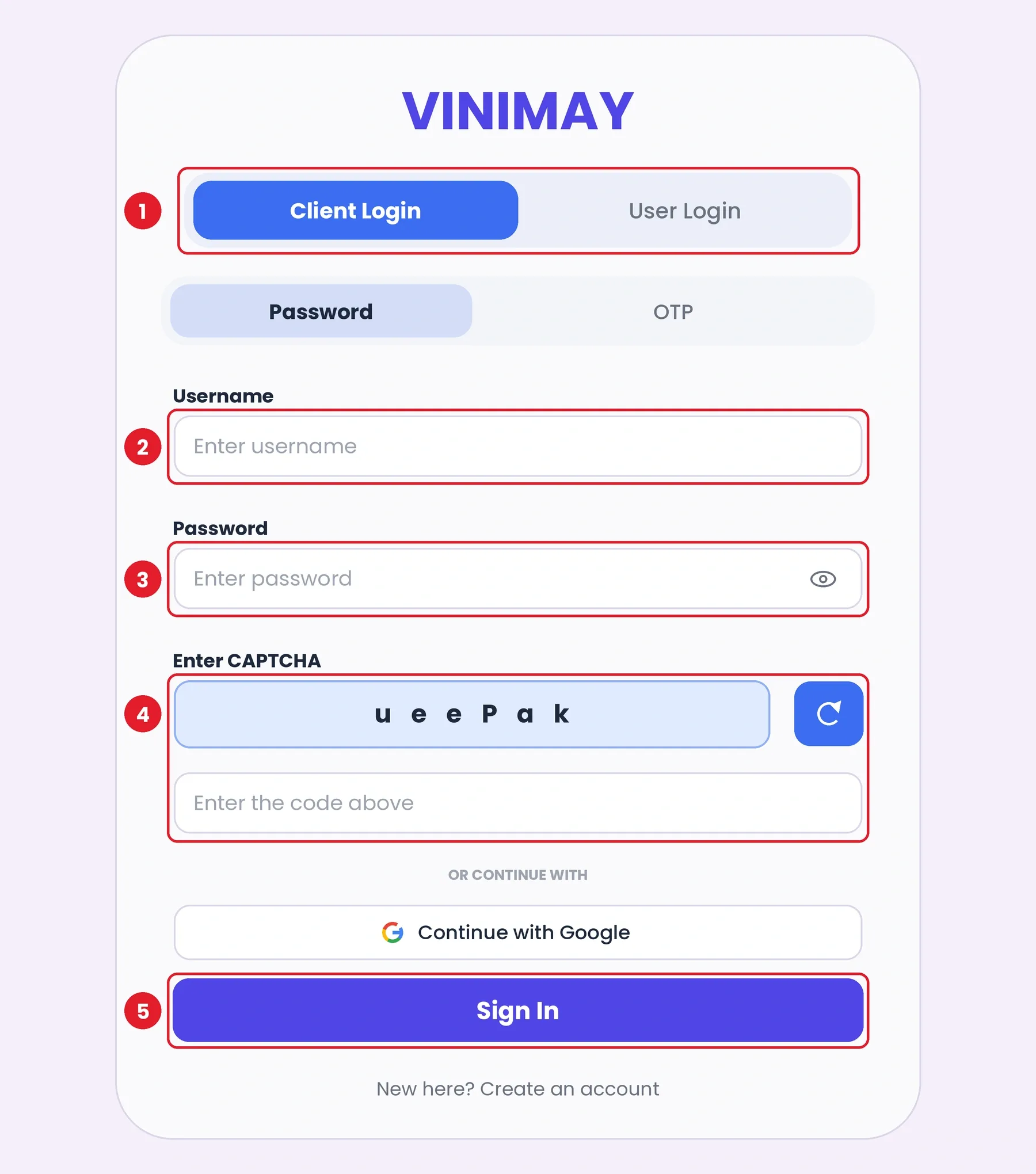
How to Bill Your Clients in Vinimay
Step 1: Add your service
On the Dashboard, scroll to the Product & Service Stock section and click Add Product (image 1). In the window that opens, choose Service, then fill in the details. Doing this once saves you from typing the same service again.
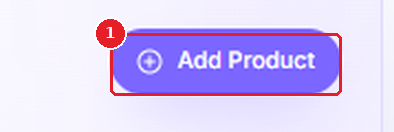
Add Product button
Step 2: Start a quote
In the Quick Actions box at the top right, click Proforma Invoice (image 2).
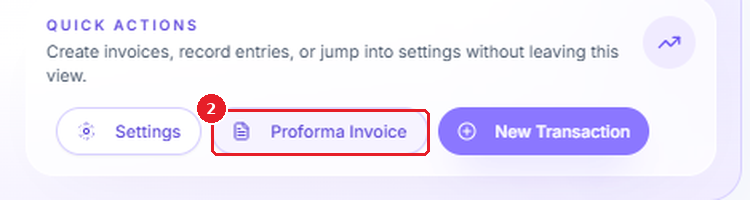
Proforma Invoice button
Step 3: Add the client and the dates
Type the customer name (image 3). Choose a Due Date (image 4), which is optional, and use the Reference Number (image 5) for the client’s purchase order or project number.
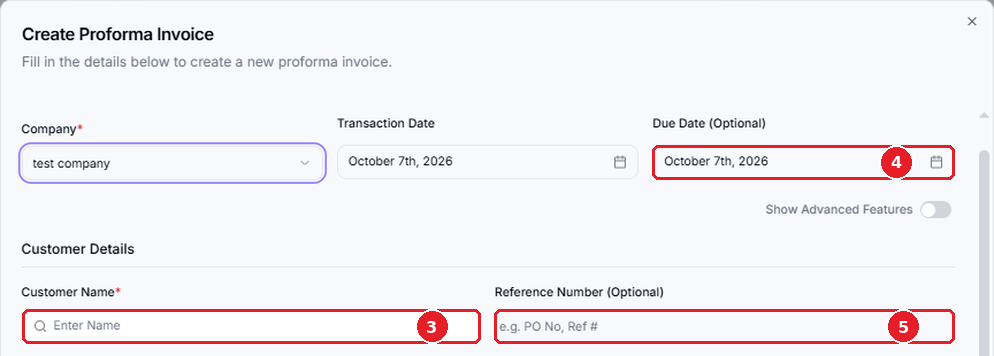
Client name, due date and reference number
Step 4: Add your hours and rate
Scroll to Items. Enter the Qty (image 6), for example the number of hours, and the Price/Unit (image 7), which is your rate. Click Add Service (image 8) to add another line for a different task.

Quantity, rate and Add Service button
Step 5: Add your terms and create the quote
In the Notes box (image 9), the Terms and Conditions already say the proforma invoice is valid for 7 days. Edit them to add your payment terms. Then click Create Proforma Invoice (image 10).
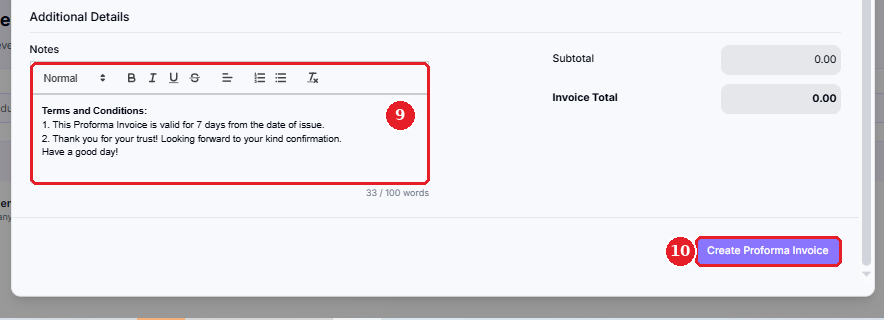
Terms and the Create Proforma Invoice button
Step 6: Record the payment
When the client pays, click New Transaction and open the Receipt tab (image 11). Enter the client in Received From (image 12) and the Amount (image 13), then click Create Transaction (image 14).
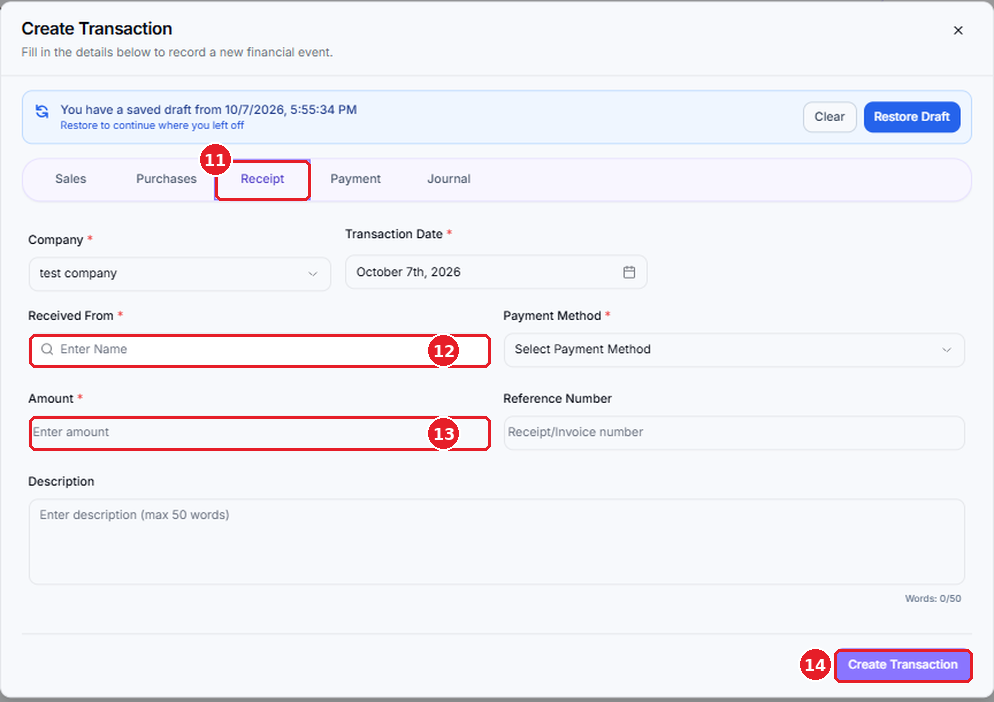
Recording a payment received
Step 7: Check your income
Go back to the Dashboard. The Total Sales card (image 15) shows your sales for the selected company.
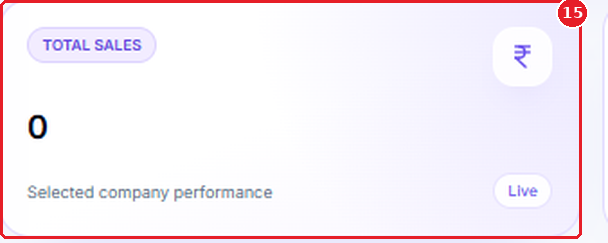
Total Sales card
Common Mistakes to Avoid
Starting work without a written quote or advance.
Not numbering invoices.
Forgetting to follow up after the due date.
Mixing personal and business payments.
Conclusion
Good billing habits make a freelancer look professional and get paid faster. Send a quote, agree on terms, invoice on time and record every payment.
Review your income every month. It tells you which clients and services are worth your time, and it makes tax time much easier.
Free software removes the excuse. With quotes, payments and totals in one place, you can spend your time on the work you actually enjoy.
Try Vinimay free and start billing your clients today.
FAQs
Q1. Do freelancers need to issue invoices?
Yes. An invoice is your proof of income and your client’s proof of expense.
Q2. Do freelancers need GST?
Generally once yearly turnover crosses ₹20 lakh (₹10 lakh in some special category states). Check with a CA.
Q3. What is a proforma invoice?
A quote that looks like an invoice but is not a tax invoice.
Q4. Can I ask for an advance?
Yes. Mention it in the quote and record the payment when it arrives.
Q5. What SAC code should I use?
It depends on your service. Check the exact code with your CA.
Q6. How do I add a service in Vinimay?
Click Add Product on the Dashboard and choose Service.
Q7. How do I record a client’s payment?
Click New Transaction, open the Receipt tab and enter the client and amount.
Q8. How do I see my income in Vinimay?
Check the Total Sales card on the Dashboard.
Q9. Is Vinimay free for freelancers?
Vinimay is free to get started. Check the plan details on the website.
Q10. Can I bill foreign clients?
Export of services follows special GST rules. Confirm with your CA.