How to Make a Journal Entry in Vinimay
You paid the shop rent in cash and need to record it, but there is no invoice to create. Or you need to fix an entry in your books. A journal entry is the way to record such events.
In Vinimay, the Create Transaction window has a Journal tab for this. You choose a debit account, a credit account and an amount, and add a short note. The window also keeps a draft if you leave in the middle.
In this guide, you will learn each field with screenshots. Red boxes have numbers that match the text. At the end, there are 10 FAQs. Where our screenshots do not show something, we say so.
Quick answer
• Where: Create Transaction, Journal tab.
• Fill: Company, Date, Debit, Credit, Amount.
• Save: Create Transaction.

Step 1: Open the Journal tab
Open Create Transaction from the Transactions page. If you see a blue message "You have a saved draft" (image 1), click Restore Draft (image 2) to continue your old entry, or Clear (image 3) to remove it. Then click the Journal tab (image 4).
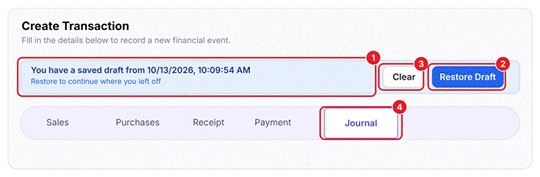
Draft message (1), Restore Draft (2), Clear (3), Journal tab (4)
Step 2: Check company and date
Select the Company (image 5). Then check the Transaction Date (image 6); in our screenshot it was October 13th, 2026. Both are required.
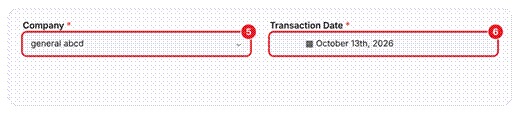
Company (5) and Transaction Date (6)
Step 3: Enter debit, credit and amount
Under Journal Entry, type the Debit Account (image 7), for example Rent Expense, the Credit Account (image 8), for example Cash, and the Amount (image 9), for example 1000. All three are required.
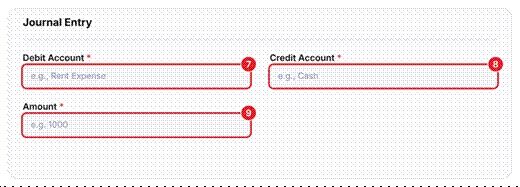
Debit (7), Credit (8) and Amount (9)
Step 4: Write a narration
Under Additional Details, the Narration label (image 10) sits above a text box (image 11). Describe the entry in a line. A counter (image 12) shows the words used out of 100.
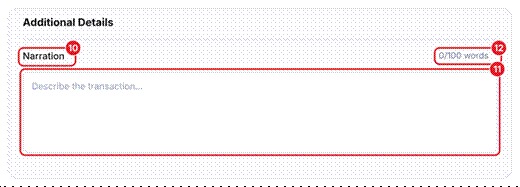
Narration (10), text box (11) and counter (12)
Step 5: Create the transaction
Click the purple Create Transaction button (image 13).

Create Transaction button (13)
Tip: Add a clear narration. It helps you understand the entry later.
Conclusion
A journal entry records an event that has no invoice, such as paying rent in cash. The Journal tab keeps the form short.
Choose the company and date, enter debit, credit, and amount, add a narration and click Create Transaction.
Check your debit and credit accounts before saving. The FAQs below answer common questions.