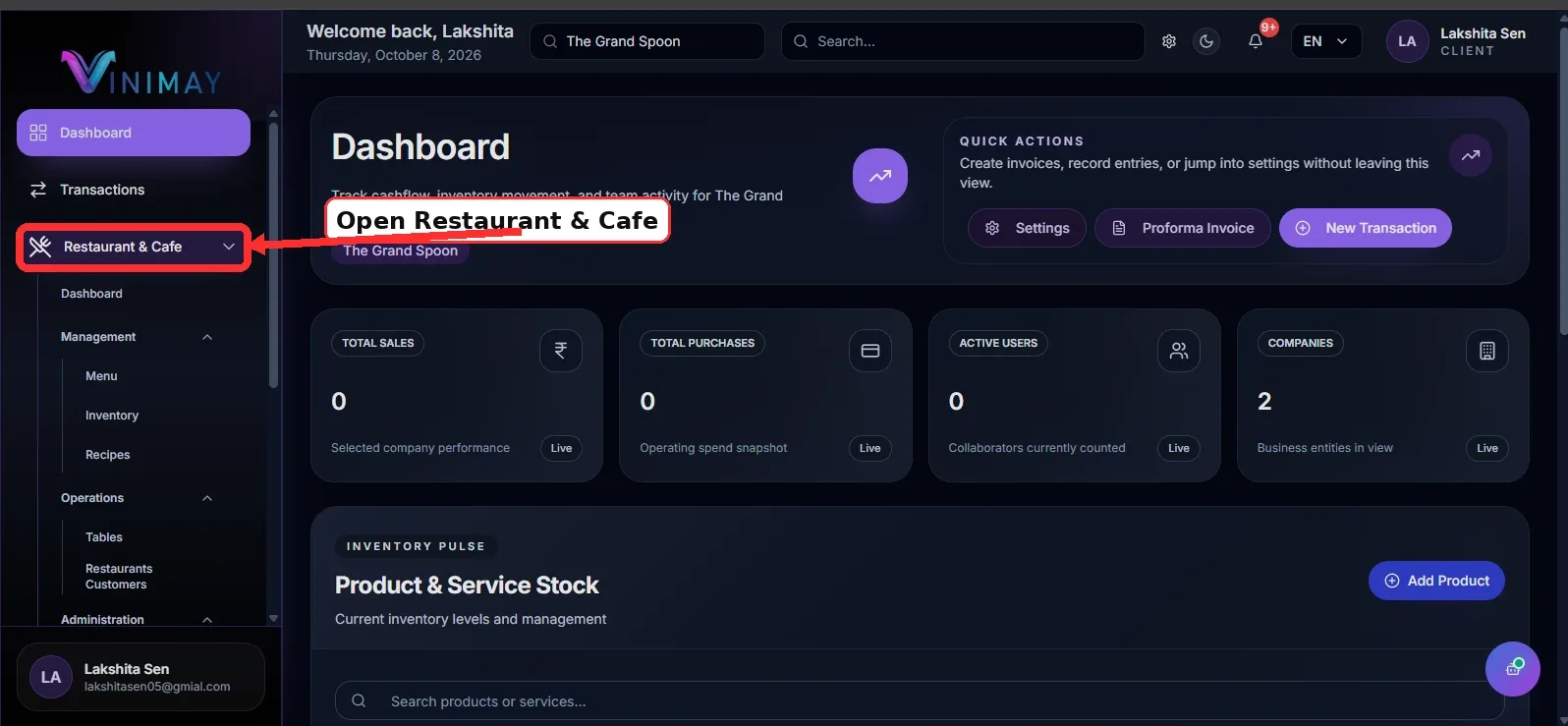
Step 1: Open Restaurant & Cafe
First, log in to Vinimay using your registered client login or user login credentials. After logging in, select the restaurant or cafe company where you want to manage employees. If your account contains multiple businesses, make sure you choose the correct restaurant.
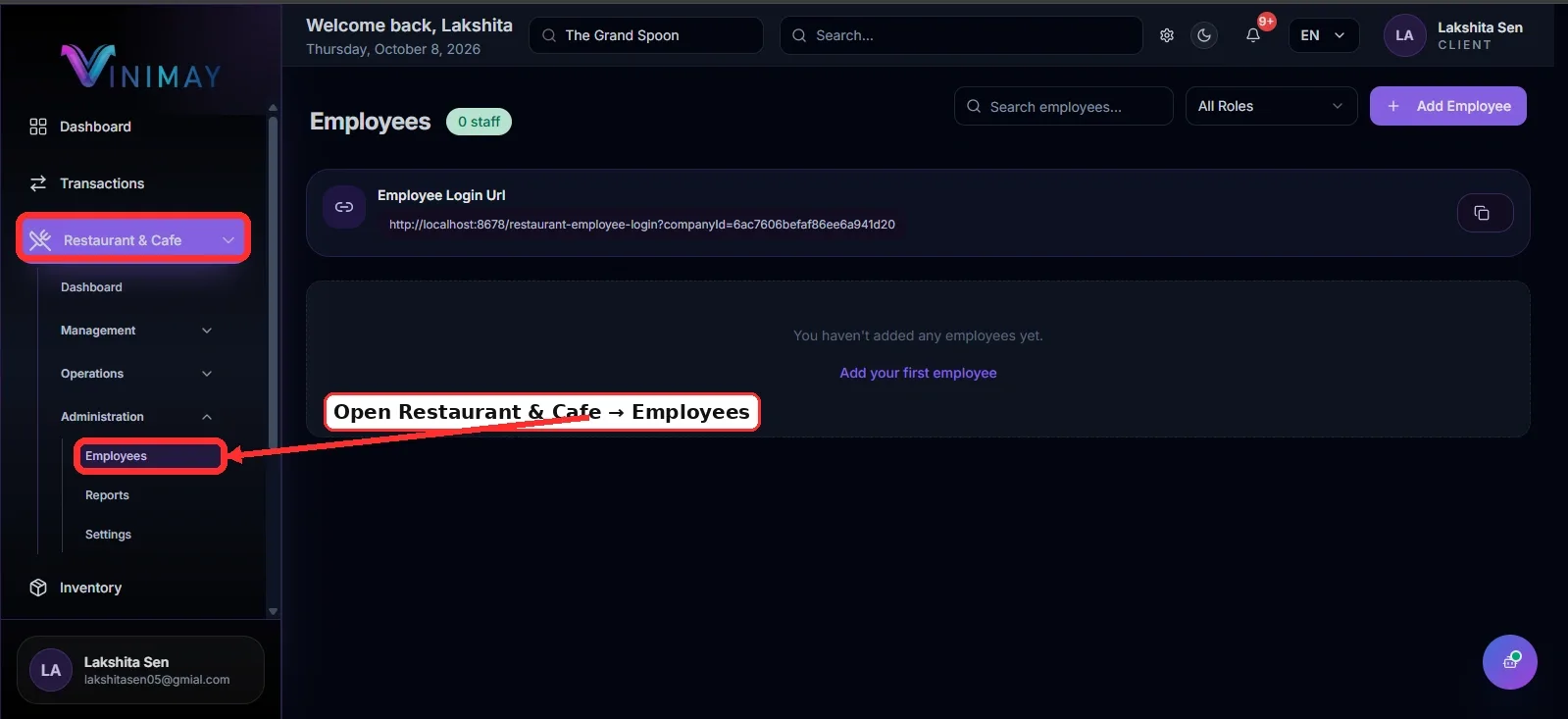
From the left-side navigation menu, click Restaurant & Cafe to access the restaurant management features.
This section provides access to the available tools for managing restaurant operations and staff, depending on your account configuration.
Step 2: Open Employees or Staff Management
After opening the Restaurant & Cafe module, look for the section used to manage employees or restaurant staff.
Click the available Employees, Staff Management, or similar option to open the employee management page.
Here, you can review existing employee records and check which staff members have already been added to your restaurant. Before creating a new employee record, check the list to avoid duplicate entries.
This section helps you keep staff information organised and makes it easier to manage employee details from one place.
Step 3: Click Add Employee.
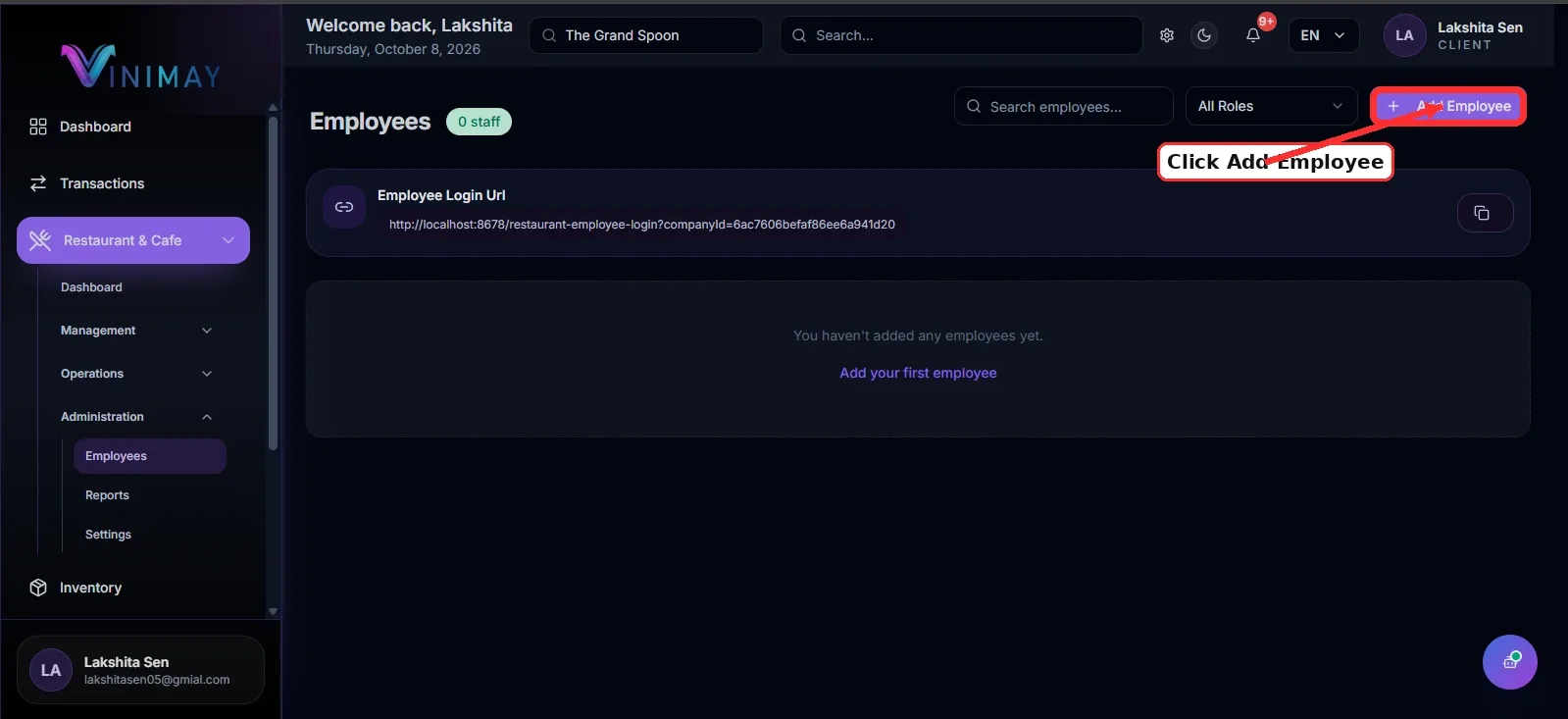
On the employee management page, look for the Add Employee, Add Staff, or similar button.
Click the available option to open the employee creation form.
The form allows you to enter the information required to register a new staff member in your restaurant setup.
Before proceeding, keep the employee's basic details ready, including their name, contact information, and required role. This helps you complete the form accurately and reduces the chances of entering incorrect information.
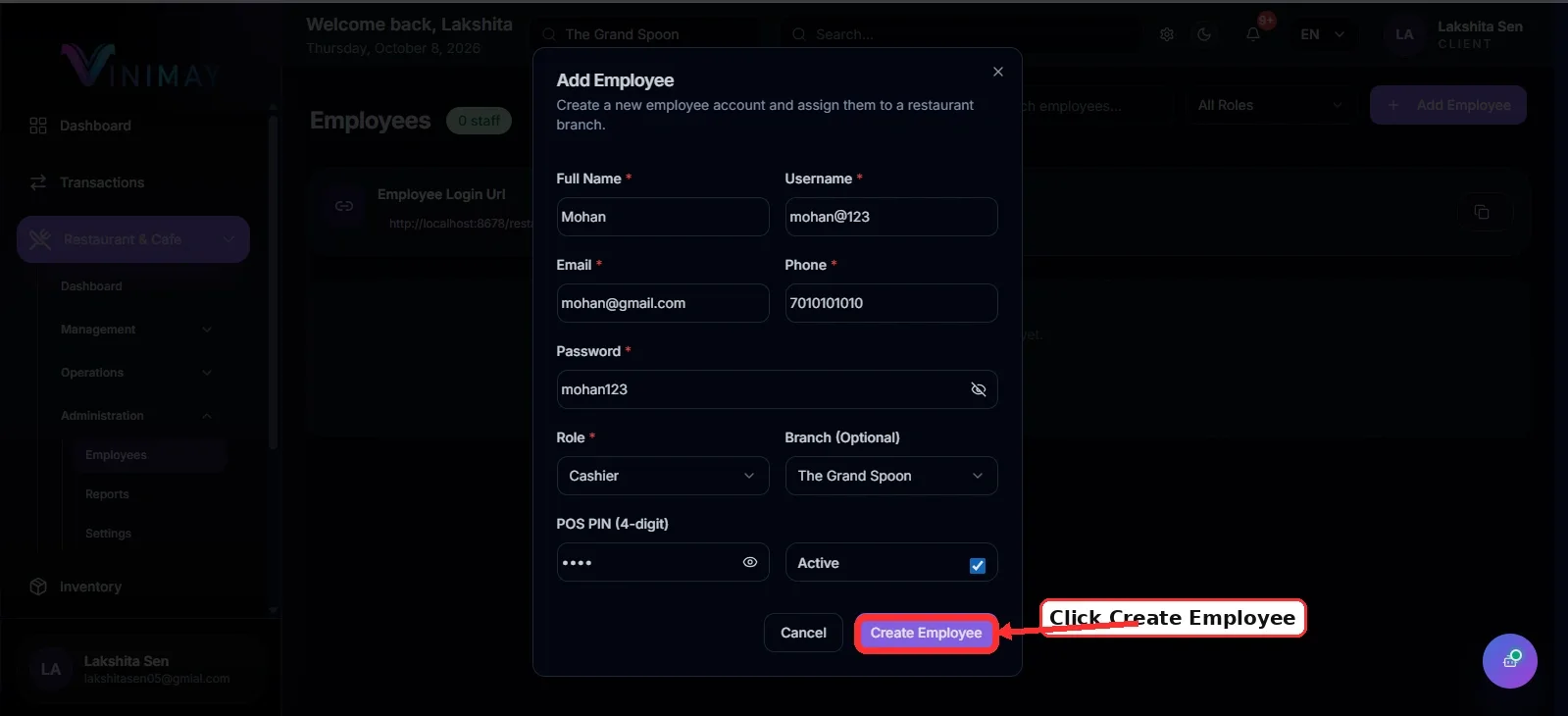
Step 4: Enter Employee Details
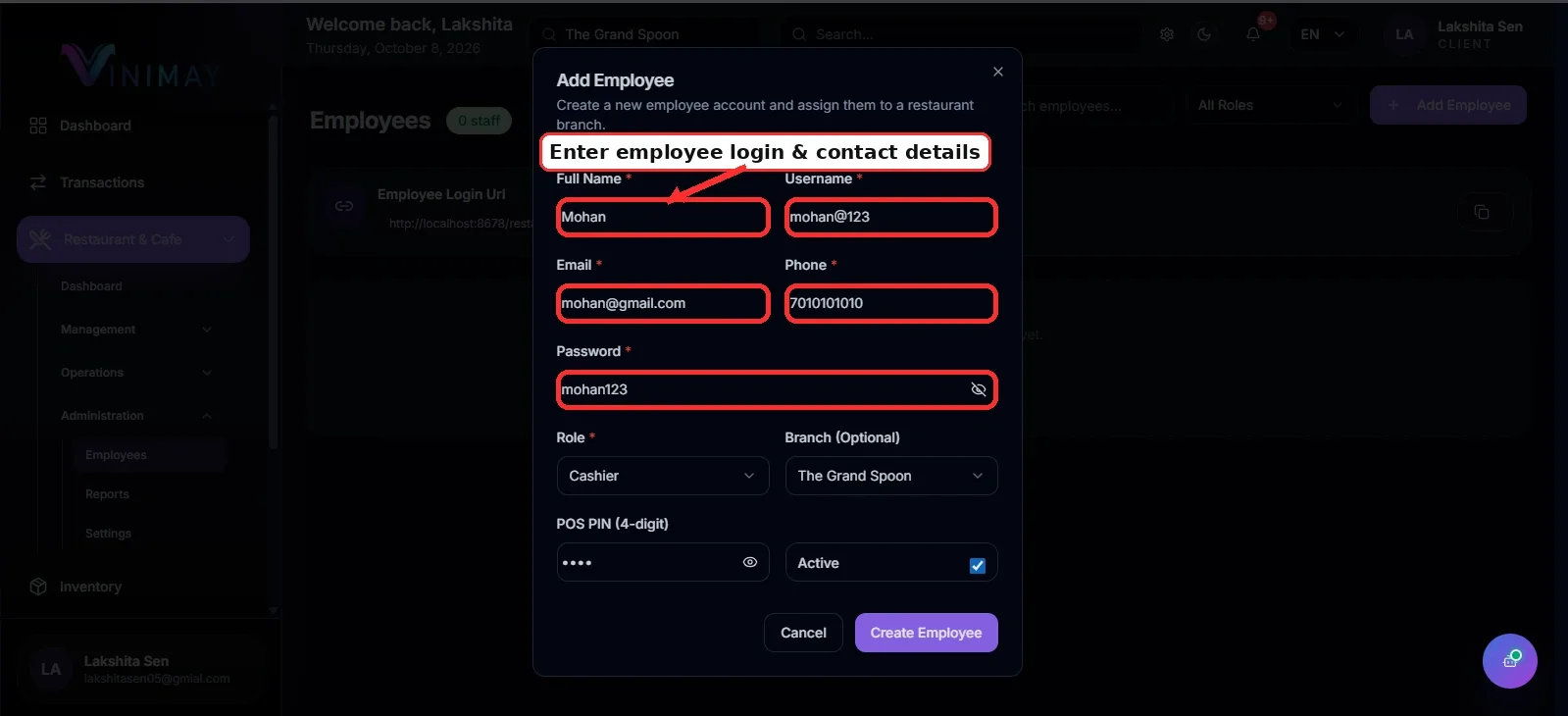
Fill in the required fields in the employee creation form. Depending on your Vinimay setup, you may need to provide the following information:
Employee Name: Enter the staff member's full name.
Contact Number: Provide their mobile number if required.
Email Address: Enter their email address, where applicable.
User ID or Login Details: Add the required account information if the employee needs system access.
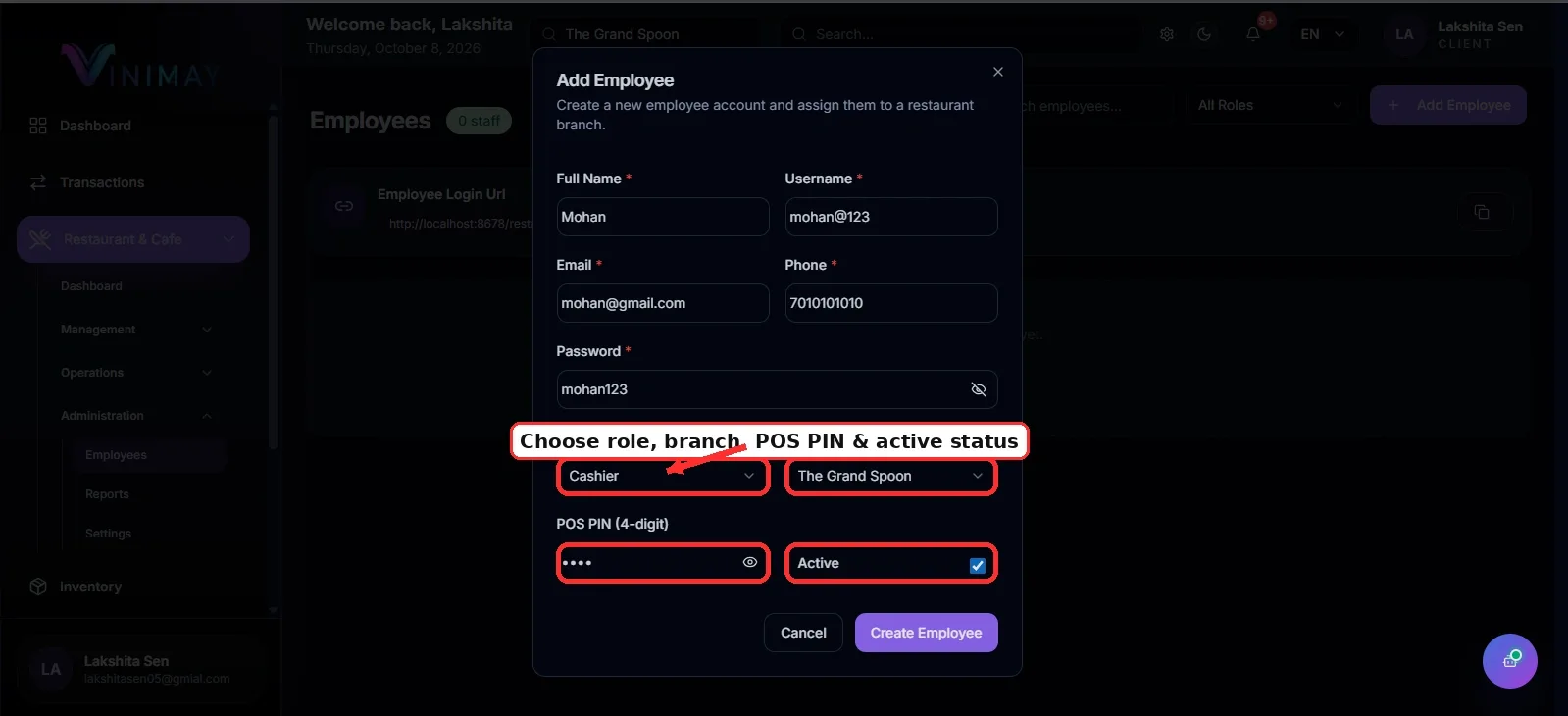
Role: Select the employee's appropriate role.
Assigned Restaurant or Company: Choose the relevant business if this option is available.
For example, if you are adding a cashier, enter the employee's details and select the appropriate cashier role if supported.
Review the information carefully before moving to the next step. Correct employee details help maintain organised staff records.
Step 5: Assign Role and Access Permissions
Choose the role that best matches the employee's responsibilities. If Vinimay provides role-based permissions, assign only the access needed to perform their daily tasks.
For example:
Cashier: Access to billing and receipts, where permitted.
Waiter: Access to table and order handling, where available.
Kitchen Staff: Access to kitchen orders or the Kitchen Display System (KDS), if supported.
Manager: Access to additional restaurant management features, according to assigned permissions.
The actual roles and permissions available may vary depending on your Vinimay account.
Avoid giving every employee full administrative access. Limiting access to job-related functions helps protect business information and reduces the risk of accidental changes.
Step 6: Save the Employee
After entering the employee details and assigning the appropriate role, review the information one final time.
Check the employee's name, contact details, assigned restaurant, and permissions for accuracy.
Click Save, Create Employee, or the available confirmation button to submit the form.
Once the employee is created successfully, return to the employee management page and confirm that their record appears in the list. If the employee needs login access, verify that the required account setup has also been completed.
If an error appears, follow the instructions on the screen and correct any missing or invalid fields.
Quick Path
Login → Select Restaurant → Restaurant & Cafe → Employees/Staff → Add Employee → Enter Details → Assign Role and Permissions → Save
Managing employees in Vinimay helps restaurant owners maintain organised staff records, control access to business features, and coordinate daily restaurant operations more efficiently.
Related Topics
Published by Team Vinimay
Our editorial and compliance specialists create practical guides, tax calculation rules, and operational strategies to empower Indian small business owners and accountants.