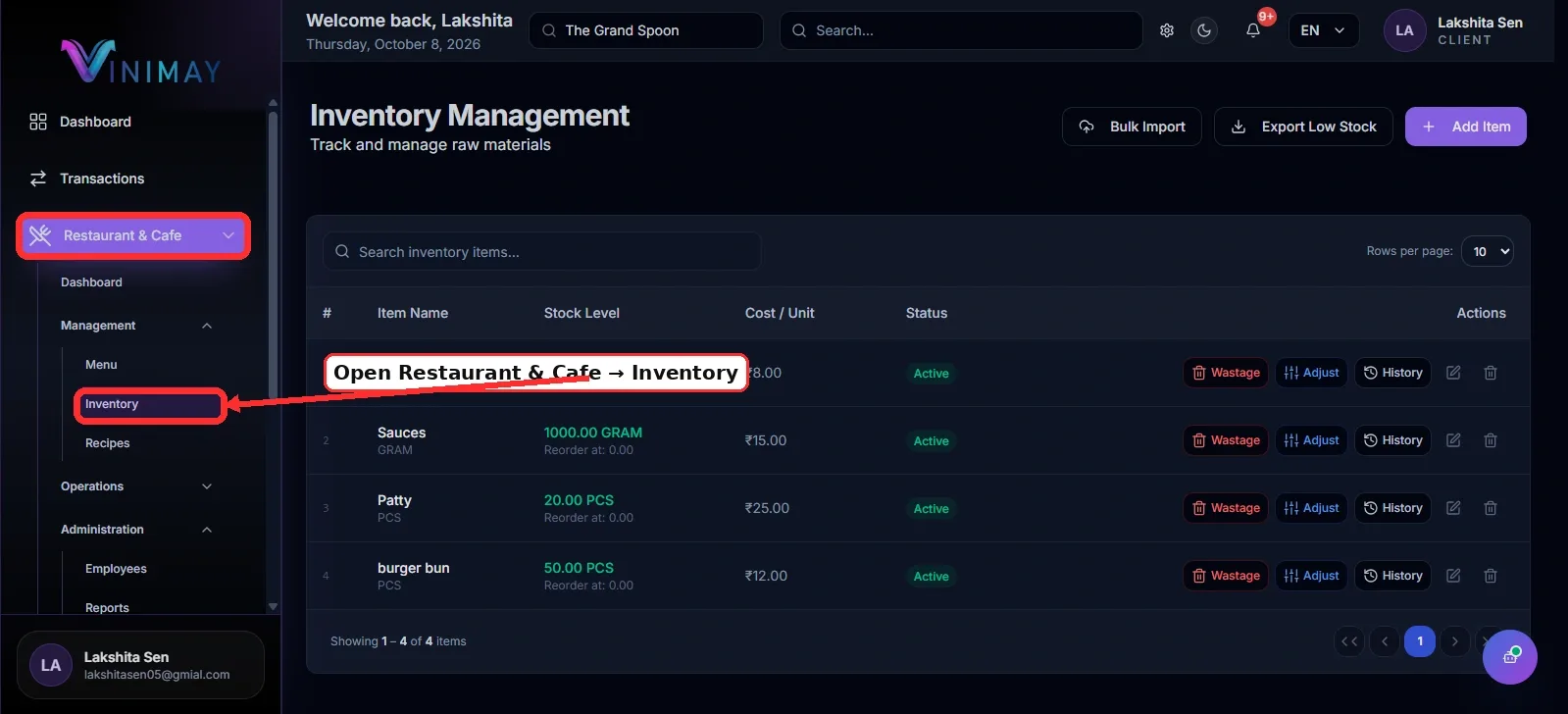
Step 1: Open Restaurant & Cafe → Inventory
First, log in to Vinimay using your registered account credentials. Select the restaurant or cafe company whose inventory you want to manage. From the left-side navigation menu, open Restaurant & Cafe. Under the Management section, click Inventory to access the Restaurant Inventory Management page.
This page displays the raw materials and ingredients recorded for your restaurant. Depending on your existing inventory, you may see items such as vegetables, sauces, patties, and burger buns.
You can use this screen to review available stock, check recorded costs, and access the available inventory management actions.
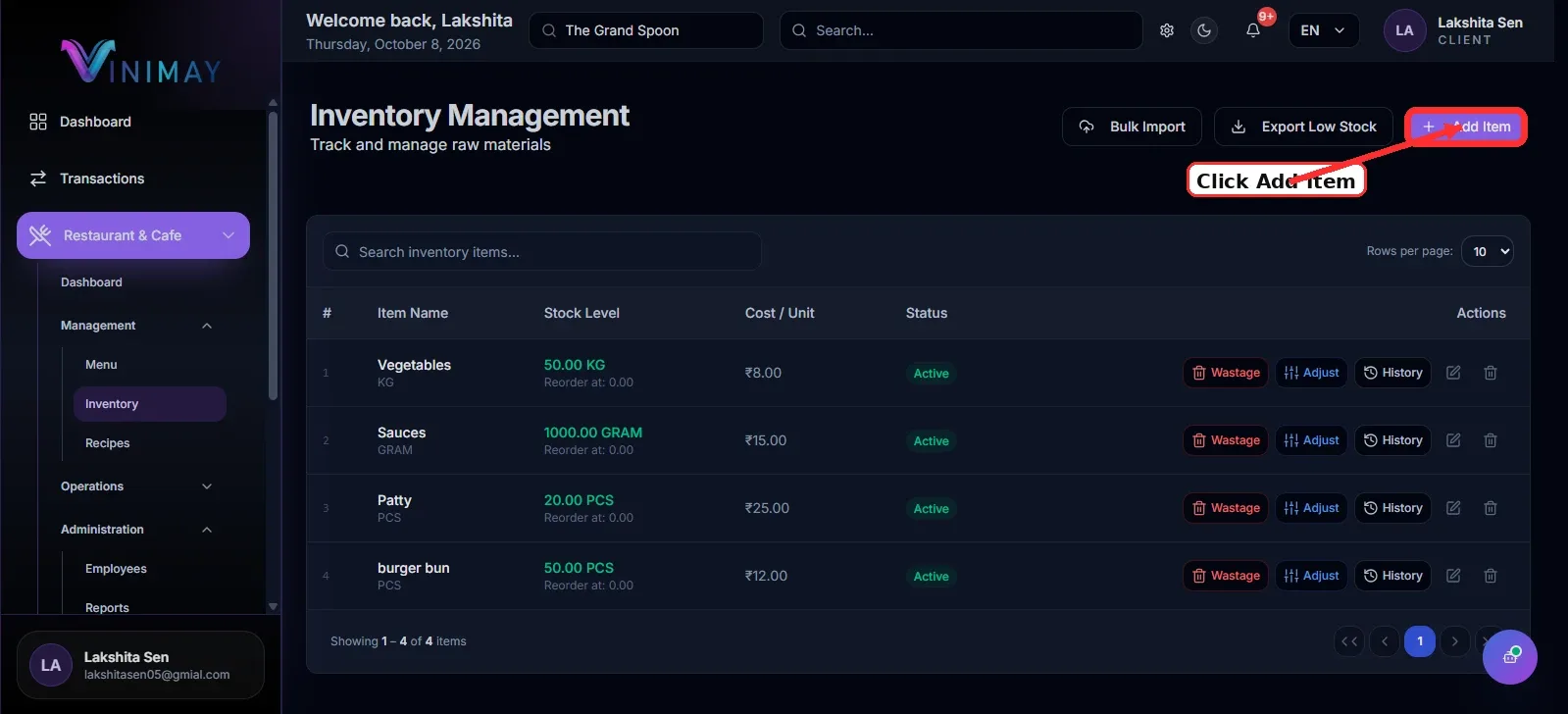
Step 2: Click Add Item
To register a new ingredient or raw material, click the + Add Item button in the top-right corner of the Inventory Management page.
This opens the Add Restaurant Inventory Item form, where you can enter the details of the ingredient you want to track.
For example, if your restaurant starts using cheese to prepare burgers, sandwiches, or pizzas, you can create a new inventory item named Cheese.
Before adding an item, check whether it already exists in your inventory list. This helps prevent duplicate records and keeps your stock information organised.
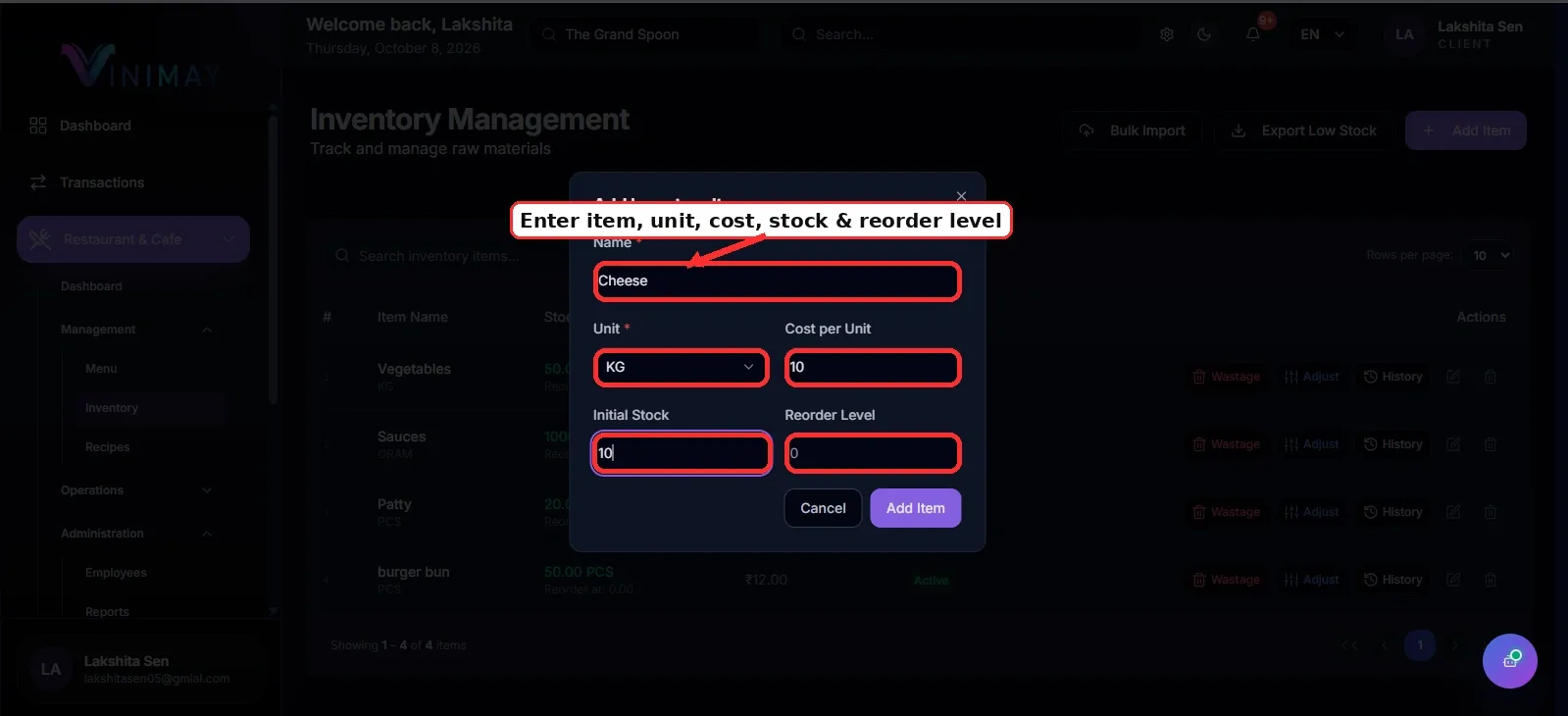
Step 3: Enter the Inventory Item Details
Complete the required fields in the Add Inventory Item form. Enter accurate information to help maintain reliable stock and cost records.
Name: Enter the ingredient or raw material name. For example, cheese, vegetables, sauce, or burger bun.
Unit: Select the appropriate measurement unit, such as KG, GRAM, or PCS, according to how the ingredient is purchased and consumed.
Cost per Unit: Enter the cost associated with one selected unit. For example, if one kilogram of cheese costs ₹500, enter ₹500 per KG.
Initial Stock: Enter the quantity available when creating the inventory item. For example, if you have 10 kg of cheese in stock, enter 10 kg.
Reorder Level: Enter the stock quantity at which you want to consider replenishing the ingredient. For example, a reorder level of 5 KG means you want to review purchasing needs when the stock reaches that quantity.
Choose consistent units and check the costs carefully. Incorrect units or quantities can affect the accuracy of your inventory records and ingredient cost calculations.
Step 4: Save the Inventory Item
After entering the required details, review the form before submitting it.
Check that the item name is correct, the measurement unit matches your stock records, the cost per unit is accurate, and the initial stock and reorder level are appropriate.
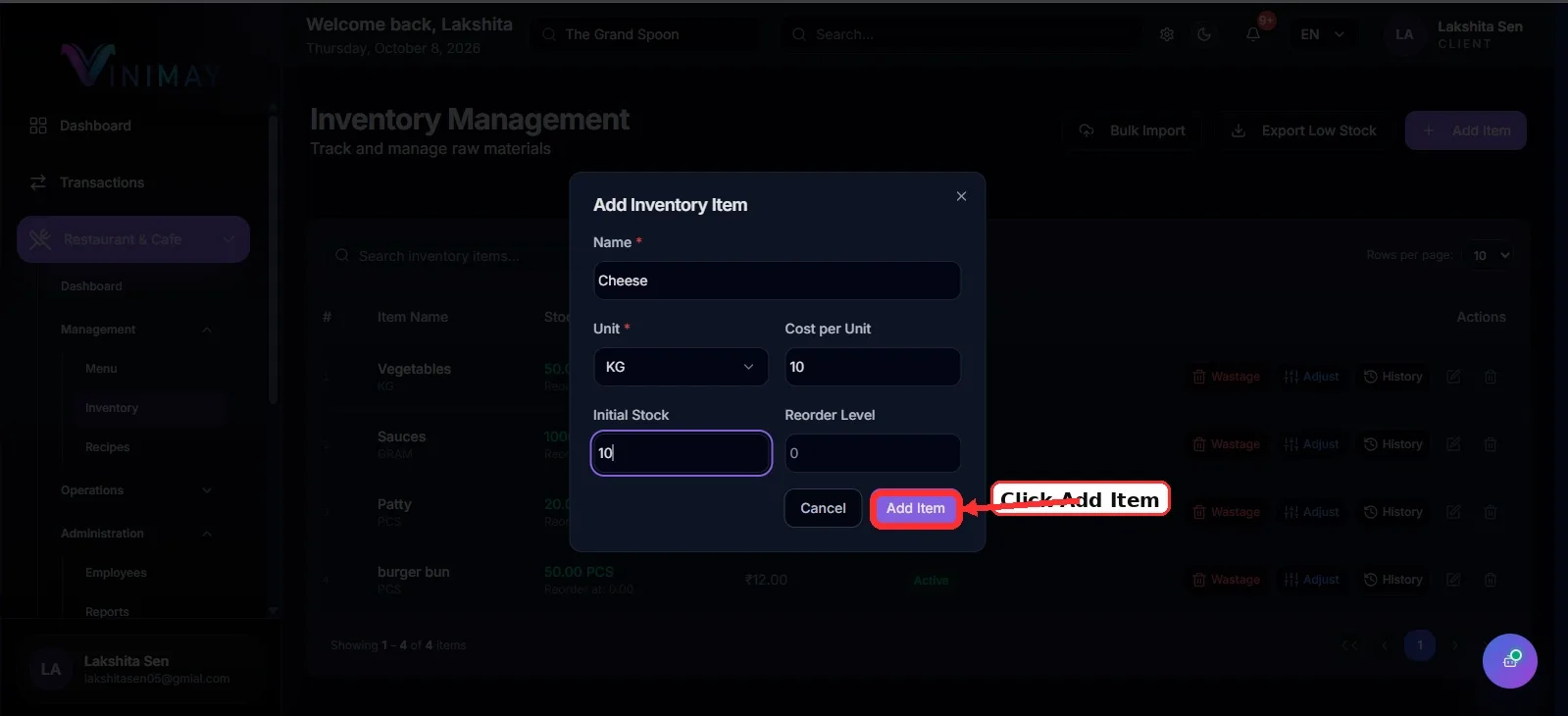
Once everything is correct, click Add Item to save the new ingredient.
The item should then appear in the inventory management list with its recorded stock quantity, cost per unit, and status.
Repeat this process whenever you need to add another ingredient or raw material to your restaurant inventory.
Step 5: Review and Manage Your Inventory
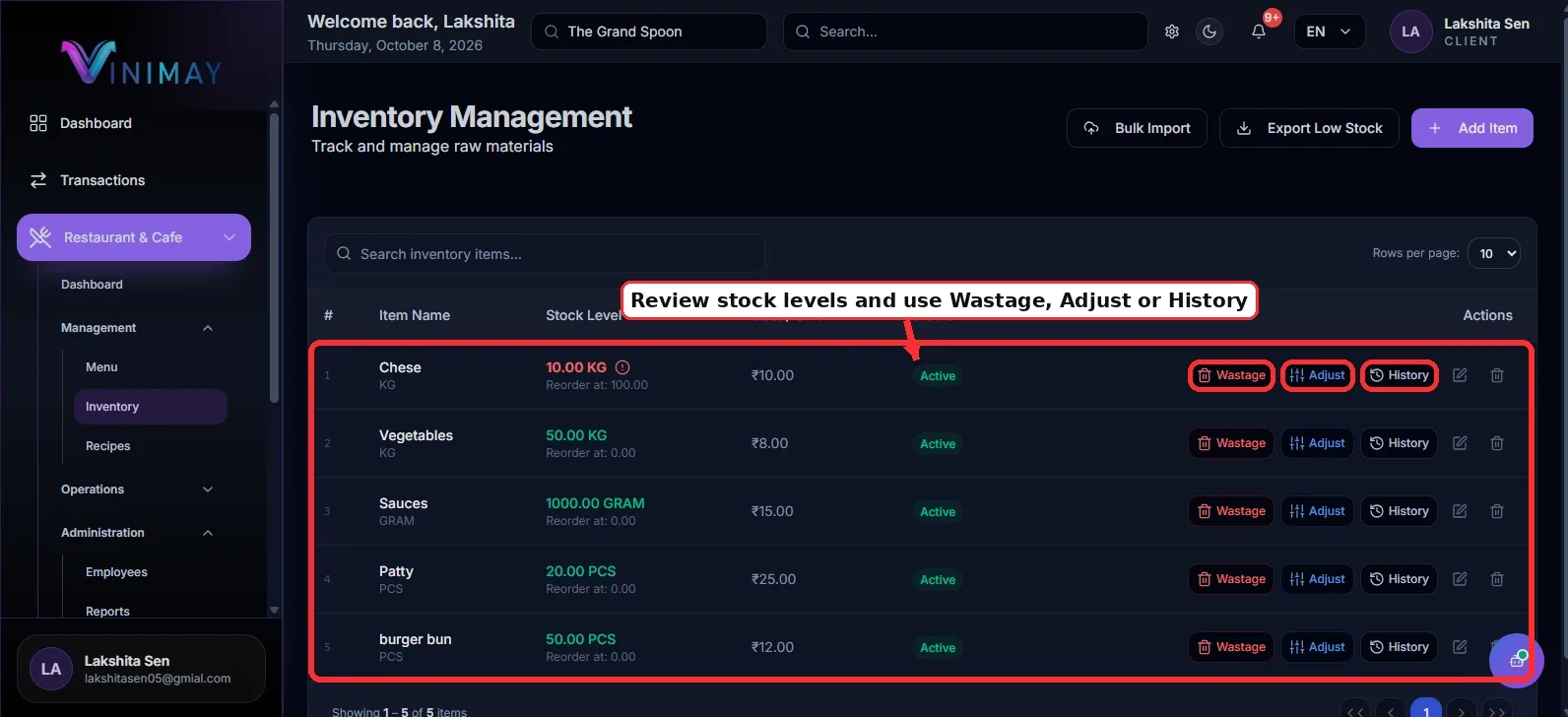
After adding your ingredients, regularly review the Inventory Management table to understand your available stock.
The table may display information such as:
Item Name: Identifies the ingredient or raw material.
Stock Level: Shows the recorded available quantity and measurement unit.
Cost / Unit: Displays the cost recorded for the ingredient.
Status: Indicates whether the inventory item is active.
For example, your inventory may contain 50 KG of vegetables, 1,000 GRAM of sauce, or 20 PCS of patties.
Use the search field to locate a particular ingredient quickly, especially when your restaurant maintains a large inventory list.
Regular reviews can help you identify low-stock items and plan purchases before essential ingredients run out.
Step 6: Record Wastage, Adjust Stock, and Check History
Vinimay provides additional actions to help you maintain accurate inventory records.
Wastage: Use this option to record ingredients lost through spoilage, expiry, damage, or preparation waste. For example, if 2 kg of vegetables are spoilt, record the quantity and follow the available instructions to document the loss.
Adjust: Use this option when the physical stock count differs from the quantity recorded in Vinimay. For example, if the system shows 10 KG of flour but your actual count is 9 KG, an adjustment can help correct the recorded quantity.
History: Use this option to review previous stock-related activity for an inventory item. This helps you understand changes in stock and investigate differences when necessary.
Record wastage and stock adjustments promptly, using accurate quantities and reasons where available. This helps keep inventory information reliable for daily restaurant operations.
Quick Path
Login → Select Restaurant → Restaurant & Cafe → Management → Inventory → Add Item → Enter Stock Details → Add Item → Review Inventory → Record Wastage, Adjust Stock, or Check History
By maintaining the Restaurant Inventory section regularly, you can improve raw material tracking, monitor ingredient costs, record wastage, correct stock differences, and identify ingredients that need replenishment.
Related Topics
Published by lakshita
Our editorial and compliance specialists create practical guides, tax calculation rules, and operational strategies to empower Indian small business owners and accountants.