If you open the Inventory page in Vinimay and see "No Products Found", nothing is broken. It simply means the list has nothing to show right now: either no product has been added yet, or your search did not match any product. This guide explains both cases and shows you, step by step, how to start your inventory.
Quick Answer
"No Products Found" means Vinimay has no product to display for the selected company or search. To fix it, open Inventory, click Add Product, enter the product details, and save. Your product appears in the list straight away, ready for purchases and sales.
What Does "No Products Found" Mean?
Vinimay shows this message in three common situations. Check which one matches yours before you do anything else.
- You have not added any product yet. This is normal for a new account or a newly created company. The inventory list starts empty.
- Your search text does not match. If you typed a name in the search box, only matching products are shown. A spelling mistake is enough to get an empty list.
- You are looking at the wrong company or tab. Products belong to a company, and Vinimay separates Products from Services. A product added under one company will not appear under another.
How to Start Your Inventory in Vinimay (Step by Step)
Follow these five steps. Each screenshot has numbered red marks that show exactly where to click.
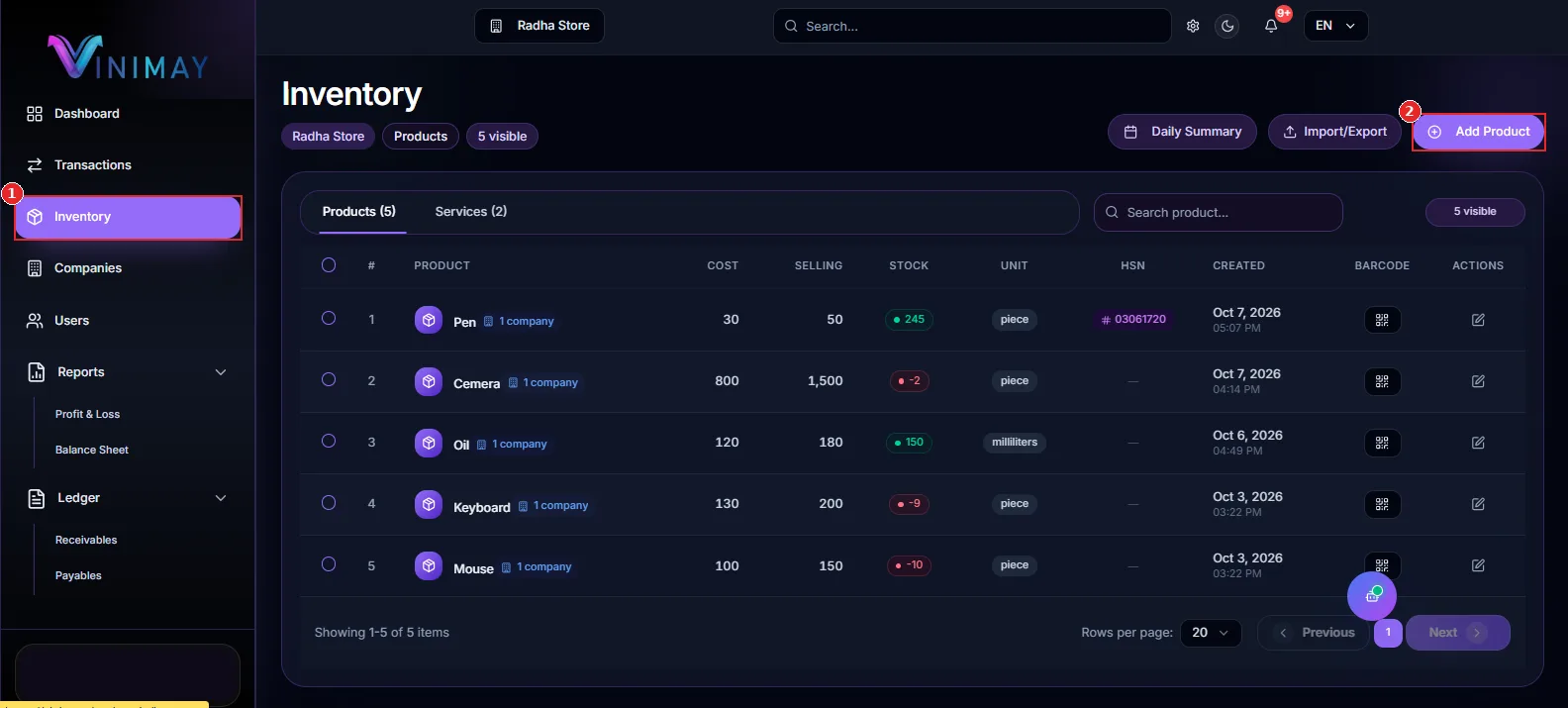
Step 1: Open Inventory from the sidebar
Log in and look at the left sidebar. Click Inventory (mark 1). You can also use the Add Product button on the Dashboard, under Product & Service Stock (mark 2). It takes you to the same place.
Step 2: Check the company and the Products tab
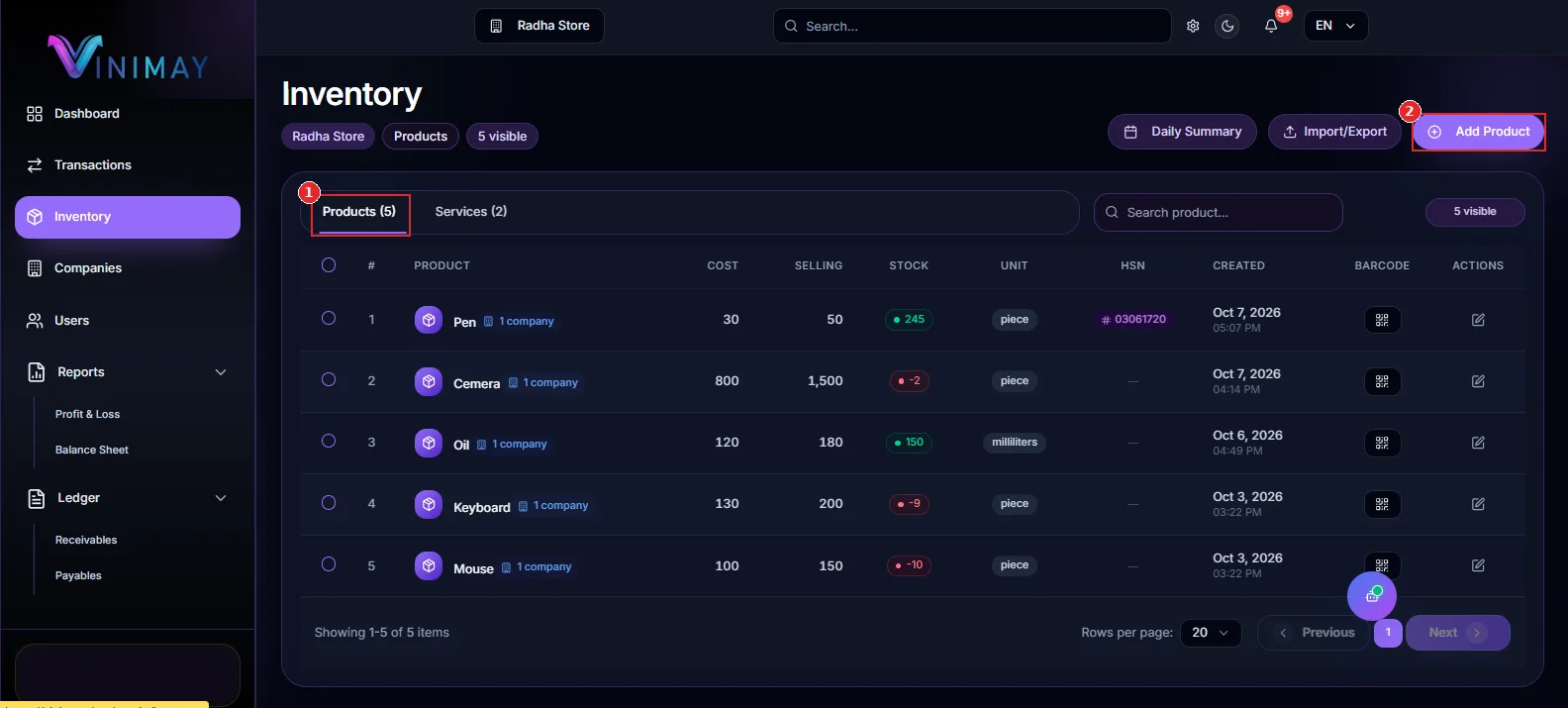
At the top of the Inventory page, confirm the correct company name is selected (for example, Radha Store). Then make sure the Products tab is open (mark 1). The number in brackets, such as Products (4), tells you how many products exist. If it shows 0, your inventory is empty and you are ready to add the first item.
Step 3: Click "Add Product"
Click the purple Add Product button at the top right (mark 2). A form opens where you enter the product details.
Step 4: Enter the product details and save
The inventory table shows which details Vinimay tracks for every product, so keep these ready:
- Product name, for example "Keyboard"
- Unit, such as piece or milliliters
- Cost price, what you pay to buy it
- Selling price, what your customer pays
- Stock quantity, how many you have right now
- HSN code, if you issue GST invoices
Save the product. It now appears in the list with its stock, unit and created date.
Step 5 (optional): Add many products at once
If you already have a long product list, do not add items one by one. Use Import/Export (mark 1) to bring products in together. The Daily Summary button (mark 2) gives you a quick look at the day's inventory activity once you start working.
How to Read Your Stock After Adding Products
Once products are added, the Stock column (mark 1) shows a coloured badge for each item. In the example below, a healthy quantity shows in green, a small quantity shows in orange, and a negative number shows in red.
A negative stock such as -4 or -10 usually means you recorded more sales than the stock you entered. Fix it by recording the missing purchase or correcting the opening quantity, so your stock report stays accurate.
Still Seeing "No Products Found"? Try This
- Clear the search box. Remove any text and check whether the list returns.
- Switch the company. Use the company selector at the top to confirm you are in the right business.
- Check the Services tab. If you added a service instead of a product, it will be listed there, not under Products.
- Refresh the page. This reloads the latest data.
- Add the product again. If it was deleted earlier, it will not come back on its own.
Conclusion
"No Products Found" is not an error. It is Vinimay telling you that the inventory is empty or that your search found no match. The fix takes about two minutes: open Inventory, check the company and tab, click Add Product, fill in the details and save. If you have many items, import them in bulk instead.
Once your products are in, every purchase adds stock and every sale reduces it, so you always know what is on your shelf. Keep your opening quantities honest, watch the stock badges, and your inventory will stay clean from day one.
Frequently Asked Questions
1. Why does Vinimay show "No Products Found"?
It appears when there is no product to display. This happens if you have not added any product, if your search text does not match any product, or if you are viewing a different company or tab than the one where the product was added.
2. How do I add my first product in Vinimay?
Open Inventory from the sidebar, click Add Product, enter the name, unit, cost price, selling price and stock quantity, then save. The product appears in the list immediately.
3. Can I add many products at once?
Yes. Use the Import/Export button on the Inventory page to bring in a list of products together instead of adding them one at a time.
4. What does negative stock mean?
Negative stock means you have sold more units than the quantity recorded in your inventory. Record the missing purchase or correct the opening stock to fix it.
5. Why is my product not showing in the Products tab?
Check that you are in the correct company and that you added it as a product, not a service. Services are listed in their own tab.
Related Topics
Published by admin
Our editorial and compliance specialists create practical guides, tax calculation rules, and operational strategies to empower Indian small business owners and accountants.