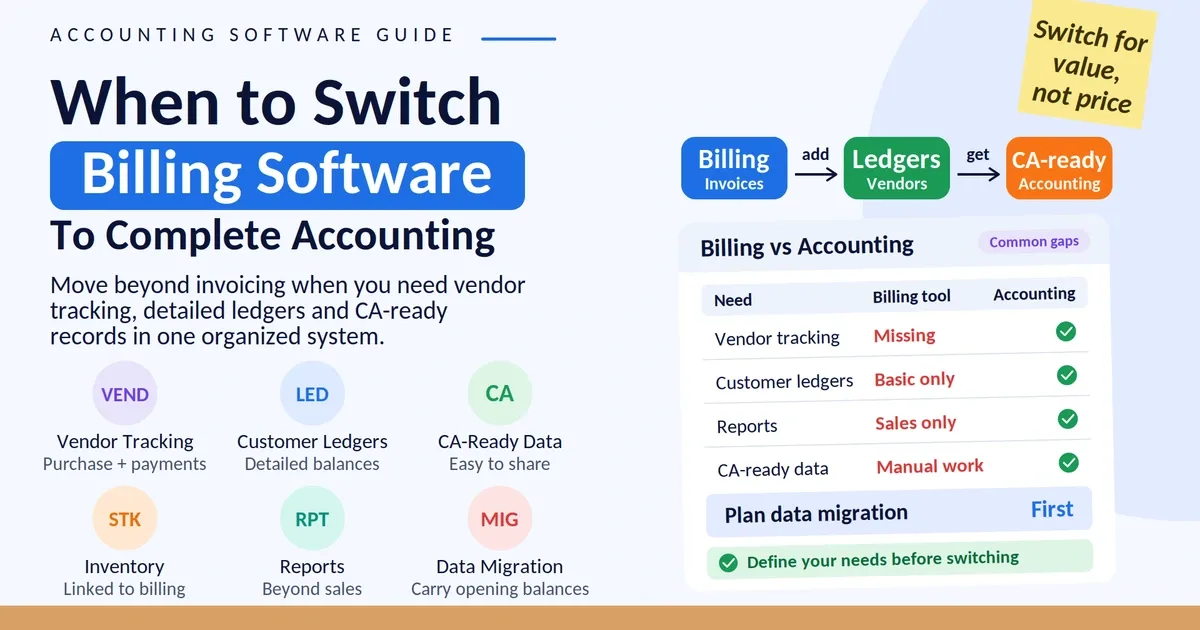
Opening stock in Vinimay is the quantity of a product you already have when you start using the software. Entering the correct opening stock helps you track inventory accurately because every purchase and sale updates the quantity. Follow this step-by-step guide to add your starting stock.
Quick Answer
To enter opening stock in Vinimay, go to Inventory, click Add Product, fill in the product name and unit, type the quantity you currently hold in the Opening Stock field, and click Create Product. The quantity then shows in the Stock column of your inventory list.
What Is Opening Stock?
Opening stock is the number of units you hold before you record any new purchase or sale in the software. For example, if your shop has 250 pens on the shelf today and you add "Pen" to Vinimay, your opening stock is 250. From then on, buying more pens increases the count and selling pens reduces it.
Getting this number right matters. If it is too low, your stock can drop below zero after a few sales. If it is too high, you will think you have items that are not on your shelf.
What to Keep Ready Before You Start
Physical count: Count the items on your shelf or in your godown first.
Unit: Decide how you count them, such as pieces or milliliters.
Cost price and selling price: Know what you pay and what you charge.
HSN code: Keep it ready if you issue GST invoices. It is optional in the form.
How to Enter Opening Stock in Vinimay (Step by Step)
Step 1: Open the Add Product Form
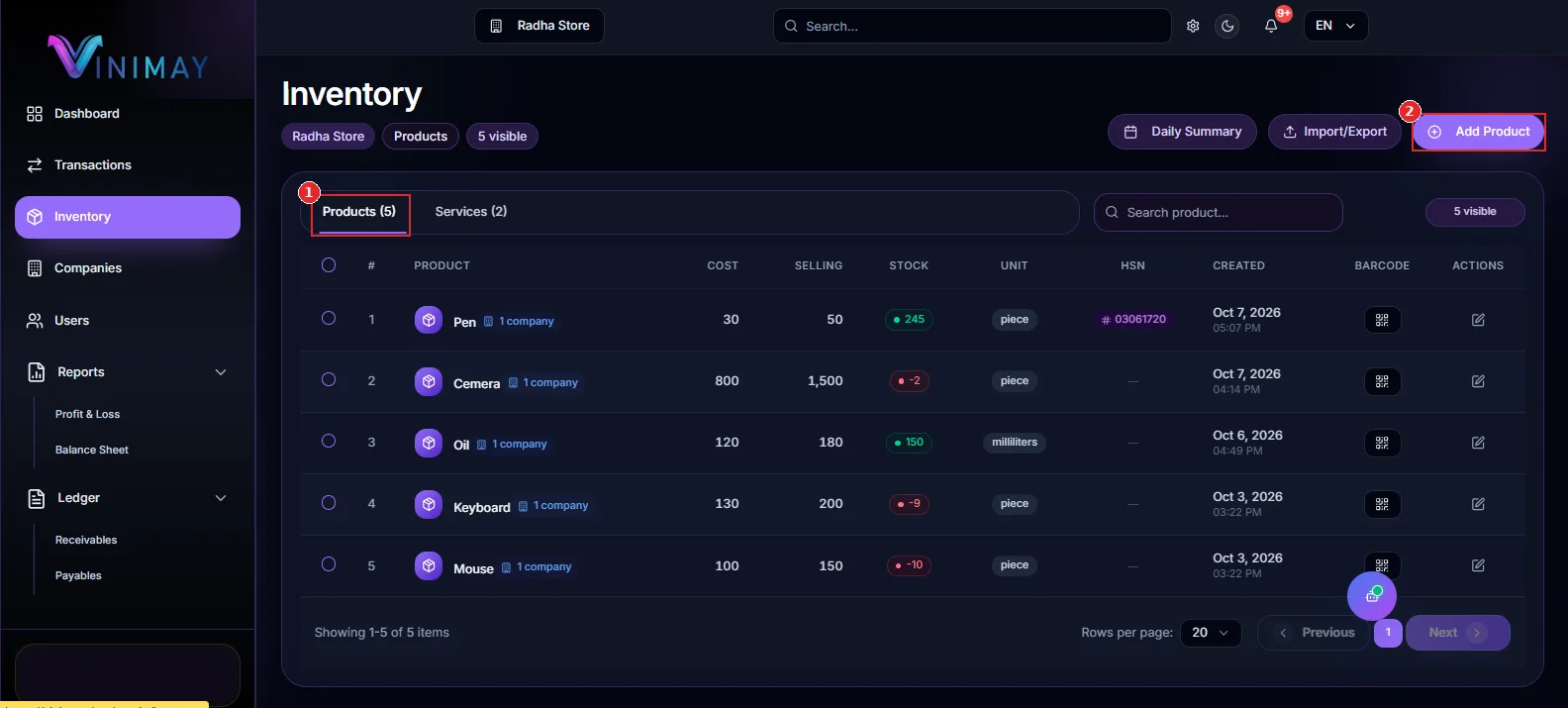
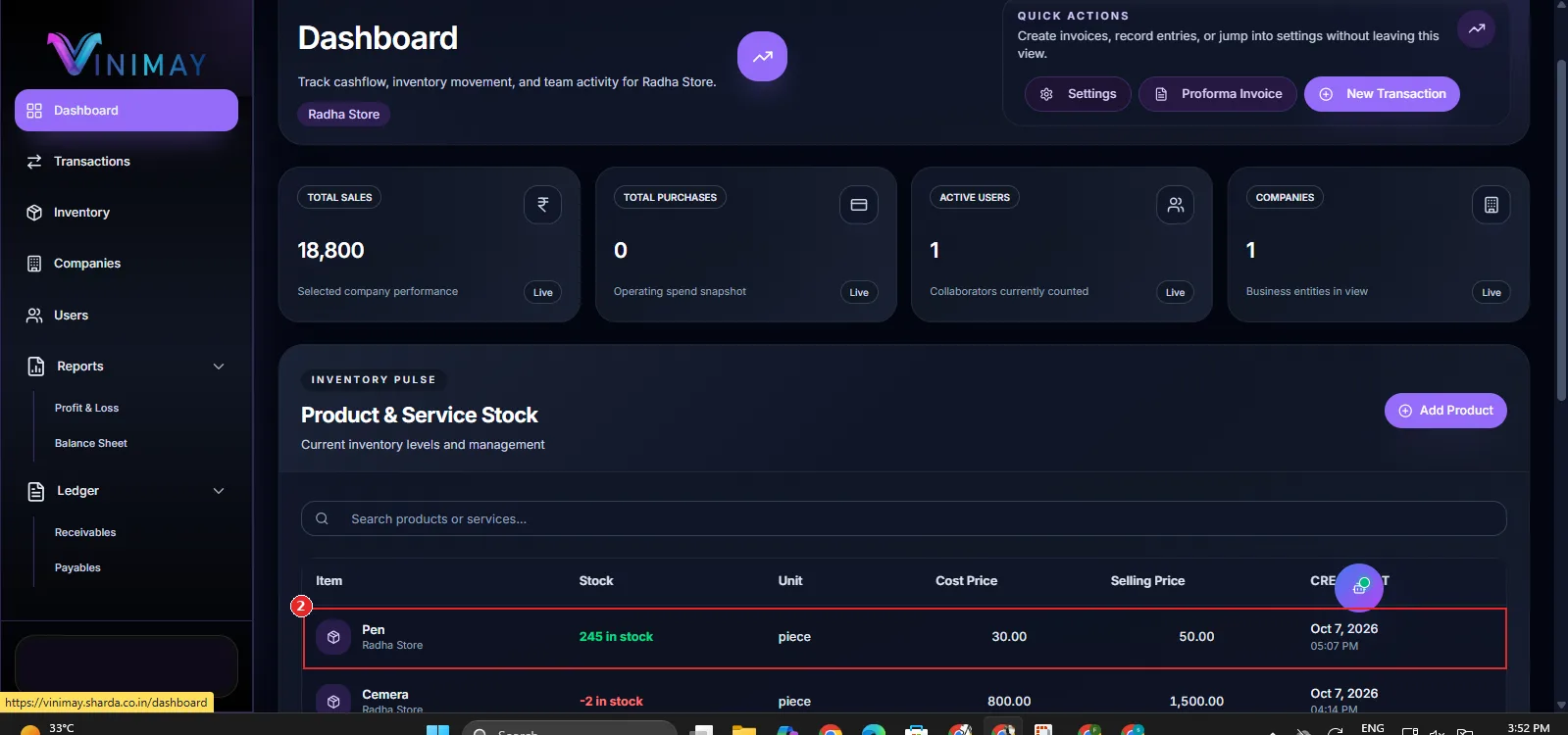
Click Inventory in the left sidebar, then click Add Product. You can also use the Add Product button on the Dashboard under Product & Service Stock.
Step 2: Select the Product Tab and Company
The Add New Product form opens. Keep the Product tab selected. This tab is for items you physically keep in stock, so use the Service tab only for services.
Next, select the correct company. This field is required, so make sure the product is linked to the right business.

Step 3: Enter Product Details and Opening Stock
Enter the product name, select the correct unit, and fill in the cost price and selling price. In the Opening Stock field, enter the quantity you currently have available.
For example, if you have 250 pens in your shop, enter 250 as the opening stock. Check the quantity carefully before clicking Create Product.
Common Opening Stock Mistakes to Avoid
Guessing the quantity: Always count your physical stock. An incorrect starting number can make future stock figures inaccurate.
Choosing the wrong unit: 250 pieces and 250 milliliters represent different quantities. Select the unit you actually use to count the product.
Selecting the wrong company: If you manage more than one business, confirm the company before saving the product.
Adding the same product twice: Search the inventory first to avoid creating duplicate product entries with separate stock quantities.
Leaving the quantity empty: If you have stock available, enter the correct opening quantity before recording sales. Otherwise, the inventory may show negative stock.
Quick Check: Is Your Opening Stock Correct?
After saving, compare the Stock column with the quantity on your shelf. You can also estimate the value of your inventory at cost by multiplying the quantity by the cost price.
For example, if you have 250 pens and each pen costs ₹30, the total stock value at cost is ₹7,500. If this value does not match your expectations, recheck the quantity and cost price before recording purchases and sales.
Conclusion
Entering opening stock takes less than a minute per product. Open Add Product, enter the product name and quantity, select the correct unit, add the prices, and click Create Product. The most important step is counting your physical stock accurately before entering the quantity.
Once the opening stock is recorded, Vinimay can update your stock as you record purchases and sales. A correct starting quantity helps you maintain reliable inventory records, monitor stock levels, and keep reports accurate.
Frequently Asked Questions
1. What is opening stock in Vinimay?
Opening stock is the quantity of a product you already have when you start recording it in Vinimay. Enter it in the Opening Stock field of the Add New Product form.
2. Where do I enter the starting quantity?
Open Inventory, click Add Product, and enter the quantity in the Opening Stock field before clicking Create Product.
3. Is opening stock a required field?
In the Add New Product form, Company, Product Name, and Unit are marked as required. Opening Stock is not marked as required, but entering the correct quantity helps keep your inventory accurate.
4. Where can I see the quantity after saving?
The quantity appears in the Stock column of the Inventory list. It may also appear in the Product & Service Stock table on the Dashboard, such as "250 in stock."
5. Does this apply to services?
Opening stock is intended for physical products you keep in inventory. Use the Product tab for these items. Services are added through the Service tab.
Related Topics
Published by admin
Our editorial and compliance specialists create practical guides, tax calculation rules, and operational strategies to empower Indian small business owners and accountants.