To search products quickly in Vinimay, open Inventory, click the "Search product..." box above the table and type the product name. The table shows only the matching items. Make sure the right company and the Products tab are selected, otherwise a product you added may not appear.
3 Ways to Search Products Quickly in Vinimay
Method 1: Search from the Inventory page (fastest)
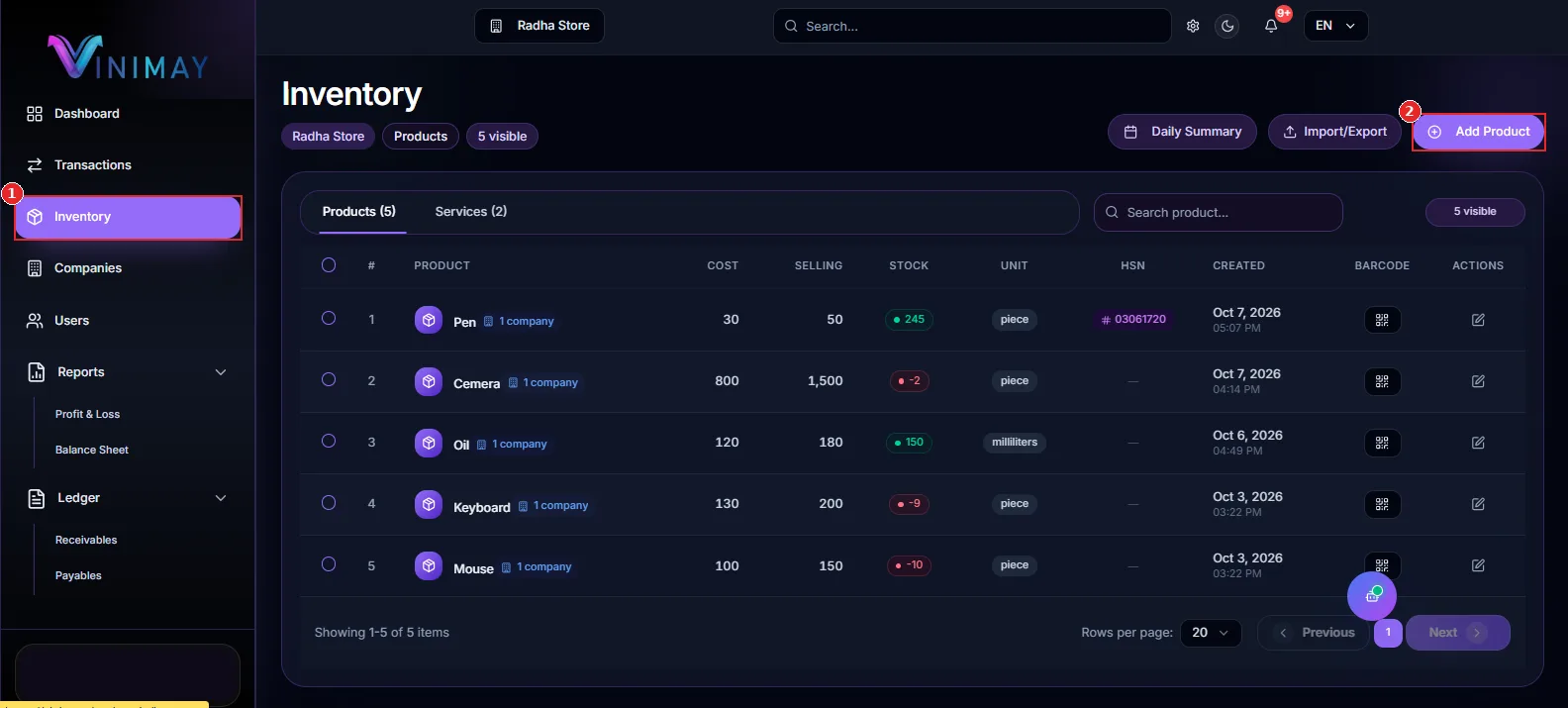
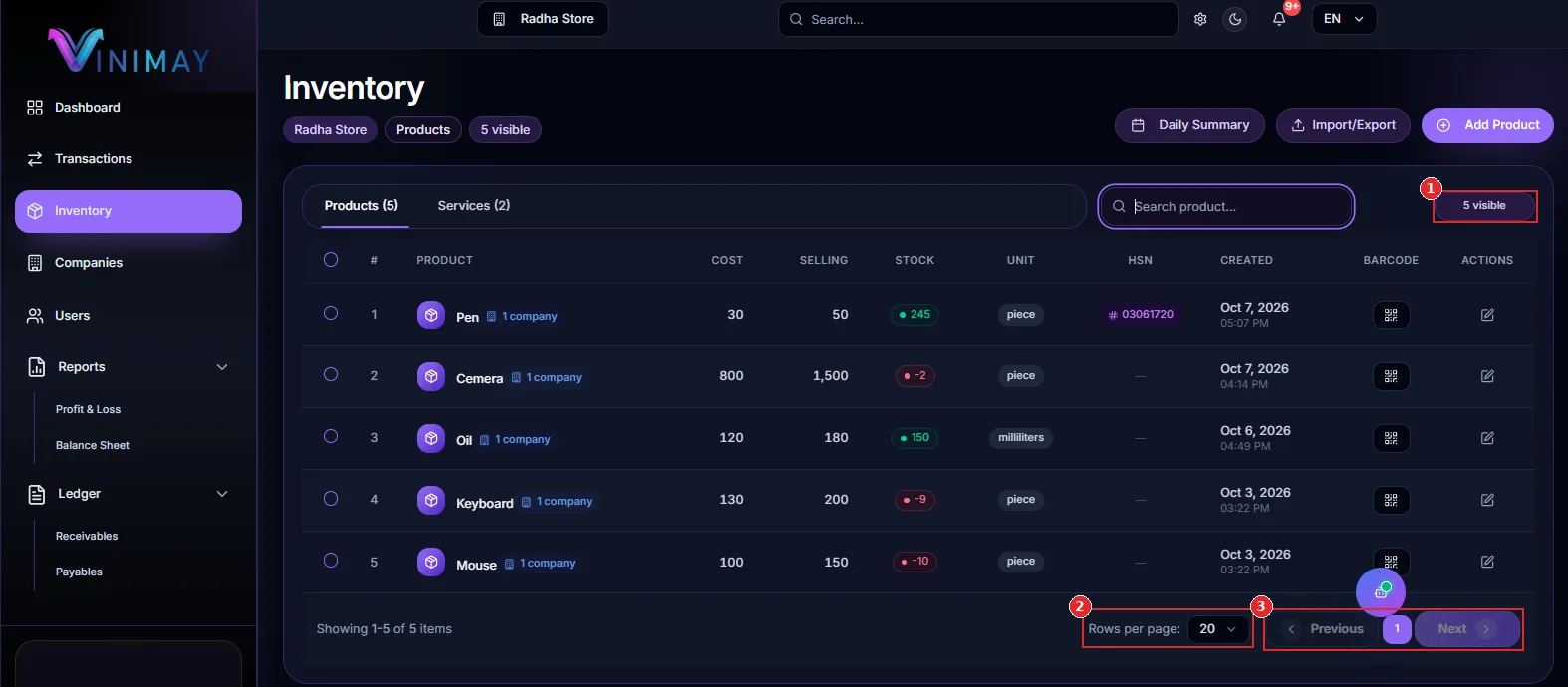
Click Inventory in the left sidebar (mark 1).
Click the Search product... box at the top right of the table (mark 2).
Type the product name, for example "Keyboard". The table narrows to matching items.
Method 2: Search from the Dashboard
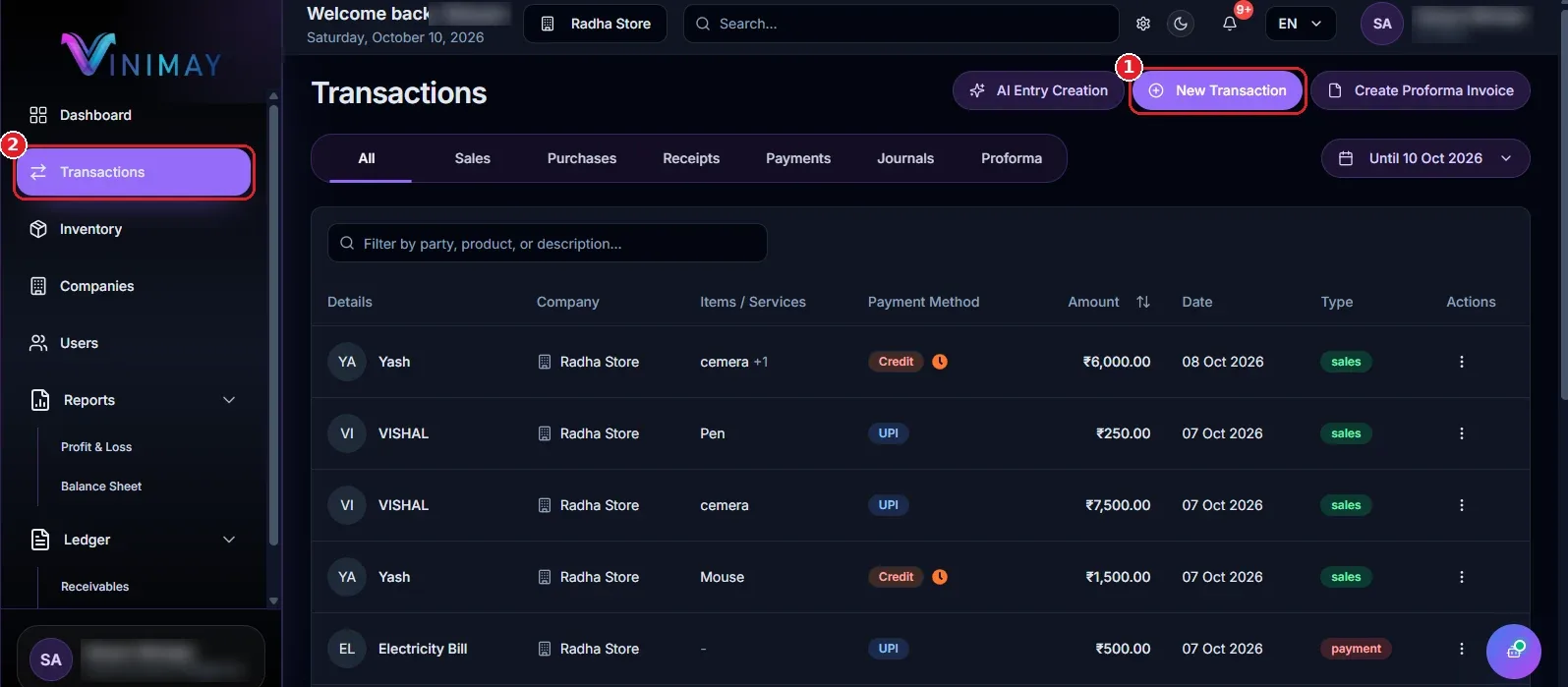
Method 3: Use the top search bar
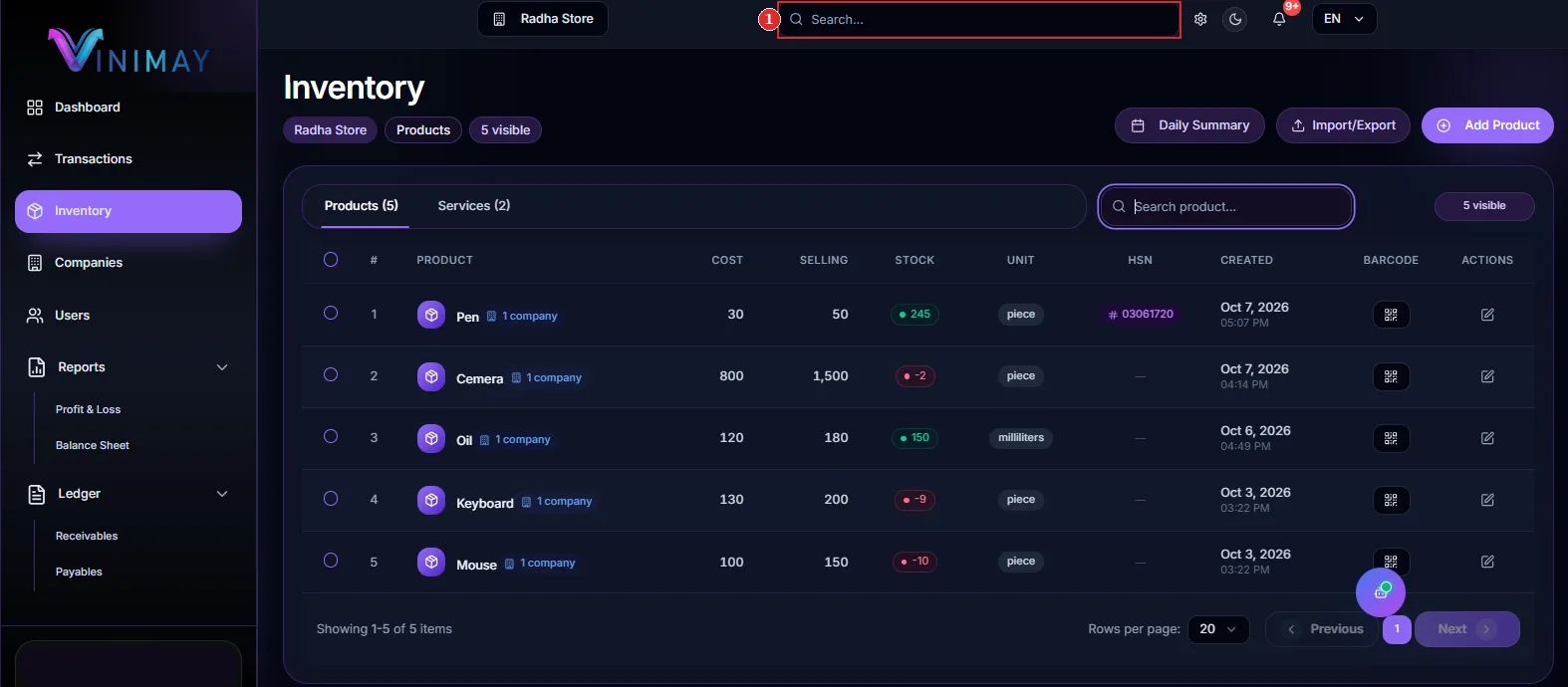
Check the Result Count and Page Size
Tips to Search Products Quickly Every Time
Type a short part of the name. "Key" is quicker to type than "Keyboard" and avoids spelling mistakes.
Use consistent names. Pick one style, such as "Oil 1L" instead of a mix of "oil", "Oil-1 litre" and "1L oil", so searches stay predictable.
Check the company first. Products belong to a company, so confirm the right one is selected at the top.
Switch tabs. If a search finds nothing under Products, check Services.
Clear the box before a new search. Old text can hide items you are looking for.
Avoid duplicates. Search before you add a new product so the same item is not created twice.
Search Not Working? Quick Fixes
Seeing "No Products Found"? Clear the search box, then check the company and the tab.
Product still missing? It may have been deleted. Add it again with the Add Product button.
Results look old? Refresh the page to load the latest data.
Conclusion
You can search products quickly in Vinimay once you know where to look. Use the Inventory search box for day-to-day work, the Dashboard search when you want products and services together, and the top bar when you are busy elsewhere. Keep your product names consistent, and check the company and tab whenever a result seems to be missing.
A tidy product list is the real shortcut. The cleaner your names and the fewer duplicates you have, the faster every search becomes, and the easier it is to trust your stock numbers.
Frequently Asked Questions
1. How do I search for a product in Vinimay?
Open Inventory from the sidebar, click the Search product box above the table and type the product name. The table shows only matching items.
2. Can I search both products and services?
Yes. The search bar on the Dashboard, under Product & Service Stock, searches products and services together. The Inventory page search works inside the tab you have open.
3. Why does my search show no results?
Usually the name is misspelled, the wrong company is selected, or the item is saved under the other tab. Clear the search and check these three things.
4. What does the "visible" badge next to the search box mean?
It shows how many products are currently displayed in the list, so it changes as your search narrows the results.
Related Topics
Published by admin
Our editorial and compliance specialists create practical guides, tax calculation rules, and operational strategies to empower Indian small business owners and accountants.