Want to download an invoice in Vinimay and send a clean PDF to your customer? You can create a sales transaction, preview the invoice, and download an invoice as a PDF in just a few minutes. This step-by-step guide explains every click, with screenshots showing exactly which buttons to press.
Quick answer: To create an invoice in Vinimay, go to Transactions → New Transaction → Sales, enter the required customer, product, quantity, price, and payment details, then click Create Transaction. To download an invoice, open the Sales list, click the three dots under Actions, select Preview Invoice, and click Download PDF.
Step 1: Click Transactions
After logging in to Vinimay, look at the menu on the left side of your dashboard and click Transactions.
The Transactions page will open with several tabs, including All, Sales, Purchases, Receipts, Payments, Journals, and Proforma.
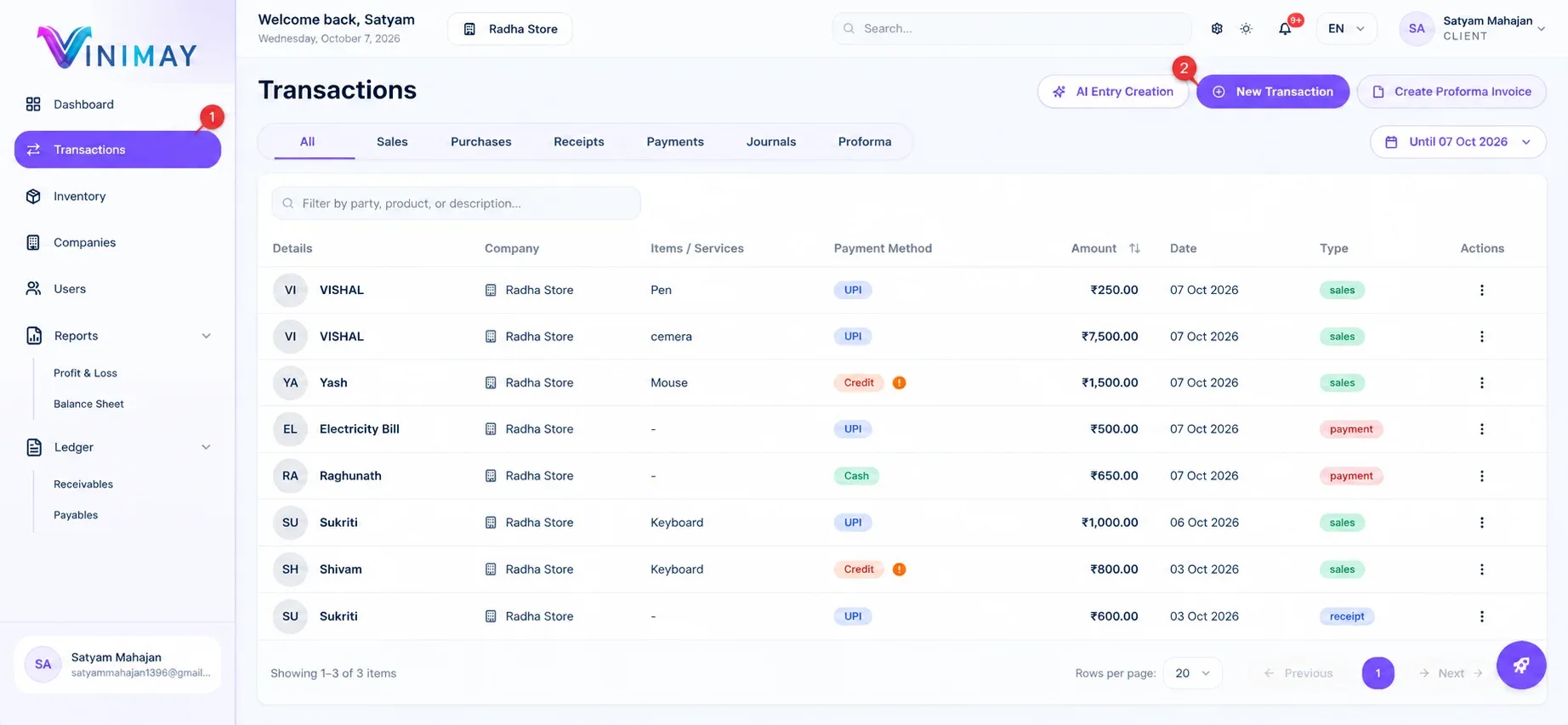
Step 2: Click New Transaction
On the Transactions page, look at the top-right corner. You will see the purple New Transaction button between AI Entry Creation and Create Proforma Invoice.
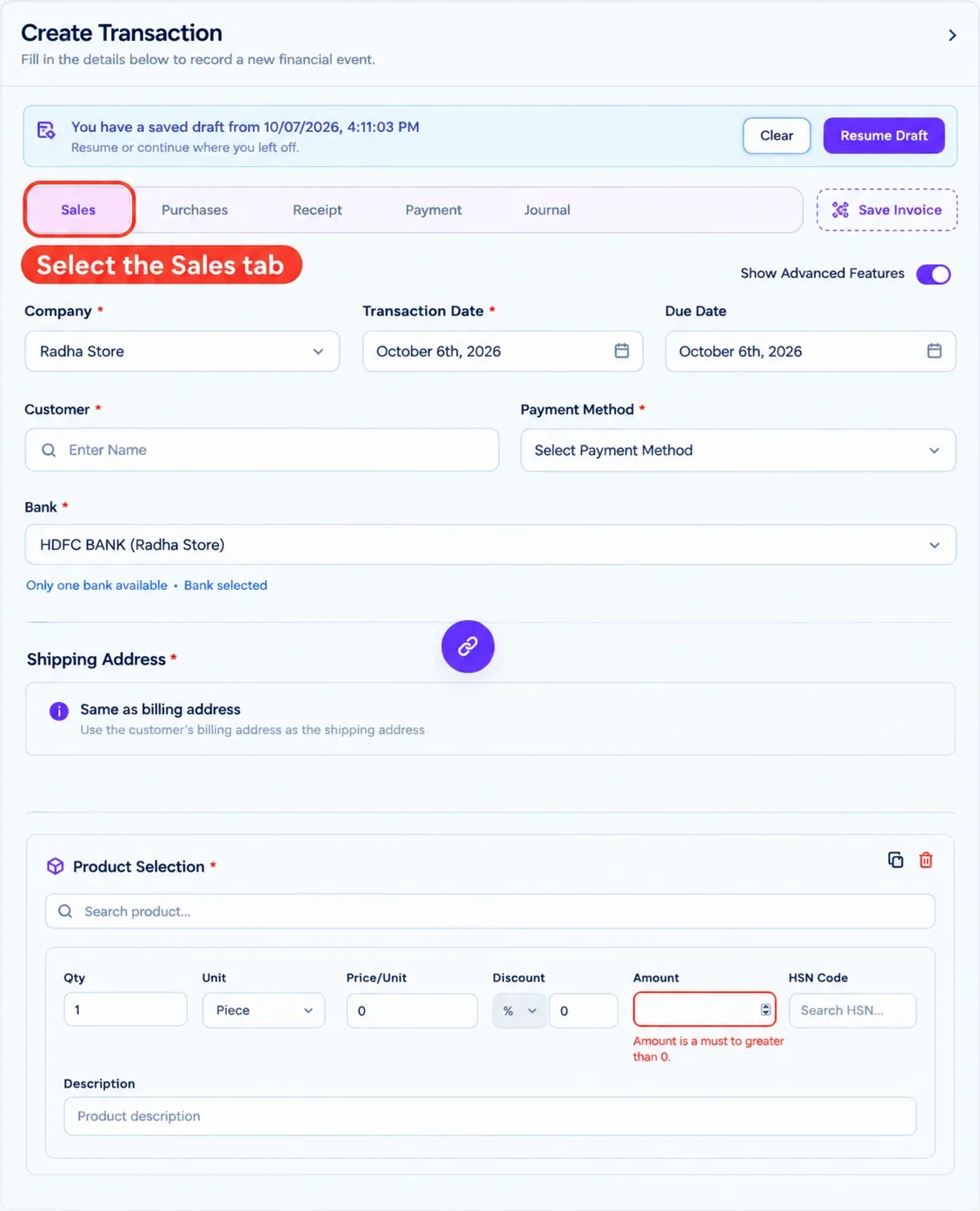
Step 3: Select the Sales Tab
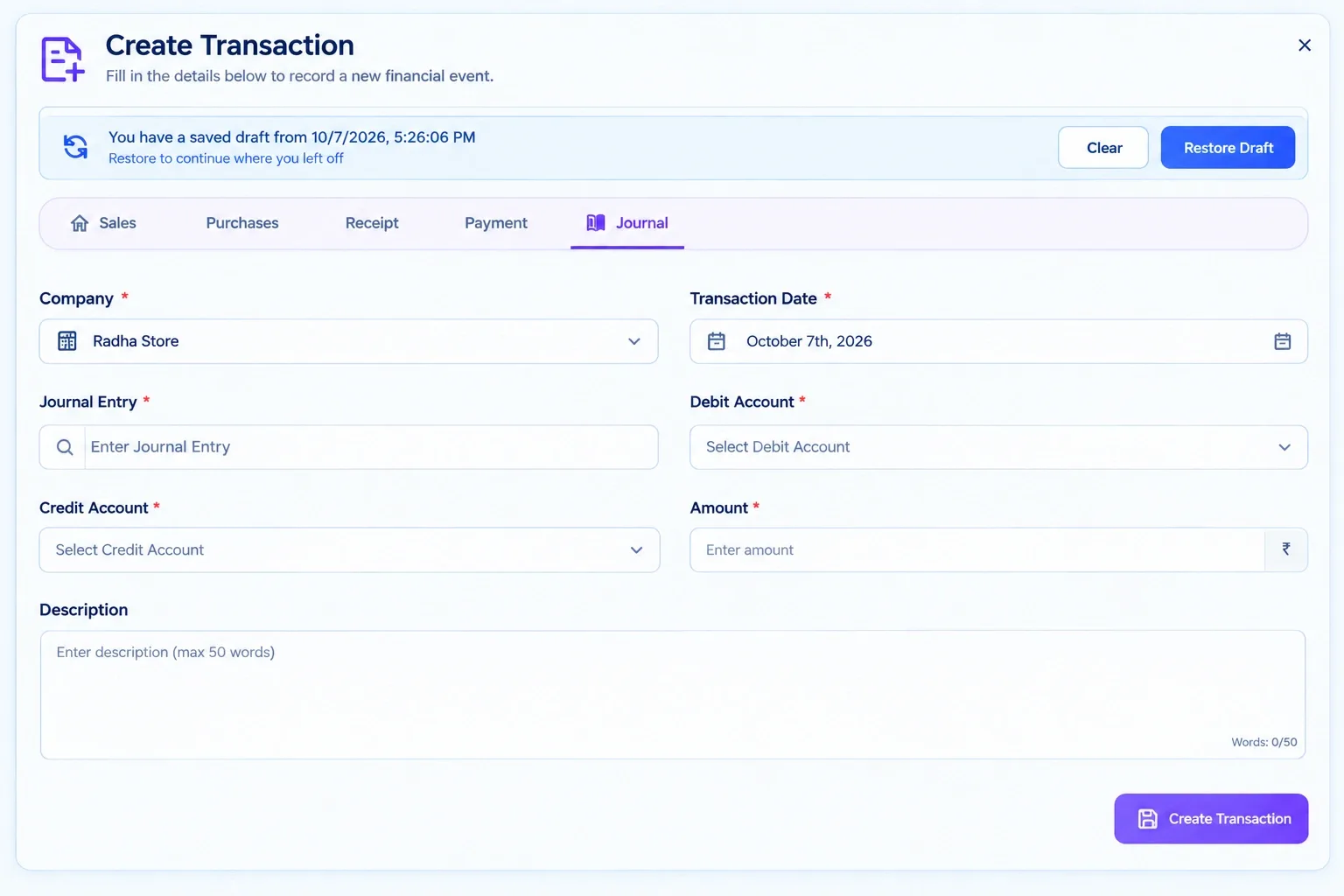
A Create Transaction panel will open on the right side of the screen.
At the top of the panel, you will see five tabs:
Sales
Purchases
Receipt
Payment
Journal
To create an invoice for a customer, select the Sales tab.
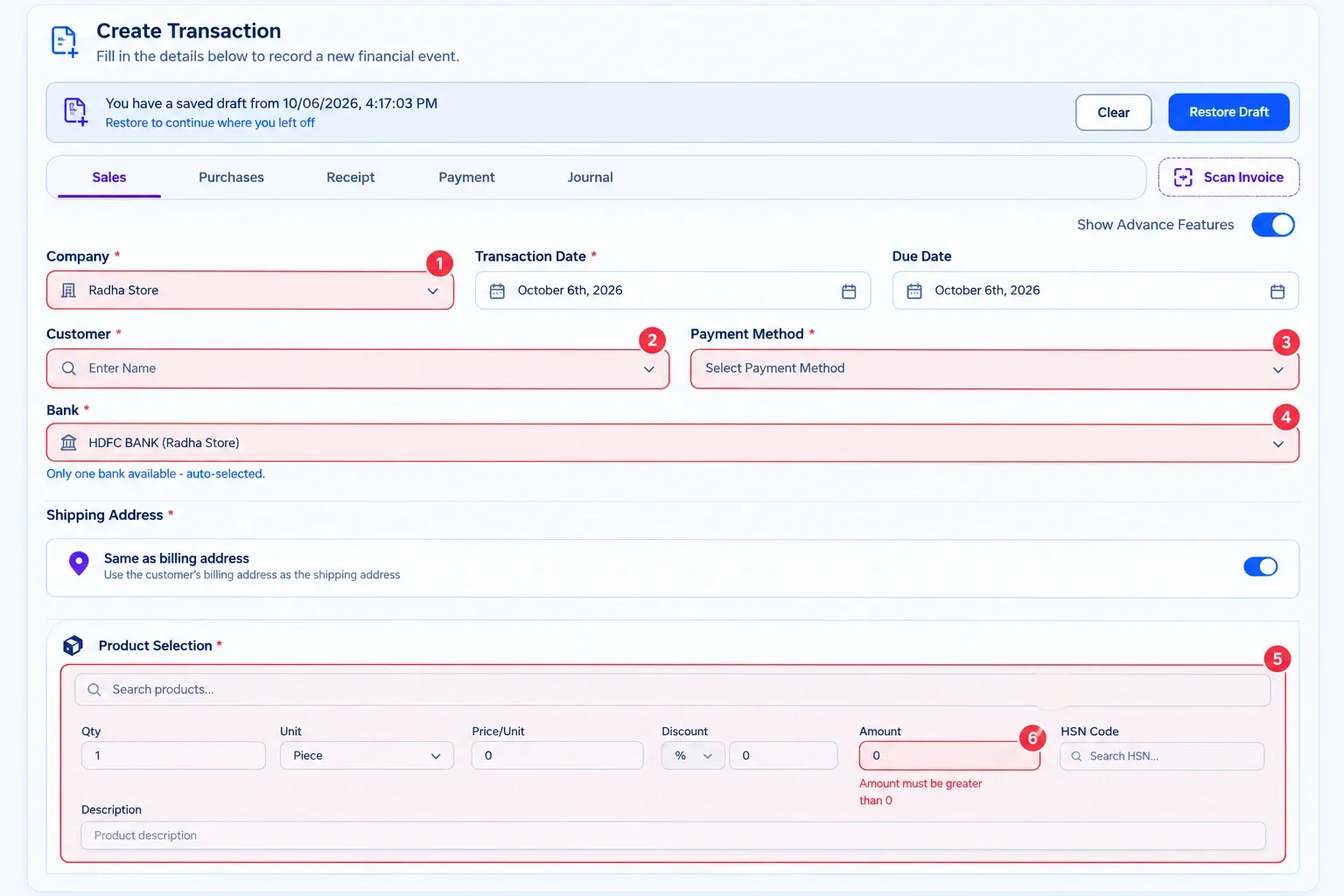
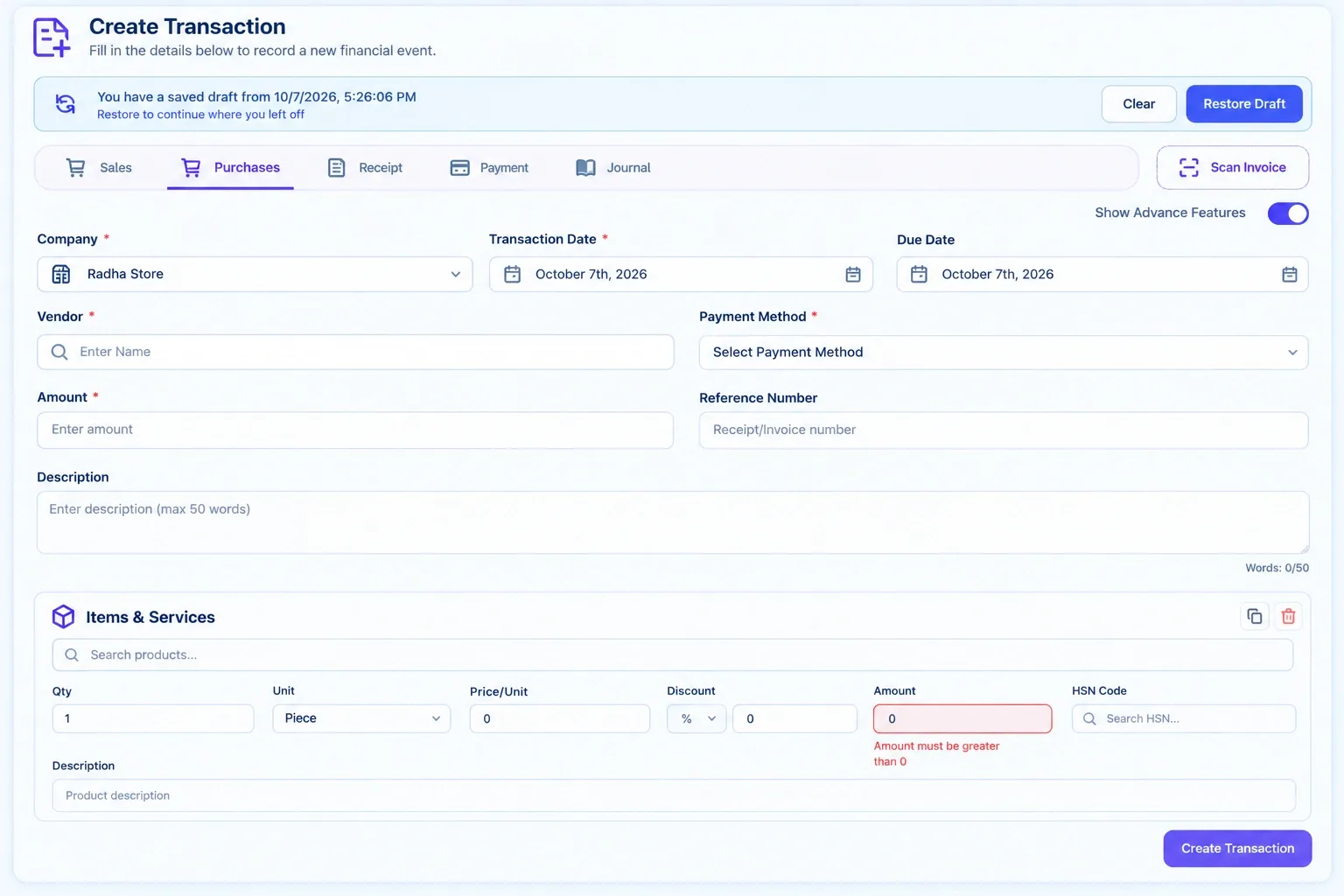
The Create Transaction panel is not limited to sales invoices. You can also use the other tabs to record different types of financial transactions.
Step 6: Open the Sales List and Click the Three Dots
Go to Transactions from the left-side menu and open the Sales tab.
Find the invoice you want to download. You can identify it using the customer or company name.
At the far right of the invoice row, look under the Actions column and click the three-dot menu (⋮).
Step 7: Click Preview Invoice
After clicking the three dots, an Actions menu will appear.
Select Preview Invoice to open the invoice preview.
The preview allows you to check the invoice before downloading it.
If you do not need to preview the invoice, you can also select Download Invoice from the same Actions menu to download it directly.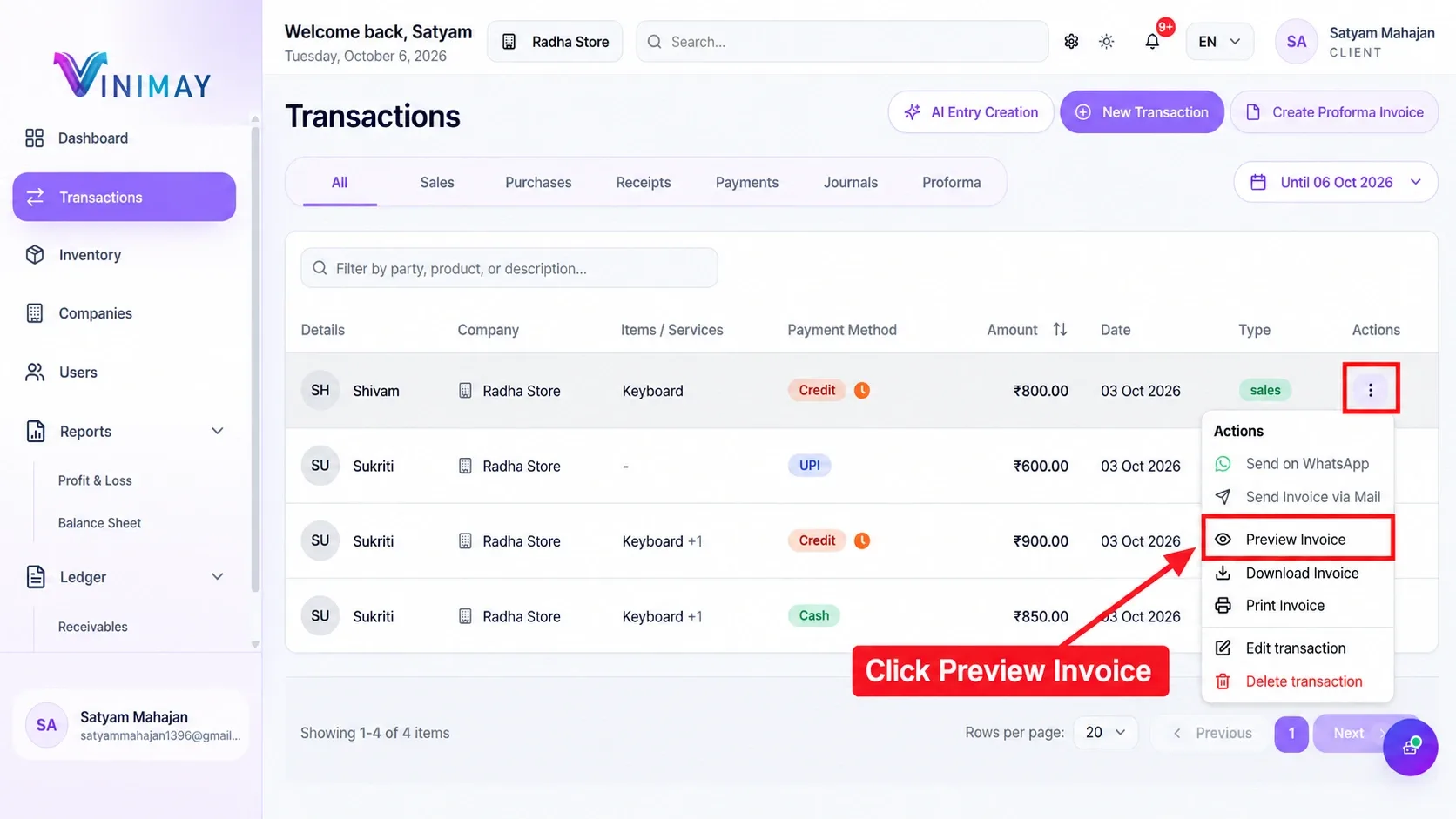
Step 8: Select a Template and Download the PDF
The Invoice Preview window displays the invoice details, including:
Business name
Invoice number
Invoice date
Buyer details
Consignee details
Products or services
Quantities and prices
Total amount
Bank details
Payment terms
At the bottom of the preview window, you can select an invoice design from the template dropdown.
Choose the template you want and click Download PDF.
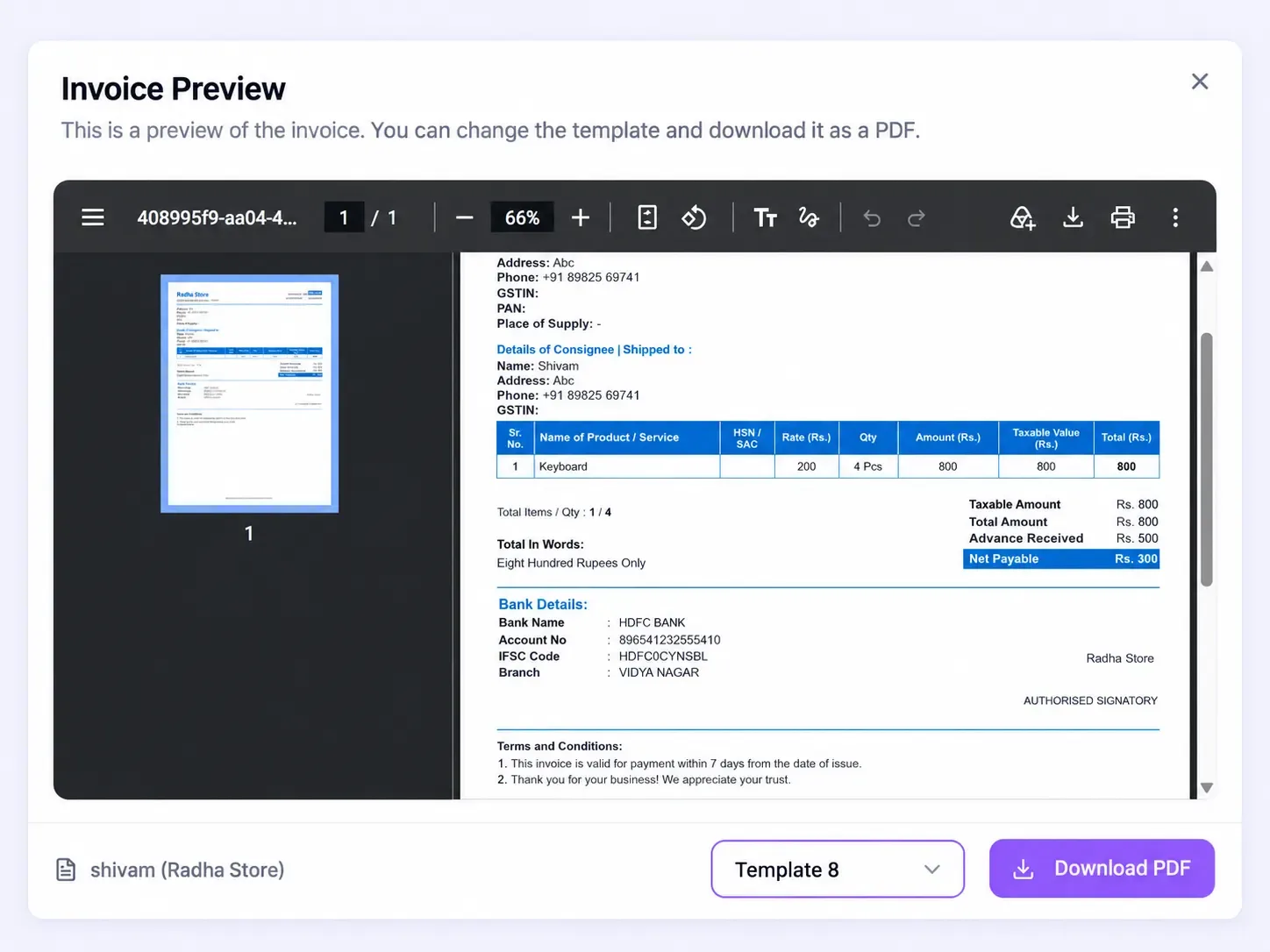
Choose an invoice template (1), then click Download PDF (2) to save the invoice.
Frequently Asked Questions
1. How do I create an invoice in Vinimay?
Go to Transactions, click New Transaction, select the Sales tab, enter the company, customer, payment method, bank, and product details, and click Create Transaction. The invoice will then appear in the Sales list.2. How do I download an invoice in Vinimay?
Go to Transactions → Sales, find the invoice, and click the three-dot menu under the Actions column. You can select Download Invoice to download it directly, or select Preview Invoice and then click Download PDF.
3. Where is the three-dot menu for an invoice?The three-dot menu is located in the Actions column on the far right of each invoice row in the Sales list.
4. Can I change the invoice template in Vinimay?
Yes. Open Preview Invoice and use the template dropdown at the bottom of the preview window to select a different invoice design. Then click Download PDF.
5. Which tab should I use to create an invoice?
Use the Sales tab in the Create Transaction panel. The Purchases, Receipt, Payment, and Journal tabs are used for other types of financial transactions.
6. Can I print an invoice from Vinimay?
Yes. Go to the invoice in the Sales list, click the three-dot menu under Actions, and select Print Invoice.
7. How do I edit an invoice after creating it?
Find the invoice in the Sales list, click the three-dot menu under Actions, and select Edit Transaction.
8.What is the saved draft message in the Create Transaction panel?
If you start filling out a transaction but leave it unfinished, Vinimay may save your progress as a draft. When you return to the Create Transaction panel, you can click Restore Draft to continue where you stopped or Clear to remove the saved draft and start again.
Published by admin
Our editorial and compliance specialists create practical guides, tax calculation rules, and operational strategies to empower Indian small business owners and accountants.