Wondering how to login to Vinimay Accounting Software? The process is simple and takes just a few clicks. Open the official Vinimay website, click the Log in Now button, and sign in using your Google account or registered username and password. This step-by-step Vinimay login guide includes screenshots with red highlights to help you access your dashboard easily.
How do I login to Vinimay with my Google account?
Logging in with Google is the quickest route, because you do not have to type a username, password or CAPTCHA. Follow these five steps.
Step 1: Open the Vinimay website
Open Chrome, Edge, Safari or any browser you use, type vinimay.sharda.co.in in the address bar and press Enter. The Vinimay homepage opens.
Step 2: Click Log in Now
Look at the top-right corner of the homepage. The purple Log in Now button is there, next to the Blogs link. Click it to open the login page.
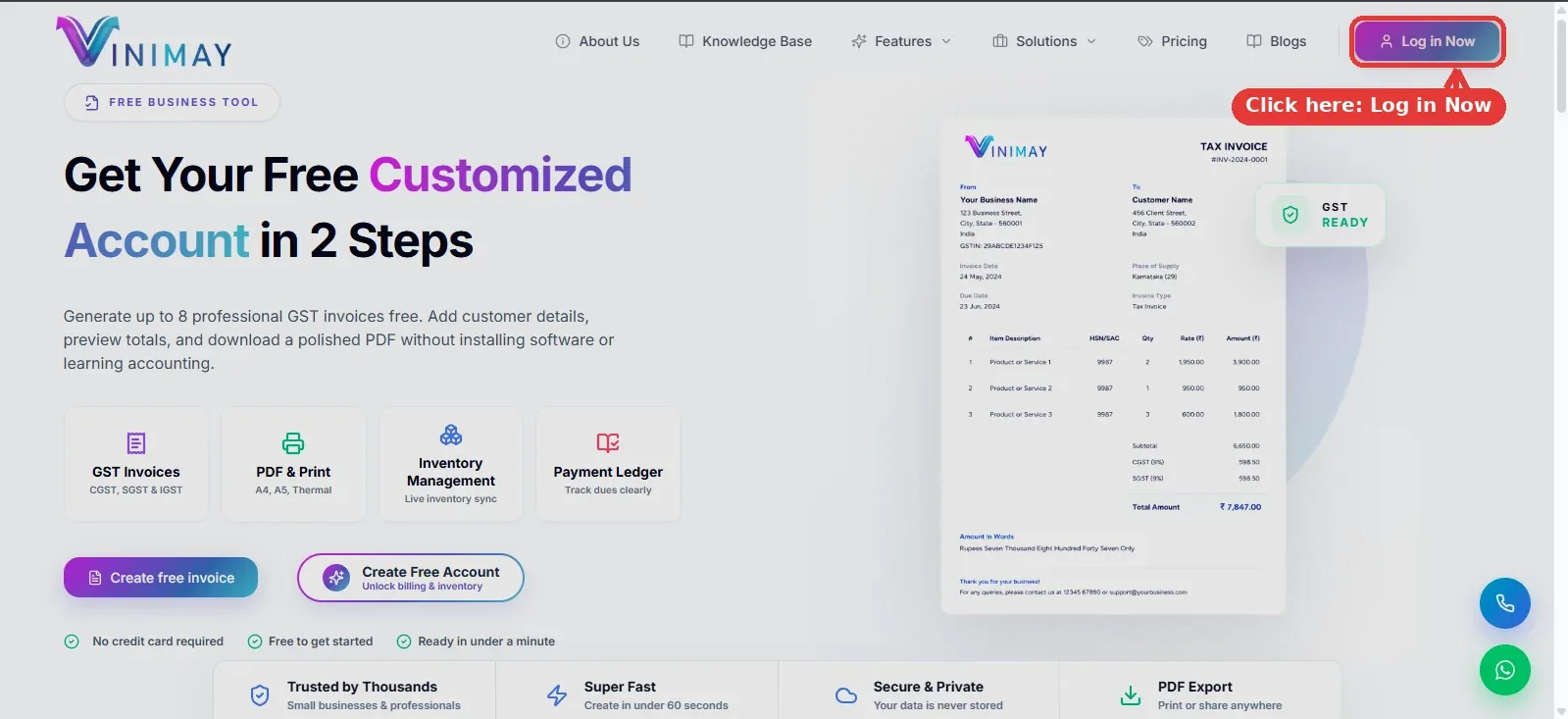
Click "Log in Now" in the top-right corner of the Vinimay homepage.
Step 3: Click Continue with Google
The login page has two tabs at the top, Client Login and User Login. The screenshots in this guide use the Client Login tab. Scroll to the "Or continue with" line and click Continue with Google.
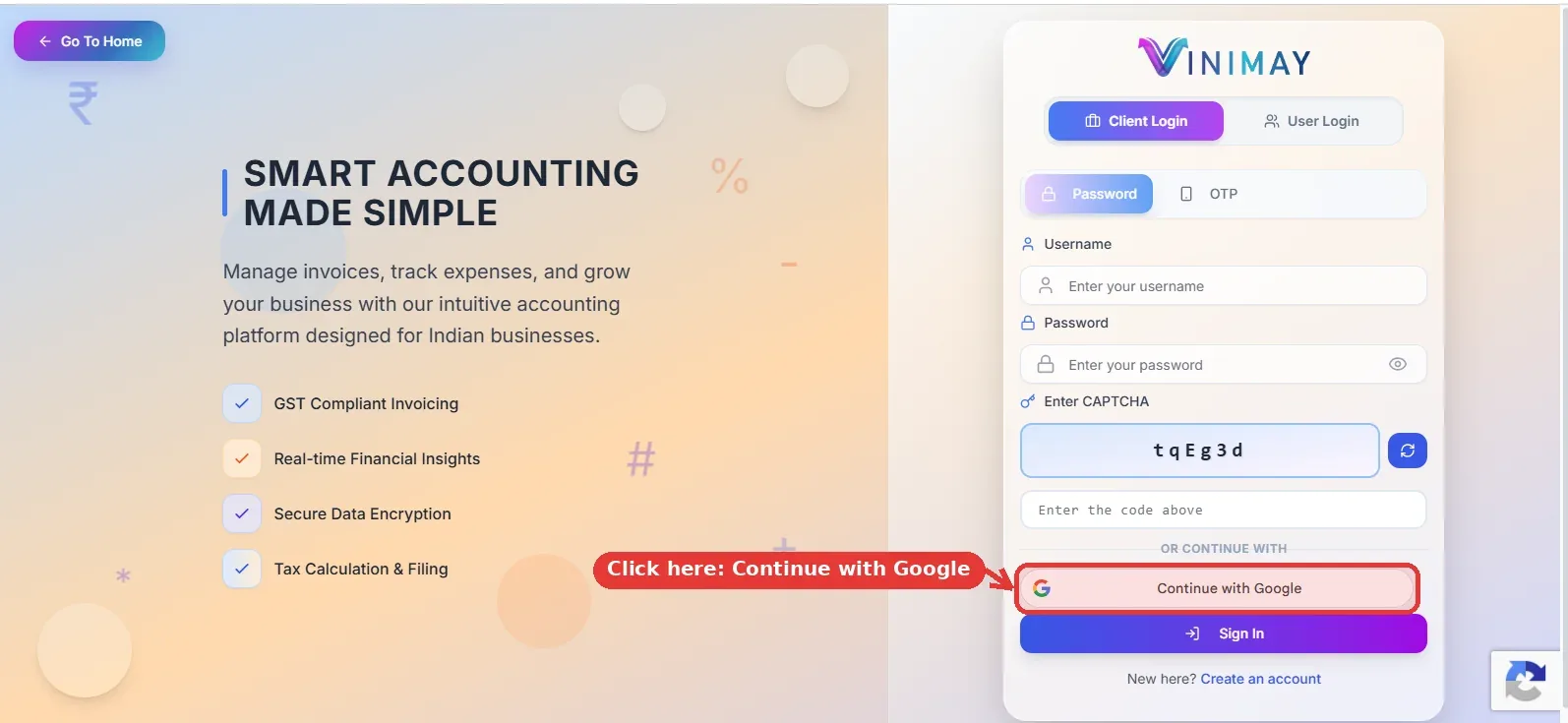
Click "Continue with Google" to login to Vinimay with your Gmail account.
Step 4: Select your Google account
A small pop-up titled Choose an account opens. It lists the Gmail accounts already signed in on your browser. Click the account you want to use. If it is not on the list, click Use another account and sign in with your Gmail ID and password.
![vinimay-login-step-4-choose-google-account[1]](https://res.cloudinary.com/ulqitb7e/image/upload/v1791264680/Blog%20Images/vinimay-login-step-4-choose-google-account_1_umjyj3.webp)
Pick your Gmail account in the Google pop-up. Personal details are blurred in this screenshot.
Step 5: Your Vinimay dashboard opens
The pop-up closes as soon as you pick your account, and your Vinimay dashboard opens with a welcome message and your company name at the top.
How do I login to Vinimay with a username and password?
If you would rather not use Google, keep the Password tab selected on the login page and fill in the four marked fields. The page also shows an OTP tab next to it.
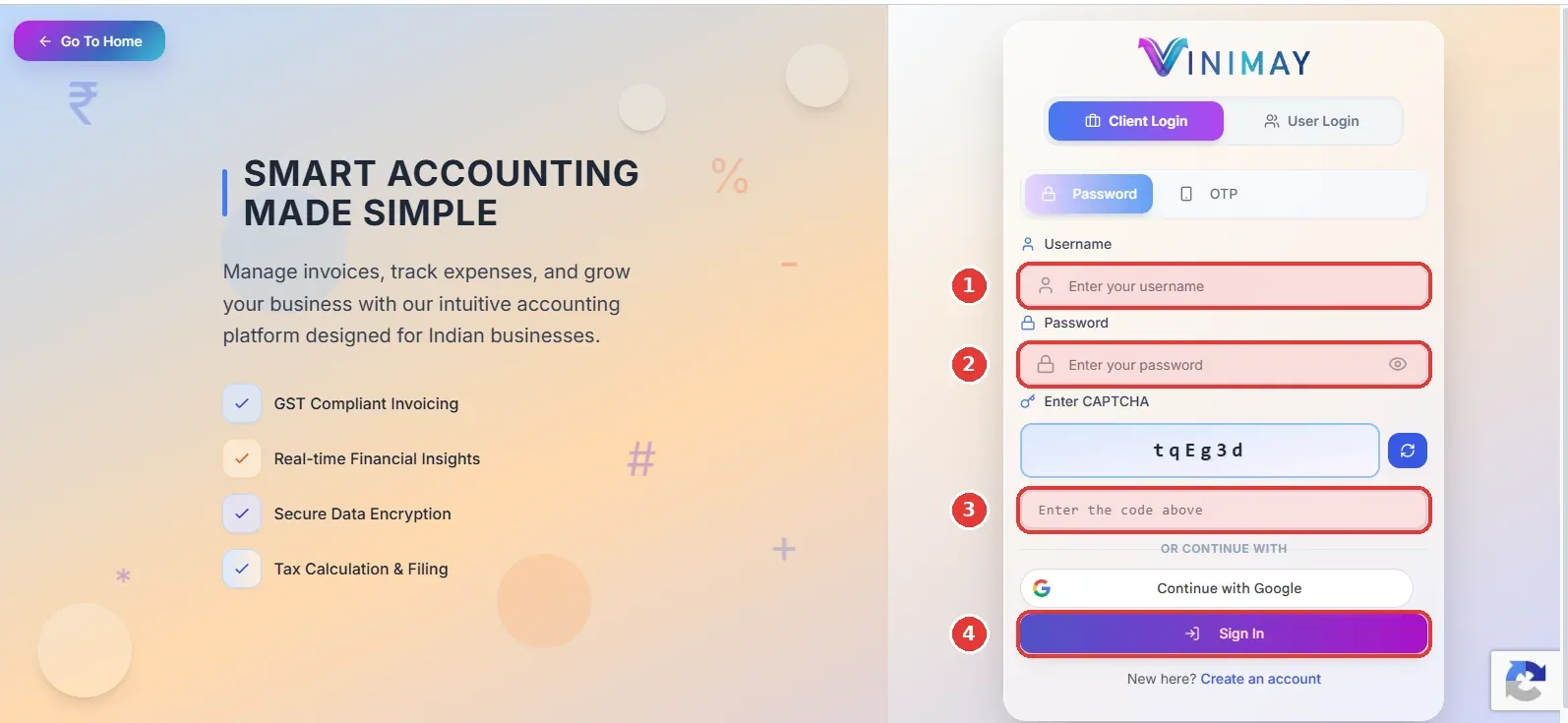
Username, password, CAPTCHA and Sign In: the four things you need to login to Vinimay with a password.
- Type your username.
- Type your password. The eye icon lets you check what you typed.
- Type the CAPTCHA code shown above the box. Use the refresh button next to it if the code is hard to read.
- Click Sign In.
New to Vinimay? Click Create an account at the bottom of the login page, or start from the free account signup.
Which Vinimay login method should I use?
| Login method | What you need | What you type on the Vinimay page |
|---|---|---|
| Continue with Google | A Gmail account that is signed in on your browser, or its ID and password | Nothing. You only choose your account |
| Username and password | Your Vinimay username and password | Username, password and the CAPTCHA code |
What will I see after I login to Vinimay?
Your dashboard gives you a quick view of the business. Here is what each marked area does.
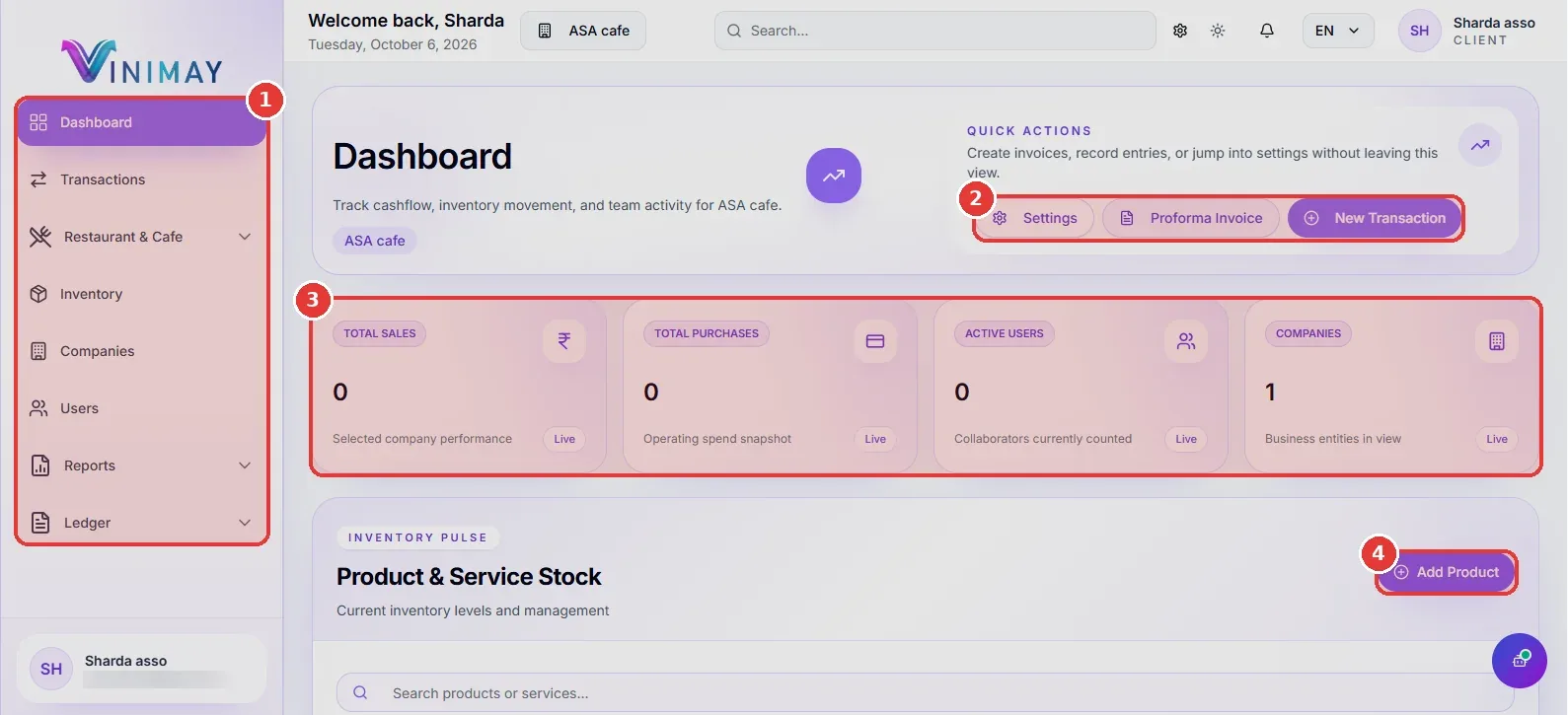 The Vinimay dashboard after a successful login.
- Left menu: Dashboard, Transactions, Inventory, Companies, Users, Reports and Ledger.
- Quick Actions: shortcuts to Settings, Proforma Invoice and New Transaction.
- Summary cards: Total Sales, Total Purchases, Active Users and Companies at a glance.
- Add Product: adds a product or service to your inventory.
From here you can explore Vinimay features such as GST billing, inventory and customer management, or check the Knowledge Base for more how-to guides.
Frequently asked questions about Vinimay login
1. How do I login to Vinimay?
Open vinimay.sharda.co.in, click Log in Now in the top-right corner, then either click Continue with Google or enter your username, password and CAPTCHA code and click Sign In. You will land on your Vinimay dashboard.
2. Can I login to Vinimay with my Gmail account?
Yes. Click Continue with Google on the Vinimay login page, then choose your Gmail account in the Google pop-up. Your dashboard opens as soon as you select the account.
3. Do I need a username and password if I login with Google?
No. With Continue with Google you only choose your Google account. You do not type a username, password or CAPTCHA on the Vinimay page.
4. The Google pop-up does not open. What should I do?
Your browser is most likely blocking pop-ups. Allow pop-ups for the Vinimay website from the address bar, then click Continue with Google again.
5. How do I login with a different Gmail account?
In the Choose an account pop-up, click Use another account and sign in with the Gmail ID you want to use.
6. I cannot read the CAPTCHA code. What now?
Click the refresh button next to the CAPTCHA code. It generates a new code that you can type into the box below it.
7. How do I create a Vinimay account if I am new?
Click Create an account at the bottom of the login page, or use the Create Free Account button on the homepage.
Ready to get started? Open Vinimay, click Log in Now and manage your GST billing, inventory and accounts from a single dashboard. You can also see the pricing page before you sign up.
Related Topics
Published by admin
Our editorial and compliance specialists create practical guides, tax calculation rules, and operational strategies to empower Indian small business owners and accountants.