To download a sales invoice as a PDF in Vinimay, open Transactions, find the required invoice, click the three dots in the Actions column, and select Download Invoice. You can also download the PDF directly from the Invoice Preview after creating a new invoice.
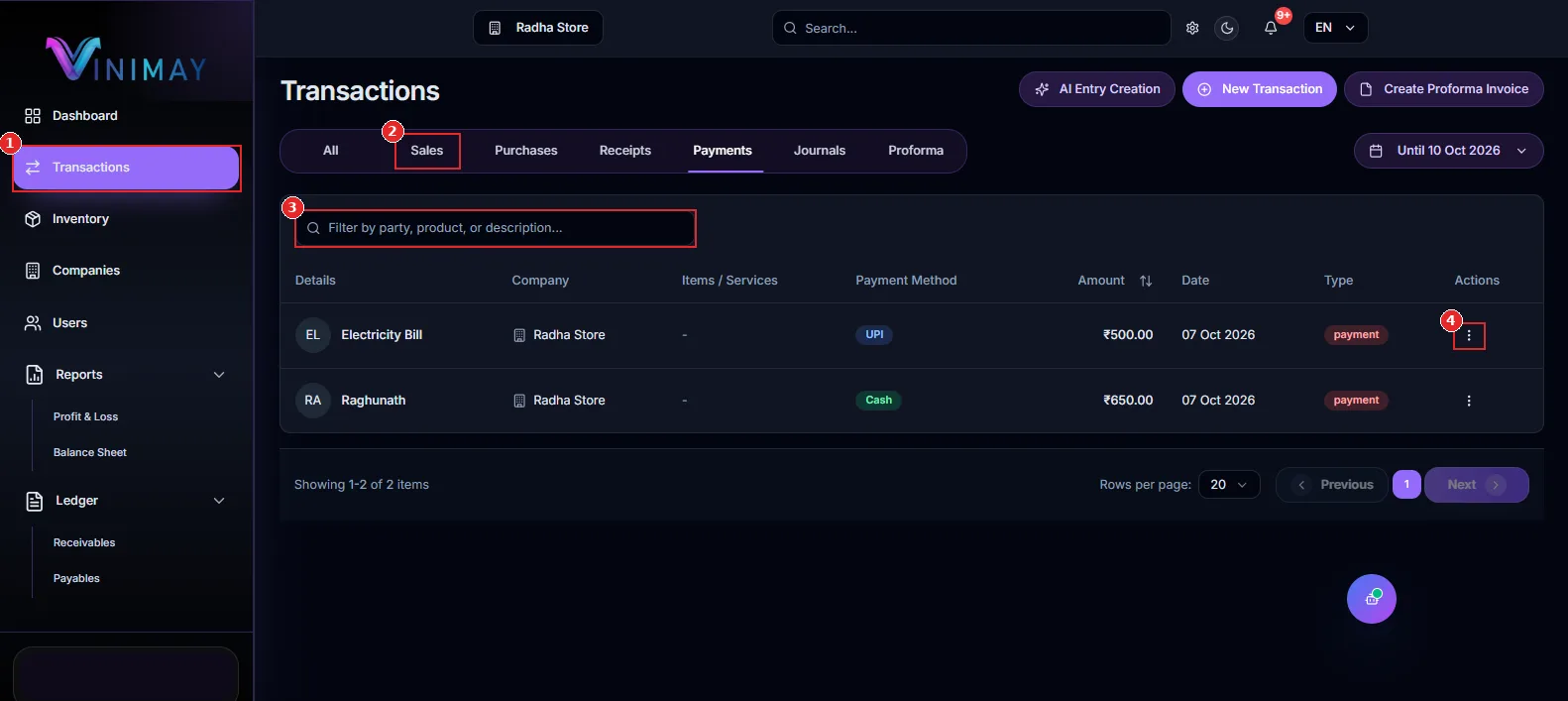
Both methods take only a few seconds and work for new and previously created invoices. The red numbered marks in the screenshots show exactly where to click.
Method 1: Download a Sales Invoice from the Transactions List
Use this method when you need to download an existing invoice, such as a previous bill that a customer requests again.
Step 1: Open Transactions
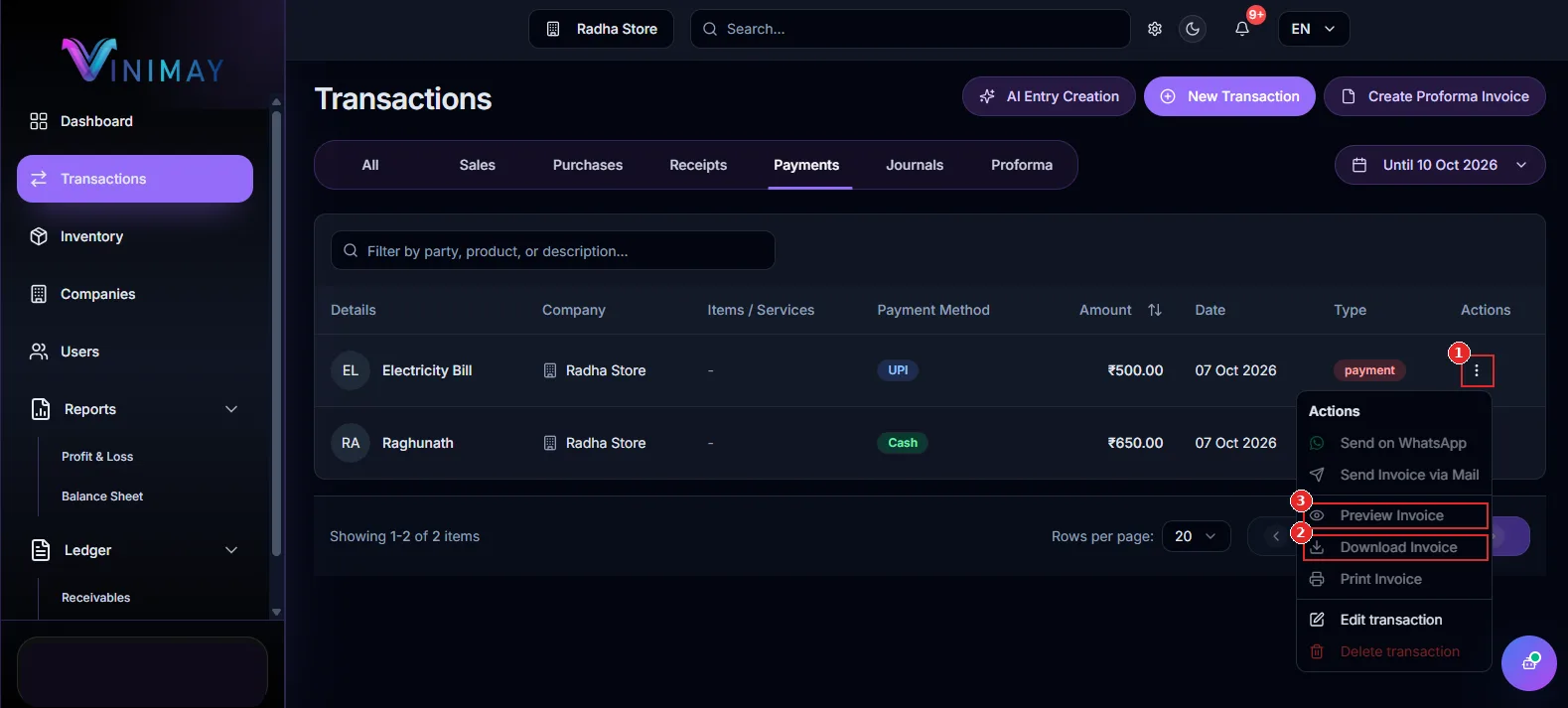
Log in to your Vinimay account and click Transactions in the left sidebar (mark 1). The page displays your business transactions, including sales, purchases, receipts, and payments.
Step 2: Open the Sales Tab and Find the Invoice
Click the Sales tab (mark 2) to view your sales invoices. Use the filter or search box (mark 3) to find the required invoice by entering the customer name, product, or description.
Step 3: Click the Three Dots in the Actions Column
Locate the invoice you want to download. In the same row, go to the Actions column on the far right and click the three-dot menu.
Step 4: Select Download Invoice
The Actions menu will open with options for managing the invoice. Click Download Invoice (mark 2) to download the PDF.
You may also see these options:
Preview Invoice (mark 3): Check the invoice details on screen before downloading.
Print Invoice: Print a physical copy if required.
Once the download is complete, open the PDF to verify the invoice details before sharing it with your customer.
Method 2: Download the Invoice Immediately After Creating It
You can also download a sales invoice immediately after creating it in Vinimay.
Create and save the sales invoice with the required customer and product details.
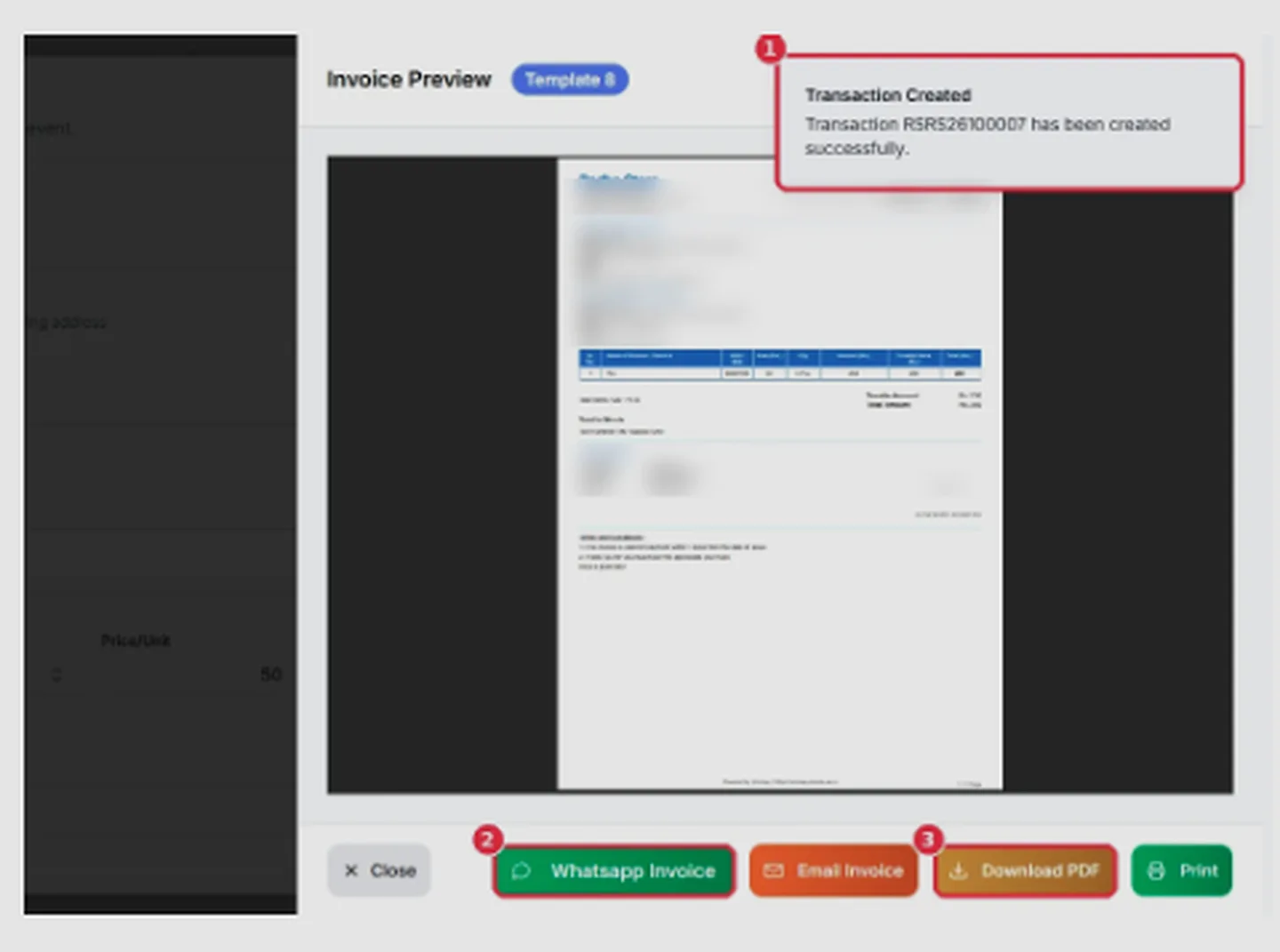
Open the Invoice Preview that appears after creation.
Review the invoice details, including customer information, items, quantities, prices, taxes, and total amount.
Click Download PDF in the preview.
Open the downloaded file and confirm that the information is correct.
This method is convenient when you want to save or share the invoice immediately after creating it.
Tips for Downloading Sales Invoices
Check the customer name and invoice number before downloading.
Verify item details, quantities, taxes, and the total amount.
Use the Sales tab filters to find older invoices faster.
Keep invoice PDFs organised by customer, invoice number, or month.
Before sharing an invoice, confirm that the downloaded PDF contains the correct information.
Frequently Asked Questions
1. Can I download an old sales invoice in Vinimay?
Yes. Open Transactions, select the Sales tab, find the invoice, click the three-dot menu, and choose Download Invoice.
2. Can I download an invoice immediately after creating it?
Yes. Open the Invoice Preview after creating the invoice and click Download PDF.
3. Can I preview an invoice before downloading it?
Yes. Select Preview Invoice from the Actions menu to review the invoice on screen before downloading or printing it.
4. What should I do if I cannot find an invoice?
Open the Sales tab and use the available filters to search by customer name, product, or description. Check that you are looking at the correct company and transaction list.
Conclusion
Downloading a sales invoice as a PDF in Vinimay is simple. You can download an existing invoice from Transactions > Sales > Actions > Download Invoice or save a newly created invoice using Download PDF in the Invoice Preview. Review the details before sharing the PDF with your customer.
Related Topics
Published by admin
Our editorial and compliance specialists create practical guides, tax calculation rules, and operational strategies to empower Indian small business owners and accountants.