Learning how to filter ledger by date range in Vinimay helps you review customer transactions for a specific month, quarter, or financial period. You can quickly check sales, receipts, and pending payments without scrolling through old records.
Why Filter the Ledger by Date?
Filtering the customer ledger by date range helps you:
Check customer dues for a specific month or financial quarter.
Identify old transactions and overdue balances.
Prepare ledger reports for your accountant.
Review sales and receipts across different periods.
- Track pending payments from customers more efficiently.
Step 1: Open the Customer Ledger
Log in to your Vinimay Client account.
Open the left sidebar menu.
Click Ledger, then select Receivables.
The Customer Ledger page will open, displaying the Filters panel at the top.
Step 2: Set the From Date and To Date
Find the Filters panel at the top of the Customer Ledger page.
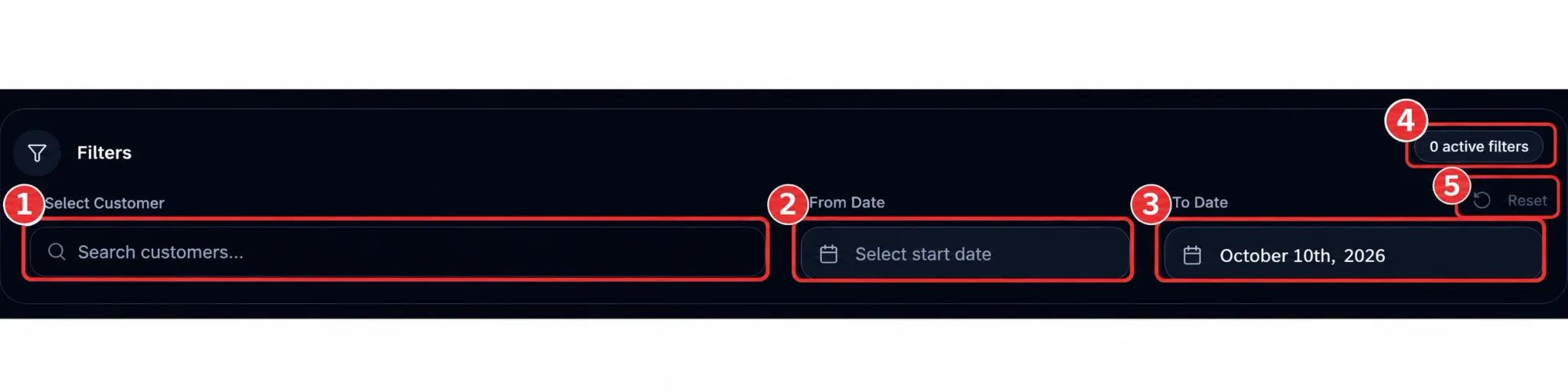
Click the From Date field (Marker 2), which displays “Select start date.”
Choose the first day of the period you want to review.
Click the To Date field (Marker 3) and select the final day of your required period. This field displays today's date by default.
The date filters help you define the period you want to review:
Select Customer: Optionally filter the ledger for one customer.
From Date: The beginning of the selected period.
To Date: The end of the selected period.
Active Filters Badge: Shows how many filters are applied.
- Reset: Clears the applied filters.
Step 3: Filter by a Specific Customer (Optional)
If you want to review transactions for one customer, use the Select Customer field (Marker 1).
Click the customer selection field.
Search for and select the customer's name.
Keep your From Date and To Date selected.
Review the updated ledger for the chosen customer and period.
Combining the customer filter with the date range helps you find relevant transactions without reviewing the entire customer list. The Active Filters Badge (Marker 4) updates to show the applied filters.Step 4: Review the Filtered Results
After selecting the dates and any optional customer filter, review the updated summary cards and customer table.
Pay attention to the following details:
Total Sales: Review the sales figure displayed for the selected filters.
Total Discount: Check the discount amount shown in the summary.
Total Receipts: Review the recorded customer receipts.
Net Receivable: Check the receivables figure displayed for the filtered view.
Balance Column: Review each customer's pending amount, shown as “Owes” where applicable.
The figures shown depend on the filters applied and how Vinimay calculates each summary. A period's sales and receipts do not necessarily equal the customer's total outstanding balance.
Export the Filtered Ledger
To save or share the results:
Confirm that the correct date range and customer filters are applied.
Click the Export CSV button.
Save the downloaded file and share it with your accountant or use it for your records.
Exporting the filtered data makes it easier to review transactions outside the software.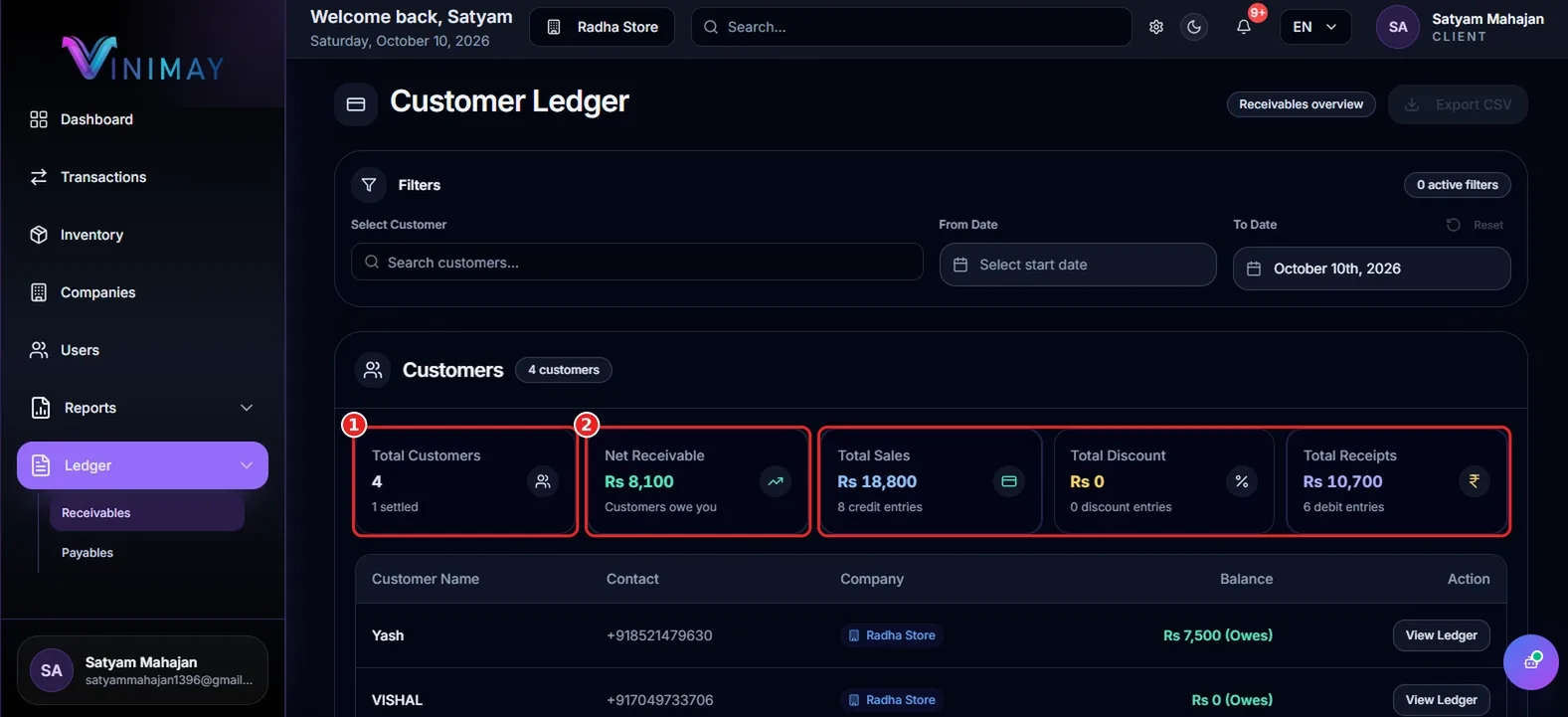
How to Clear the Filters
After completing your review, you can return to the full ledger.
Locate the Reset button in the Filters panel (Marker 5 in Screenshot 1).
Click Reset to clear the applied filters.
Check that the ledger has returned to the unfiltered view.
Always reset the filters when you need to review the complete customer ledger. Otherwise, you may accidentally rely on figures from only a selected period.
Quick Recap
Open Ledger → Receivables.
Select the From Date and To Date.
Choose a customer if required.
Review the summary cards and customer balances.
Click Export CSV to download the filtered data.
Click Reset to clear the filters.
Tips for Better Ledger Reviews
Review monthly: Check receivables regularly to identify unpaid amounts early.
Compare periods: Review different months or quarters to understand changes in sales and receipts.
Track pending payments: Follow up with customers who have outstanding balances.
Export reports: Save the filtered ledger when you need to share transaction details with your accountant.
Reset filters: Clear old filters before starting a new review to avoid interpreting partial results as the full ledger.
Frequently Asked Questions
1. How do I filter the ledger by date range in Vinimay?
Open Ledger → Receivables, select the From Date and To Date in the Filters panel, and review the updated ledger for that period.
2. What does the To Date field show by default?
The To Date field displays today's date by default. You can change it to an earlier date to review a past period.
3. Can I combine a customer filter with a date range?
Yes. Select a customer and set the required dates to narrow the ledger to that customer's records for the selected period.
4. How do I remove the date filters?
Click the Reset button in the Filters panel to clear the applied filters and return to the unfiltered ledger view.
5. Can I download the filtered ledger data?
Yes. Click Export CSV on the Customer Ledger page to download the data displayed for the selected filters.
6. Why should I filter the customer ledger by date?
Filtering helps you review transactions for a particular period, compare sales and receipts, track receivables, and prepare accounting records.
Conclusion
Knowing how to filter the ledger by date range in Vinimay makes customer account reviews faster and more convenient. Open Ledger → Receivables, select your dates, apply a customer filter if needed, and review the available summary figures and balances.
You can also export the filtered data for record-keeping or share it with your accountant. By reviewing your customer ledger regularly, you can monitor receivables, identify pending payments, and maintain better control over your business accounts.
Related Topics
Published by admin
Our editorial and compliance specialists create practical guides, tax calculation rules, and operational strategies to empower Indian small business owners and accountants.