Learning how to export customer ledger to CSV in Vinimay helps you manage customer transactions, review pending payments, and share receivables data with your accountant. You can download ledger information and open it in Microsoft Excel or Google Sheets for reporting and record-keeping.
What Is a CSV File?
A CSV (Comma-Separated Values) file is a simple file format that stores tabular data in rows and columns. You can open it using Microsoft Excel, Google Sheets, or other spreadsheet applications to organize, filter, print, and share information.
Why Export Your Customer Ledger?
Exporting your customer ledger can help you:
Share customer receivables data with your accountant.
Follow up on pending payments using a spreadsheet.
Maintain monthly records and backups of ledger data.
Prepare financial information for GST and tax-related work.
- Organize customer balances for internal reporting.
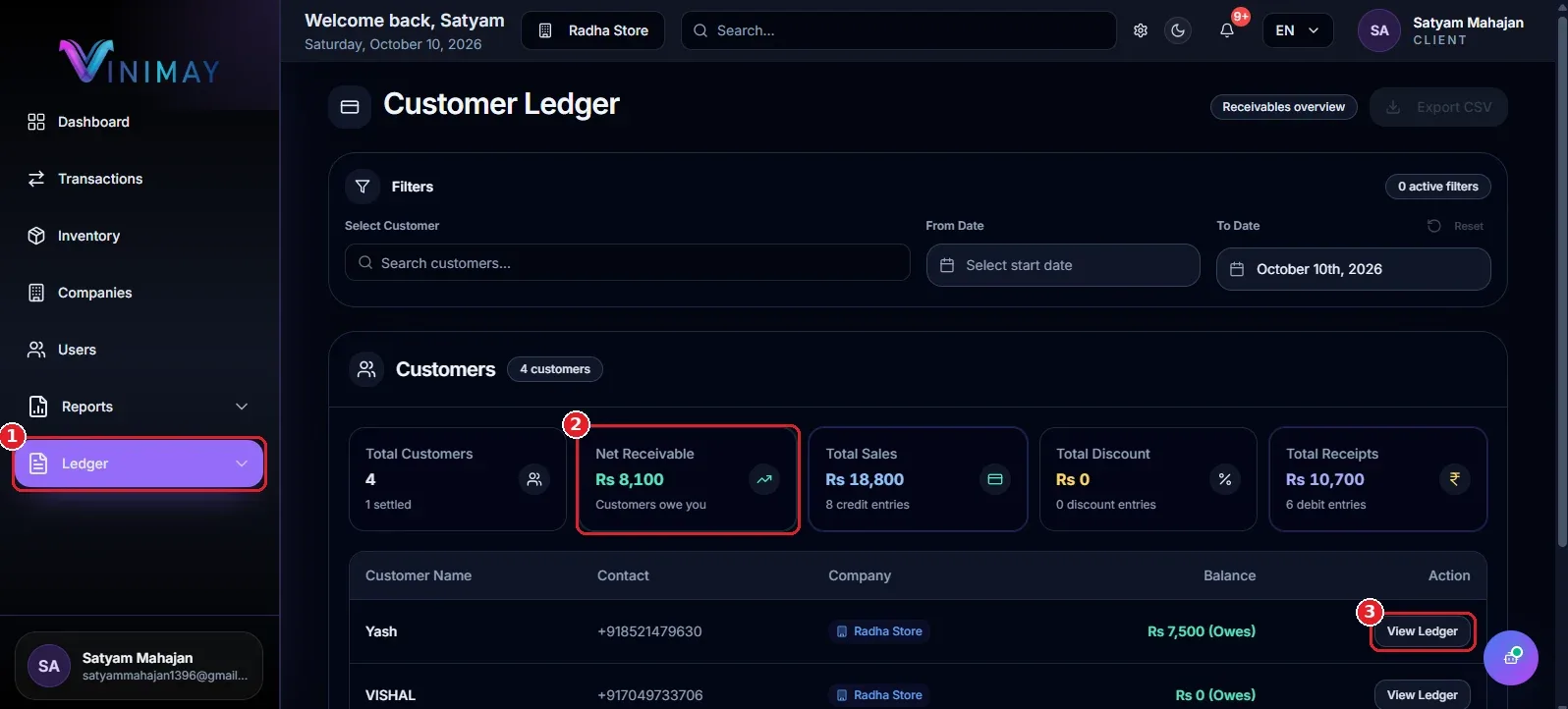
Step 1: Open Ledger → Receivables
Log in to your Vinimay Client account.
Find the left sidebar menu.
Click Ledger (Marker 1).
Select Receivables (Marker 2).
The Customer Ledger page will open, displaying customer records and the available summary information.
Step 2: Apply Filters (Optional)
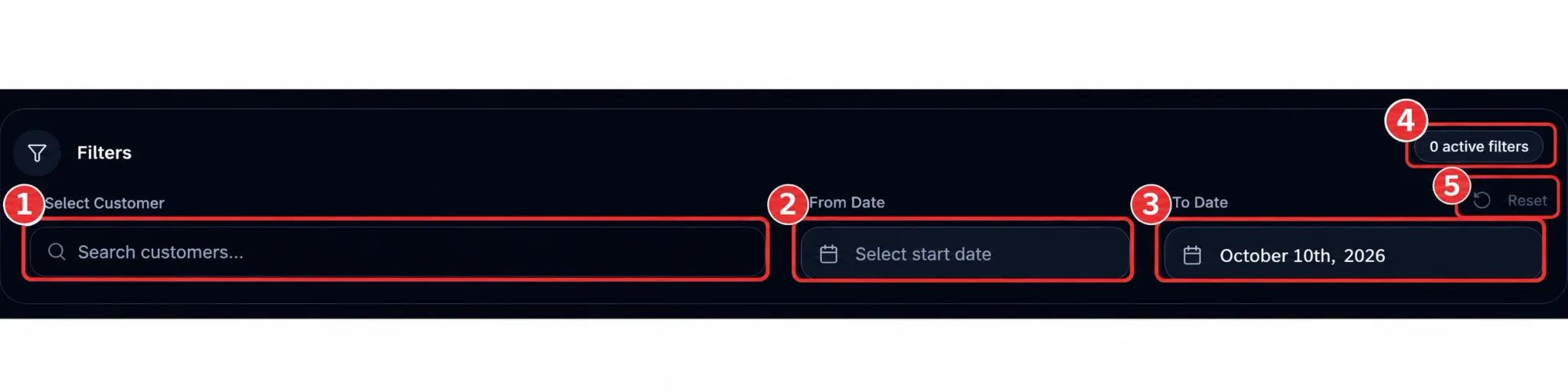
Before exporting, you can filter the customer ledger to download only the data you need.
Use Select Customer to choose a specific customer, if required.
Set the From Date to select the beginning of the period.
Set the To Date to select the end of the period.
Review the active filters to confirm your selections.
You can click Reset to clear the applied filters and return to the unfiltered view.
Tip: If you only need one customer's records or a particular month's data, apply the relevant filters before exporting.
For more details, read our guide: How to Filter the Ledger by Date Range in Vinimay.
Step 3: Check the Data on the Page
Before downloading the file, review the information displayed on the Customer Ledger page.
Summary Cards (Marker 1): Check the available sales, discount, receipt, and receivables figures.
Customer Table (Marker 2): Review customer names, contact details, company information, and balances.
Confirm that the selected customers, date range, and displayed information match your reporting requirements. This helps reduce errors when sharing the exported ledger with your accountant or team.
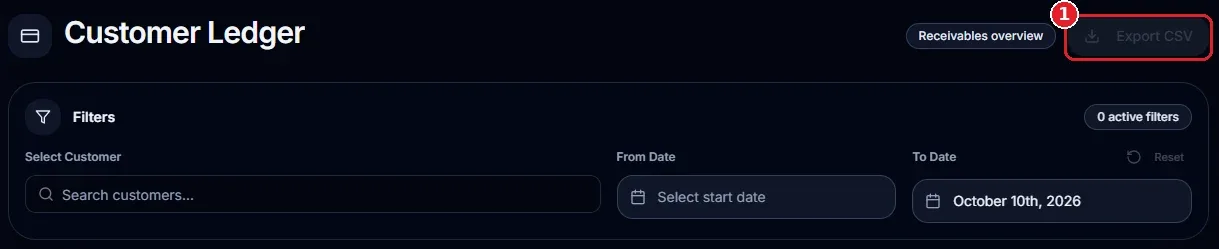
Step 4: Click Export CSV
Once you have checked the data, follow these steps:
Locate the Export CSV button at the top-right corner of the Customer Ledger page (Marker 1).
Click the button.
Allow your browser to download the file.
Your customer ledger data will be downloaded as a CSV file, ready to open in a spreadsheet application.
Step 5: Open the File in Excel or Google Sheets
After downloading the CSV file, you can open it to review or organize your ledger information.
To open the file in Microsoft Excel:
Open your computer's Downloads folder.
Locate the downloaded CSV file.
Double-click the file to open it in Excel, if Excel is set as the default application for CSV files.
Sort, filter, review, or print the data as needed.
To open the file in Google Sheets:
Open Google Sheets.
Create a new spreadsheet or open an existing one.
Use the file import option to upload the downloaded CSV file.
Review the imported data and organize it as required.
Tip: Export your ledger once a month and save each file in a clearly named folder. This makes it easier to find historical receivables reports when needed.
Quick Recap
Here is a quick summary of how to export the customer ledger to CSV in Vinimay:
Open Ledger → Receivables.
Apply customer or date filters if needed.
Check the summary cards and customer table.
Click Export CSV.
Open the downloaded file in Excel or Google Sheets.
Tips for Using Your Exported Ledger
Export updated data: Record recent customer payments before downloading the ledger, where applicable.
Use clear file names: Name files by date, such as
ledger-oct-2026.csv.Protect customer information: Share only the information required by your accountant or team.
Keep monthly records: Store copies in organized folders for easier reference.
Verify the data: Check the exported file before using it for reporting or payment follow-ups.
Frequently Asked Questions
1. How do I export the customer ledger in Vinimay?
Log in to Vinimay, open Ledger → Receivables, review the customer data, and click the Export CSV button at the top-right corner of the page.
2. What is a CSV file?
A CSV file is a text-based format that stores tabular data. You can open it in Microsoft Excel, Google Sheets, and other compatible spreadsheet applications.
3. Can I export only one customer's records or a specific period?
You can apply the Select Customer and date filters before exporting. Review the filtered data on the page before clicking Export CSV.
4. Where is the downloaded CSV file saved?
The file is usually saved in your browser's Downloads folder. The exact location depends on your browser's download settings.
5. Can I open a CSV file on my phone?
Yes. You can open CSV files using compatible mobile applications, including Microsoft Excel and Google Sheets.
6. Why should I export my customer ledger?
Exporting the ledger helps you maintain records, review receivables, follow up on pending payments, and share financial information with your accountant.
Conclusion
Learning how to export customer ledger to CSV in Vinimay helps you manage receivables more conveniently. Open Ledger → Receivables, apply any necessary filters, review the displayed information, and click Export CSV to download the file.
Related Topics
Published by admin
Our editorial and compliance specialists create practical guides, tax calculation rules, and operational strategies to empower Indian small business owners and accountants.