Learn how to share invoice on WhatsApp in Vinimay by following a few simple steps. Create a sales transaction, check the customer's details, open WhatsApp, and attach the downloaded invoice PDF before sending it.
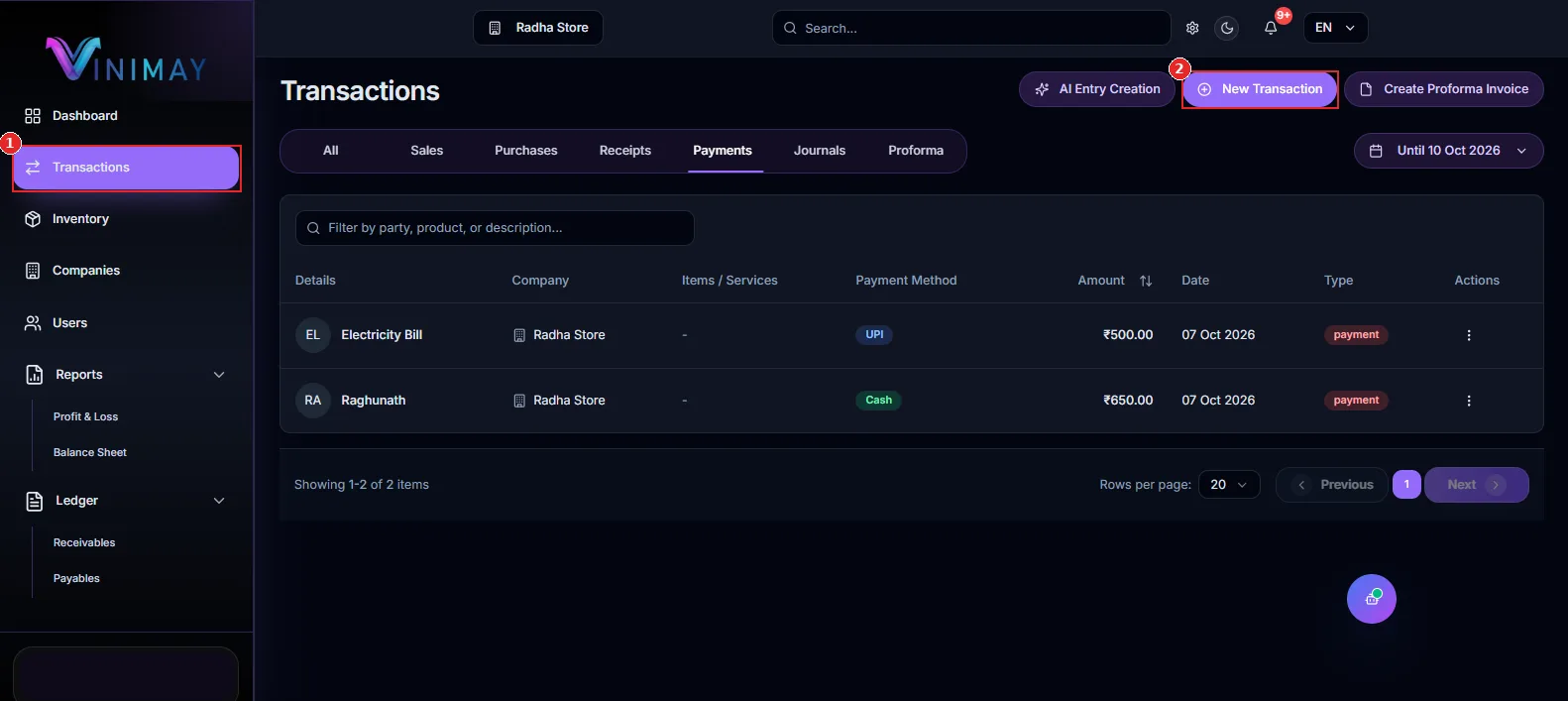
Step 1: Open Transactions and Click New Transaction
Click Transactions in the left sidebar, then click New Transaction at the top right.
Step 2: Fill in the Customer and Payment Details
In the Create Transaction window, stay on the Sales tab. Select the customer and choose the payment method. The company, date, and bank details are filled in automatically, but you can change them if needed.
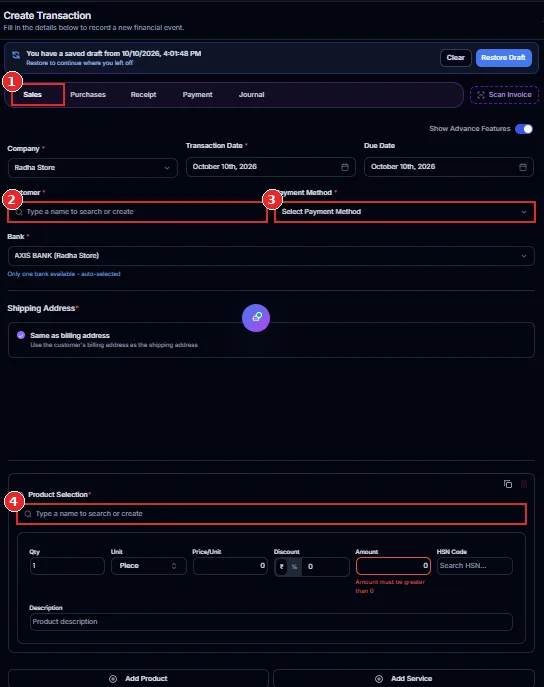
Step 3: Add the Product and Create the Transaction
Search for and select the item in Product Selection. Vinimay fills in the unit, price, amount, and HSNcode automatically. Enter the quantity, check the details, and click Create Transaction.
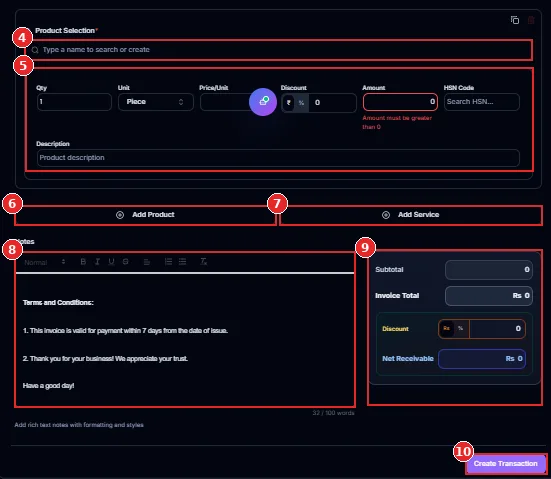
Step 4: Check the Invoice Preview and Click WhatsApp Invoice
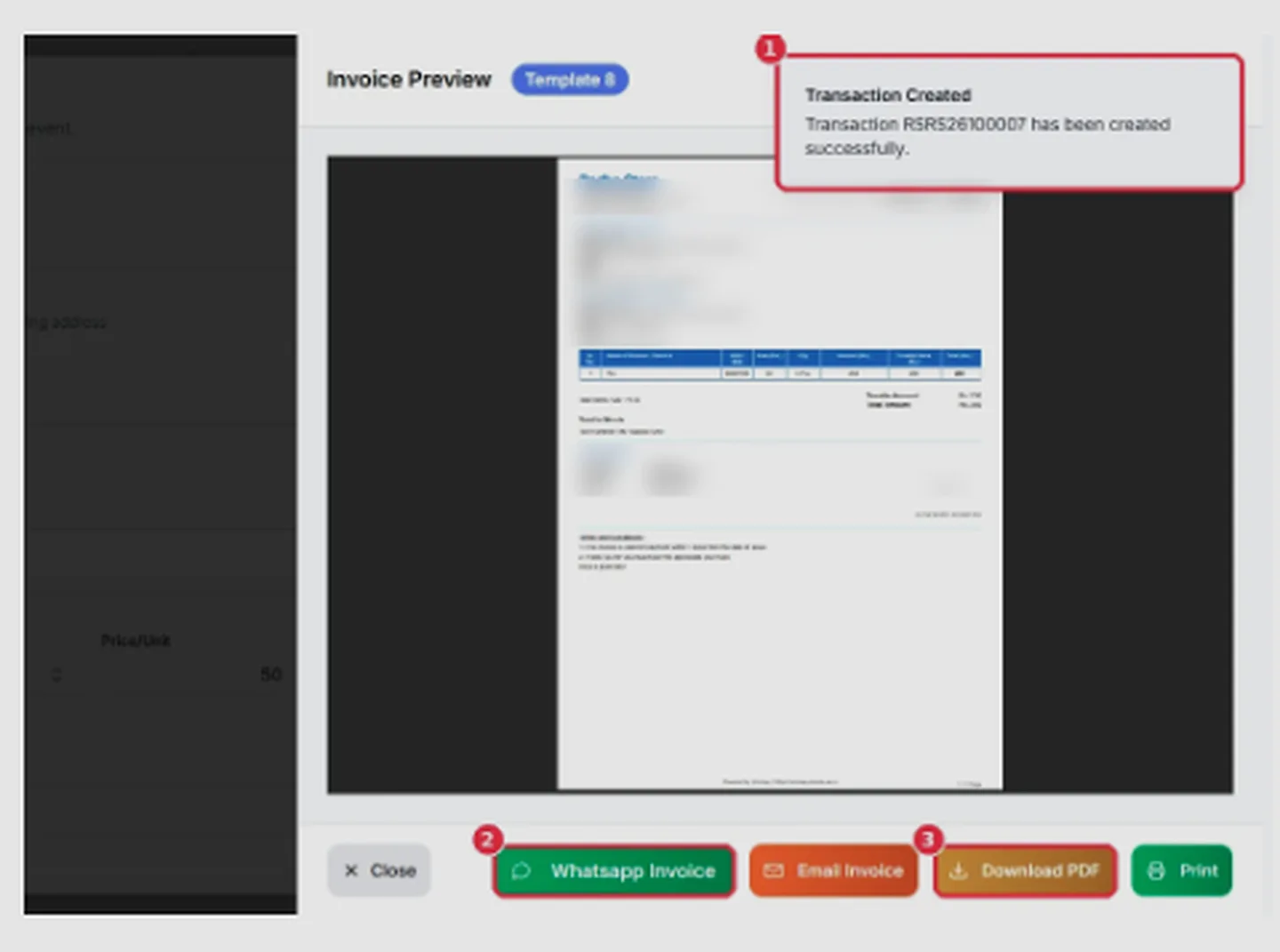
After the transaction is created, a success message appears and the Invoice Preview opens. At the bottom, you will see four options: WhatsApp Invoice, Email Invoice, Download PDF, and Print.
Click WhatsApp Invoice to start sharing the invoice. Also click Download PDF because you will need the file for the next steps.
Step 5: Check the Number and Message
The Send Invoice via WhatsApp window opens. It displays a summary of the invoice, including the customer name, mobile number, invoice number, date, and amount.
Check the Customer WhatsApp Number field to confirm that the country code and mobile number are correct.
Review the Message to Send field. It contains a ready-made message with your store name, invoice number, date, customer details, and items. You can edit the message to add a thank-you note or other information.
The window also reminds you that you must attach the invoice PDF manually, so keep the downloaded file ready.
Step 6: Click Open WhatsApp
Click the green Open WhatsApp button. WhatsApp opens the customer's chat with the message ready to send.
Step 7: Attach the PDF and Send
Since the PDF is not attached automatically, use WhatsApp's attachment option to select the invoice PDF you downloaded in Step 4. Check the message and attachment, then press Send.
Your customer will receive the WhatsApp message and invoice PDF.
Another Way: Share an Invoice on WhatsApp Later
You do not have to share an invoice immediately after creating it. You can send it later from the Transactions list.
Open Transactions and find the required invoice. Click the three-dot menu under Actions and select Send on WhatsApp. The same menu also includes options to Download Invoice, Preview Invoice, Print Invoice, and send the invoice by email.
Tips for Sending Invoices on WhatsApp
Download the PDF first: Keep the invoice file ready so you do not have to return to the preview.
Check the country code: Confirm the customer's number before opening WhatsApp.
Review the message: Add a thank-you note or payment reminder if required.
Save customer numbers: Keep customer contact details updated to make future invoice sharing easier.
Use email as a backup: Choose Email Invoice if the customer cannot receive the invoice through WhatsApp.
Common Problems and Quick Fixes
The WhatsApp number looks incorrect: Correct the number in the Customer WhatsApp Number field before clicking Open WhatsApp.
The PDF did not appear in the message: This is expected because Vinimay requires you to attach the PDF manually. Download the invoice and attach it in WhatsApp.
You need to share an old invoice: Open Transactions and use the Actions menu on the relevant invoice row.
The invoice contains incorrect details: Use Edit Transaction from the Actions menu, correct the details, and share the updated invoice.
Conclusion
You can share an invoice on WhatsApp in a few simple steps using Vinimay. Create a sales transaction, open the Invoice Preview, click WhatsApp Invoice, verify the customer's number and message, and open WhatsApp. The only manual step is attaching the invoice PDF, so download it before you start.
Sharing invoices through WhatsApp helps customers receive their bills quickly and makes payment follow-ups easier. Keep customer contact details updated, review each invoice before sending, and save the PDF whenever you need a copy for your records.
Frequently Asked Questions
How do I share an invoice on WhatsApp from Vinimay?
Create a sales transaction, click WhatsApp Invoice in the Invoice Preview, check the number and message, click Open WhatsApp, attach the invoice PDF, and send it.
Does Vinimay attach the PDF automatically?
No. You must download the PDF from the Invoice Preview and attach it manually in WhatsApp.
Can I edit the WhatsApp message before sending?
Yes. You can edit the Message to Send field before clicking Open WhatsApp.
Can I share an old invoice on WhatsApp?
Yes. Open Transactions, click the three-dot menu in the Actions column for the required invoice, and select Send on WhatsApp.
What else can I do with the invoice besides WhatsApp?
The Invoice Preview provides options to email the invoice, download it as a PDF, or print it.
Which number does Vinimay use for WhatsApp?
Vinimay displays the customer's mobile number in the Customer WhatsApp Number field, including the country code. Check and correct it before sending the message.
Related Topics
Published by admin
Our editorial and compliance specialists create practical guides, tax calculation rules, and operational strategies to empower Indian small business owners and accountants.